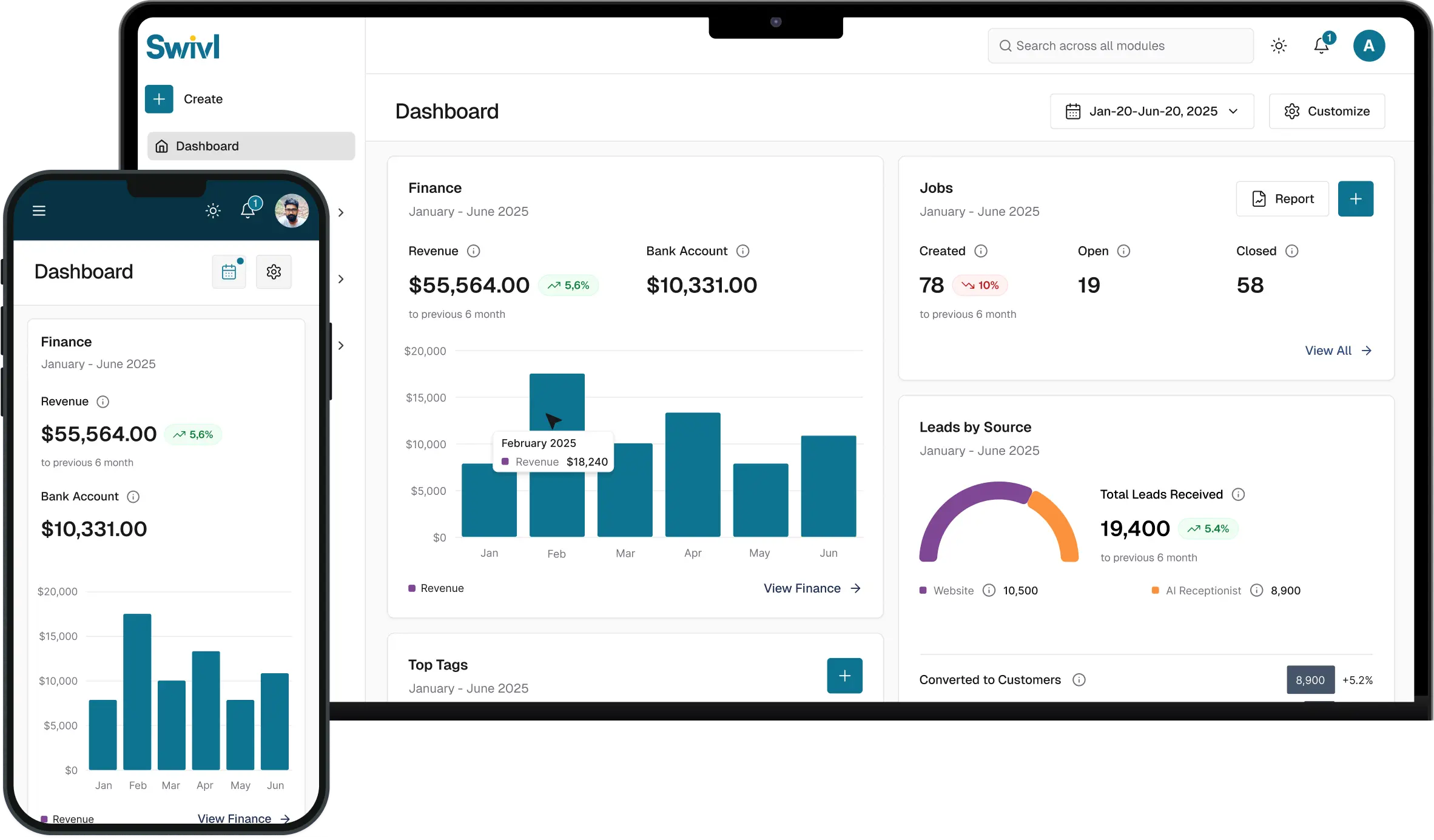
Loading...
Loading...
Create and send professional customer estimates in minutes — whether you're in the office or out on the job.
In this step-by-step guide, we’ll walk you through how to quickly build, customize, and send estimates using Swivl’s Web and Mobile apps. From adding customers and selecting services from your pricebook to requesting deposits and getting approvals on-site, everything is designed to help you move faster and win more jobs.
Whether you're a field service business or managing jobs on the go, Swivl makes estimating simple, fast, and professional.
What You’ll Learn: How to create an estimate on mobile Adding customers and job details Using your pricebook for services/products Requesting deposits and adding terms Attaching photos and documents on-site Sending estimates and getting customer approval

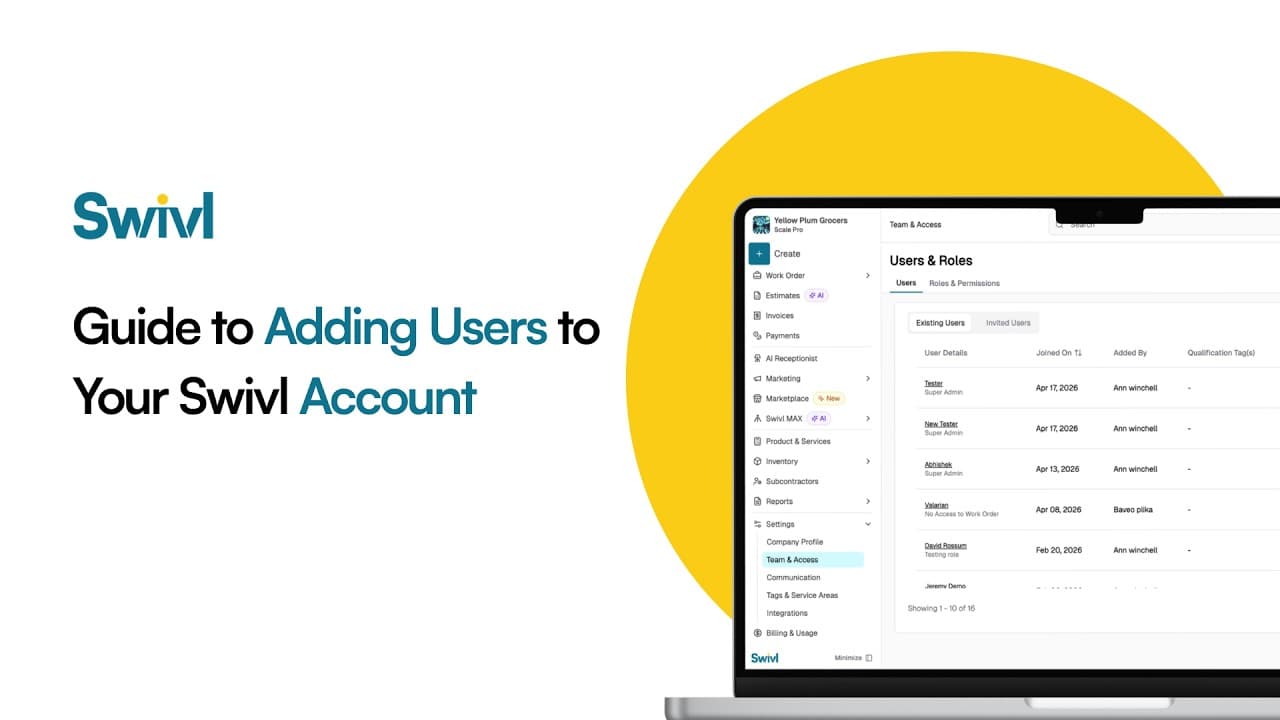
Learn how to add users, technicians, dispatchers, and office staff to your Swivl account in this complete user management tutorial. In this video, Tyson walks you through how to invite new users, configure roles and permissions, set compensation details, and optimize labor burden settings for accurate job costing.
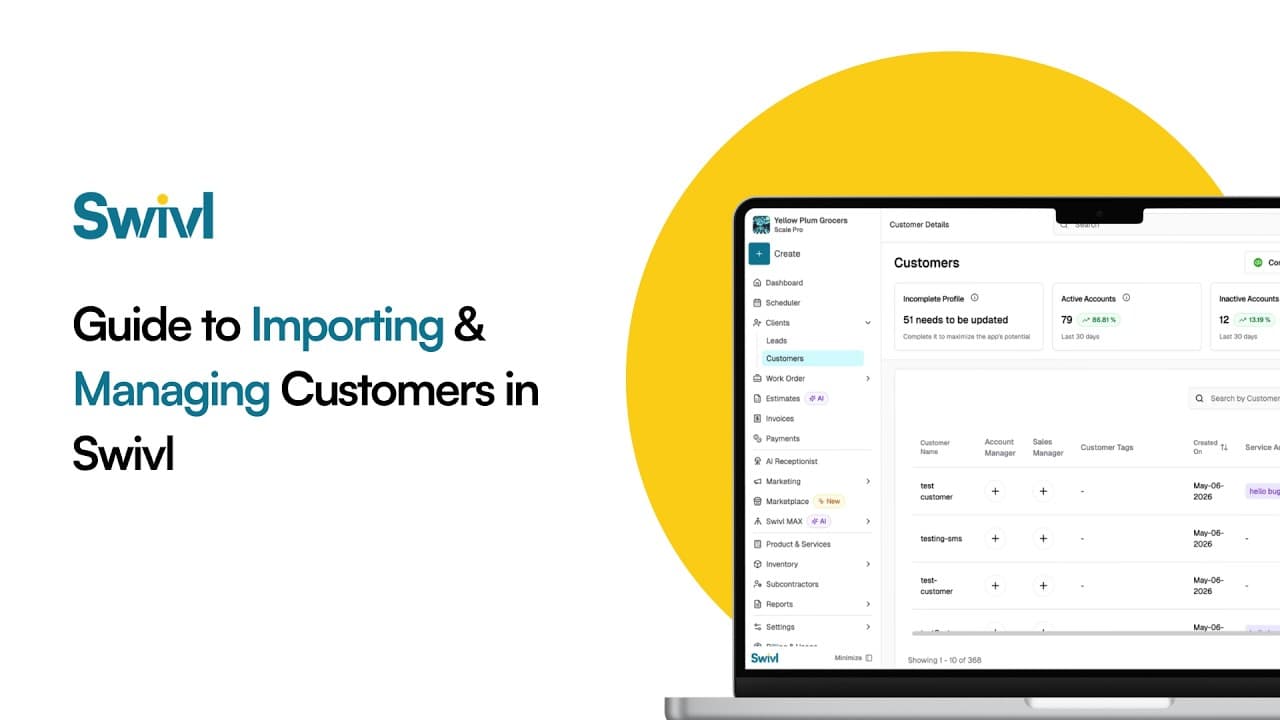
Learn how to add customers to your Swivl account using three simple methods, QuickBooks sync, CSV upload, and manual entry. In this tutorial, Tyson walks you through the complete customer import process so you can quickly organize your customer database and streamline your field service operations.
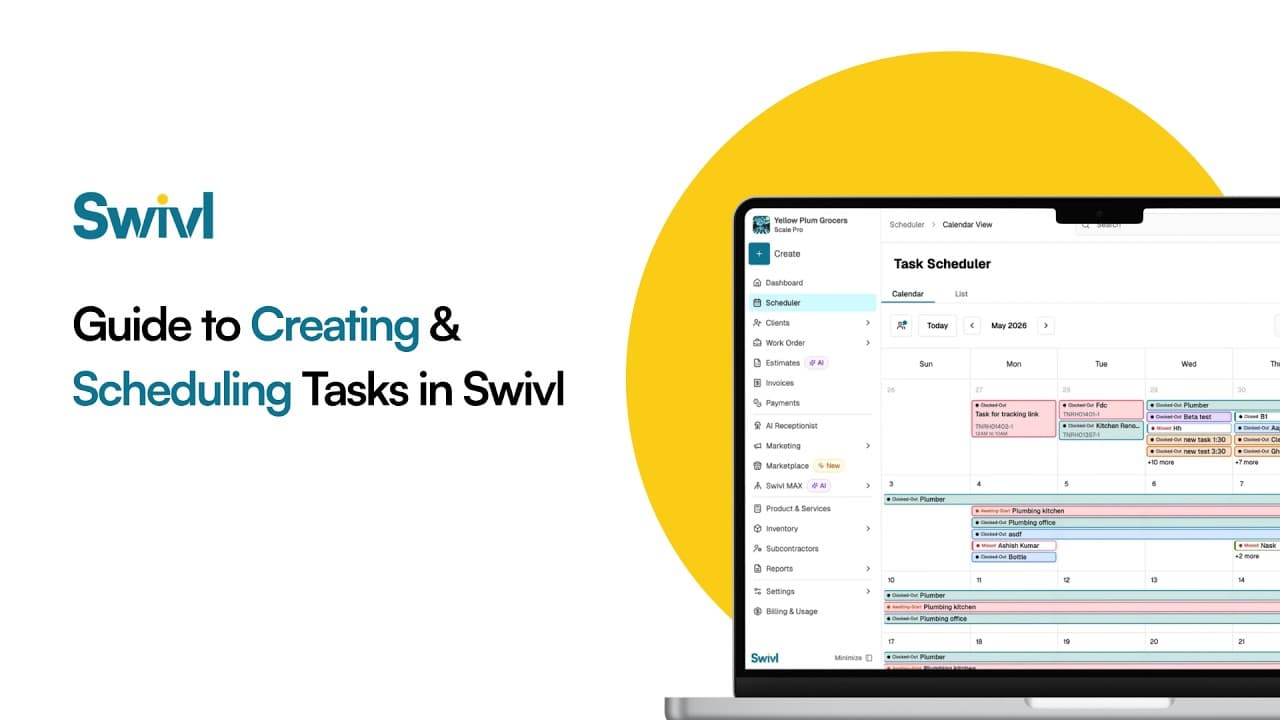
Learn how to create and schedule tasks in Swivl to streamline your field service operations and improve project management. In this tutorial, Tyson walks you through the difference between jobs and tasks in Swivl, how to organize customer information, and how field technicians can manage scheduled and unscheduled work more efficiently.
Start free. Unlimited users, no card, nothing expires.