
Create and Manage Estimates
Create and send professional estimates to customers before work begins. Add products and services, request deposits, and track estimate approvals from one place.
Overview
Estimates let you provide customers with a clear breakdown of expected costs before work begins. You can create an estimate linked to an existing job or as a standalone non-job estimate, add products and services, configure payment terms, and save the estimate as a draft or send it to the customer for review.

Who Can Access This
Role | Access Level |
|---|---|
Super Admin | Can create, edit, and manage all estimates |
Admin | Can create, edit, and manage all estimates |
Lead Technician | View-only access to estimates |
Technician | No access |
How to Create an Estimate
- Navigate to Estimates from the sidebar.
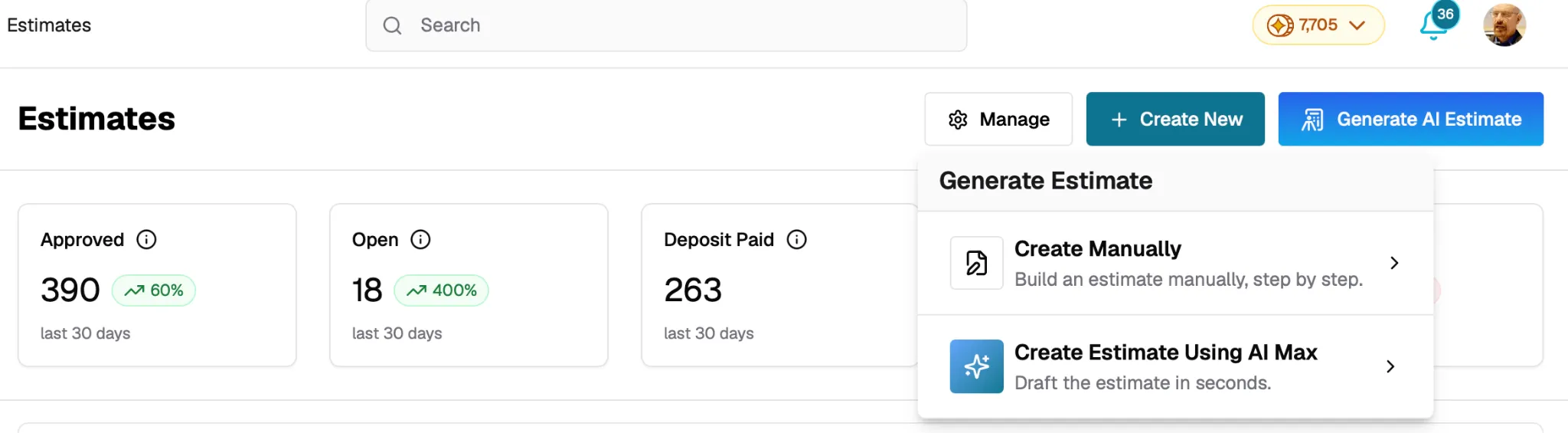
- Click New Estimate.
You can also use Swivl Max AI to automatically create estimate line items based on the selected job or estimate details. For more information, see Create Estimates with AI.
The estimate creation process contains four steps:
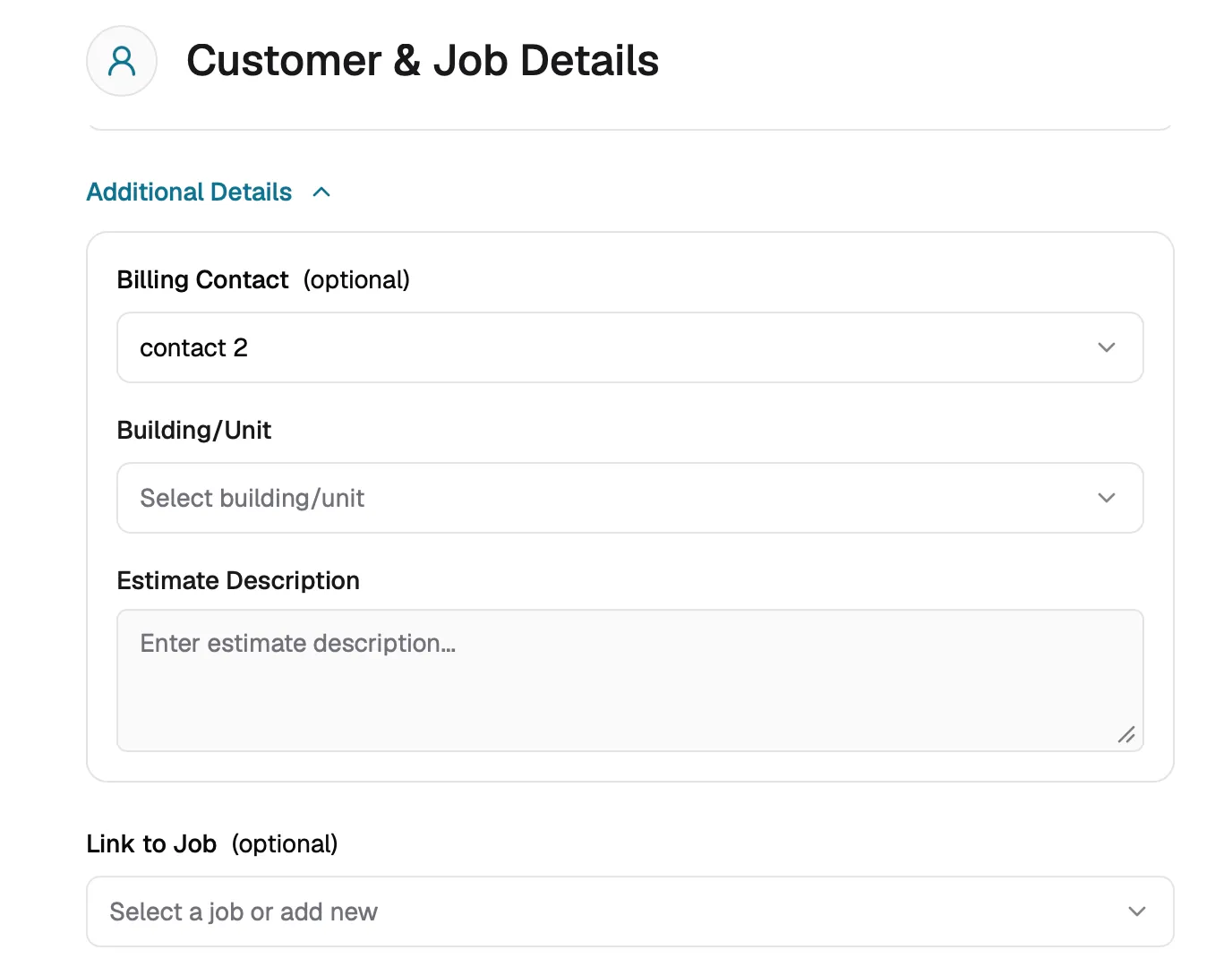
Step 1 : Customer and Job Details
Choose whether to link the estimate to an existing job or create it without a job.
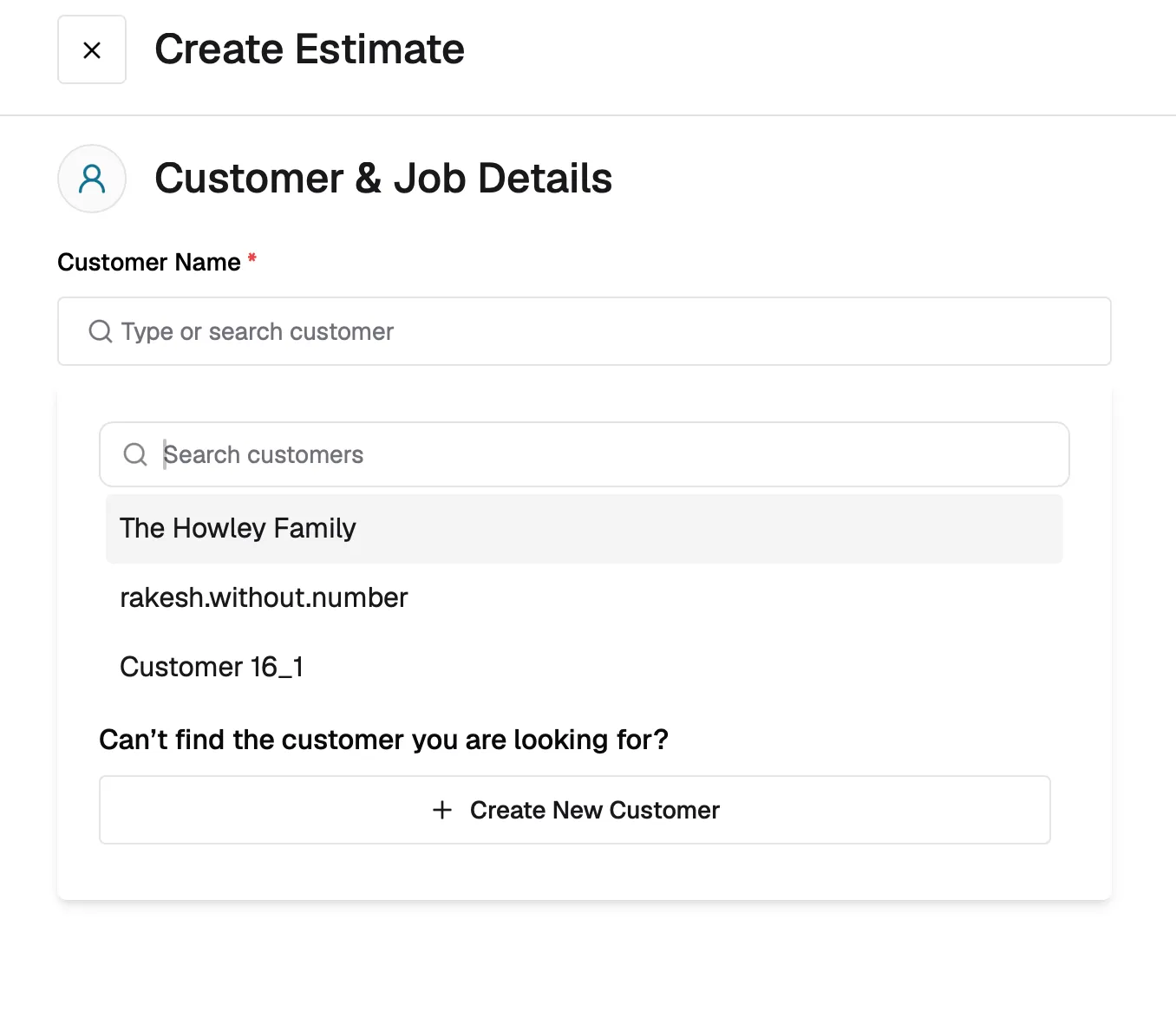
- Select the Customer from your customer list.
- If the customer does not exist yet, click Create New Customer to add them without leaving the estimate flow.
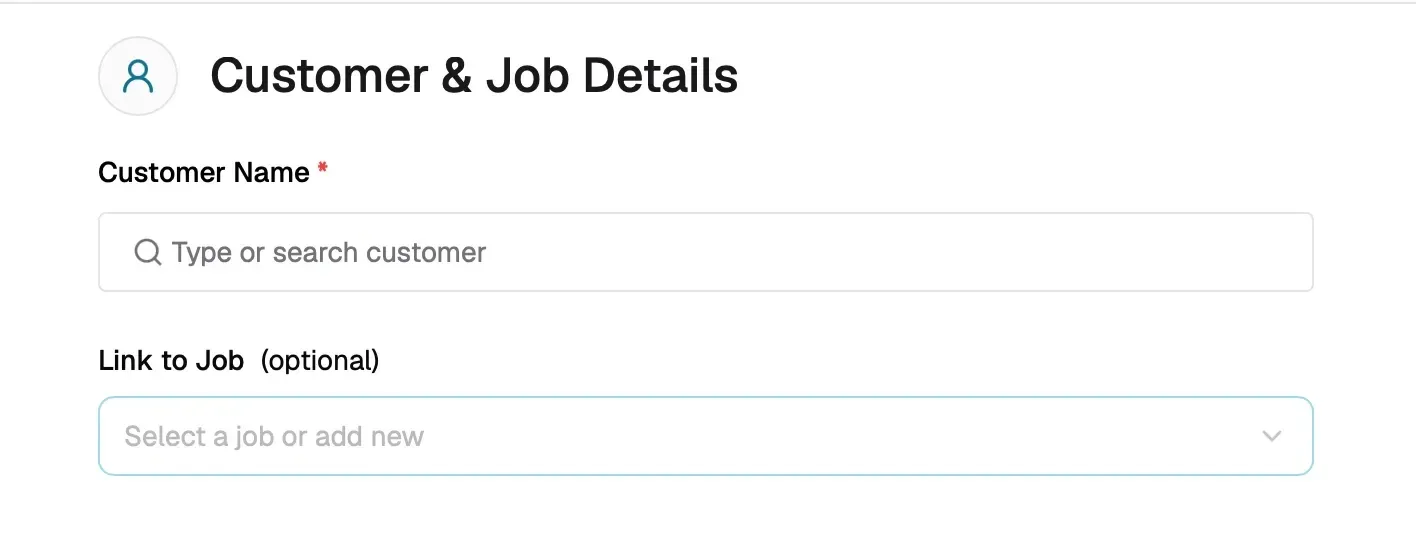
- (Optional) If linking the estimate to a job, select the Job from the dropdown.
Note: The job dropdown will only show the jobs associated with the selected customer.
- Select the Billing Address.
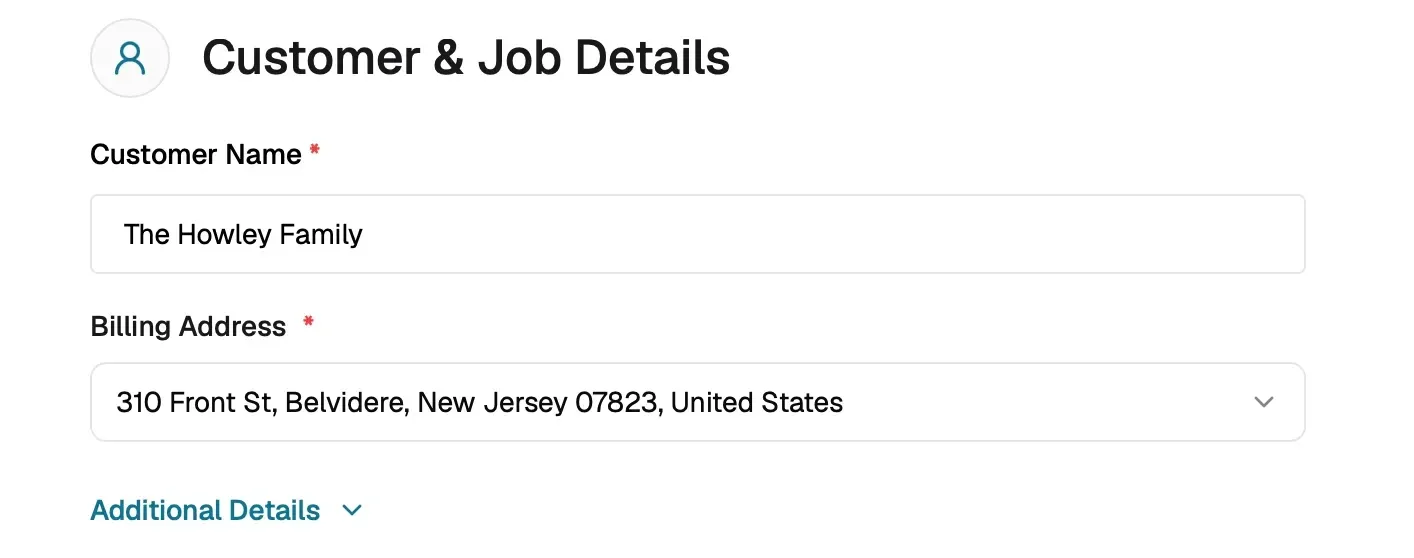
- (Optional) Select the Billing Contact, Building, and add an estimate description.
Step 2 : Products and Services
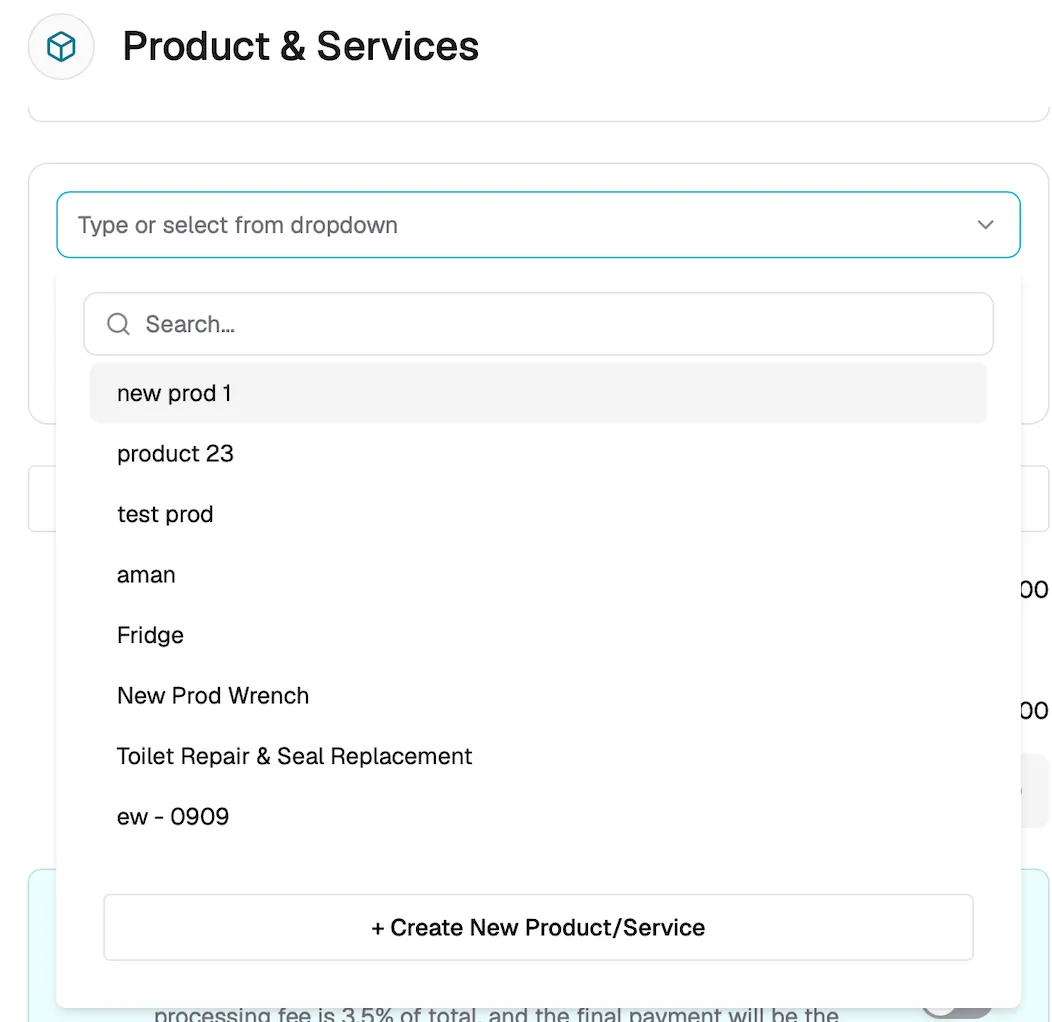
Add the products and services to be included in the estimate.
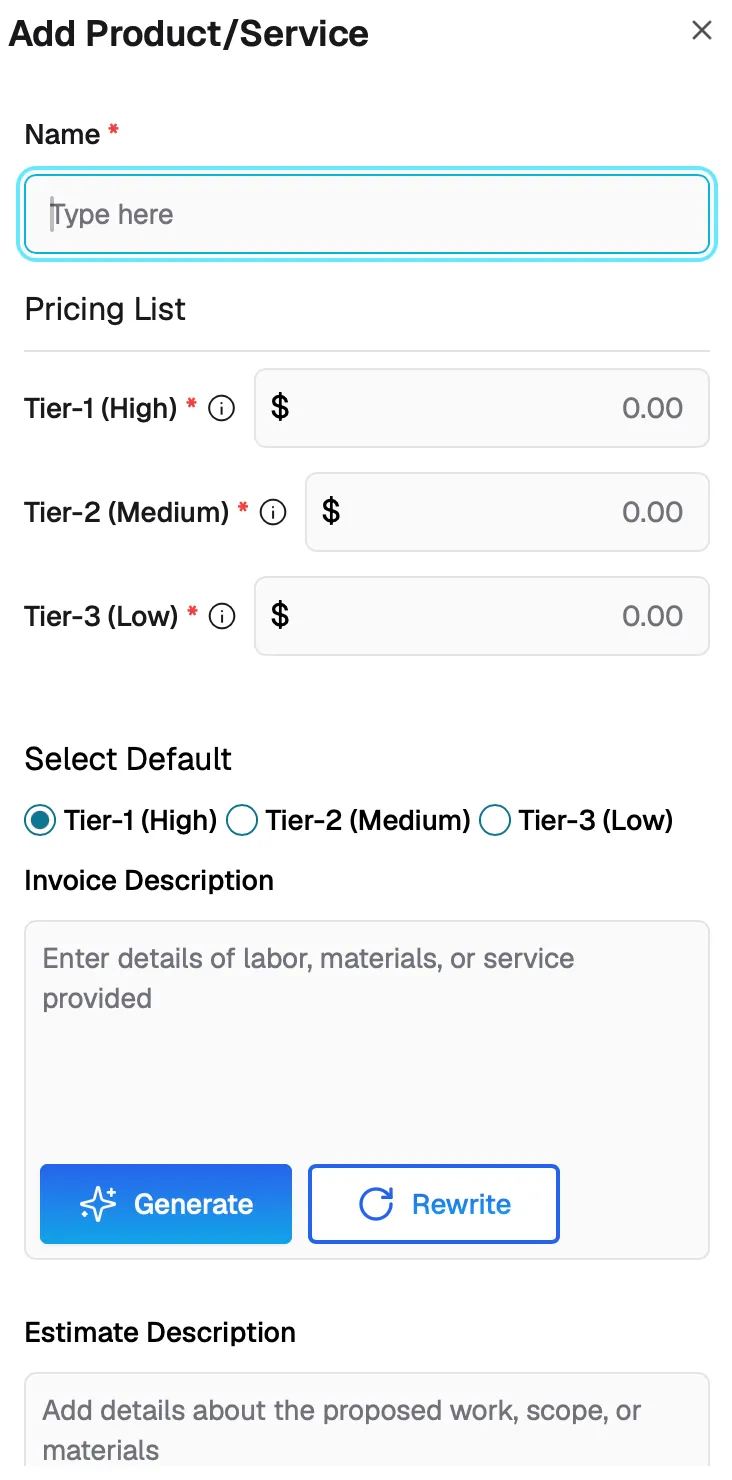
Click Create New Product/Service to add a new item:

You can also select items directly from the Price Book for faster entry, or select an existing product or service:
For each line item, enter the following:
- Name and Description
- Quantity and Rate ,the line item total is calculated automatically.
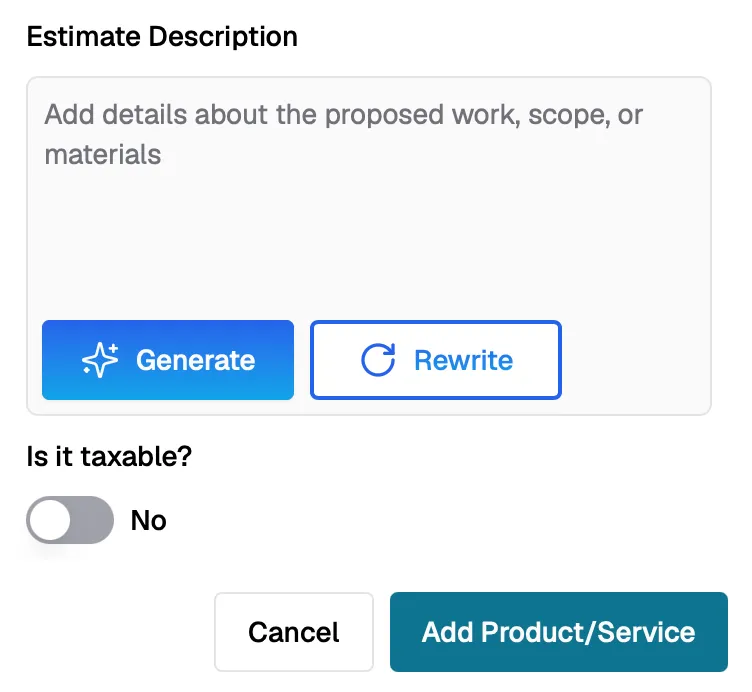
- Mark the item as Taxable and set the Tax Percent if applicable.
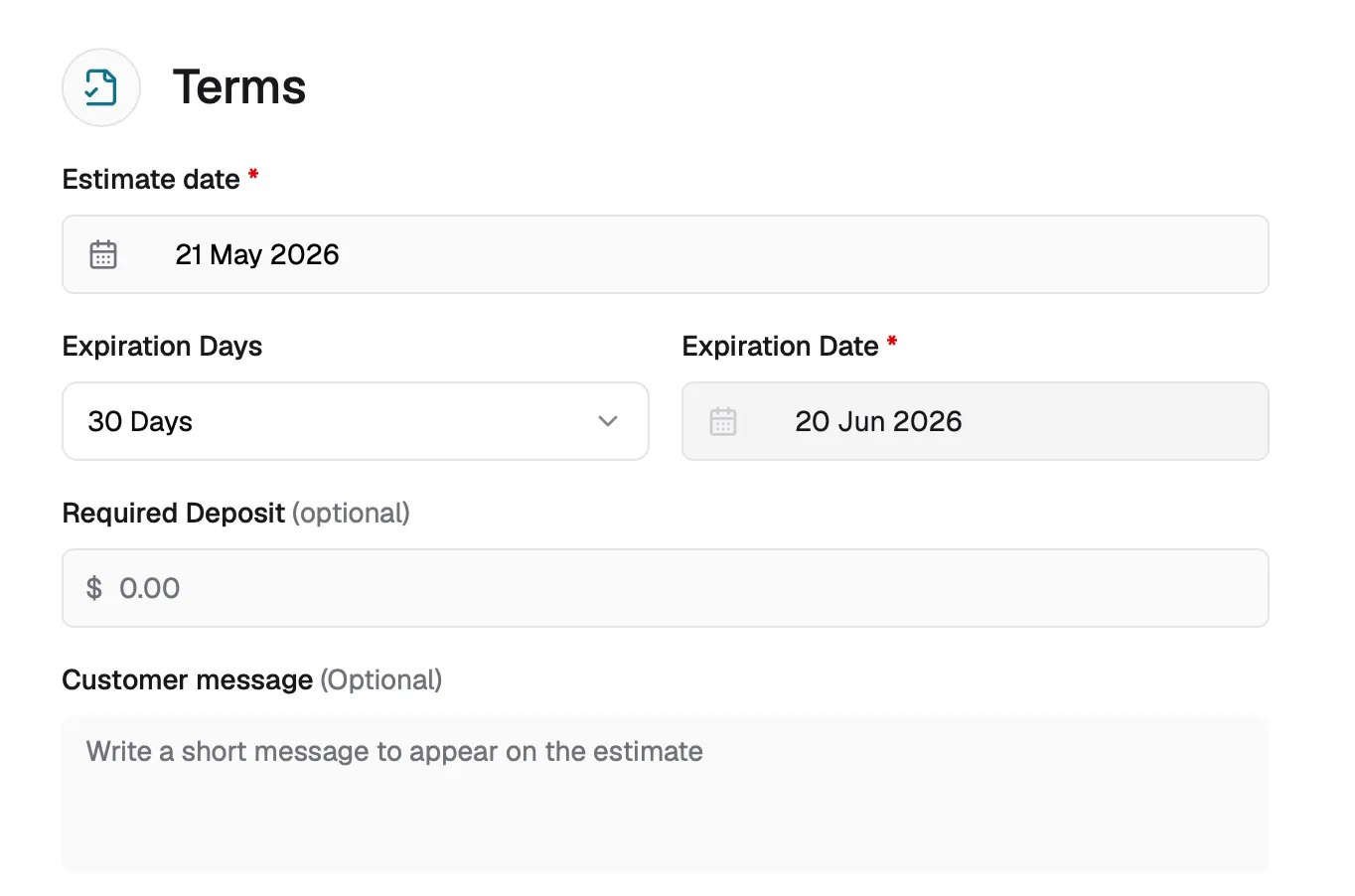
Step 3: Estimate Details
Configure estimate dates, payment terms, and customer-facing data.
- Set the Estimate Date (defaults to the current date).
- Set the Expiration Date so the customer knows how long the estimate is valid.
- Select Terms (defaults to Net 30).
- Review the automatically calculated Due Date.
- Optionally enter a Deposit Amount.
- Add a Customer Message that appears on the estimate document.
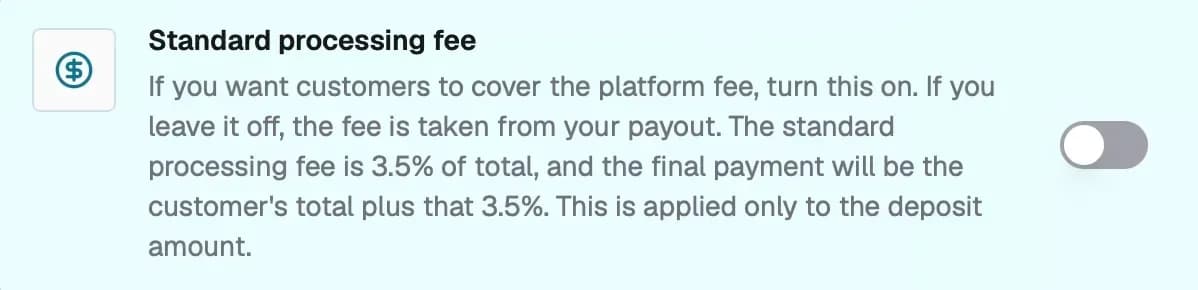
(Optional) Enable Customer Bearing Processing Fee If you want the customer to cover the Stripe processing fee, rather than your business absorbing it.
Recurring Services
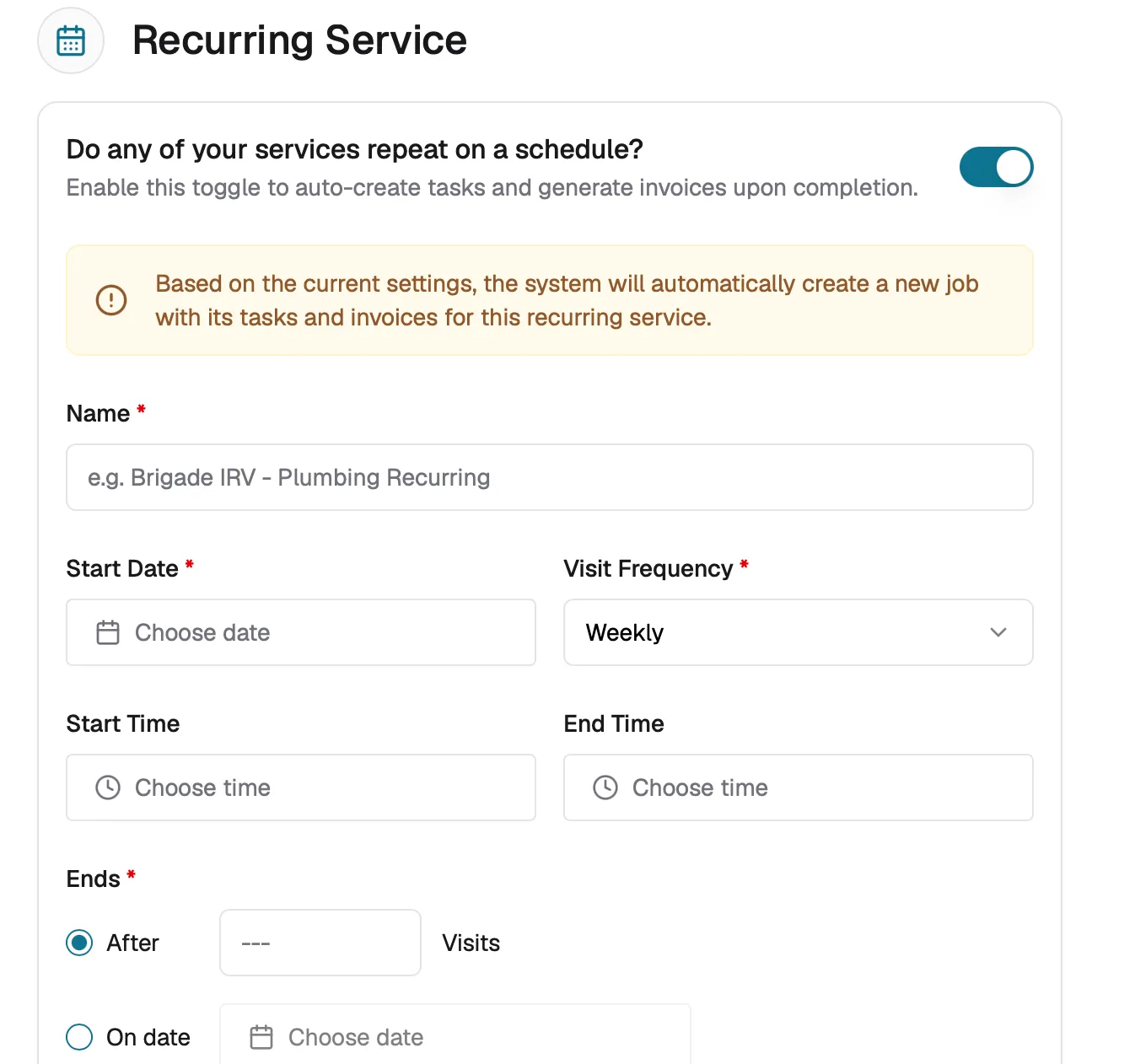
Use this option when the same work needs to repeat on a regular schedule.
Enable the Recurring Service toggle to automatically create recurring jobs, tasks, and invoices based on the selected schedule.
Once enabled, you can:
- Enter the recurring service name
- Select the start date
- Set the visit frequency
- Configure the start and end time
- Choose when the recurring service ends
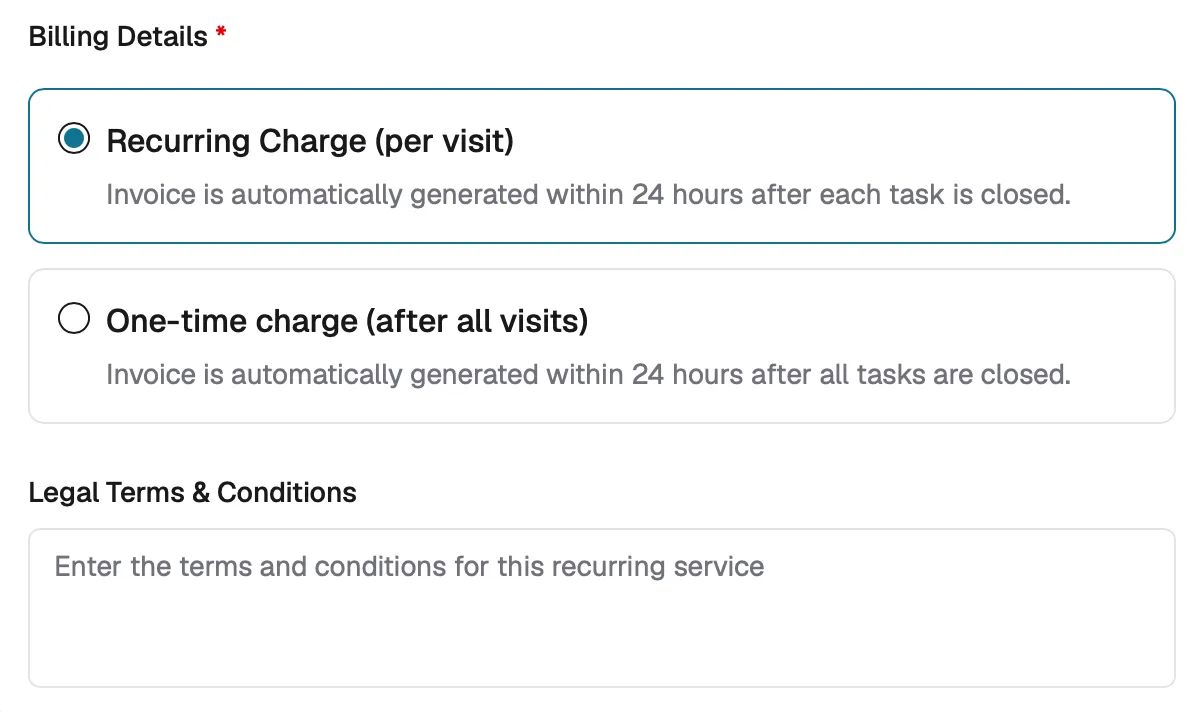
Billing Details for Recurring Services
Choose how invoices are generated for recurring services:
- Recurring Charge (per visit): An invoice is generated after each completed visit.
- One-time Charge (after all visits): A single invoice is generated once all visits are completed.
Step 4: Review and Media
Review all entered information before saving or sending it to the customer.
- Review all entered information.
- Attach any supporting photos, videos, or documents.
- Use the Preview button to see how the estimate will appear to your customer.
- Click Save to save the estimate as a draft, or click Send to deliver it to the customer.
Estimate Statuses
Status | Meaning |
|---|---|
Draft | Estimate is saved but not yet sent to the customer. |
Open | Estimate has been sent to the customer and is awaiting their response. |
Approved | Customer has approved the estimate. |
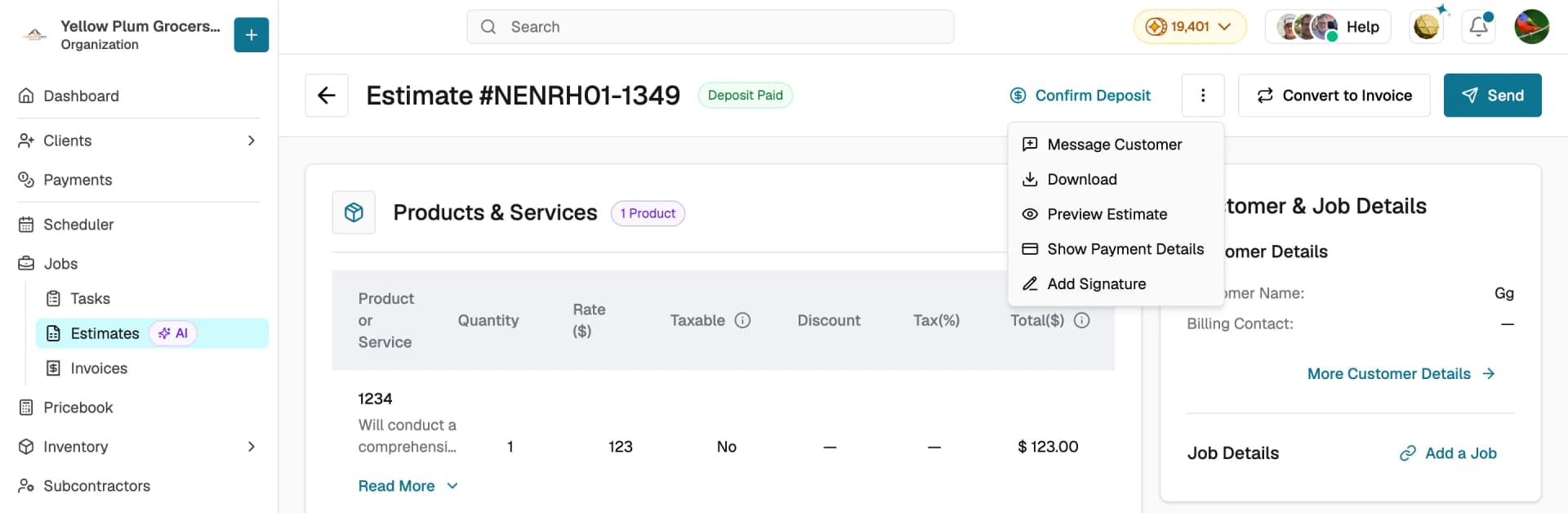
Deposit Paid | A deposit or full payment has been received from the customer. |
Declined | Customer declined the estimate. |
Change Request | Customer has requested modifications to the estimate. |
Expired | Estimate passed its expiration date without customer action. |
Void | Estimate has been canceled and is no longer active. |
Tips
- Use the Preview button at any step to see how the estimate will look to your customer before sending.
- You can download the estimate as a PDF from the review page.
- Estimates default to Net 30 payment terms, but you can change this to match your business needs.
- Save as Draft if you are not ready to send ,you can return and edit it at any time.
- Always set an Expiration Date so estimates do not remain open indefinitely.
- Use the Price Book to speed up line item entry for commonly used products and services.
Your next estimate could take 2 minutes. Try Swivl today