
Assigning Technicians and Lead Techs to a Job
Jobs have a Job Lead who oversees the work, while technicians are assigned at the task level. This means each task within a job can have a different assignee.
Overview
Jobs have a Job Lead who oversees the work, while technicians are assigned per task giving each task its own assignee. This article covers both job-level and task-level assignments.
Who can access this
- Super Admin: can assign or change job leads and task assignees.
- Admin: can assign or change job leads and task assignees.
- Lead Technician / Technician: cannot change assignments.
Assigning a Job Lead
The Job Lead is responsible for overseeing the overall job.
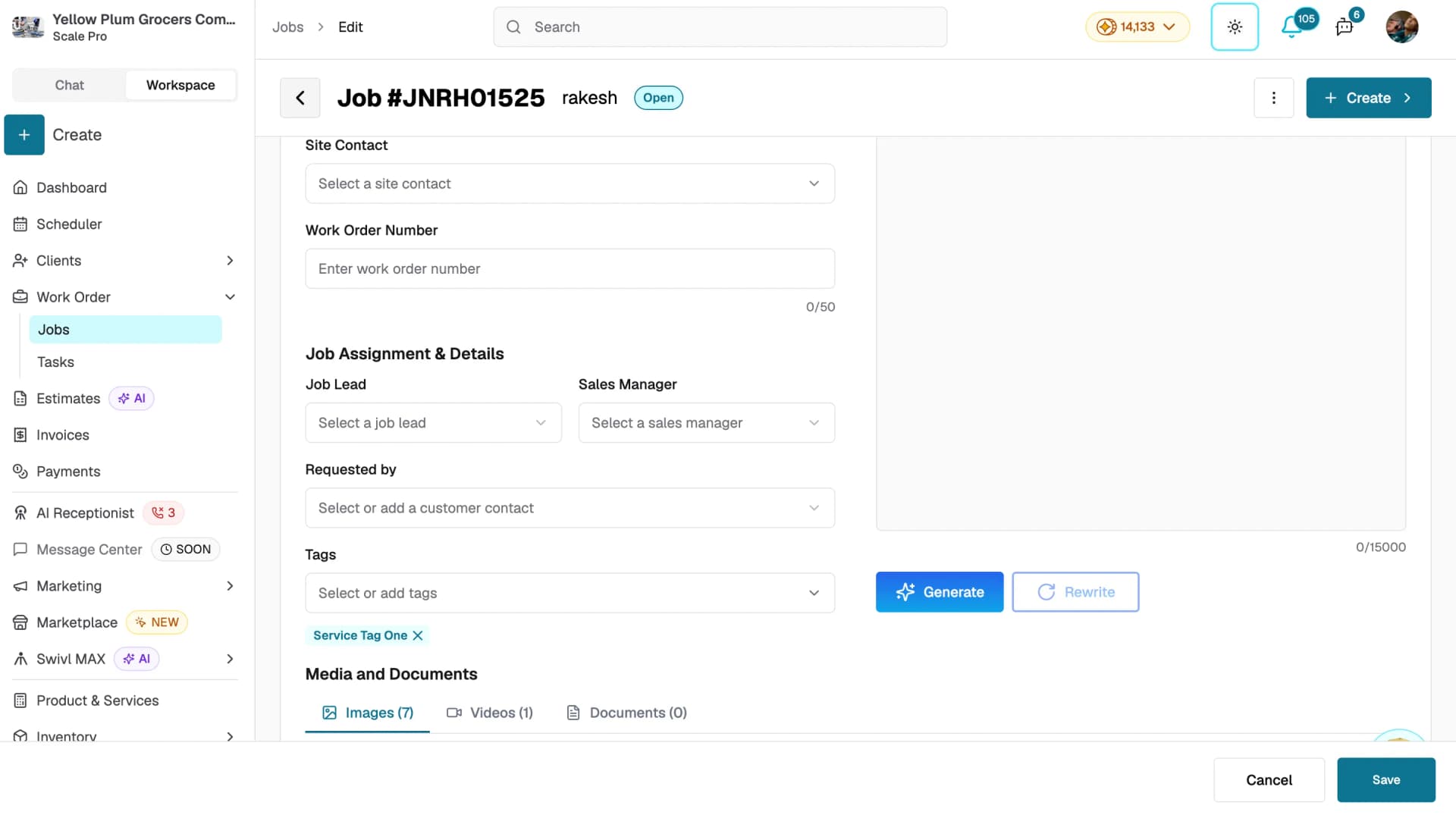
- Go to Work Order → Jobs and click the job.
- Click the three-dot menu and select Edit Job.
- In the Job Assignment & Details section, select a team member from the Job Lead dropdown.
- Click Save.
The selected user will appear as the Job Lead on the job detail page and in the jobs table.
Assigning a Sales Manager
Assign a Sales Manager to track who brought the deal in.
- In the Job Assignment & Details section, select a team member from the Sales Manager dropdown.
- Click Save.
If the customer record has a default sales manager, this field is auto-populated when the job is created.
Assigning technicians to tasks
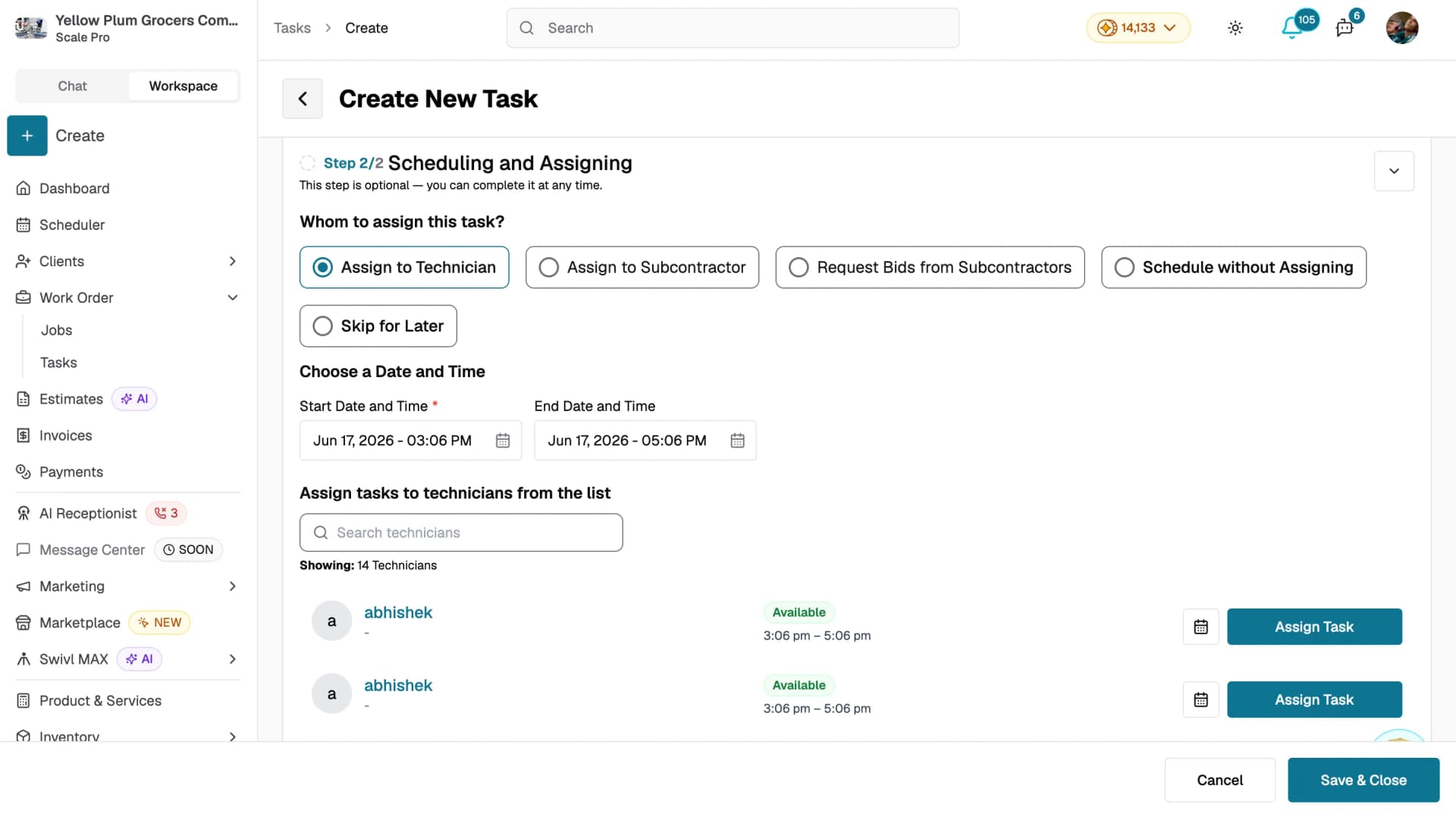
Technicians and subcontractors are assigned in Step 2 of the task form Scheduling and Assigning. This step is optional and can be completed at any time.
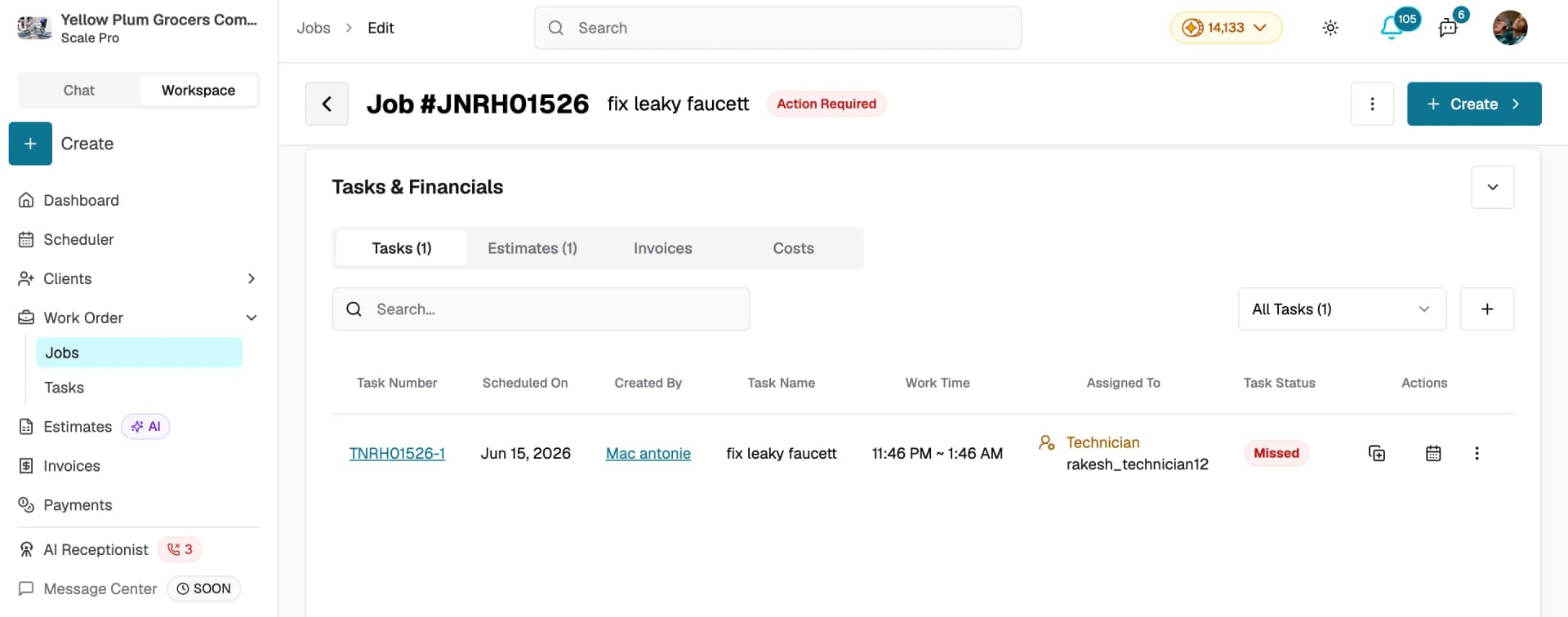
- From the job detail page, go to the Tasks & Financials tab.
- Click + to create a new task or click an existing task to open it.
- In Step 2: Scheduling and Assigning, choose an assignment method:
- Assign to Technician: select an internal team member from the list
- Assign to Subcontractor: directly assign to a subcontractor
- Request Bids from Subcontractors: send bid requests to one or more subcontractors
- Schedule without Assigning: set a date and time without assigning anyone
- Skip for Later: leave unassigned for now
- Set the Start Date and Time and End Date and Time
- Click Assign Task next to the technician and then Save & Close
You can also assign technicians directly from the Task Scheduler calendar using drag-and-drop.
Tips
- A job can only have one Job Lead at a time, but each task can be assigned to any available technician or subcontractor.
- Changing the Job Lead does not affect existing task assignments.
- Each technician shows their availability for the selected time slot look for the Available tag before clicking Assign Task.