
Upgrading or Changing Your Plan
Swivl lets you upgrade, downgrade, or start a free trial on a different plan at any time. Plan changes are handled through a guided flow that includes Stripe checkout for payment when needed.
Overview
You can change your Swivl plan at any time from Billing & Usage. Upgrades take effect immediately, while downgrades are scheduled to take effect at the end of your current billing period.
Who can access this
- Super Admin can upgrade, downgrade, or start a trial on any plan.
- Admin, Lead Technician, and Technician roles cannot change the plan.
How to change your plan
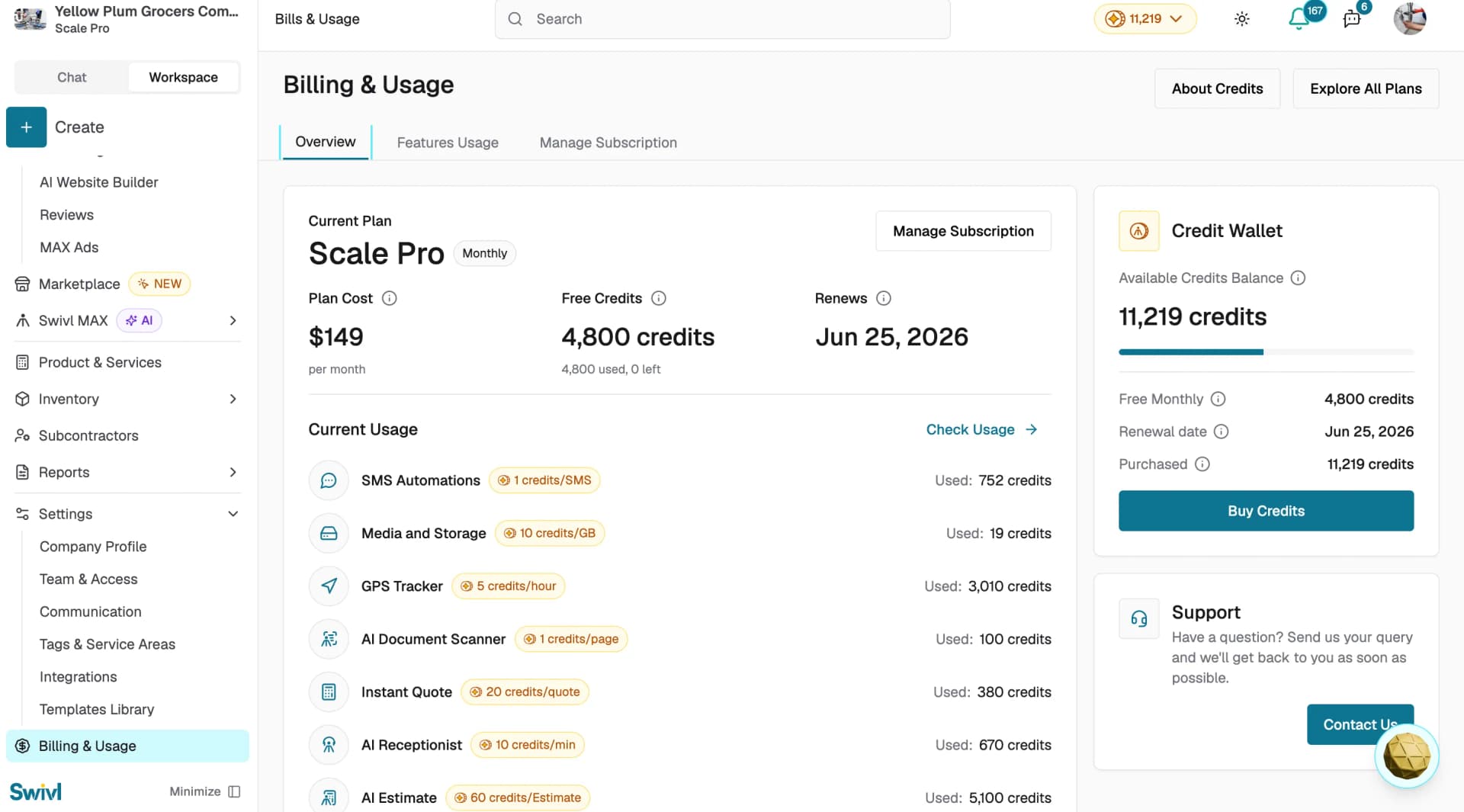
- Go to Billing & Usage in the sidebar.
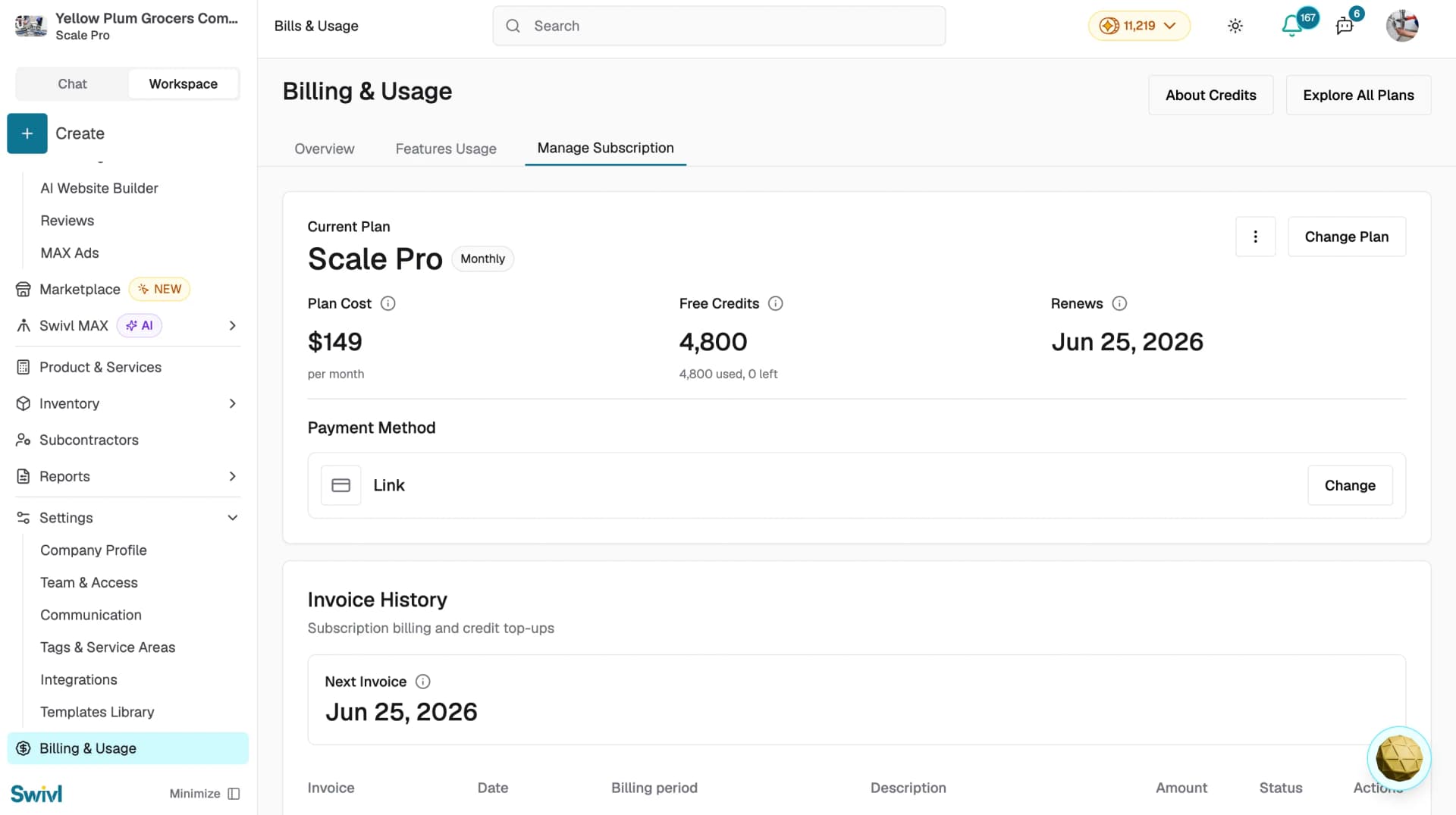
- Click Manage Subscription on the Overview tab, or go to the Manage Subscription tab directly.
- Click Change Plan.
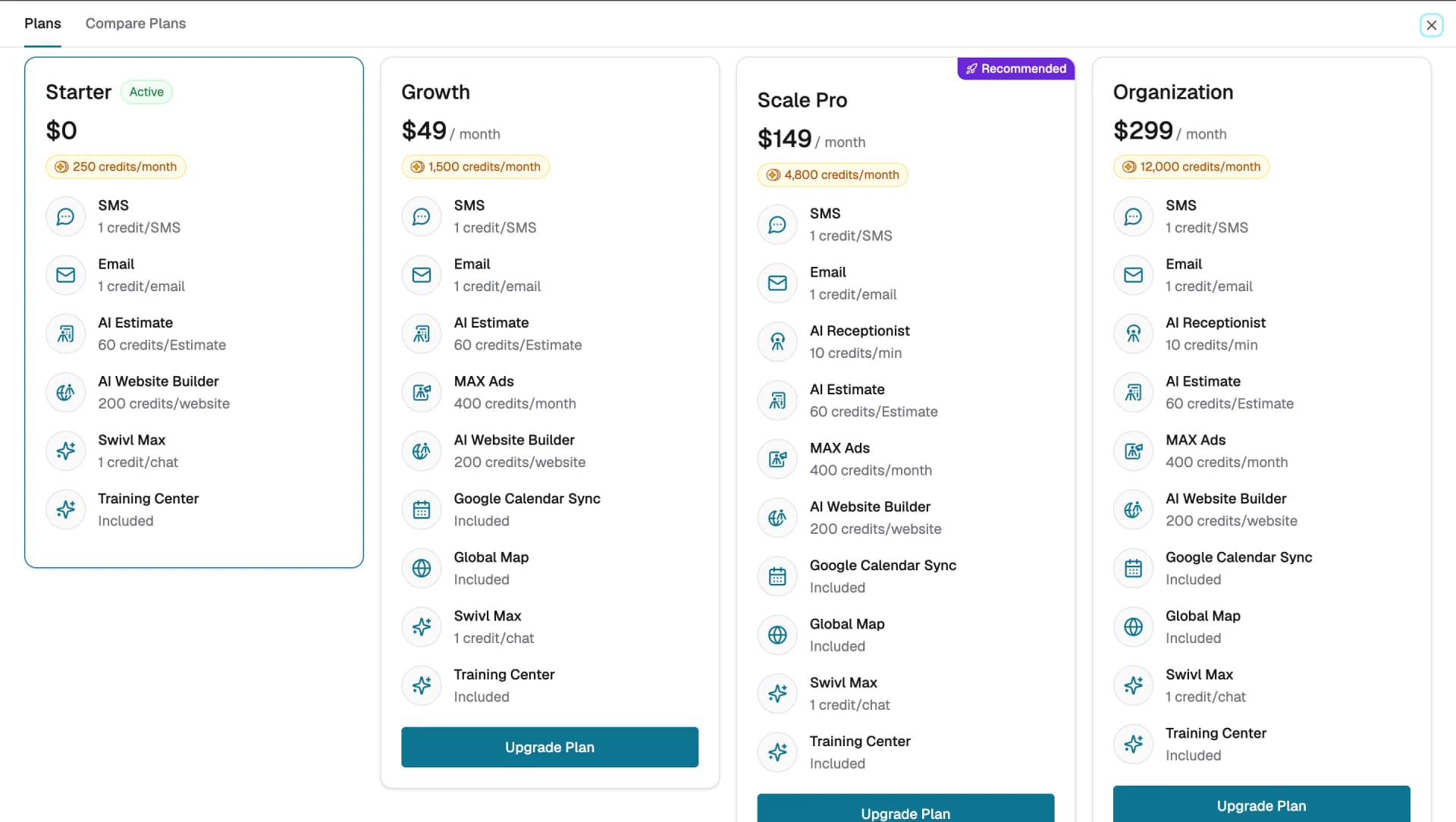
- A full-screen plan selection dialog opens showing all four plans with Starter, Growth, Scale Pro, and Organization. Switch to the Compare Plans tab for a side-by-side feature breakdown.
- Select the plan you want:
- To upgrade: click Upgrade Plan
- To downgrade: click Downgrade to this plan
- To start a free trial: click 14-day free trial if available on that plan
How upgrades work
If you do not have a payment method on file, a Stripe checkout form appears, enter your card details and complete the purchase. If you already have a saved payment method, a confirmation dialog shows the plan name, credits, and billing amount click Confirm & Pay to finalise. Your new plan is active immediately.
How downgrades work
When you select a lower plan, Swivl schedules the downgrade instead of applying it immediately:
- Click Downgrade to this plan.
- A confirmation dialog explains what features you will lose.
- Click Confirm to schedule the downgrade.
- Your current plan remains active until the end of the billing period after that, the lower plan takes effect automatically.
If you change your mind before the period ends, go to Manage Subscription and click Renew Subscription to cancel the scheduled downgrade.
Tips
- You can switch plans as often as you need there is no lock-in period.
- Starting a free trial does not require a credit card if no payment method is on file yet.
- After upgrading, your dashboard reflects the new plan and features immediately.
- To check your credit balance or buy more credits, go to Billing & Usage → Overview and view the Credit Wallet on the right.