
Deactivating or Removing a User
When a team member leaves or no longer needs access to Swivl, you can deactivate or remove their account. Deactivating preserves their historical data while preventing further access — removing deletes their account entirely.
Overview
Swivl gives you two ways to remove a team member's access — deactivate their account to keep their records intact, or delete it permanently. For most situations, deactivating is the safer choice.
Who can access this
Role | Access |
|---|---|
Super Admin | Can deactivate or remove any user |
Admin | Can deactivate or remove users with roles below their own |
Lead Technician | No access |
Technician | No access |
Deactivating a user
Deactivating a user disables their login without deleting their data. Their name still appears in historical records such as completed jobs, invoices, and notes. The account can be reactivated at any time.
- Go to Settings → Team & Access.
- In the Users tab, find the user you want to deactivate. Only users with an Active status can be deactivated.
- Click the three-dot menu next to their name and select Deactivate User.
- A confirmation dialog appears click Confirm to proceed.
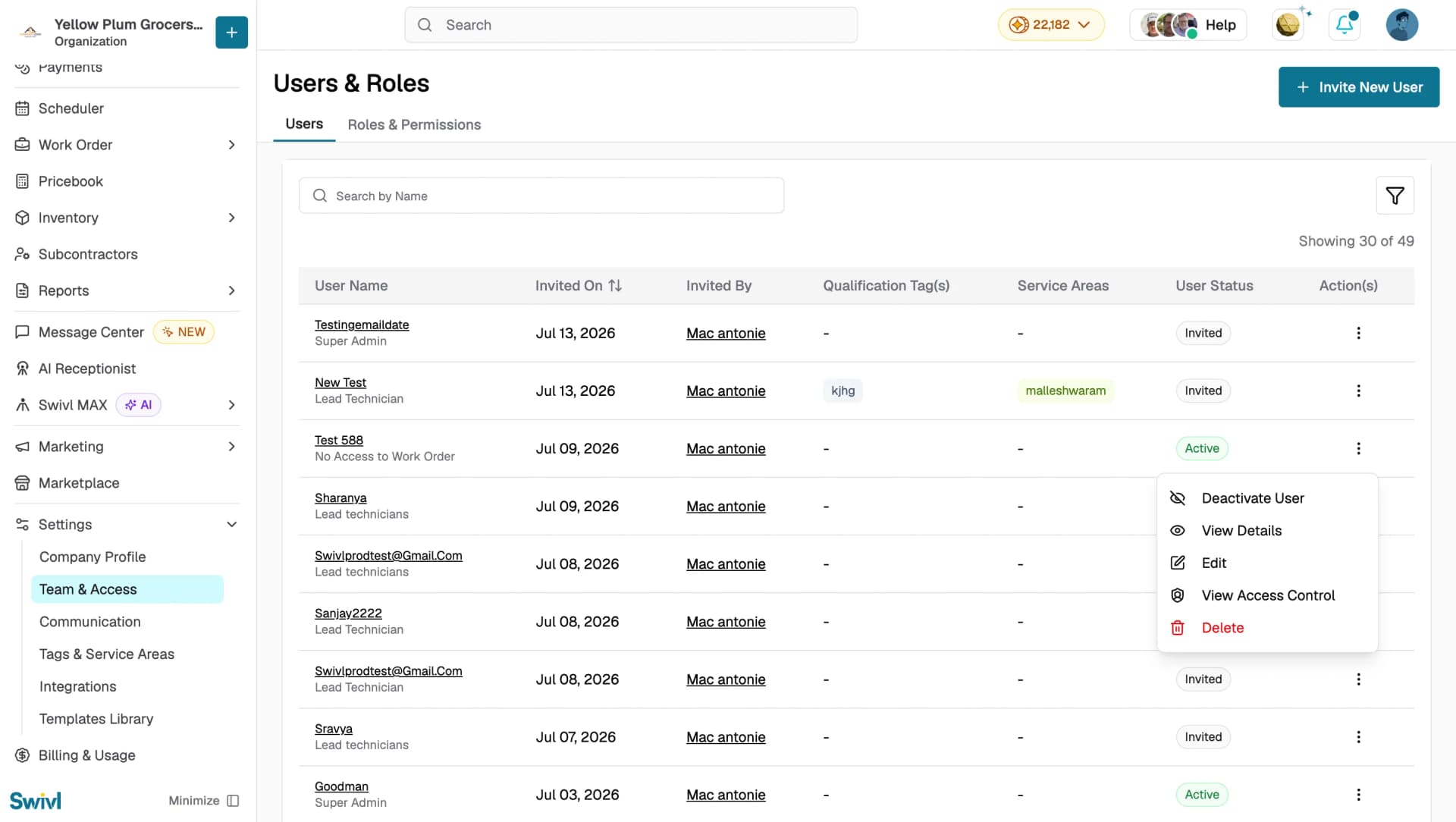
The user will no longer be able to sign in to Swivl, and their User Status changes to Deactivated.
Reactivating a user
If a deactivated user needs access again:
- Go to Settings → Team & Access.
- In the Users tab, find the deactivated user. You can use the filter icon to filter by the Deactivated status.
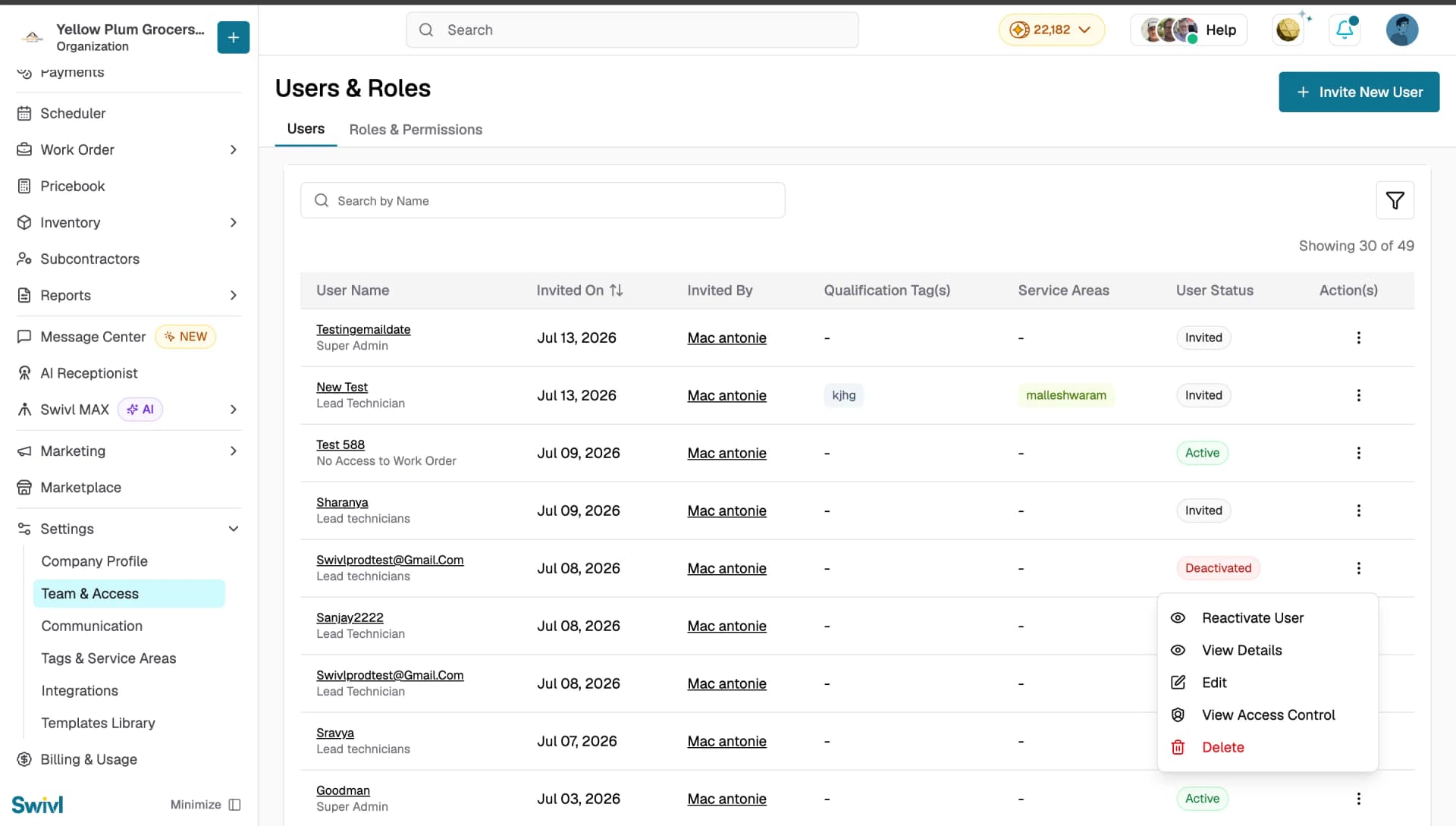
- Click the three-dot menu and select Reactivate User.
Their status changes back to Active, and they can sign in again.
Removing a user
Removing a user permanently deletes their account from your Swivl workspace. This action cannot be undone.
- Go to Settings → Team & Access.
- In the Users tab, find the user you want to remove.
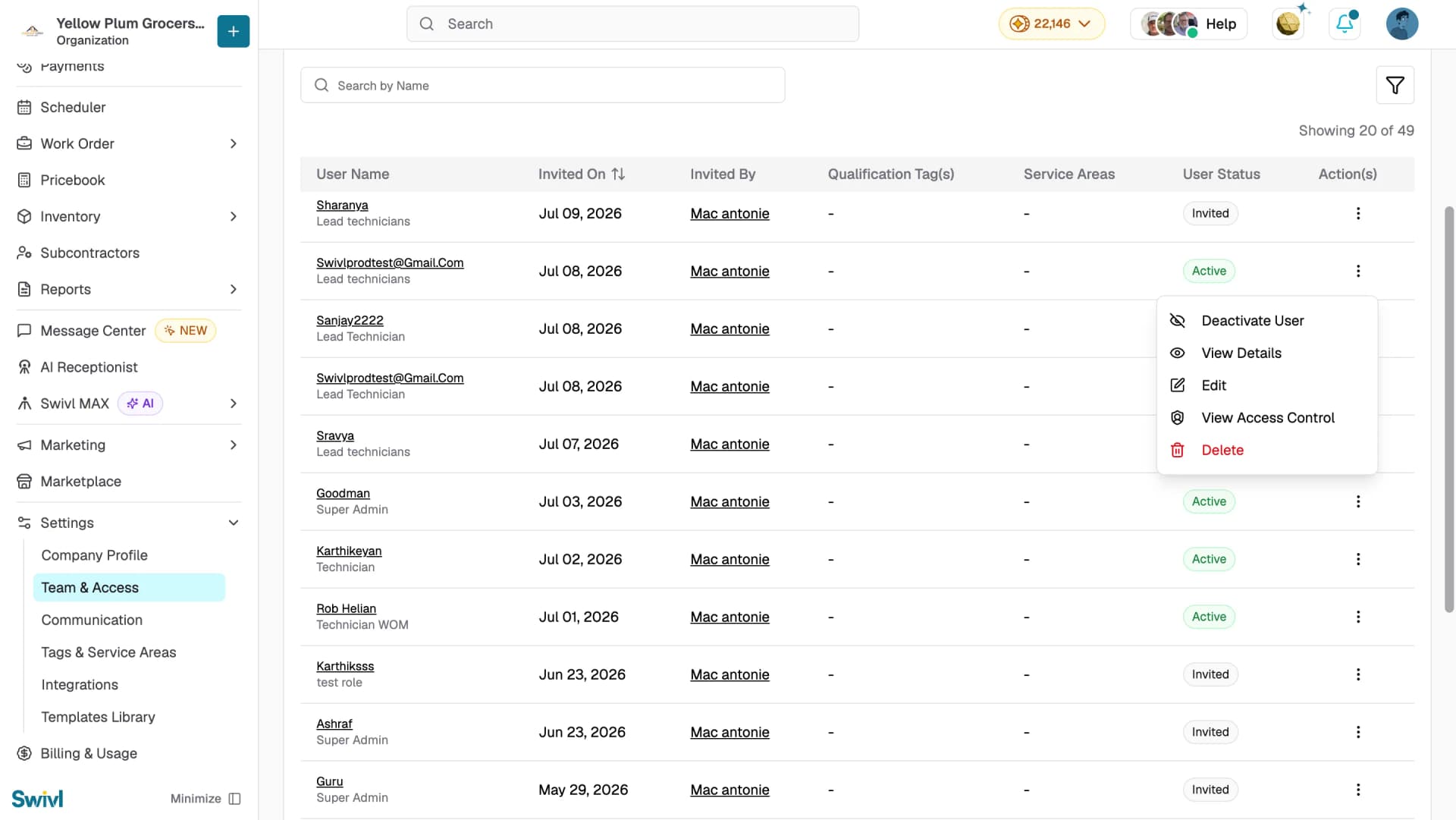
- Click the three-dot menu next to their name and select Delete.
- A confirmation dialog appears click Confirm to proceed.
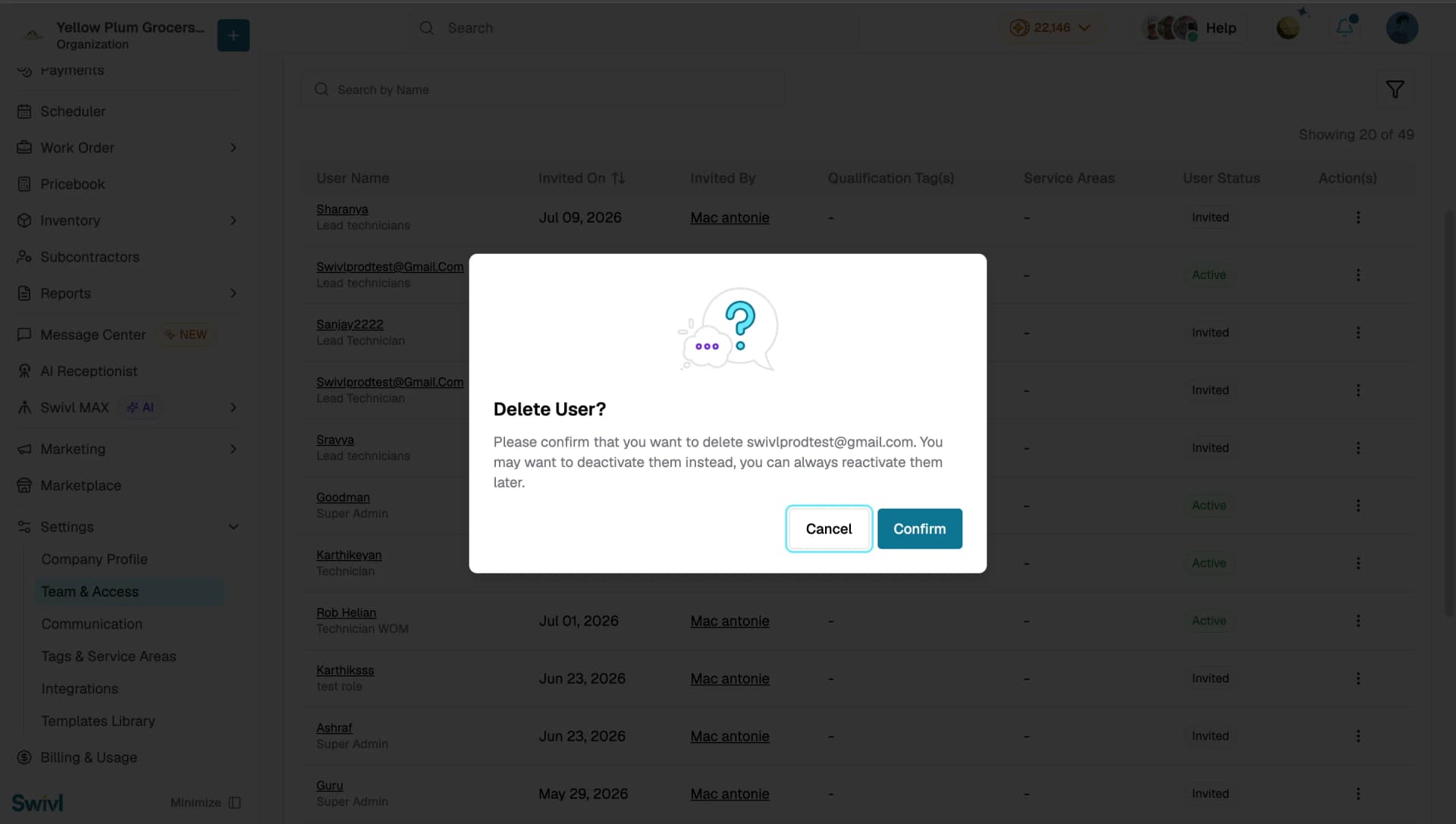
Note: Once a user is deleted, their account and profile data are permanently removed. Historical records they created jobs, invoices, notes will remain but may show the user as deleted.
Managing a pending invitation
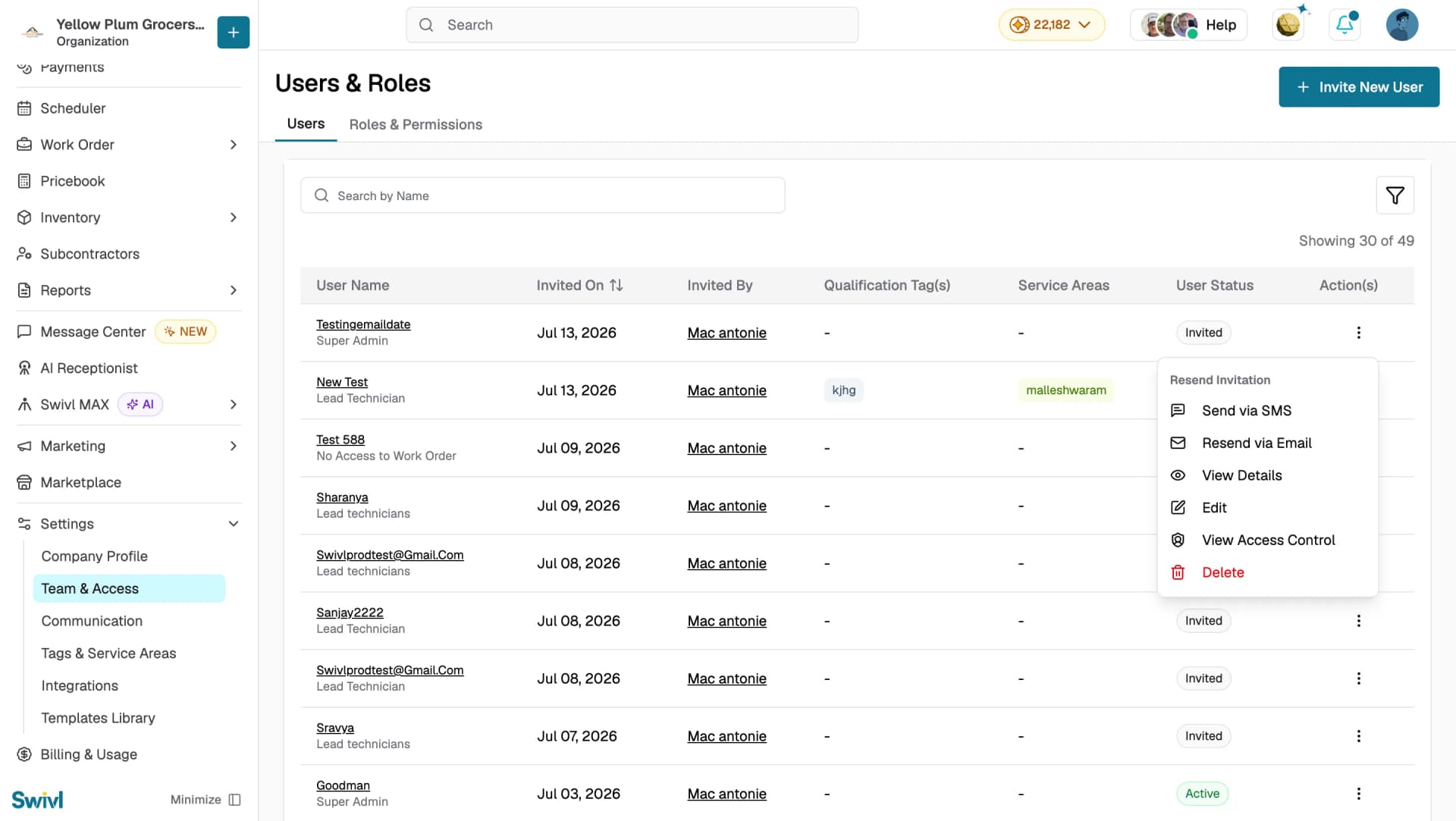
If a user has been invited but has not yet accepted, you can resend or cancel the invitation from the Users tab. Pending invitations show an Invited status.
To resend an invitation:
- Go to Settings → Team & Access.
- In the Users tab, find the pending invitation.
- Click the three-dot menu next to their name.
- Under Resend Invitation, choose Send via SMS or Resend via Email.
To cancel an invitation:
- Go to Settings → Team & Access.
- In the Users tab, find the pending invitation.
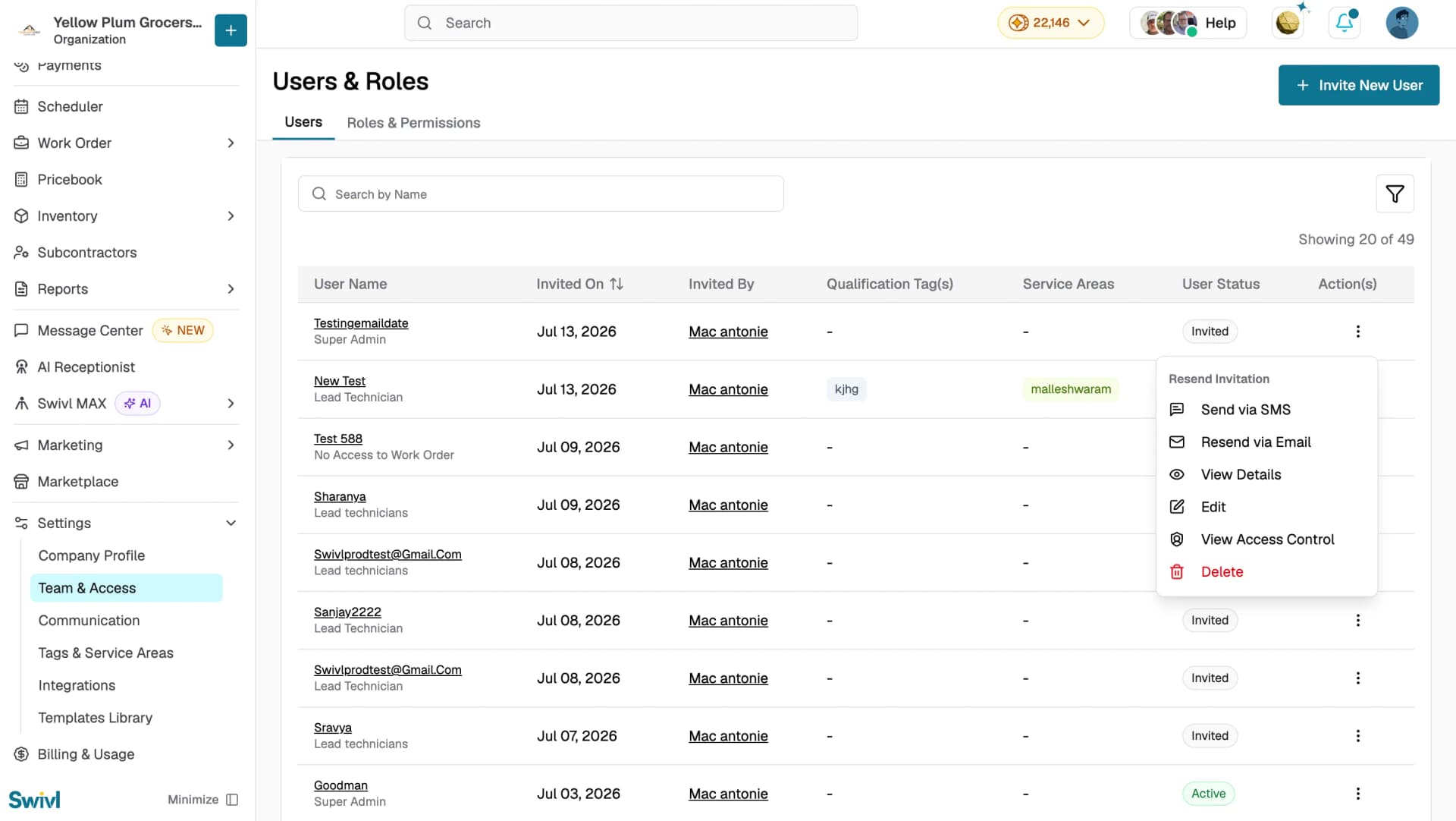
- Click the three-dot menu and select Delete.
- A confirmation dialog appears click Confirm to cancel the invitation.
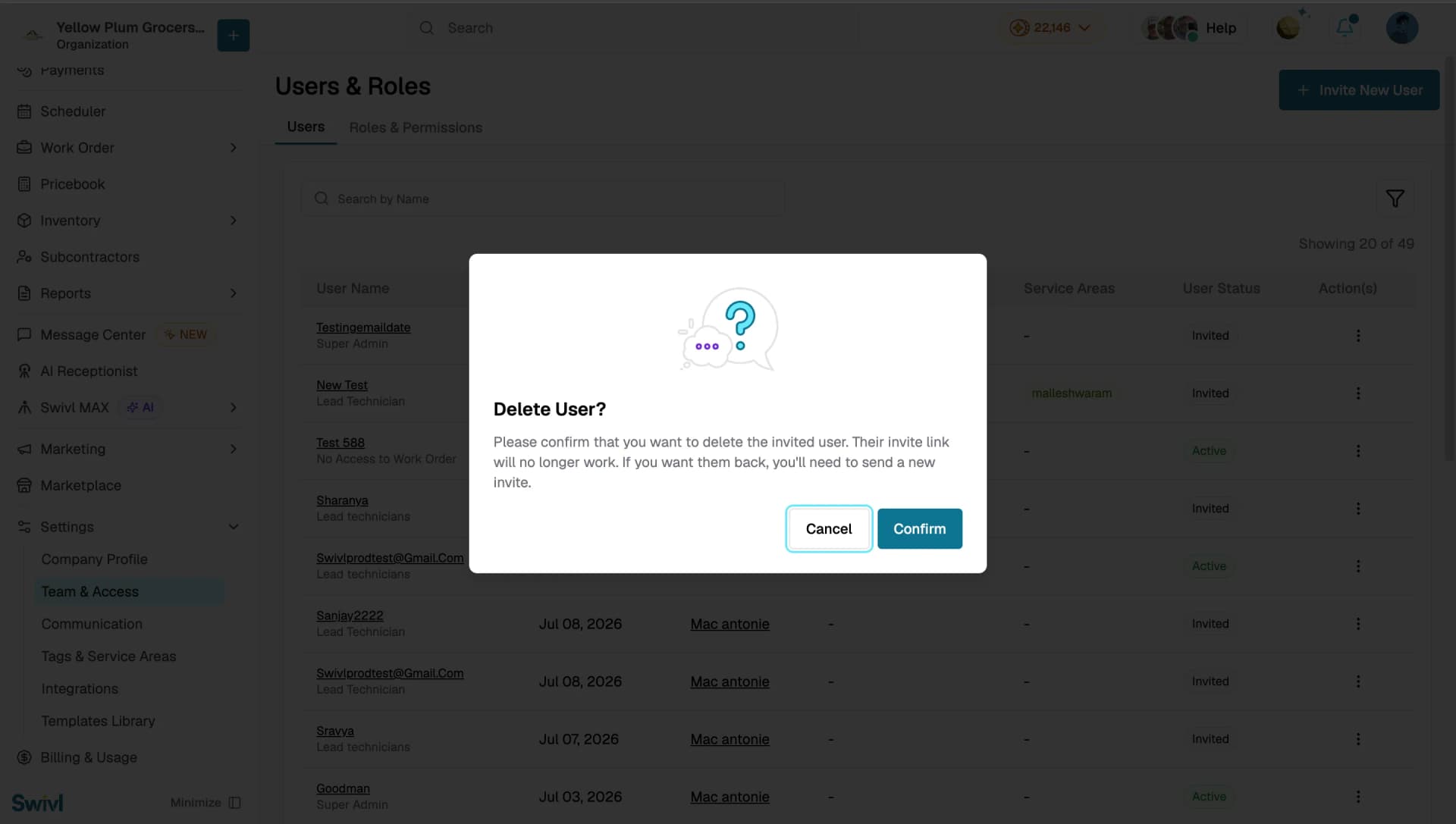
The invitation link will no longer be valid and the user will not be able to join your workspace using it.
Tips
- Deactivate rather than delete when possible, this preserves reporting accuracy and audit trails.
- Before deactivating a user, reassign any open jobs or tasks they own to another team member.
- If a deactivated user needs access again, simply reactivate their account no need to re-invite them.
- Use the User Status filter to quickly review all Deactivated or Expired users in one place.
- Review your user list periodically to ensure only current team members have active accounts.