
Platform Layout and Navigation
Swivl's interface is built around a sidebar, a top bar, and a quick-create button. This article explains what each area contains and how to use them to navigate the platform efficiently.
Overview
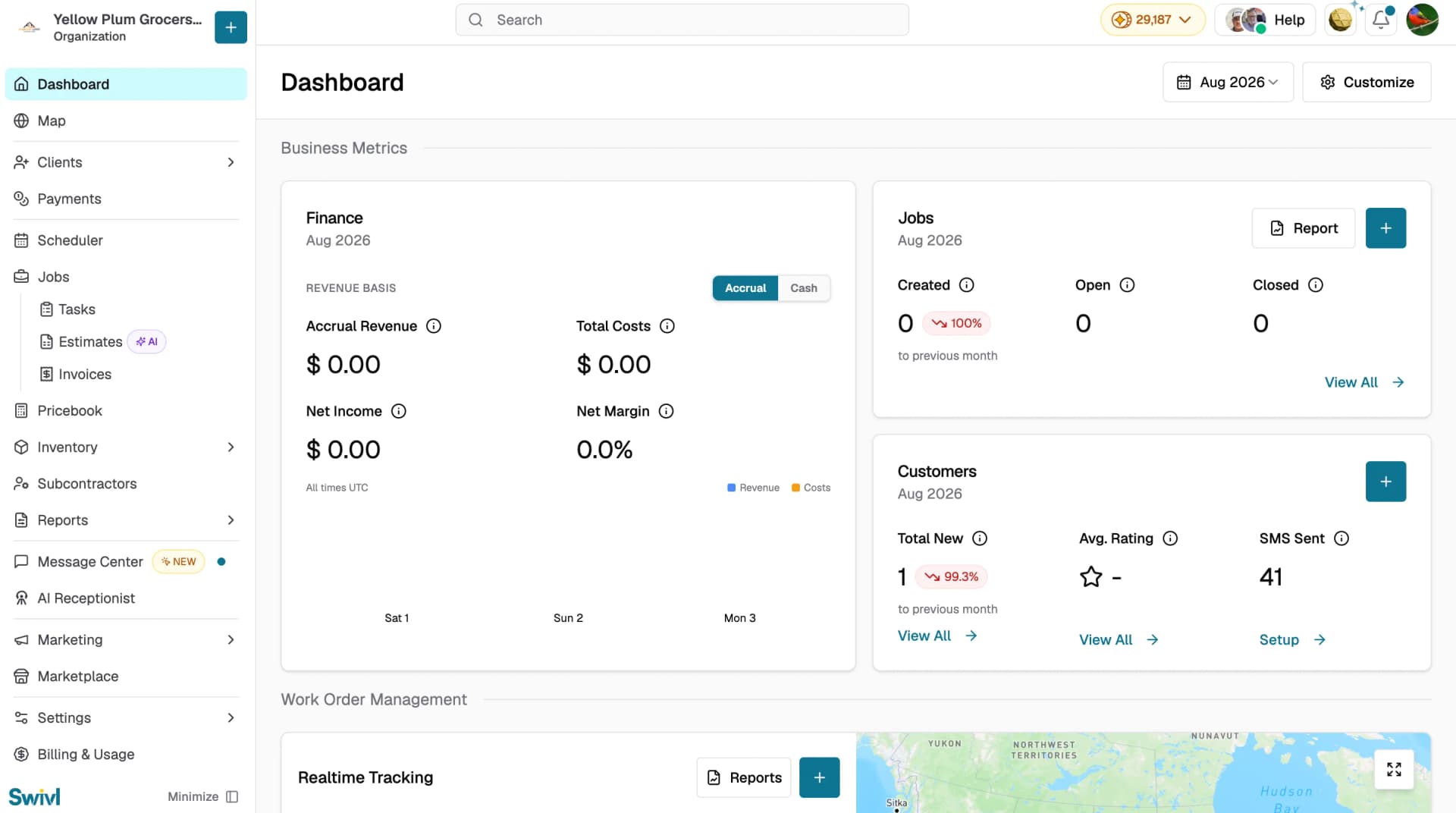
Everything in Swivl is accessible from the sidebar on the left. Each module has its own section, and some expand to reveal sub-sections. The top bar sits above the content area and gives you access to search, your credits balance, help, the Swivl MAX AI agent, notifications, and your account. Getting familiar with the layout makes day-to-day use much faster.
Who can access this
All roles though the items visible in the sidebar vary depending on your role and permissions.
The Sidebar
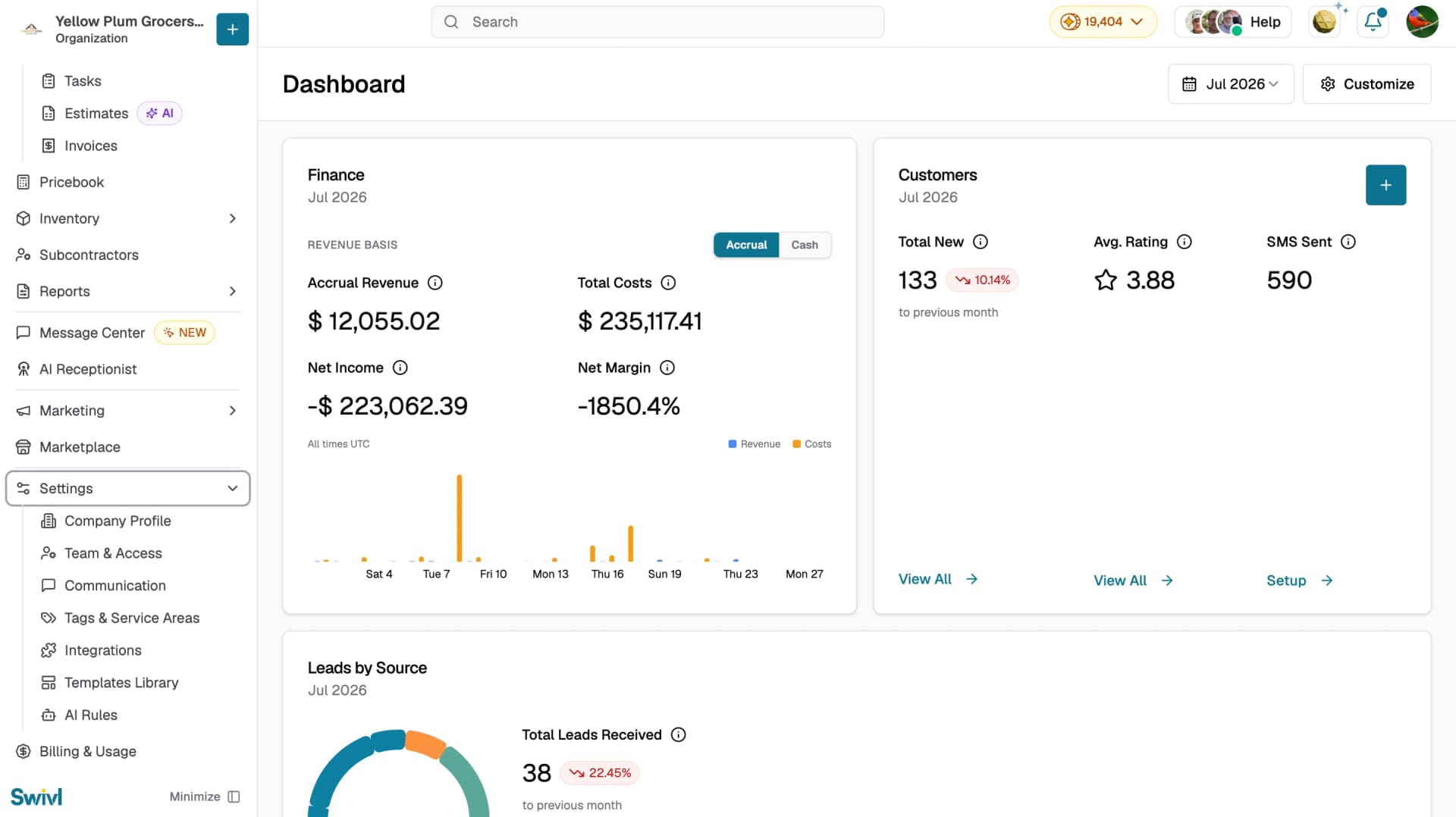
The sidebar is the primary way to navigate Swivl. It sits on the left side of the screen and contains the following sections in order:
Section | What it contains |
|---|---|
Dashboard | Your home screen with business metrics and activity |
Map | View your entire operation on one interactive map technicians, jobs, customers, leads, suppliers, and subcontractors |
Clients | Expands to show Leads and Customers |
Payments | Track payouts and incoming payments |
Scheduler | Schedule and manage tasks on the calendar |
Jobs | Manage jobs, with Tasks, Estimates, and Invoices listed under it |
Pricebook | Your catalog of services and pricing |
Inventory | Expands to show Assets, Materials, and Suppliers |
Subcontractors | Manage third-party contractors |
Reports | Expands to show Sales Commission, Time, GPS, and Jobs |
Message Center | Manage all customer and team communications in one inbox |
AI Receptionist | Manage your AI phone answering setup |
Marketing | Expands to show AI Website Builder, Reviews, and MAX Ads |
Marketplace | Browse add-ons and new features |
Settings | Expands to show Company Profile, Team & Access, Communication, Tags & Service Areas, Integrations, Templates Library, and AI Rules |
Billing & Usage | Manage your subscription and credits |
Collapsing the sidebar
Click Minimize at the bottom of the sidebar to collapse it to icon-only mode and give yourself more screen space. When collapsed, hover over any icon to see a tooltip. Click Minimize again to expand it.
The top navigation bar
The top bar spans the width of the screen and contains:
- Search: find customers, jobs, leads, invoices, and more across the entire platform
- Credits balance: the coin icon shows your available credits; click it to see a breakdown
- Help: connect with the Swivl support team for assistance
- Swivl MAX: the gold orb opens the Swivl MAX AI agent, where you can ask questions and get things done from anywhere in the platform
- Notifications: view alerts and activity updates
- User avatar: access your profile and account settings
The + New button
Near the top of the sidebar, the + New button lets you quickly create new records from anywhere in the app. Clicking it opens a dropdown with the following options:
- Customer
- Task
- Job
- AI Estimate
- Estimate
- Invoice

Tips
- The sidebar items you see depend on your role if a module is not visible, check with your Super Admin about your access level.
- Use the Search bar in the top navigation to find any record quickly instead of clicking through the sidebar.
- On mobile, the sidebar appears as a drawer that slides in from the left.