
Subcontractors overview
The Subcontractors page is your central hub for managing all external contractors, from adding new accounts and tracking activity to keeping contact details and profiles up to date.
Overview
The Subcontractors module lets you manage all the external contractors your business works with. From here you can add new subcontractor accounts, track their activity, and keep their profiles up to date all in one place.
Who can access this
Role | Access / Permissions |
|---|---|
Super Admin | Full access to view, create, edit, and delete subcontractor accounts |
Admin | Full access (same as Super Admin) |
Lead Technician | View-only access |
Technician | View-only access |
Getting to the Subcontractors page
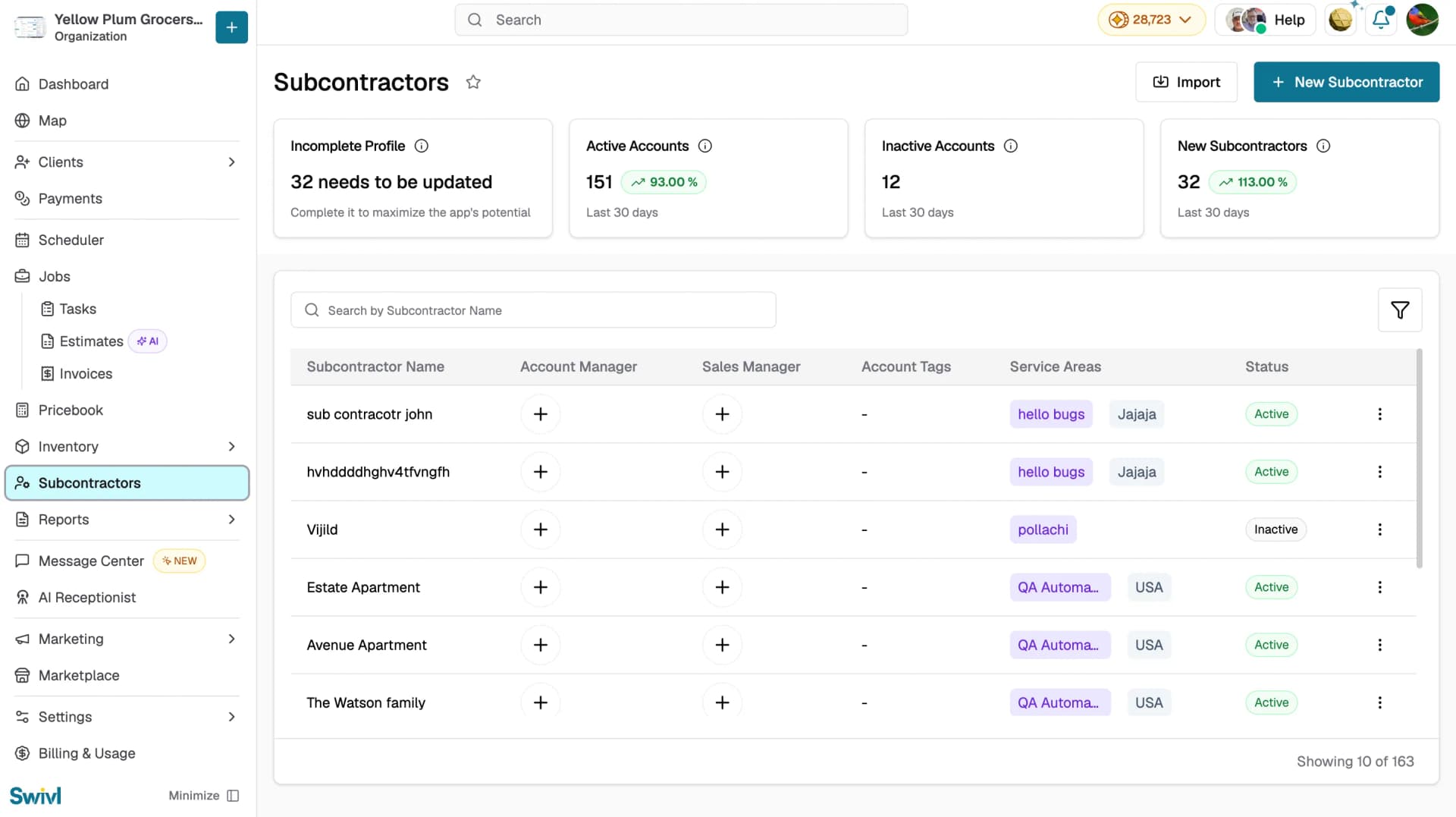
Navigate to Subcontractors in the sidebar. You will land on the subcontractor list view. Use + New Subcontractor at the top right to add an account, or Import to upload several at once.
What you'll see
Summary cards
At the top of the page four cards give you a quick snapshot of your subcontractor base:
- Incomplete Profile: the number of accounts missing required information. Completing these helps you get the most out of Swivl
- Active Accounts: the number of subcontractors currently marked as active with a 30-day trend indicator
- Inactive Accounts: the number of deactivated subcontractor accounts with a 30-day trend indicator
- New Subcontractors: how many subcontractor accounts were added in the last 30 days with a trend indicator
Subcontractor list
Below the summary cards you will find a searchable, paginated table with the following columns:
Column | Description |
|---|---|
Subcontractor Name | The account name |
Account Manager | Assigned account manager(s) |
Sales Manager | Assigned sales manager(s) |
Account Tags | Colour-coded tags for categorisation |
Service Areas | Zones the subcontractor covers |
Status | Active or Inactive |
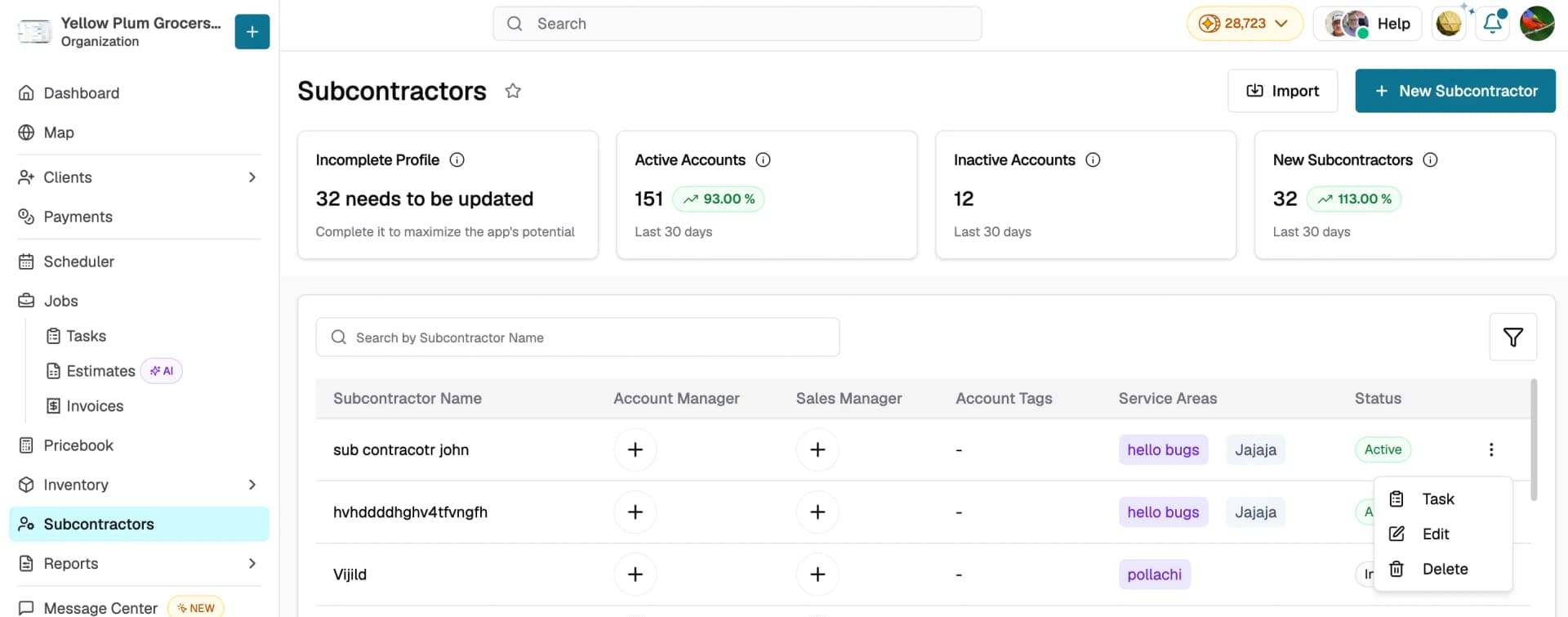
Actions | + button to create a Task, and a three-dot button for Edit and Delete |
Search and filter
Use the Search by Subcontractor Name bar to find a subcontractor quickly. Click the Filter icon to narrow results by status, tags, or other criteria.
Quick-view side panel
Click any row in the table to open a side panel showing the subcontractor's address details, contact details, and business details including their latest invoice, latest estimate, and ongoing tasks without leaving the list. Click View Profile to open the full subcontractor profile.
Importing subcontractors
If you have existing subcontractor data, click the Import button at the top right of the page to upload a CSV file and create multiple accounts at once.
Tips
- Keep subcontractor profiles complete so your team can quickly find contact and address information when assigning work
- Use Account Tags and Service Areas to organise subcontractors by trade, specialty, or geographic region
- Check the Incomplete Profile card regularly and update any accounts that need attention
- Use the quick-view side panel to check a subcontractor's latest activity without opening their full profileRelated articles