
Creating an Invoice
Create and send invoices for completed or in-progress work directly in Swivl. Start from scratch or convert from an approved estimate, with full support for price book items, taxes, deposits, and payment terms.
Overview
Invoices in Swivl let you bill customers for completed or in-progress work. You can create an invoice from scratch or convert one from an approved estimate. Invoices support line items from your price book, tax calculations, deposit tracking, and customer messages.
Who can access this
Role | Invoice Access |
|---|---|
Super Admin | Can create, edit, and manage all invoices |
Admin | Can create, edit, and manage all invoices |
Lead Technician | View-only access to invoices |
Technician | No access |
How to create an invoice
You can create an invoice in two ways:
From scratch
- Navigate to Invoices in the left sidebar and click + New Invoice.
From an existing estimate
- Navigate to Estimates in the left sidebar.
- Open an approved estimate and click Convert to Invoice.
Both options take you through the same four-step form.
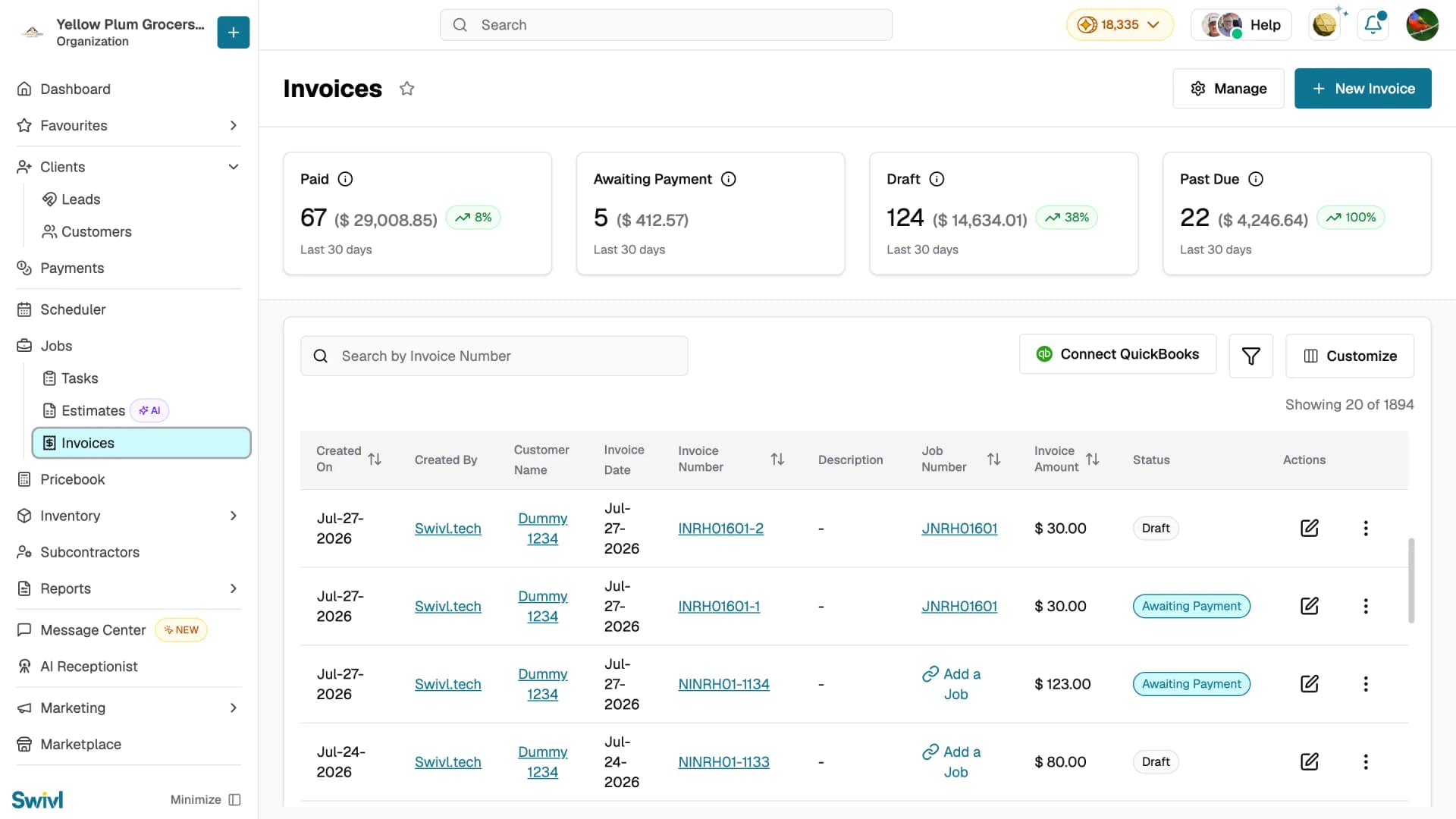
Step 1: Customer and job details
- Choose whether this invoice is for an Existing Job or a Non-Job Invoice.
- Select the Customer from your account list. If the customer doesn't exist yet, click + Create New Customer.
- If linking to a job, select the Job from the dropdown.
- Select the Service Address and optionally a Building/Unit.
- Optionally choose a Billing Contact and Site Contact.
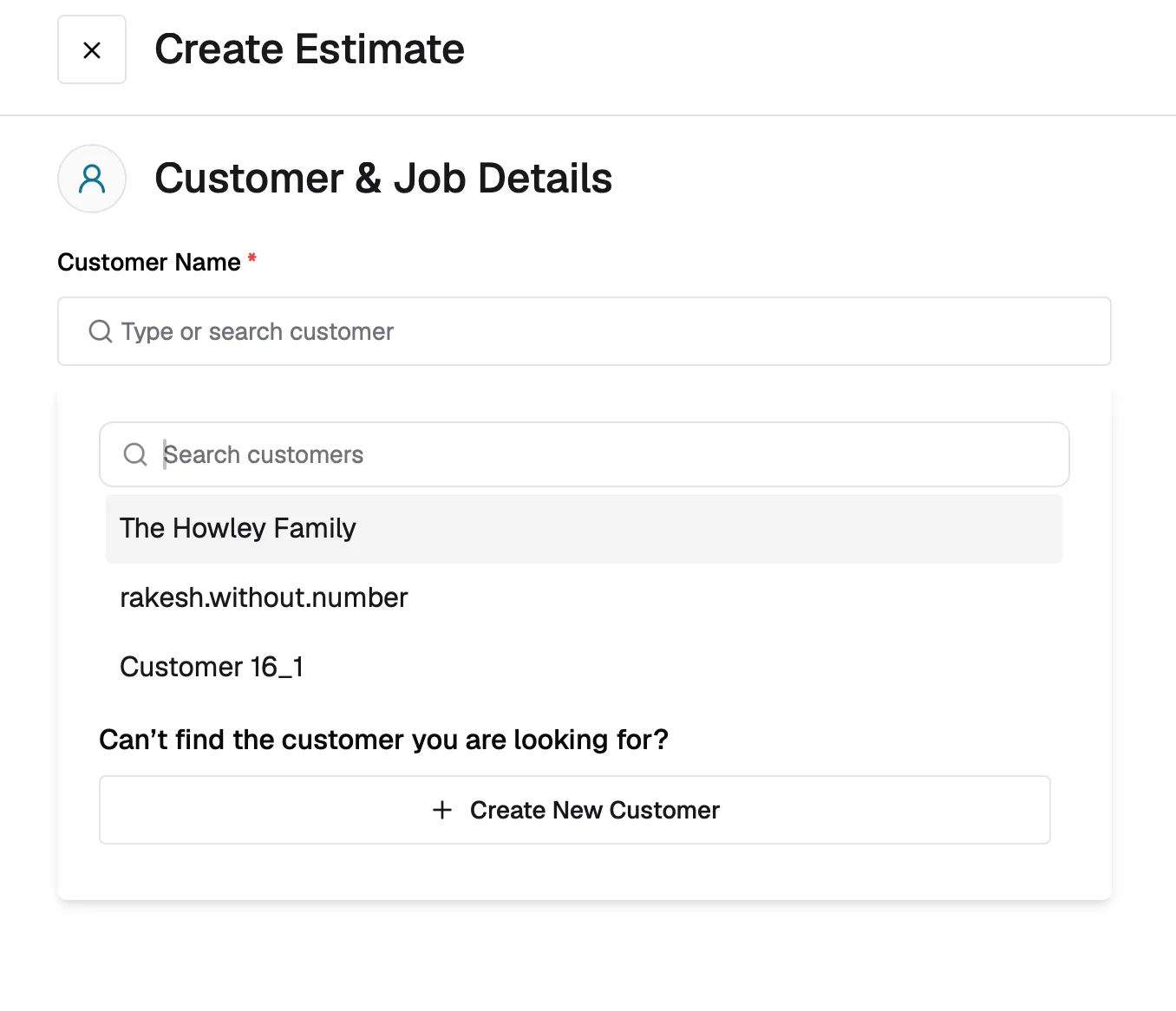
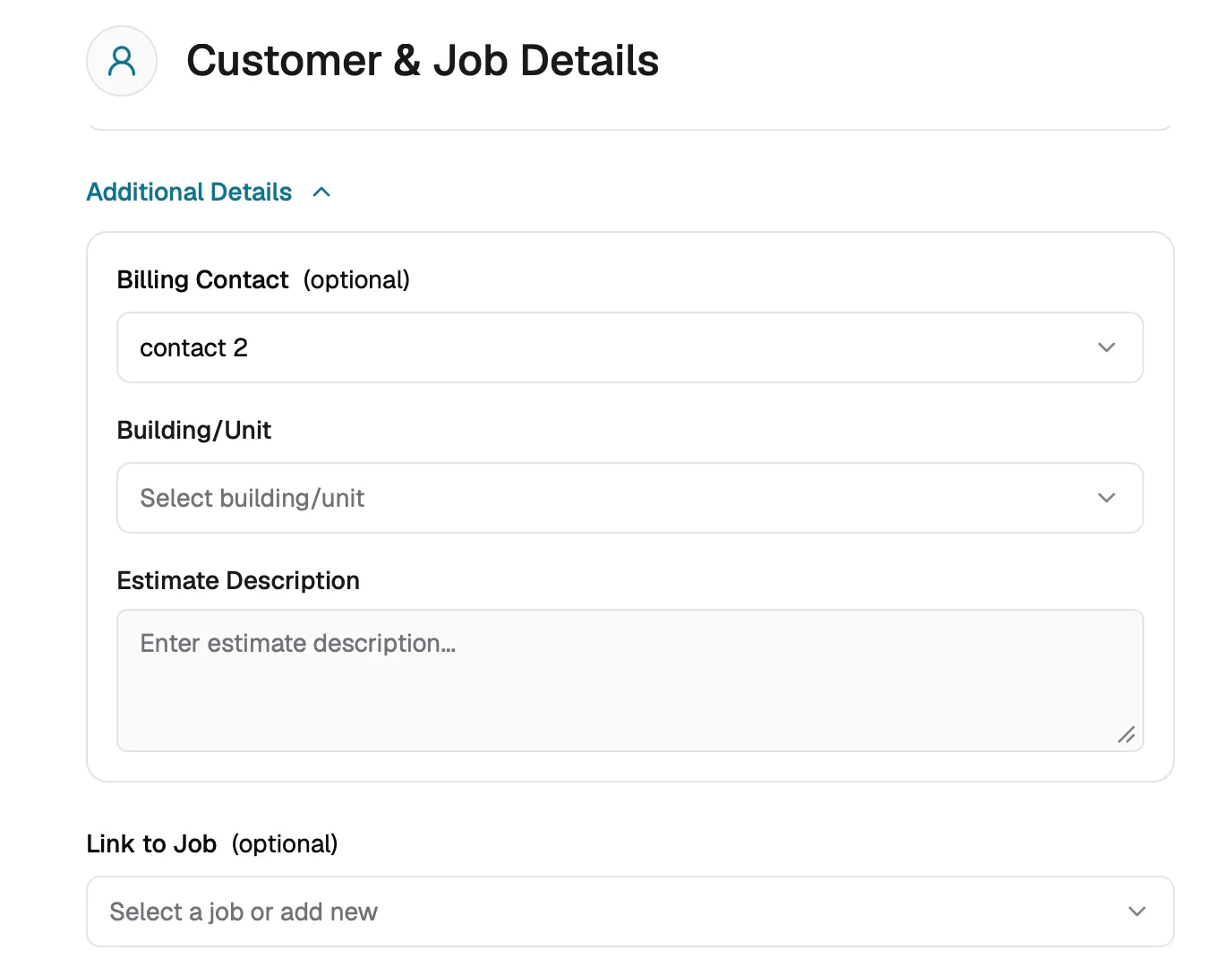
Step 2: Products and services
- Select a product or service from the dropdown or type to search.
- Add a Description for the line item.
- Enter the Quantity, Rate, Tax %, and Discount for each item. The line item total calculates automatically.
- Click + Add Product or Service to add more line items.
- View the Subtotal, Tax, and Total at the bottom. Click Add Discount to apply a discount to the invoice.
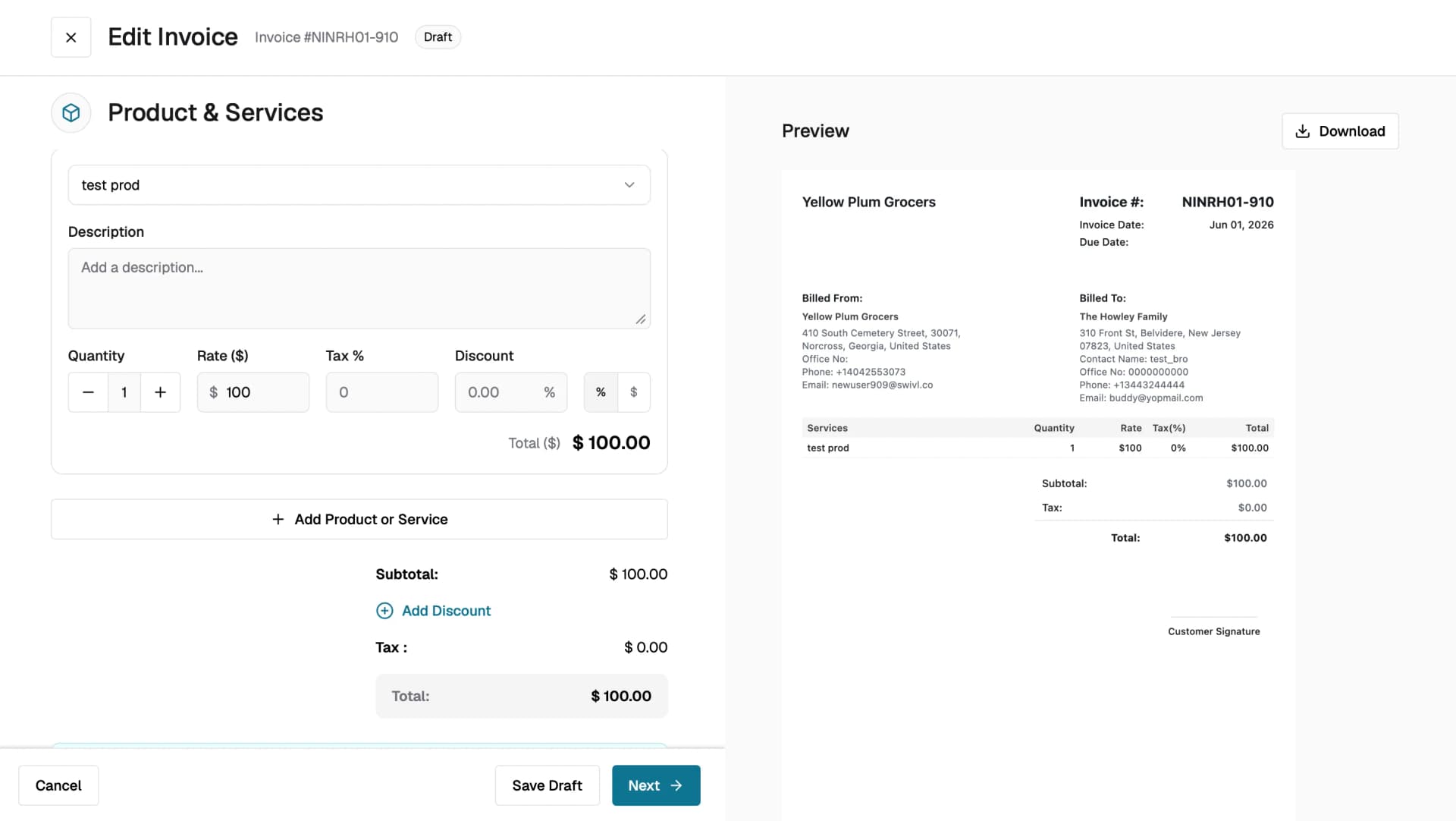
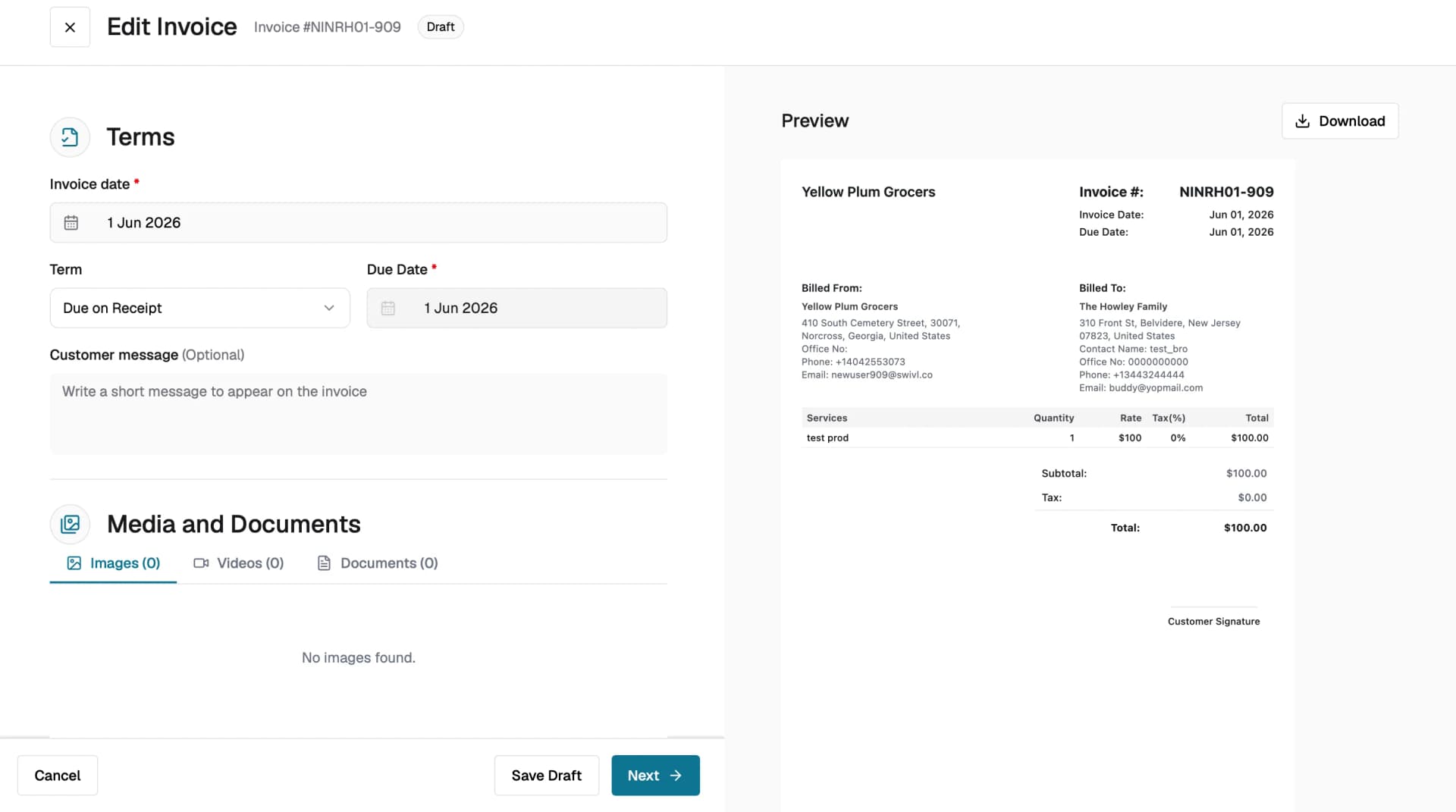
Step 3: Terms
- Set the Invoice Date, defaults to today's date.
- Choose the Term, defaults to Due on Receipt, which sets the Due Date automatically.
- Optionally add a Customer Message that will appear on the invoice document.
- Attach supporting files under Media and Documents upload images, videos, or documents.
- You can also preview the invoice on the right side of the screen and click Download to save it as a PDF.
- Click Save Draft to save your progress or Next to proceed.
Step 4: Review
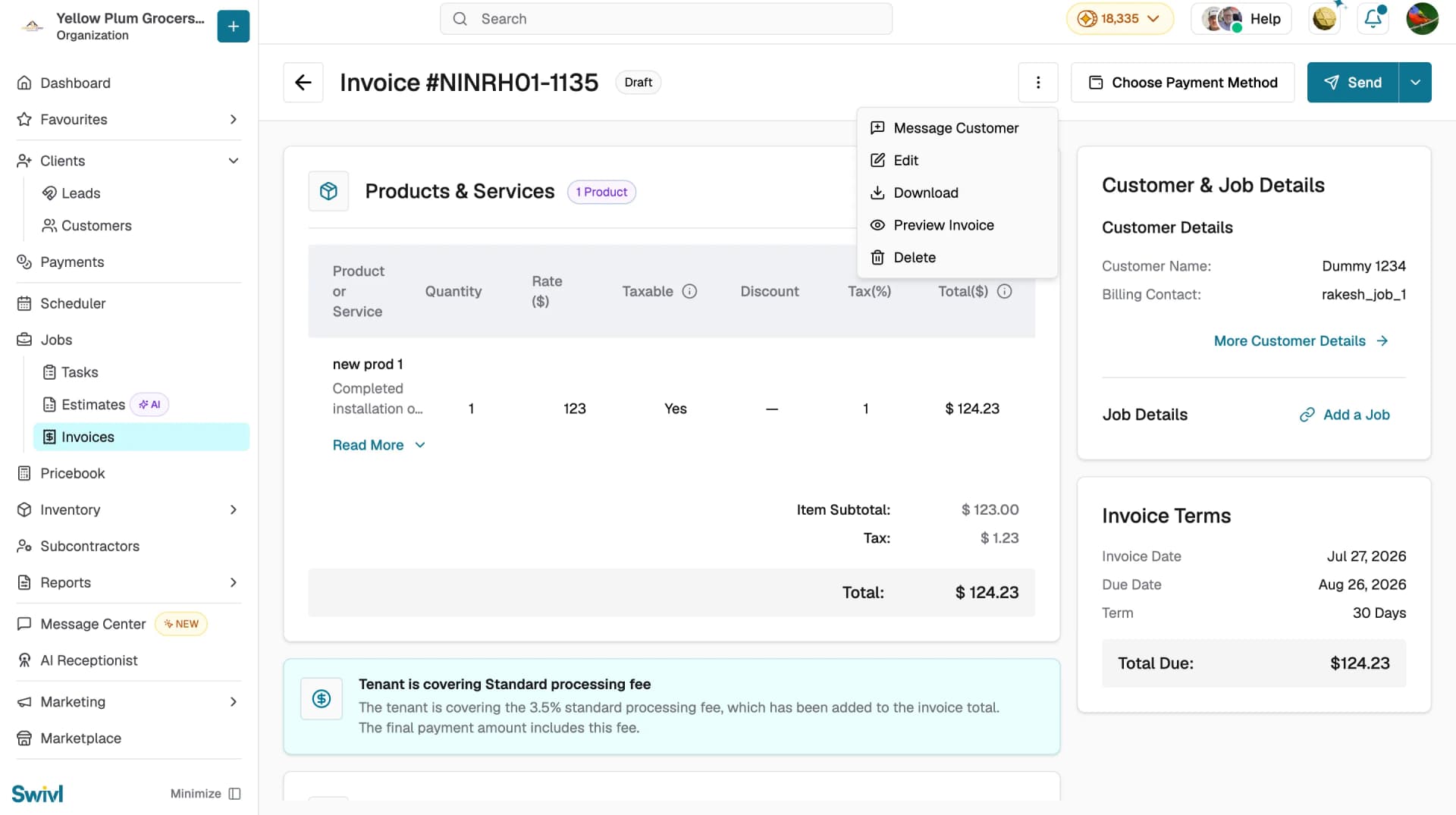
Review the full invoice before sending. From this page you can:
- Check all Products & Services line items, quantities, rates, and totals.
- Review Invoice Terms: Invoice Date, Due Date, Term, and Total Due.
- View Customer & Job Details on the right side.
- Click Choose Payment Method to set how the customer will pay.
- Click Send to deliver the invoice to your customer.
- Use the three-dot menu to access additional options.
Standard processing fee
When a customer pays through Stripe, a 3.5% processing fee applies. Use the Standard processing fee toggle to decide who covers it:
- On: the customer is charged the fee at payment. It's collected separately, so the invoice total stays the same.
- Off: the fee is deducted from your payout instead.
Recording a partial payment
Partial payments let you record an amount smaller than the invoice total, useful when a customer pays a deposit up front or settles the balance in installments.
Turn on Allow Recording Partial Payment? on the Create Invoice form. This option only records what the customer has paid; it does not send them a payment link or collect the money for you.
To record a payment:
- Click Take Payment at the bottom of the invoice.
- Enter the Amount received. It must be greater than $0.
- Choose how the payment was made:
- Stripe: charge the customer's card through your connected Stripe account. Click Pay Now to process it immediately, or Save to record it without charging.
- Other: log a payment collected outside Swivl. Select a Mode (Cash, Check, External Bank Transfer, External Card Payment, or Other), add an optional Description for your own records, then click Save Record.
Once you record a payment for less than the full amount, the invoice moves to Partially Paid. The Invoice Amount column on the invoice list continues to show the full invoice total, not the remaining balance open the invoice to see what's still outstanding.
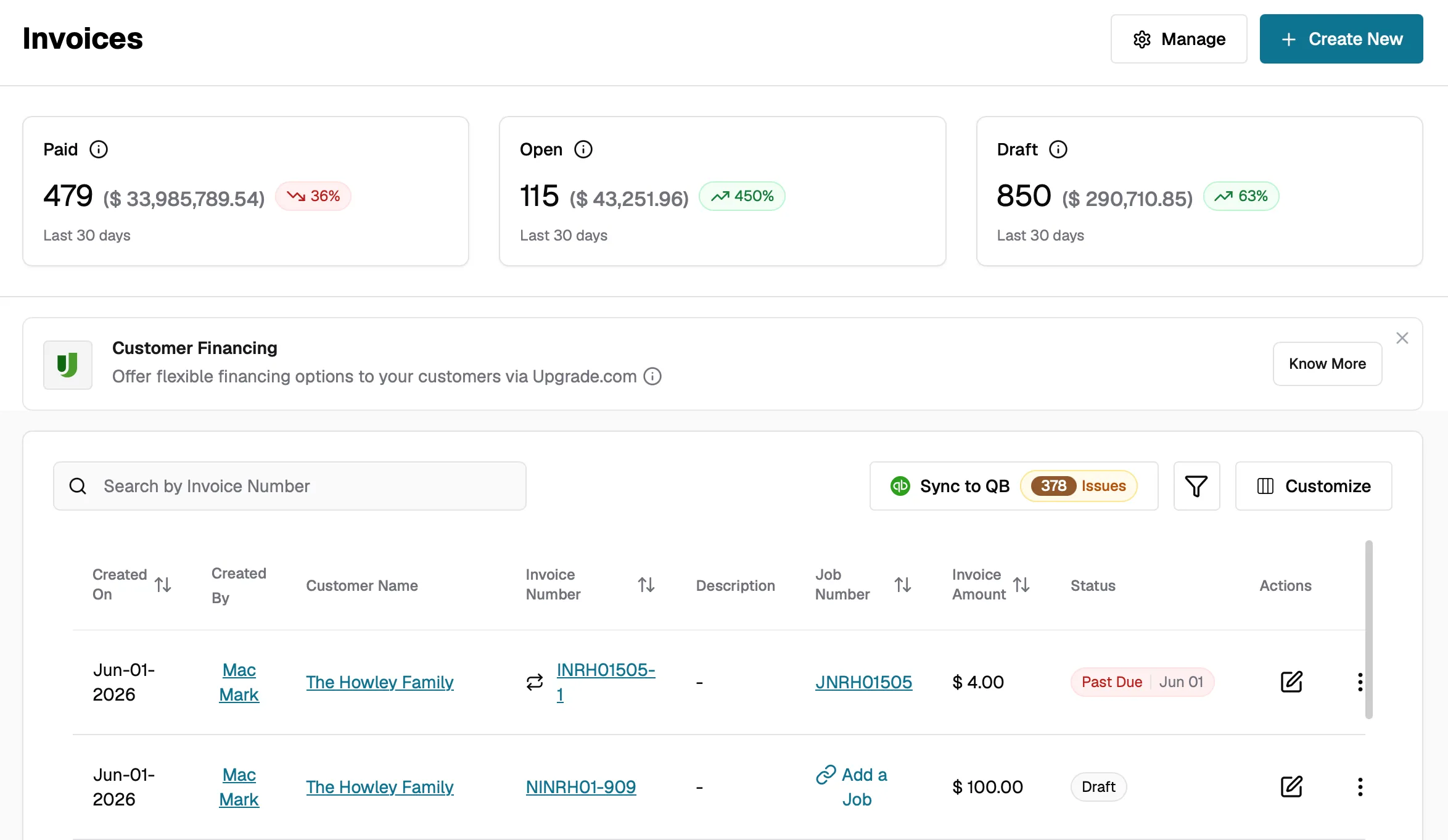
To find all partially paid invoices, click the filter icon above the list, go to Status, select Partially Paid, and click Apply.
Invoice statuses
Status | Meaning |
|---|---|
Draft | Invoice is saved but not yet sent to the customer |
Awaiting Payment | Invoice has been delivered to the customer and is awaiting payment |
Partially Paid | Some payment has been received, but the invoice isn't fully settled |
Past Due | Invoice was sent but payment wasn't received by the due date. The chip shows how many days it's overdue. |
Paid | Full payment has been received |
Void | Invoice has been canceled and is no longer active |
Editing an invoice
- Draft invoices can be edited directly by clicking the edit (pencil) icon.
- Open invoices can also be edited, but the system will first revert the invoice to Draft status. You will see a confirmation dialog before this happens.
- Paid and Void invoices cannot be edited.
Deleting an invoice
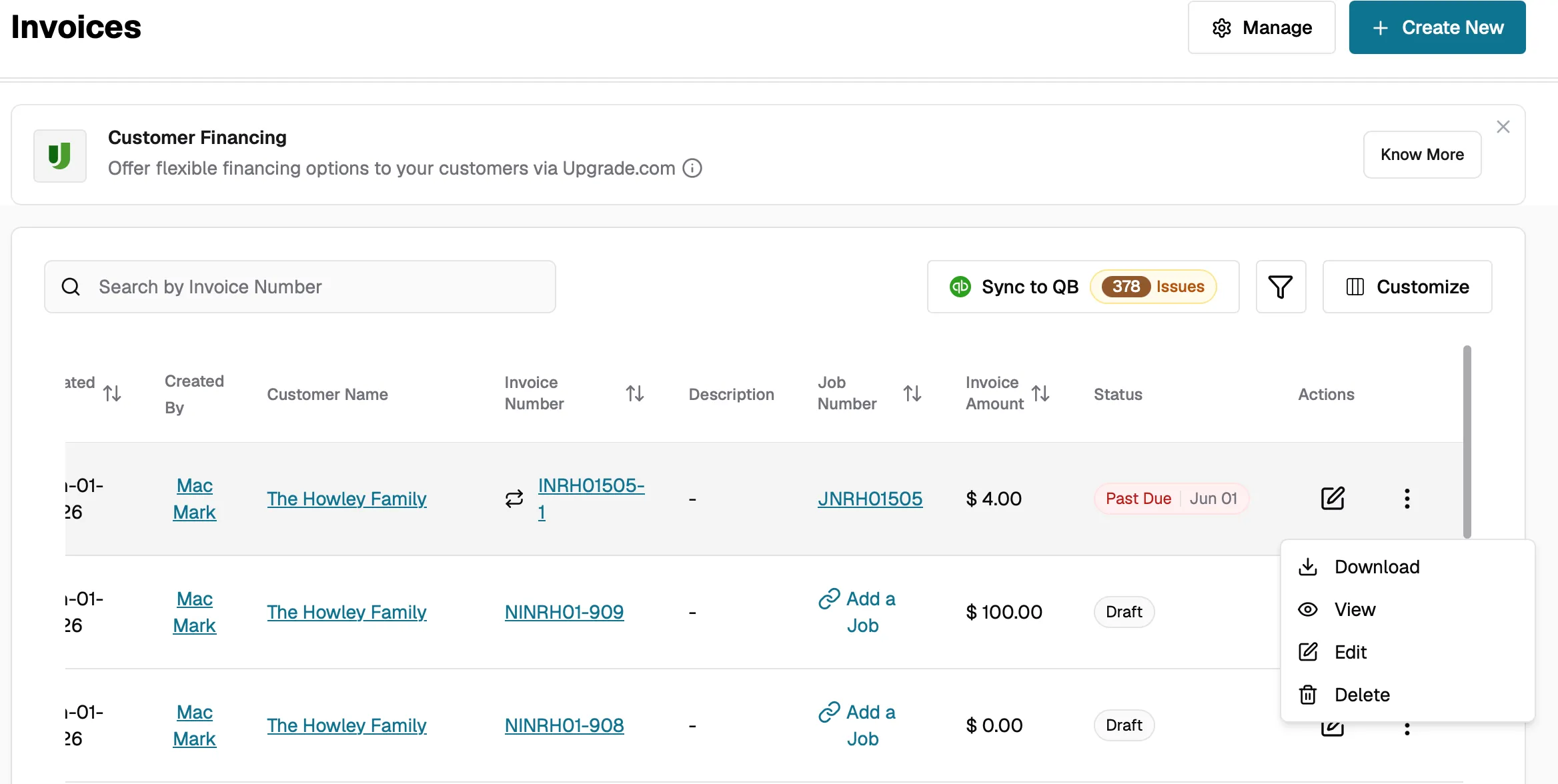
You can only delete an invoice when it is in Draft status. Click the three-dot menu on the invoice list or detail page and select Delete. A confirmation dialog will appear before the invoice is permanently removed.
Open, Paid, and Void invoices cannot be deleted.
Tips
- Invoice payment terms default to Due on Receipt, while estimates default to Net 30. Adjust as needed to match your business billing preferences.
- Use the invoice preview on the right side of the screen to see exactly what the customer will receive before sending.
- Click Download on the review page to save the invoice as a PDF at any time.
- If an invoice was converted from an estimate, a reference to the original estimate is preserved on the invoice.