
Converting an Estimate to an Invoice
Once a customer approves an estimate or pays a deposit, turn it into an invoice instantly. Everything carries over automatically so you can send it right away.
Overview
When a customer approves an estimate or pays a deposit, you can convert it directly into an invoice with one click. All line items, customer details, and job information carry over automatically, so you can send it to your customer right away without re-entering any data.
Who can access this
- Super Admin: can convert estimates to invoices.
- Admin: can convert estimates to invoices.
- Lead Technician: cannot convert estimates.
- Technician: no access.
When You Can Convert
The Convert to Invoice option is only available when all of the following conditions are met:
- The estimate status is Approved or Deposit Paid.
- The estimate has not already been converted to an invoice.
- The linked job (if any) is not in a Closed status.
The conversion option will not be available if the estimate is in Draft, Open, Declined, Expired, Change Request, or Void status.
How to convert an estimate to an invoice
- Navigate to Estimates in the left sidebar.
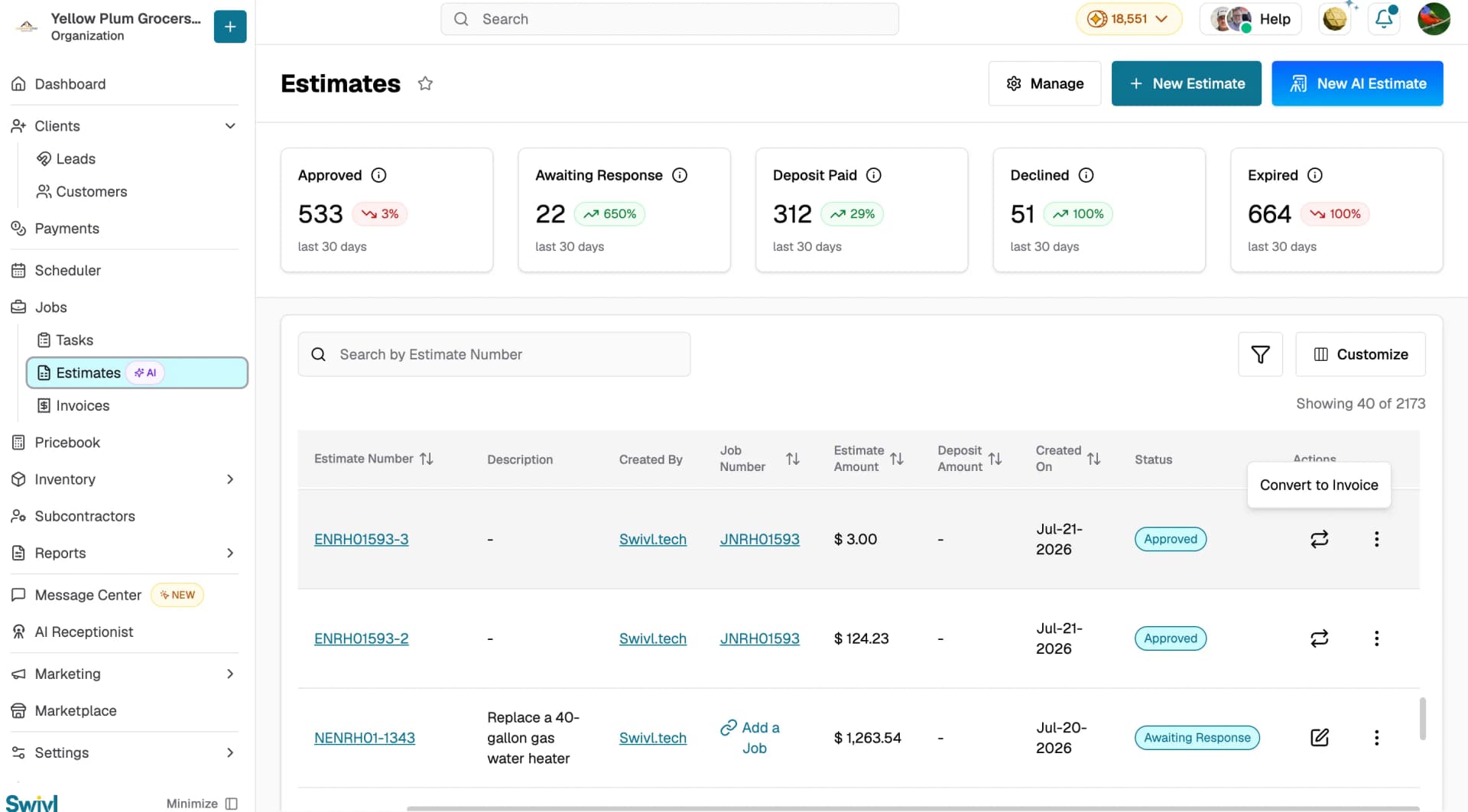
- Find the estimate in Approved or Deposit Paid status.
- You can convert in two ways:
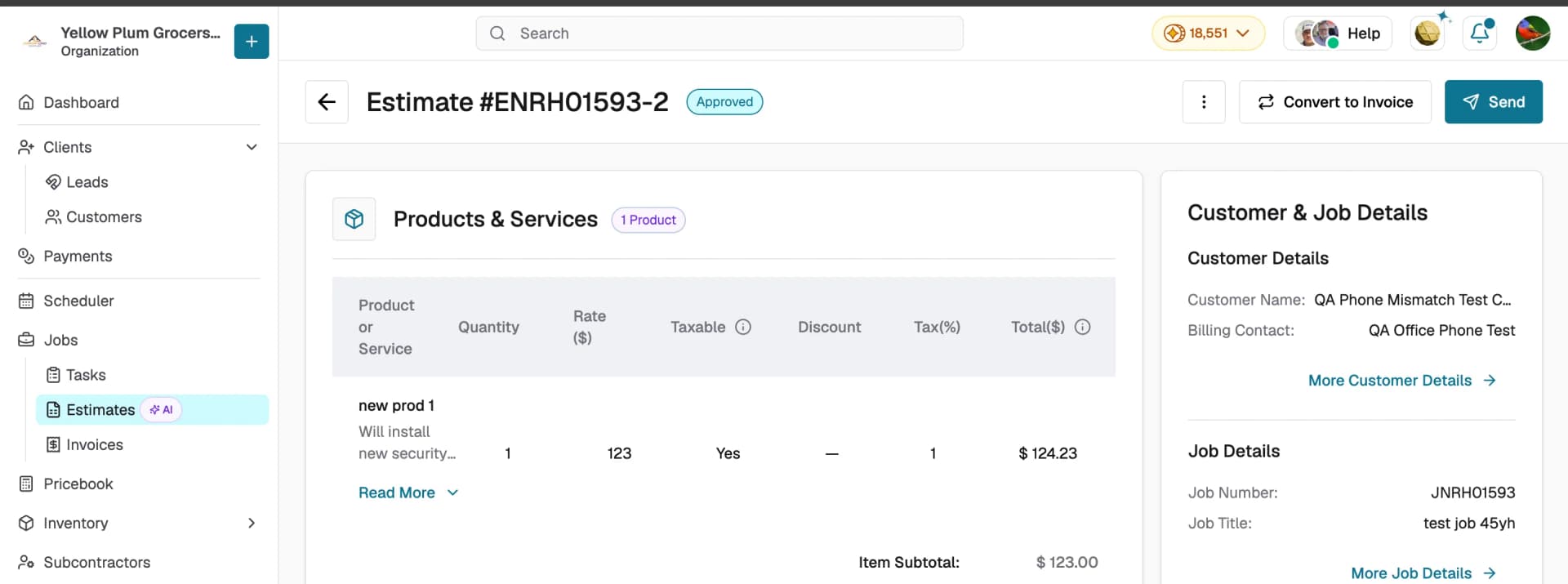
- Open the estimate and click Convert to Invoice in the top right corner.
- Or click the three-dot menu in the Actions column directly from the list and select Convert to Invoice.
- The system creates the invoice and redirects you to edit it.
What carries over
When you convert an estimate, the following data is automatically transferred to the new invoice:
- Customer and Account Information: customer name, billing contact, and account details.
- Service Address and Contacts: the job site address and site contact.
- Products and Services: all line items including names, quantities, rates, and tax settings.
- Payment Terms and Due Date: carried over from the estimate terms.
- Customer Message: any message added to the estimate.
- Linked Job: if the estimate was linked to a job, the invoice will be linked to the same job.
What to check after converting
- Invoice Date: defaults to the original estimate date. Update it to today's date if needed.
- Due Date: recalculates automatically based on the invoice date and payment terms. Verify it is correct before sending.
- Deposit: if a deposit was collected on the estimate, it will be reflected on the invoice. Confirm the remaining balance is accurate.
- Line Items: review all products and services for any pricing changes since the estimate was created.
Tips
- An estimate can only be converted once. After conversion, the Convert to Invoice option is replaced by a link to the new invoice.
- The original estimate is preserved for your records and is not deleted after conversion.
- If the linked job is closed, re-open the job before attempting to convert.
- After converting, remember to send the invoice to the customer separately conversion does not automatically send it.