
Users & Roles Overview
The Users & Roles section in Settings lets you manage your team members and control what each person can see and do in Swivl.
Overview
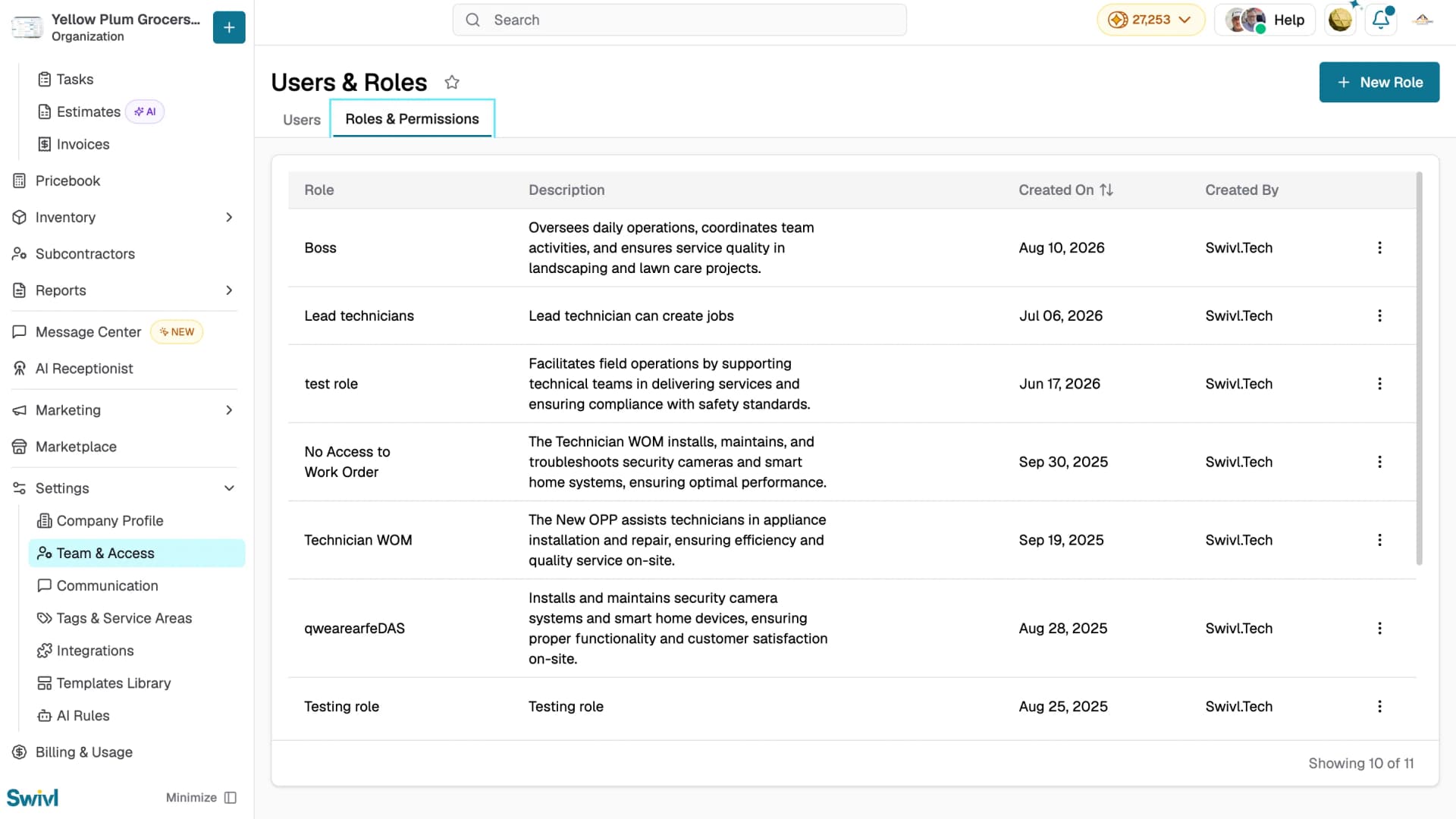
Go to Settings → Team & Access to manage your team members and their permissions. The page is divided into two tabs: Users for managing people and Roles & Permissions for managing permission sets.
Who can access this
- Super Admin: full access to users and roles
- Admin: can view users and manage invitations (role management may be restricted)
Users
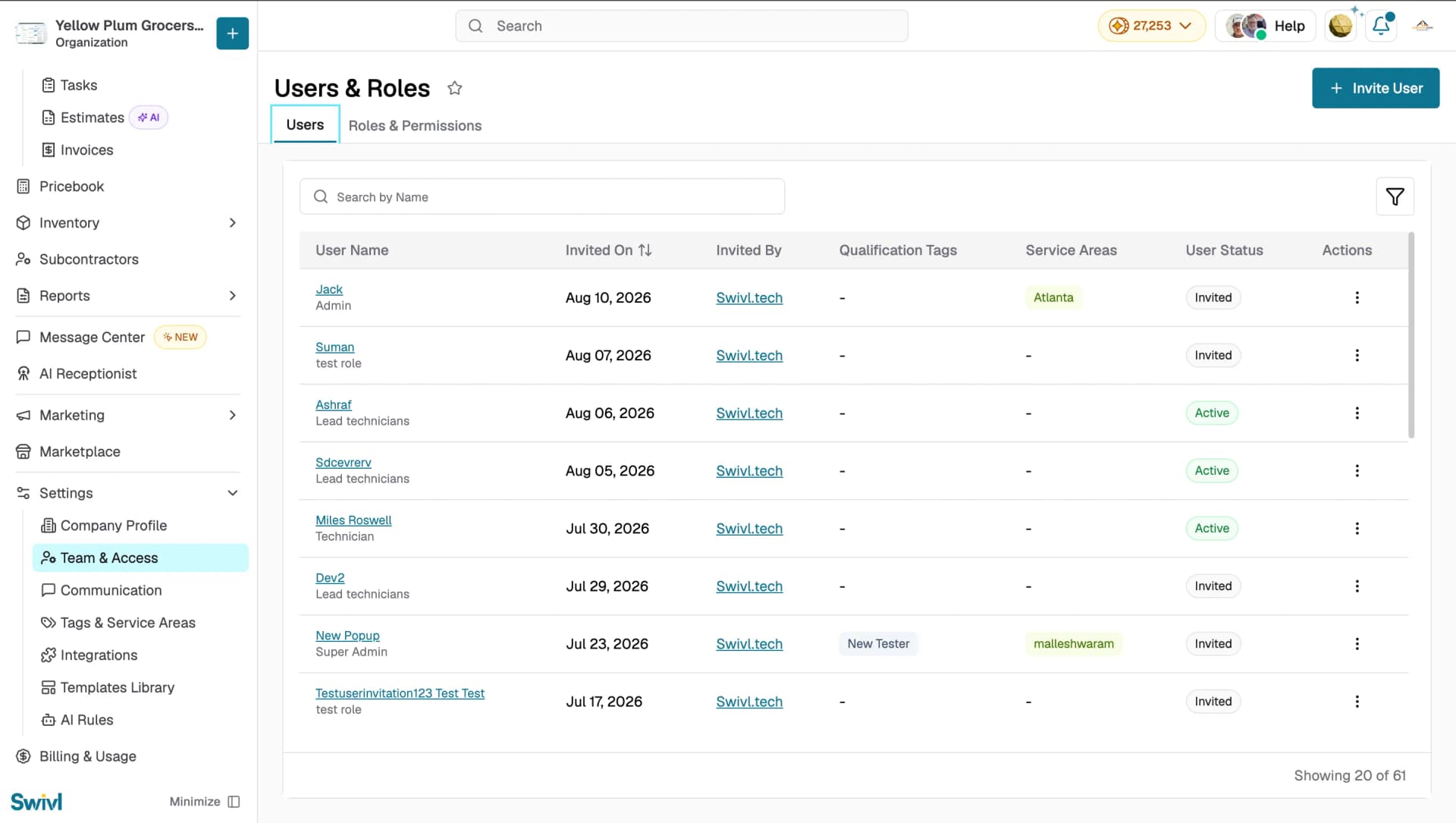
The Users tab shows all your team members both those who have joined and those with pending invitations in a single table. The table displays User Name, Invited On (click the column header to sort), Invited By, Qualification Tag(s), Service Areas, User Status, and Action(s). The User Status column shows Invited, Active, Deactivated, or Expired, so you can see at a glance who has joined and who still has a pending invitation.
Searching and filtering
Use the Search by Name field to quickly find a specific user. Click the filter icon to filter the list by User Status (Active, Deactivated, Invited, or Expired), Tags, or Service Areas, then click Apply. Click Clear All to remove all applied filters.
User actions
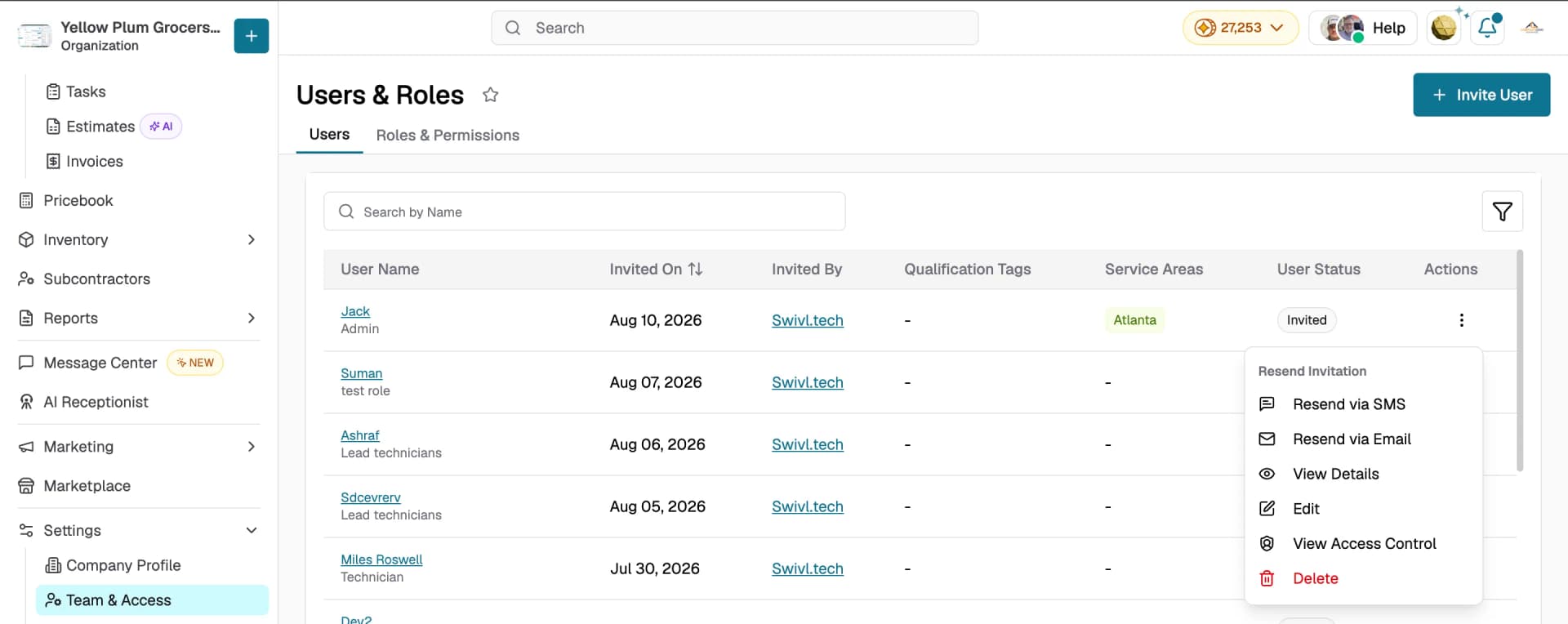
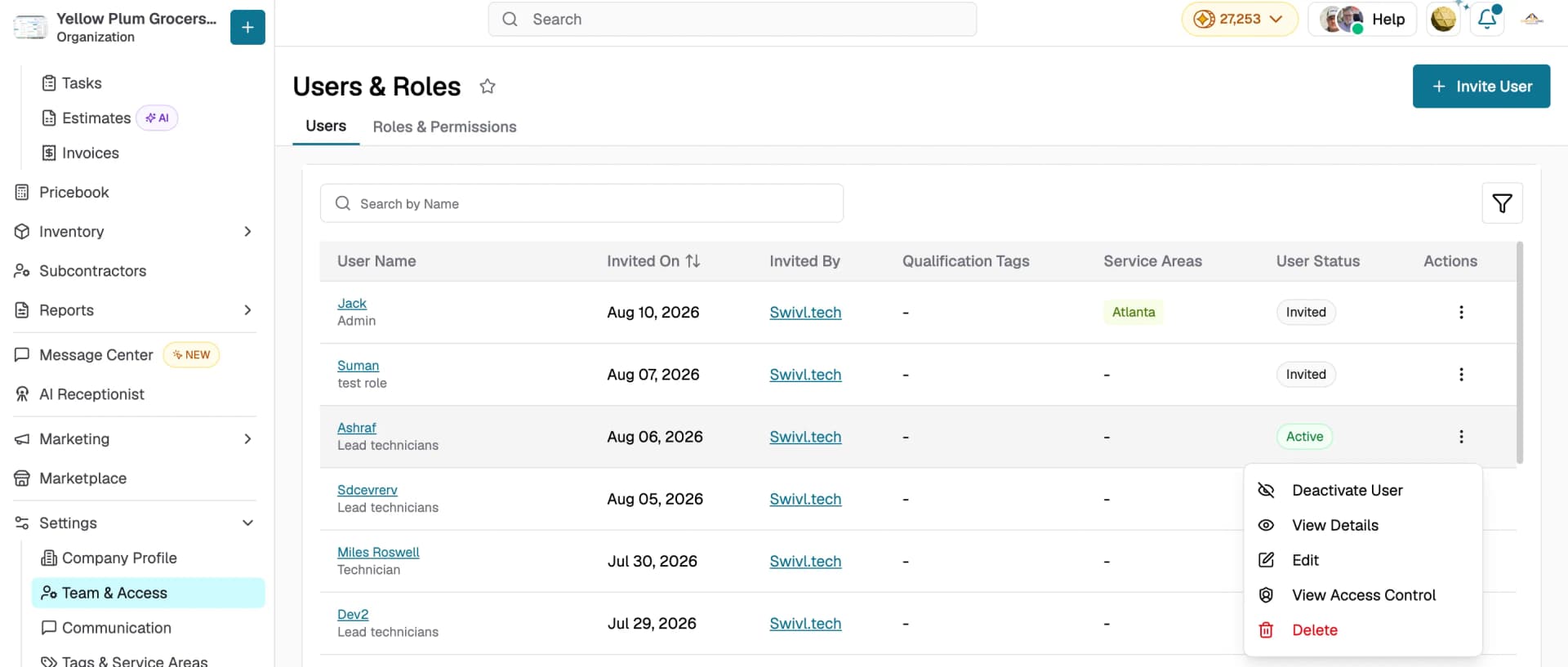
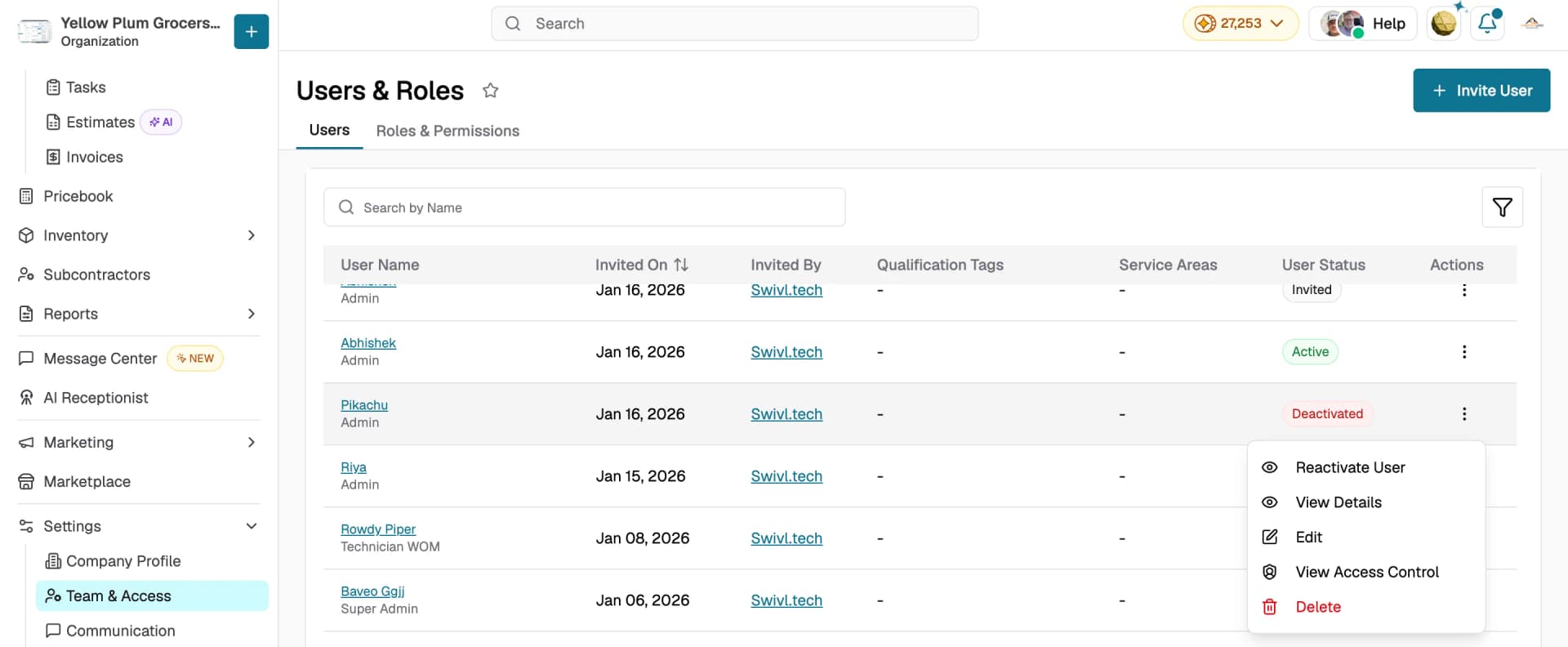
Click the three-dot menu on a user's row to manage them. Every user has View Details, Edit, View Access Control, and Delete. Additional options depend on the user's status:
- Invited users: include Resend Invitation options, Send via SMS or Resend via Email.
- Active users: include Deactivate User.
- Deactivated users: include Reactivate User.
Roles & Permissions
The Roles & Permissions tab displays all roles configured in your Swivl account. The table shows Role name, Description, Created On date, Created By, and Actions (view, edit, or delete). Click + Create New Role to add a custom role. Swivl comes with four built-in roles that cannot be deleted.
Quick actions
From the Team & Access page you can:
- Invite New User: Send an invitation to a new team member and assign them a role.
- Create New Role: Build a custom role with specific permissions tailored to your business.
- Edit a user: Update a team member's details, role, or status.
- View or edit a role: Review or change what a role can access across the platform.
Tips
- Use the Search by Name field to quickly find a specific user.
- The User Status filter is a quick way to review pending or expired invitations in one place.
- Review your roles periodically to ensure permissions match current job responsibilities.
- Invitations that haven't been accepted can be resent from the three-dot menu using the Resend Invitation options.
- Make sure no users are assigned to a role before deleting it this action is permanent.