
Importing Customers
Add your existing customer records to Swivl in bulk by uploading a CSV file, syncing from QuickBooks, or creating them one at a time.
Overview
When setting up your Swivl account, you can populate your customer list in three ways that is upload a CSV file, sync directly from QuickBooks, or create customers manually one at a time. You can access all three options from the get started screen on the Customers page or use the Import button at any time.
Who can access this
Super Admin | Full access to all three methods |
Admin | Full access to all three methods |
Lead Technician | No access |
Technician | No access |
Ways To Import Customers
Go to Clients → Customers. If your customer list is empty, select an option from the get started screen. If you already have customers, click Import in the top right corner.There are three ways to import customers.
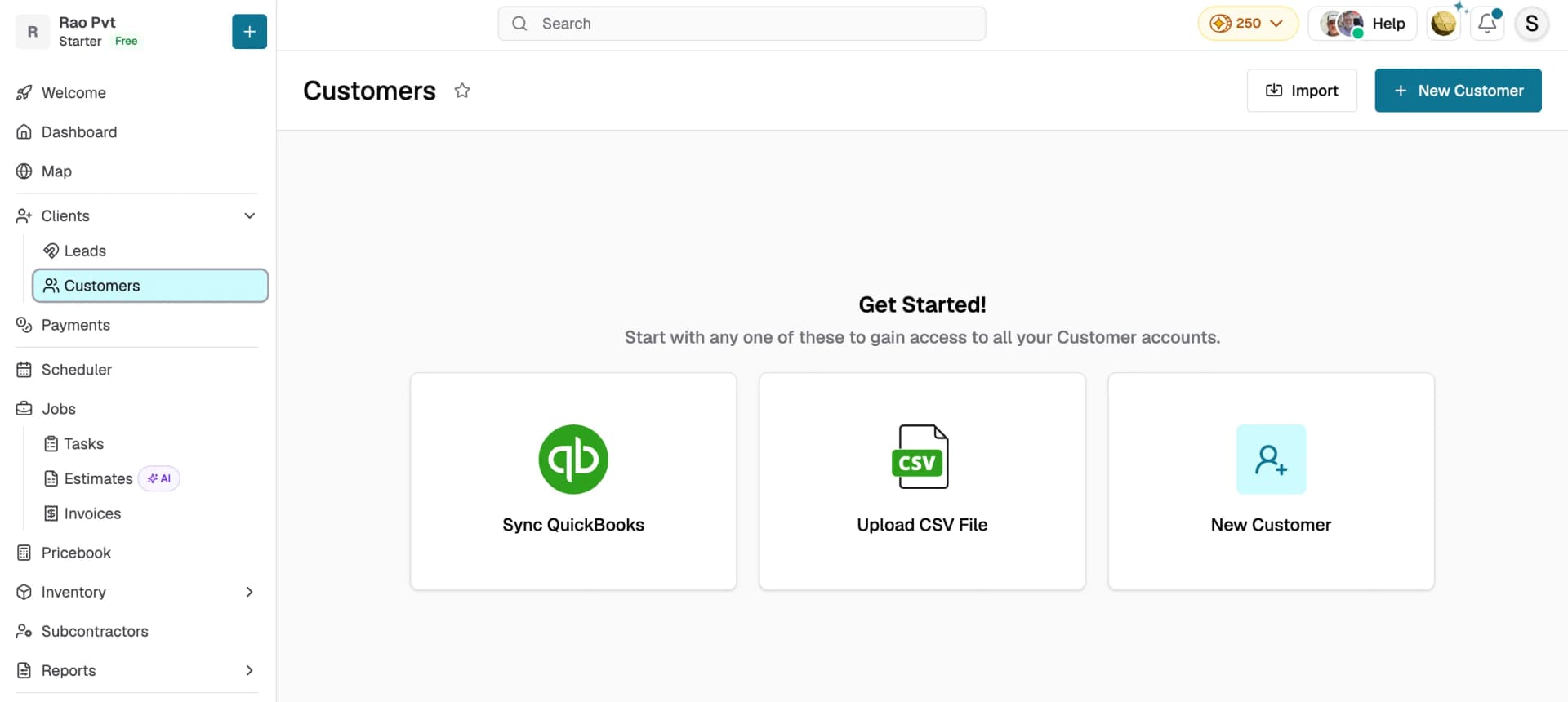
Method 1: Sync QuickBooks
- Go to Clients → Customers and click Sync QuickBooks from the get started screen.
- In the confirmation dialog, click Connect to Quickbooks.
- Sign in to your Intuit account and authorise Swivl to access your data.
- Once connected, Swivl imports your customer and pricebook details from QuickBooks automatically.
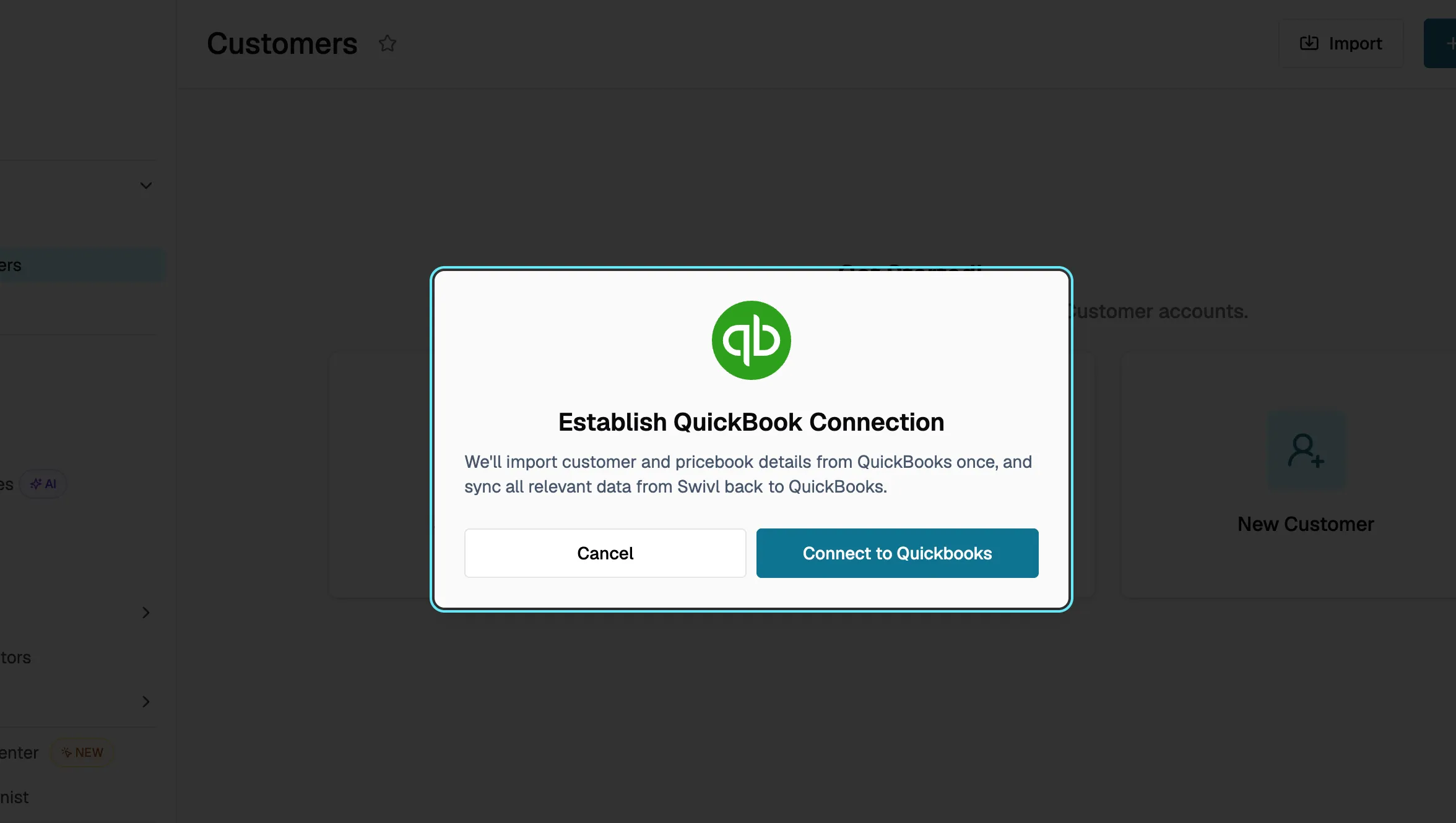
To learn more about connecting and managing QuickBooks, see Connecting QuickBooks Online.
Method 2: Upload a CSV File
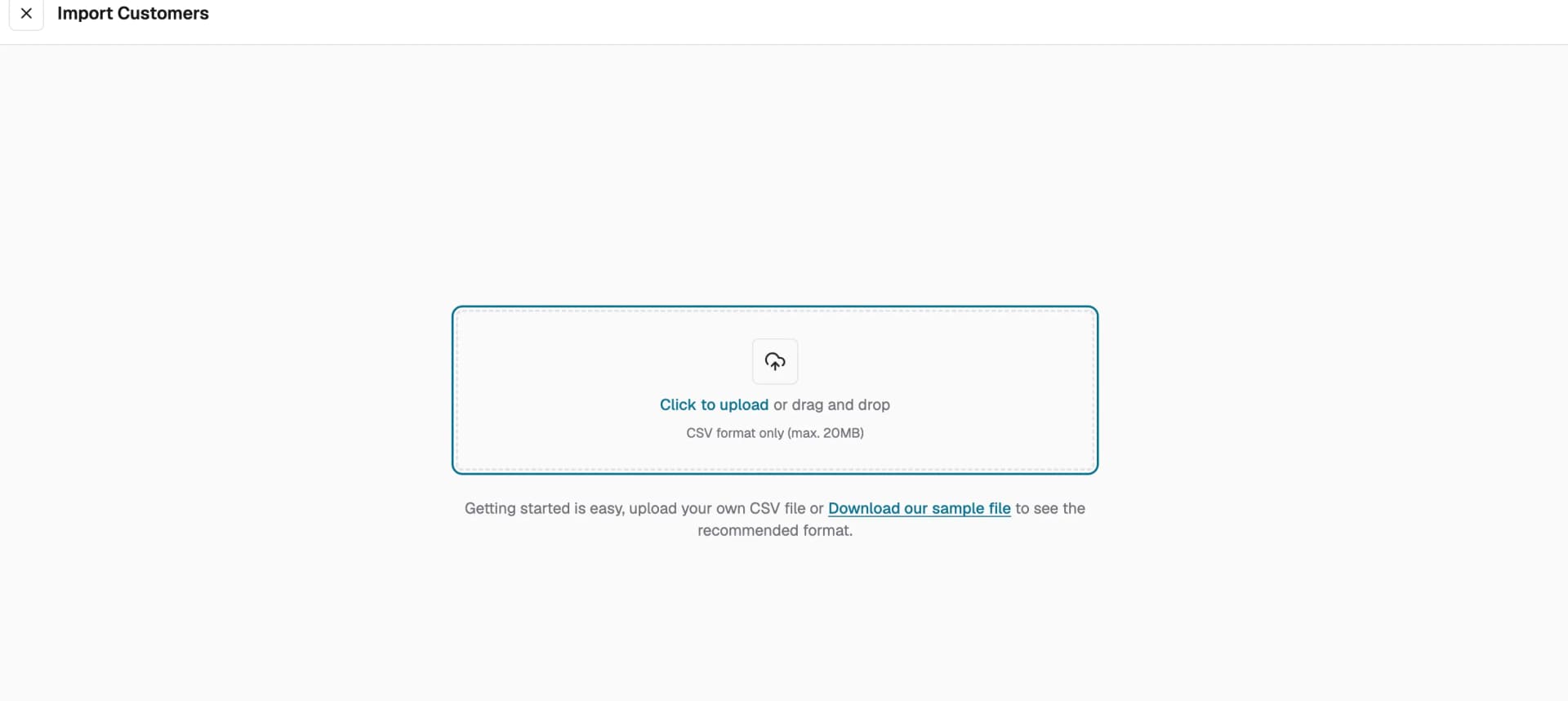
- Go to Clients → Customers and click Import, or click Upload CSV File from the get started screen.
- In the Import Customers panel, click Download our sample file to get the recommended CSV format.
- Fill in your customer details using the sample file as a guide.
- Click Click to upload or drag and drop your completed CSV file into the upload area.
- Review the imported records once the upload is complete.
Method 3: Create Customer Manually
- Go to Clients → Customers and click + New Customer , or click New Customer from the get started screen.
- Add the customer account name and profile photo under Primary Details.
- Enter the service address under Address Details.
- Add contact name, phone number, and email under Contact Details.
- Assign sales and account managers, add tags, and upload media under Additional Details.
- Click Save to create the account.
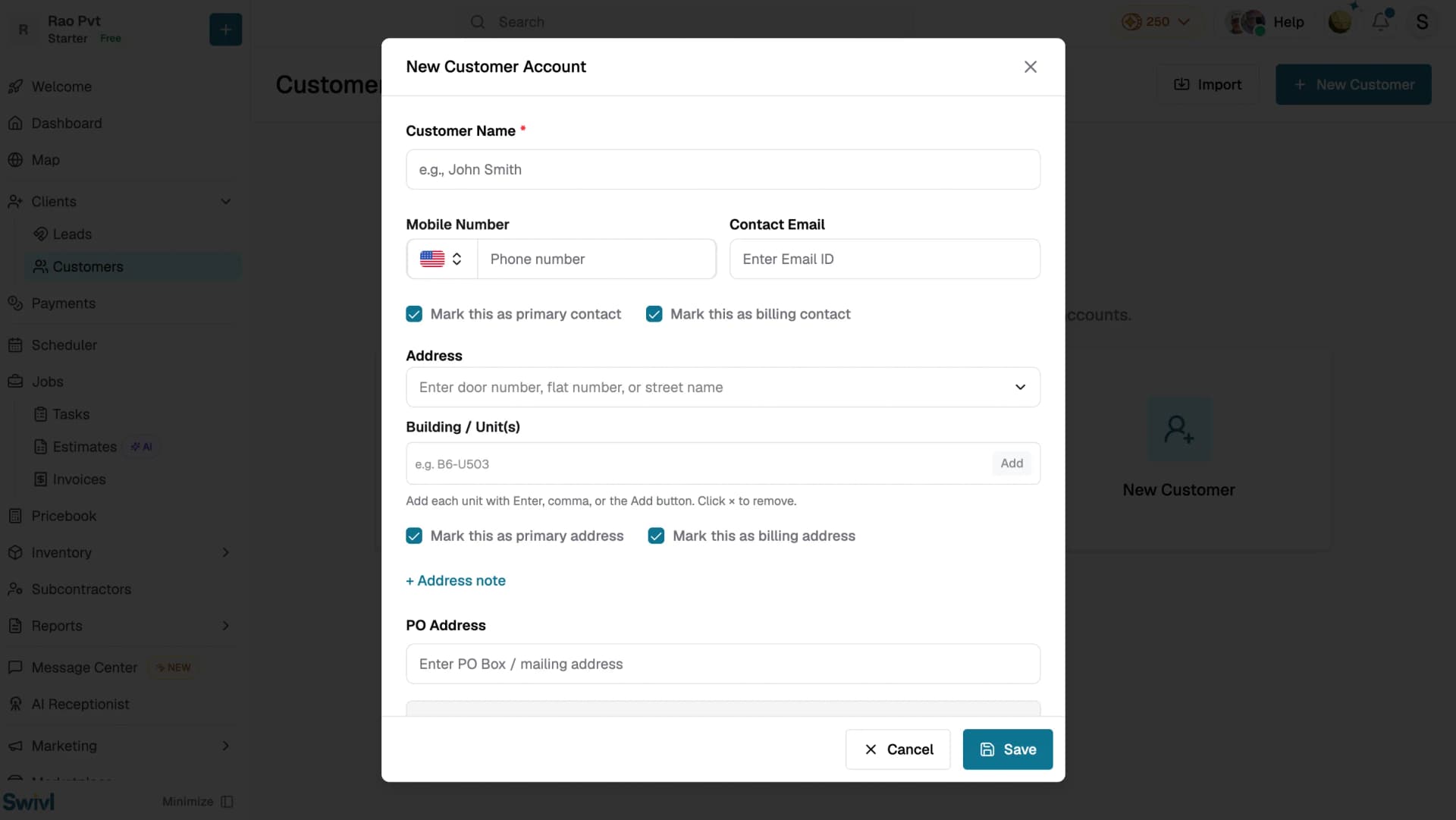
To learn more about creating and managing customer accounts, see Adding a Customer Account.
Tips
- The CSV file must be in CSV format and under 20MB. Use the sample file to ensure your data is formatted correctly before uploading.
- When syncing from QuickBooks, customer and pricebook details are imported once ongoing data syncs from Swivl back to QuickBooks.
- Only one QuickBooks company can be linked to your Swivl account at a time.
- You can use the Import button at the top of the Customers page at any time you don't need to be on the get started screen.