
Assigning Assets to Jobs
Once registered in Swivl, assets can be assigned to technicians or jobs to track usage, recover equipment costs, and keep job costing accurate.
Overview
Once vehicles, tools, and equipment are registered in Swivl, they can be assigned to jobs to track resource usage, ensure accurate job costing, and give your team visibility into what is available.
Who can access this
- Super Admin: can assign and reassign assets.
- Admin: can assign and reassign assets.
Assigning a vehicle to a job
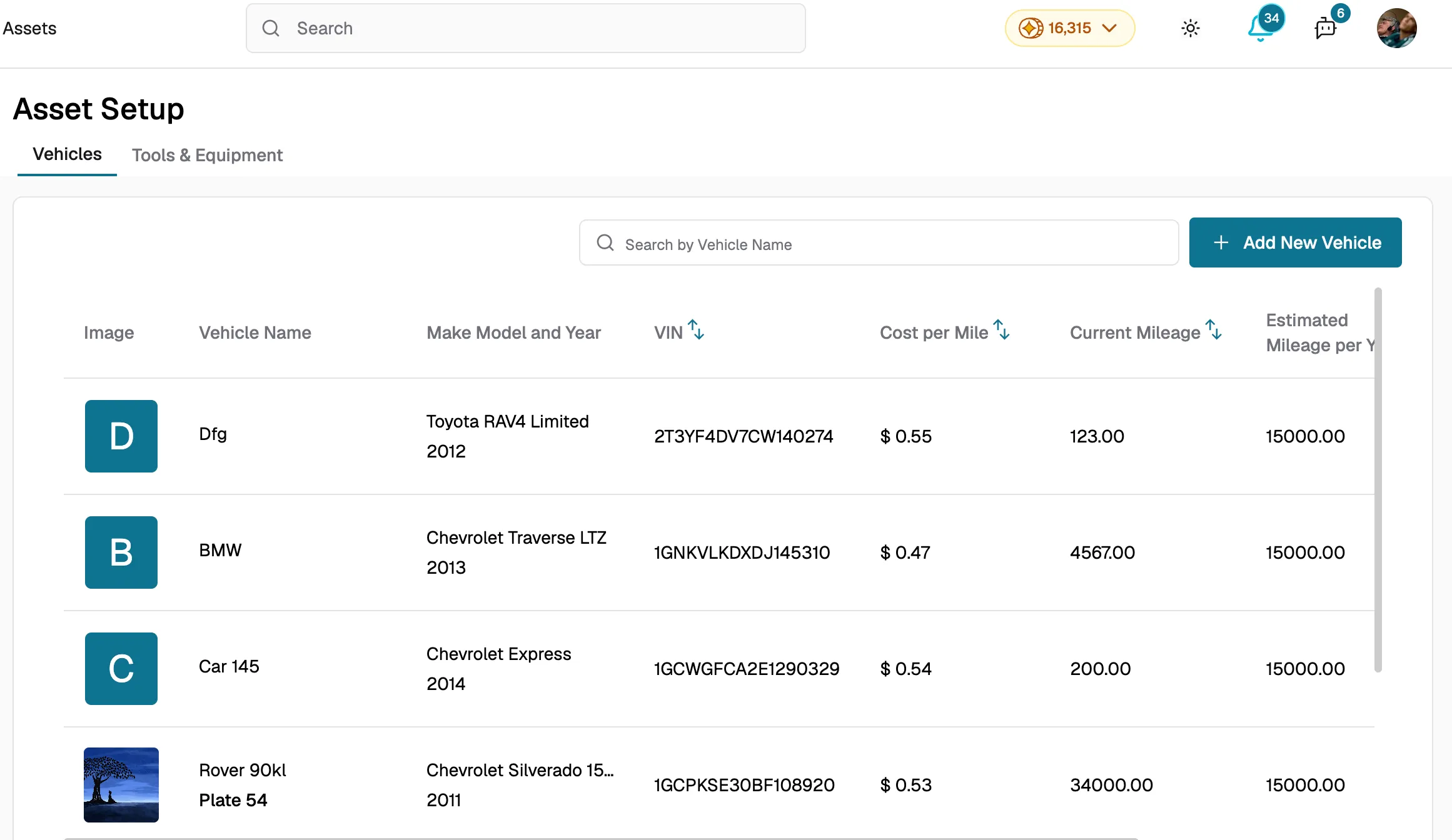
Vehicles are assigned by the technician when they clock in to a task. The clock-in screen includes a Vehicle dropdown where the technician selects from the available vehicles registered in Inventory → Asset Setup. The selected vehicle's cost per mile is automatically factored into the job's cost calculations.
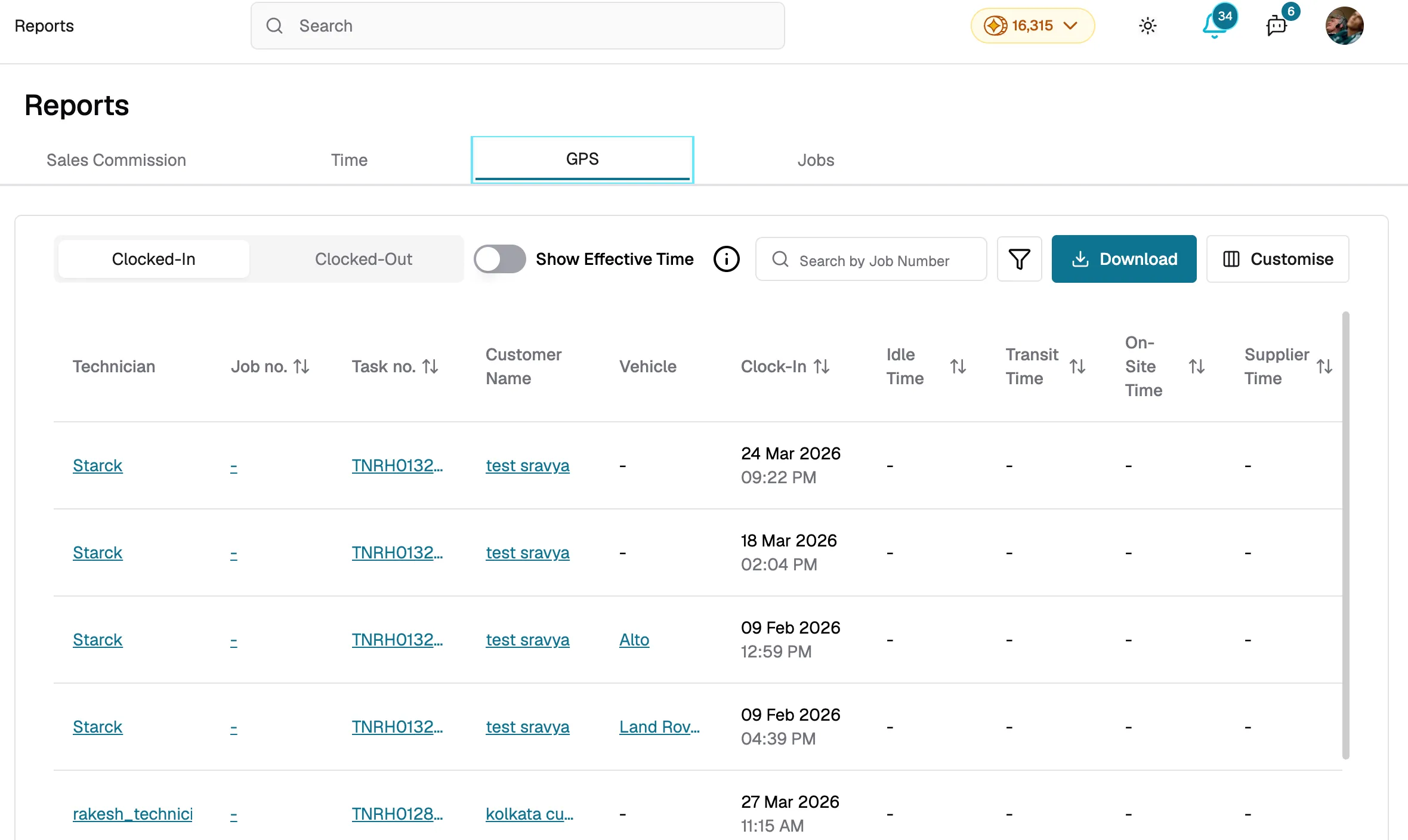
Vehicle assignments can be verified in Reports → GPS, where each task shows the technician, job, and vehicle used.
Assigning tools and equipment to a job
Tools and equipment are added from the job detail or task cost screen — not through the clock-in flow like vehicles. When viewing a job's costs, select the tool or equipment from the available list and it will be added to the job. The tool's cost per hour is automatically used to calculate the equipment portion of the total job cost.
How asset costs flow into jobs
- Vehicles: the vehicle's cost per mile multiplied by the distance travelled is automatically added to the job cost
- Tools & Equipment: the tool's cost per hour multiplied by the hours used on the job is automatically added to the job cost
These costs can be included in estimates and invoices so you can recover equipment expenses from customers.
Checking asset assignments
To see which assets are currently in use:
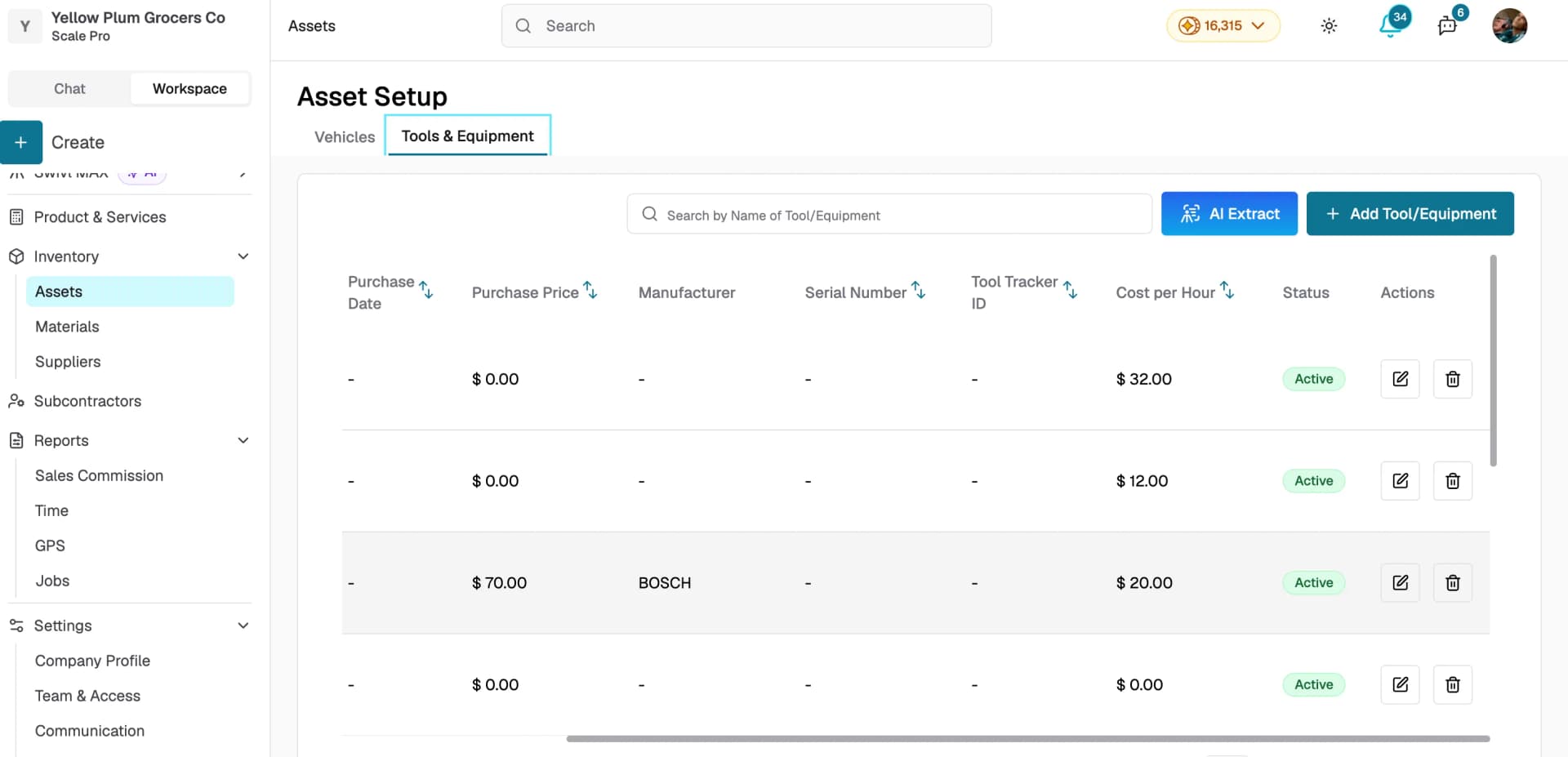
- Go to Inventory → Assets
- Open the Vehicles or Tools & Equipment tab
- Review the Status column the active assets are available for assignment
Tips
- Keep asset statuses up to date mark items as Inactive when they are out of service to prevent them from being assigned to jobs
- Review asset costs periodically to make sure data stays accurate for example, update vehicle mileage after long trips
- Accurate cost per hour and cost per mile values are critical for profitable job costing revisit these numbers at least quarterly