
Converting an AI-Generated Estimate to a Formal Estimate
Once you are satisfied with the AI-generated cost breakdown, convert it into a formal estimate with a single click. All costs, customer details, and job information are automatically carried over and ready to send to your customer.
Overview
Once you are satisfied with the AI-generated cost breakdown, you can convert it into a formal estimate with a single click. The conversion creates a real estimate record in Swivl, pre-filled with all the costs, customer details, and job information from the AI session. From there you can send it to the customer or convert it further into an invoice.
Who can access this
- Super Admin: can convert AI estimates.
- Admin: can convert AI estimates.
- Lead Technician / Technician: no access.
Before you convert
Make sure the following details are in order:
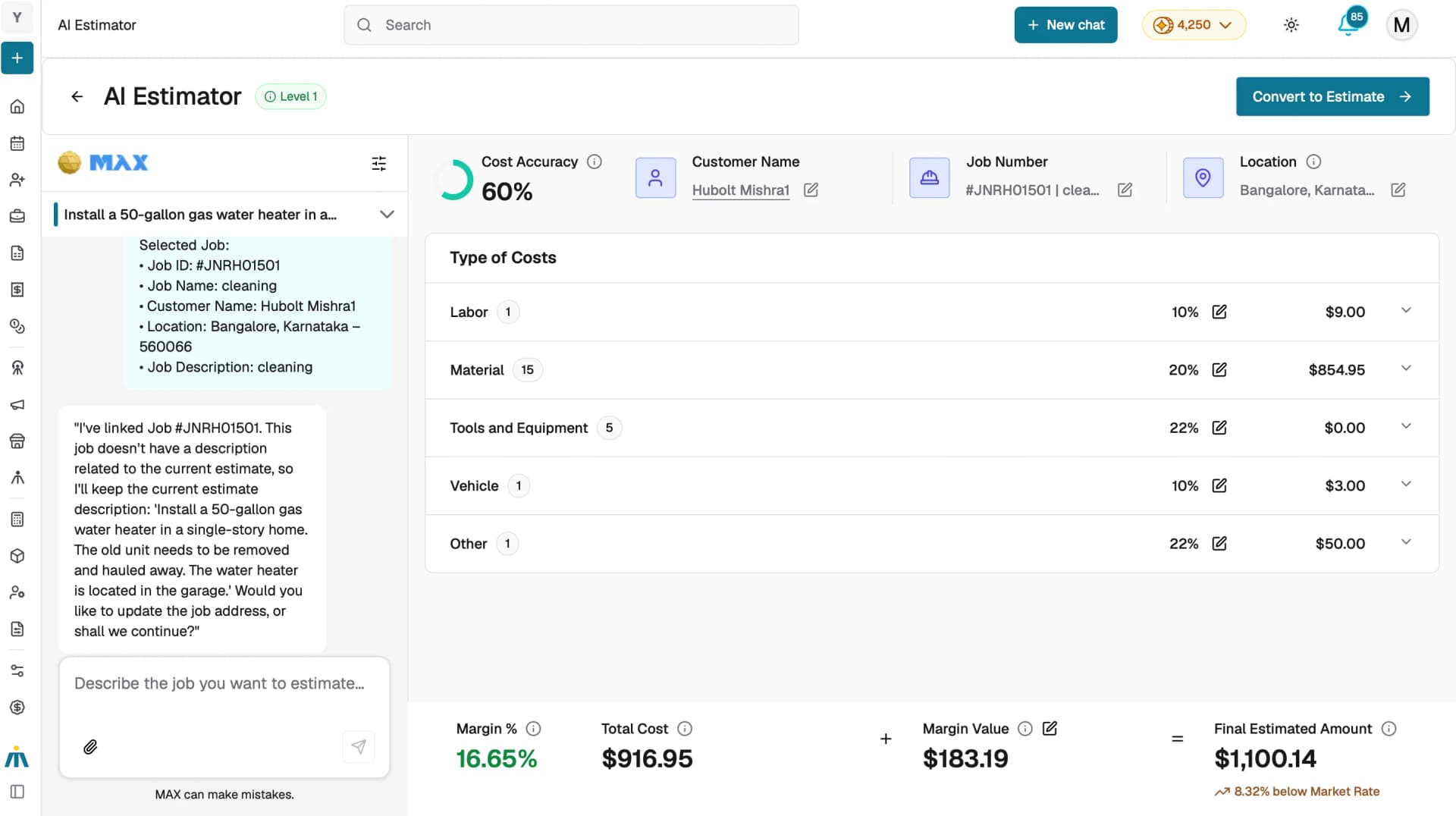
- Customer Name: required. If no customer is selected you will not be able to create a formal estimate.
- Cost Breakdown: at least one cost line item must exist across any category.
- Cost Accuracy: the higher the score, the more reliable the estimate. A low score means Max had limited context about the job. Review the breakdown carefully before converting.
How to convert
- After reviewing and refining the estimate, click the Convert to Estimate button in the top right corner.
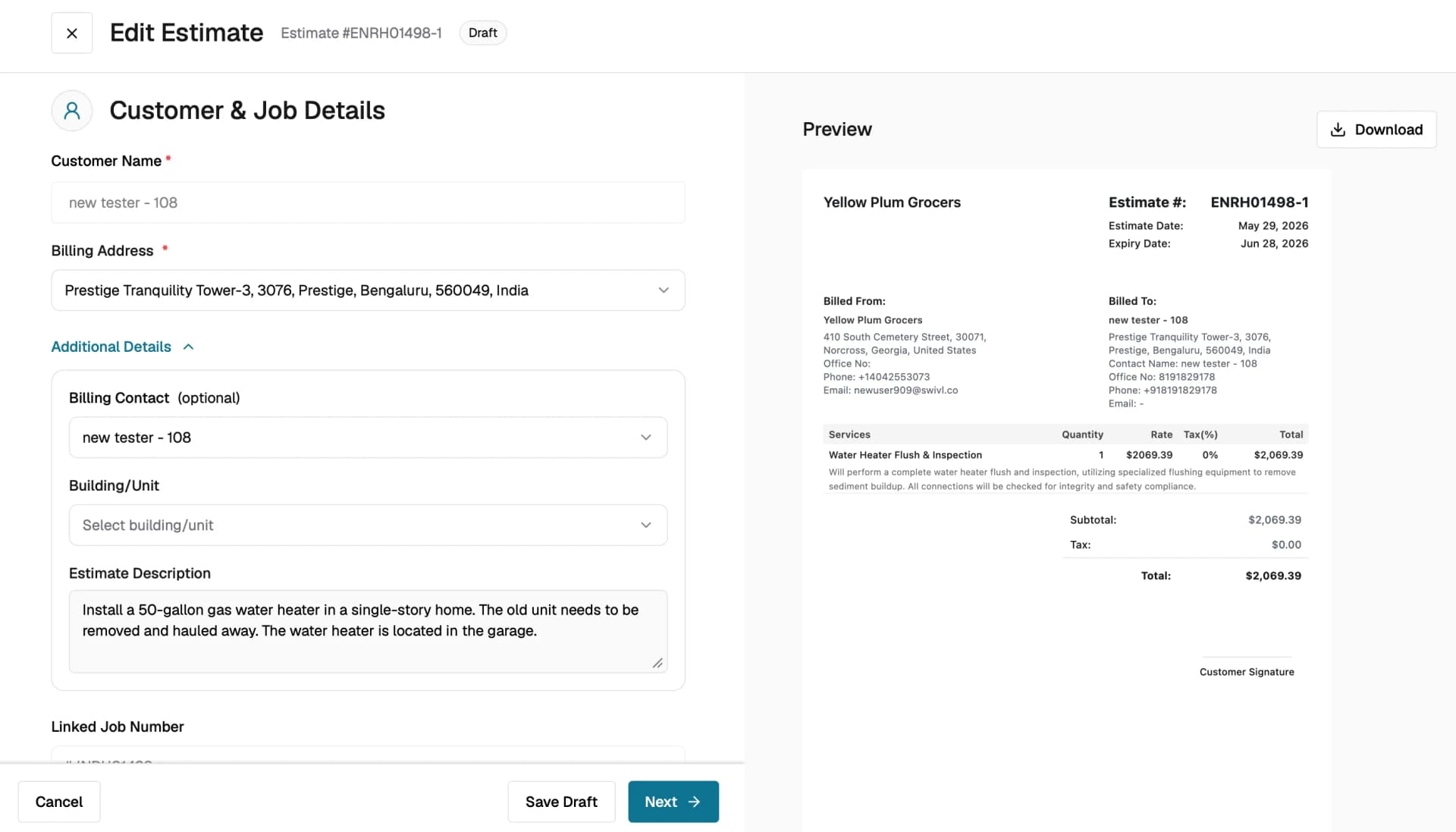
- Swivl creates the estimate record and redirects you to the Estimate creation page, where all AI-generated data is pre-filled.
- On the estimate creation page, you can make final adjustments, add terms and conditions, attach documents, and then save or send the estimate.

On mobile, the Convert to Estimate button also appears inside the cost breakdown summary card in the chat view for quick access.
Note: Direct conversion to an invoice is not supported. You must first convert the AI breakdown to a formal estimate, then convert the estimate into an invoice from the estimate detail page.
What gets transferred
When you convert, the following data carries over to the new estimate:
- Customer and Job Details: customer name, job number, and service address.
- Estimate Title and Description: generated by Max based on your conversation.
- Cost Line Items: labor, materials, tools and equipment, vehicles, and other costs.
- Markup and Margin Settings: per-category and overall margin percentages.
- Final Estimated Amount: the customer-facing price.
After conversion
- The new estimate opens in the standard Swivl estimate editor where you can continue editing it like any other estimate.
- To send it to the customer, click Send on the estimate page.
- To convert the estimate into an invoice, follow the standard Swivl workflow from the estimate detail page.
Tips
- Double-check the Location and Customer Name before converting, these are harder to change after the estimate is created.
- If you need to start over, simply go back to Work Order > AI Estimator and begin a new chat session.
- You can launch AI Estimator from an existing job and the converted estimate will remain linked to that job.