
Jobs overview
A Job in Swivl is the central record for every piece of work you do for a customer. From a kitchen renovation to a recurring maintenance contract, jobs bring together tasks, estimates, invoices, costs, and media in one place.
Overview
Jobs are the foundation of how work gets done in Swivl. Each job represents a customer project or service engagement and brings together everything related to that work tasks, estimates, invoices, costs, notes, and media all in one place.
Who can access this
Role | Access / Permissions |
|---|---|
Super Admin | Full access to create, edit, close, cancel, and reopen any job. |
Admin | Full access, same as Super Admin. |
Lead Technician | Can view job details and update status on jobs they are assigned to as Job Lead. |
Technician | Can view details of jobs where they are the assigned Job Lead; cannot access main Jobs list. |
What you'll see on the Jobs page
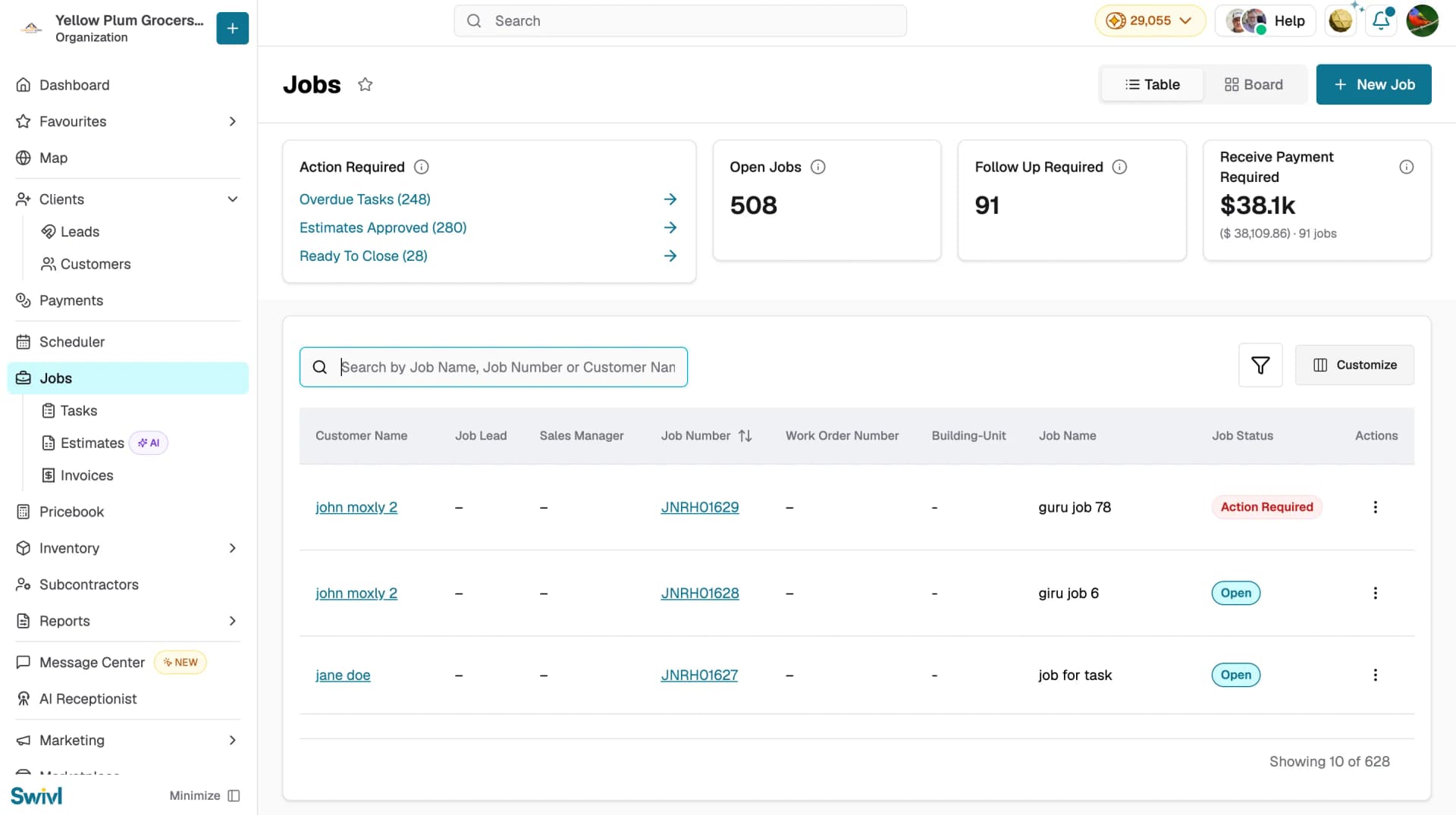
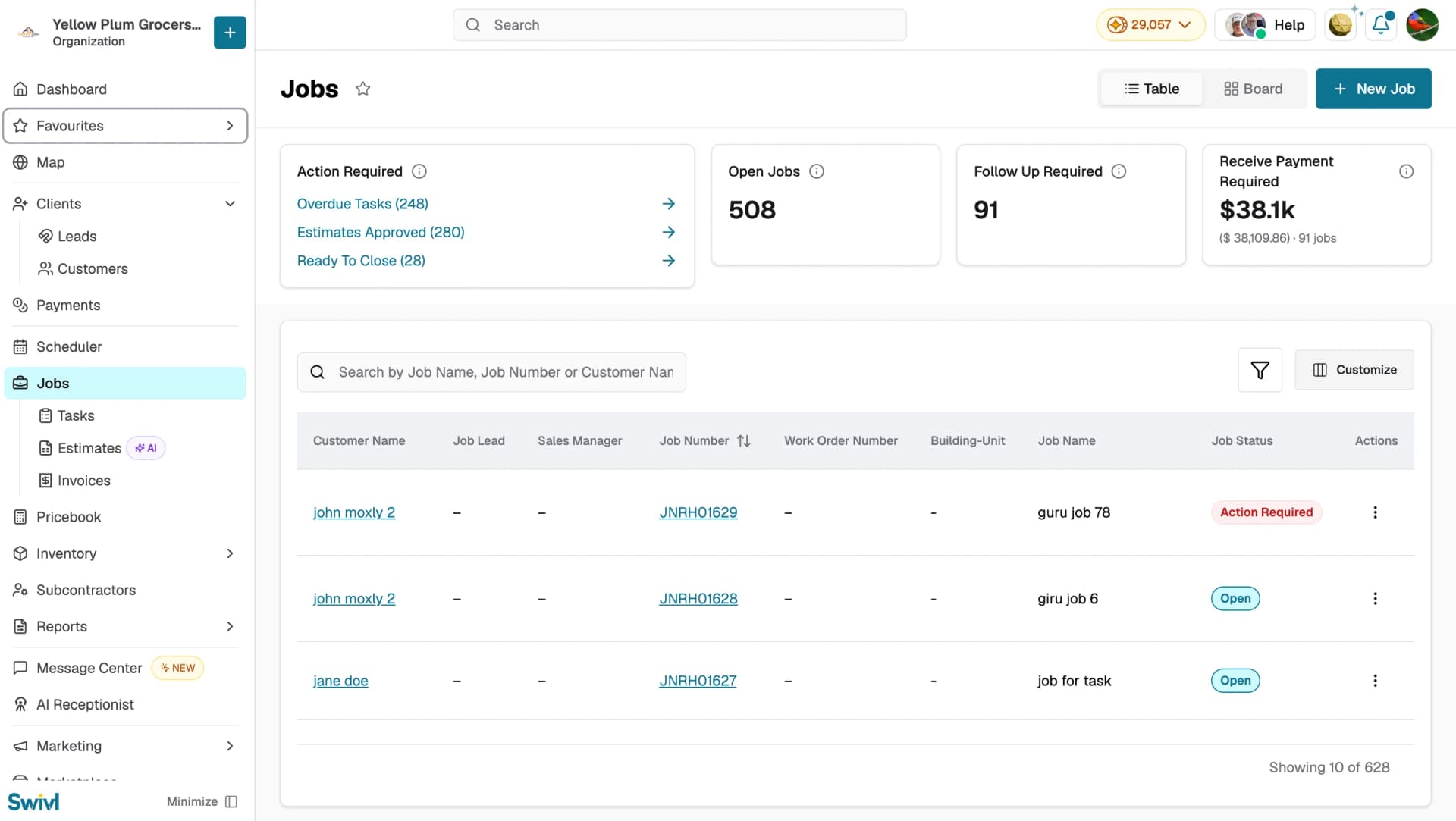
When you open Jobs in the sidebar you land on the Jobs list. Use the Table / Board toggle at the top right to switch between a table view and a card-based board view. The page is organised into three areas.
Summary Widgets
At the top you will see quick-count cards showing:
- Action Required: breaks down into three clickable links Overdue Tasks, Estimates Approved, and Ready To Close. Click any one to jump straight to that filtered list.
- Open Jobs: the number of jobs currently in progress.
- Follow Up Required: the number of jobs that need a follow-up with the customer.
- Receive Payment Required: the total outstanding amount across jobs awaiting payment, with the job count below.
Filters and Search
- A search bar to search by job name, job number, or customer name.
- A Filter icon to filter by status, date range, tags, zones, and more.
- A Customize button to show or hide columns in the table.
Jobs Table
The table displays one row per job. Default columns include Customer Name, Job Lead, Sales Manager, Job Number, Work Order Number, Building-Unit, Job Name, Job Status, and Actions.
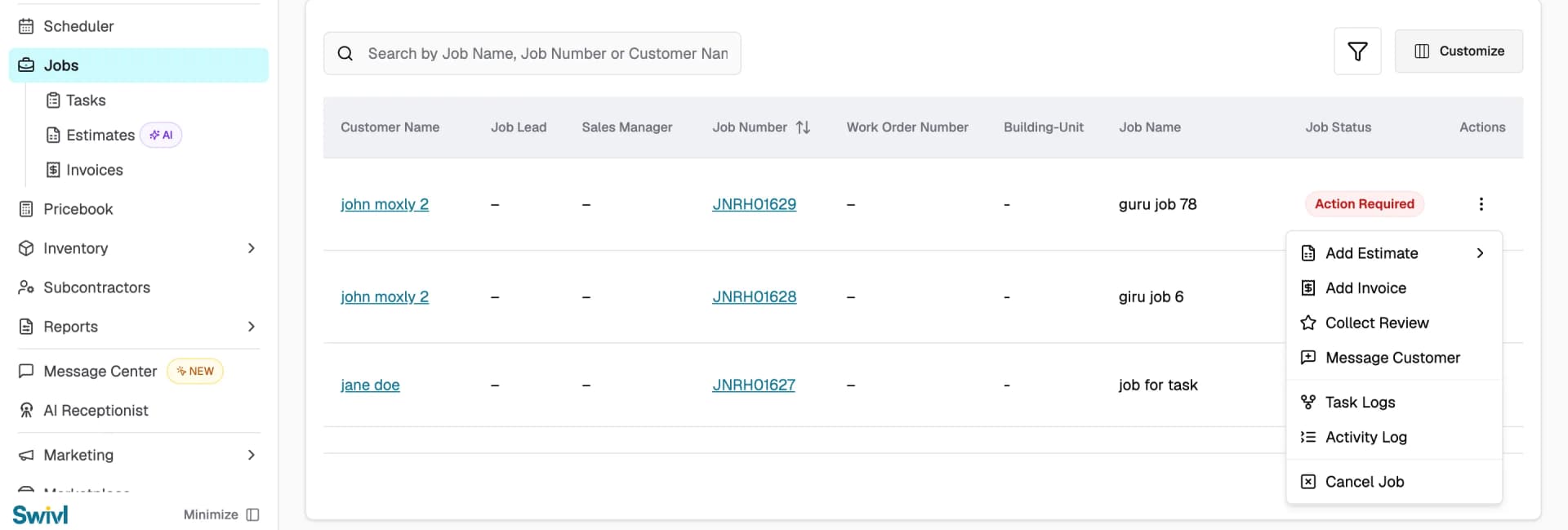
Click the actions menu (⋮) on any row to:
- Add Estimate: create an estimate linked to this job
- Add Invoice: create an invoice linked to this job
- Collect Review: request a review from the customer for this job
- Message Customer: send a message to the customer about this job
- Task Logs: view the task history for this job
- Activity Log: see a full timeline of every change made to the job
- Cancel Job: cancel the job
Click any row to open the full job detail page.
How to Create a Job
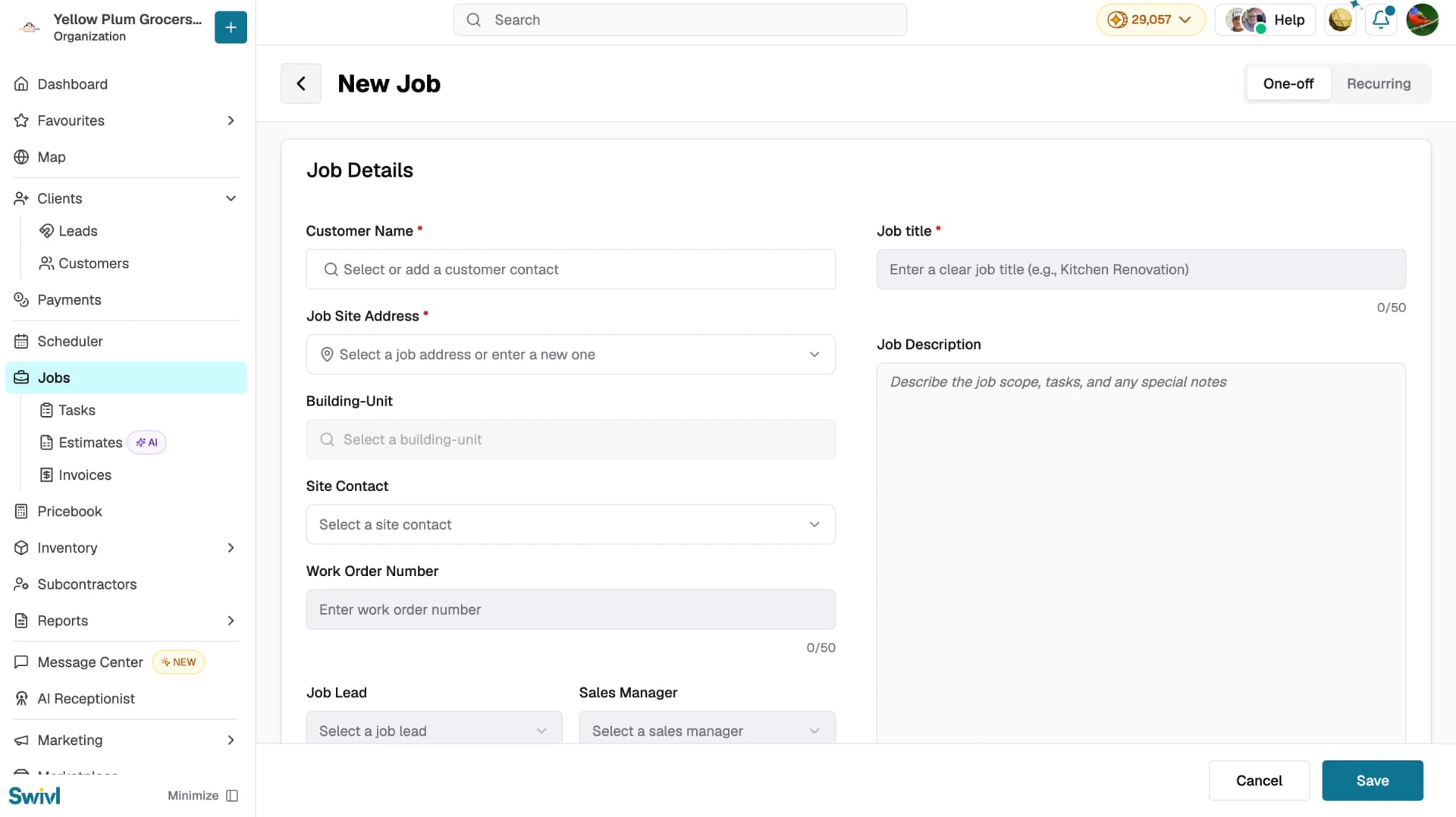
- Go to Jobs in the sidebar and click + New Job.
- At the top right, choose One-off or Recurring depending on the type of job.
- One-off (default): a single job that happens once — a repair, an installation, a quote-and-complete visit.
- Recurring: a job that repeats on a schedule, such as a monthly maintenance contract. Swivl auto-creates tasks for each occurrence and can generate invoices as work is completed. See Recurring Jobs for the full setup.
- Under Job Details, fill in the required fields — Customer Name and Job Site Address on the left, and Job title on the right.
- Optionally add a Building-Unit, Site Contact, and Work Order Number.
- Assign a Job Lead and Sales Manager, select who the job was Requested by, and add any relevant Tags.
- Enter a Job Description to describe the scope of work, or click Generate to have AI write it for you. Use Rewrite to refine an existing description.
- Under Media and Documents, click Click to upload or drag and drop supporting files (JPG, JPEG, PNG, HEIC, HEIF, MP4, MOV, HEVC, WEBM, PDF or DOCX, max 100MB). Uploaded files are organised into Images, Videos, and Documents tabs.
- Click Save to create the job.
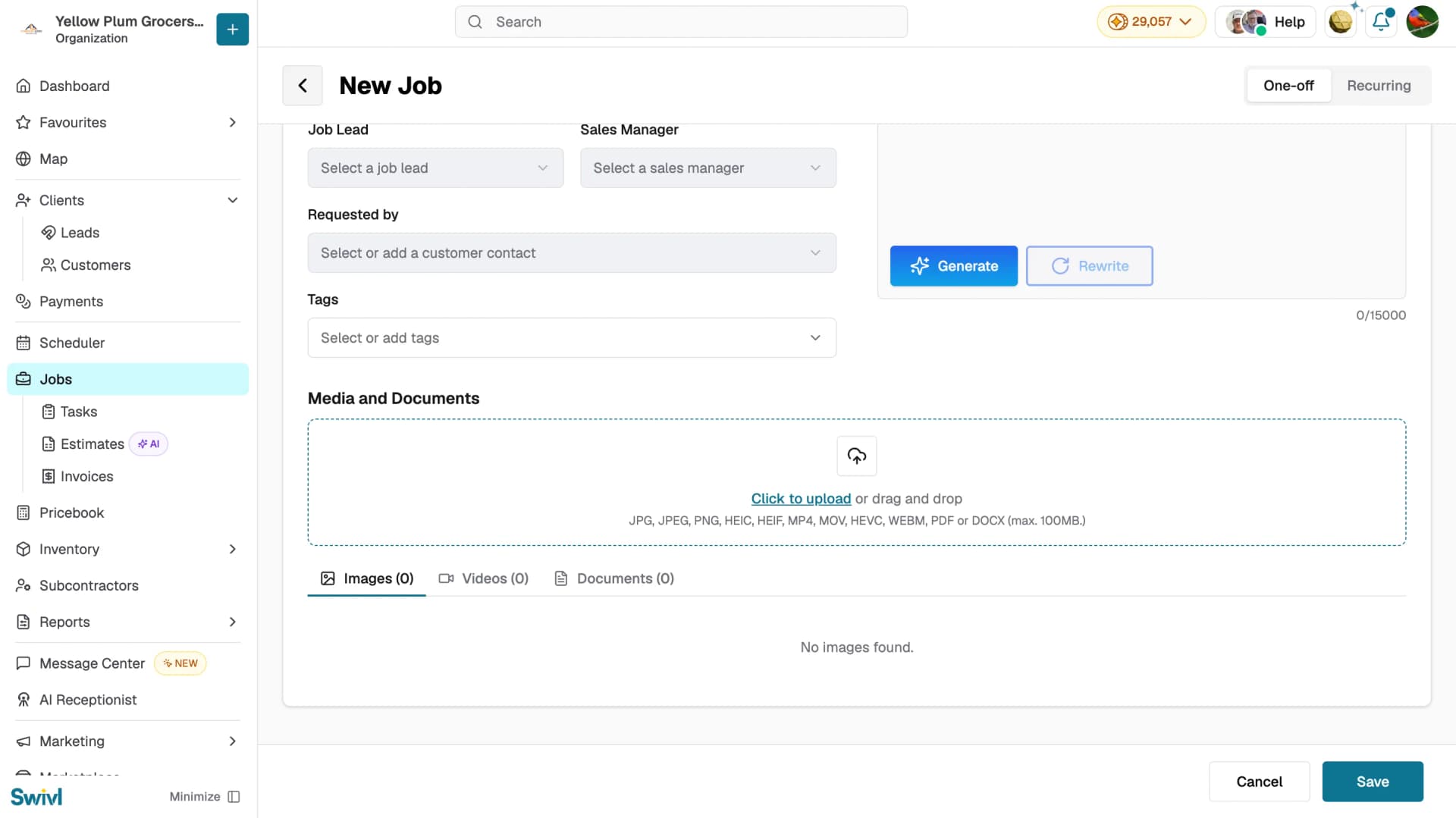
Once the job is created, use the + New button on the job detail page to add a Task, Estimate, or Invoice directly from the job.
Job statuses
Status | Meaning |
|---|---|
Open | Work is in progress or not yet started. |
Action Required | The job needs attention, an overdue task, an approved estimate, or work ready to close. |
Closed | All work is complete and the job is finalized. |
Canceled | The job was cancelled and is no longer active. |
A closed or canceled job can be reopened if needed.
Tips
- Use tags and zones to organise jobs by service type or geographic area, this makes filtering and finding the right jobs much faster.
- Use the Customize button to show or hide columns so you always see the most relevant information at a glance.
- Click Activity Log from the actions menu on any job row to see a full timeline of every change made to that job.
- Switch to Board view to see jobs as cards grouped by status, useful for tracking work at a glance.