
Setting Operating Hours and Call Routing
Operating hours tell your AI Receptionist when your team is available to receive transferred calls and when it should handle everything on its own. The AI answers calls 24/7 regardless of these settings.
Overview
Operating hours tell your AI Receptionist when your team is available to receive transferred calls and when it should handle everything on its own. The AI answers calls 24/7 regardless of these settings during business hours it can transfer calls to your department contacts; after hours, it captures the caller's information and creates a lead without transferring.
Who can access this
- Super Admin: can configure operating hours and call routing.
- Admin, Lead Technician, and Technician roles cannot modify these settings.
How business hours work
- Always On: AI Receptionist answers all customer calls 24/7.
- Business Hours Transfers: during the hours you define, the AI can transfer calls to the contacts you set up in Transfer and Routing.
- After-Hours: outside business hours, calls are not transferred. The AI handles them independently and captures lead details.
Configuring business hours
Business hours are managed in your Company Profile and apply across Swivl, the AI Receptionist uses them to decide when to transfer calls, and the Online Scheduler uses them for booking availability.
- Go to AI Receptionist → Receptionist Setup and open Step 3 Business Hours.
- Click Manage Business Hours in Company Profile.
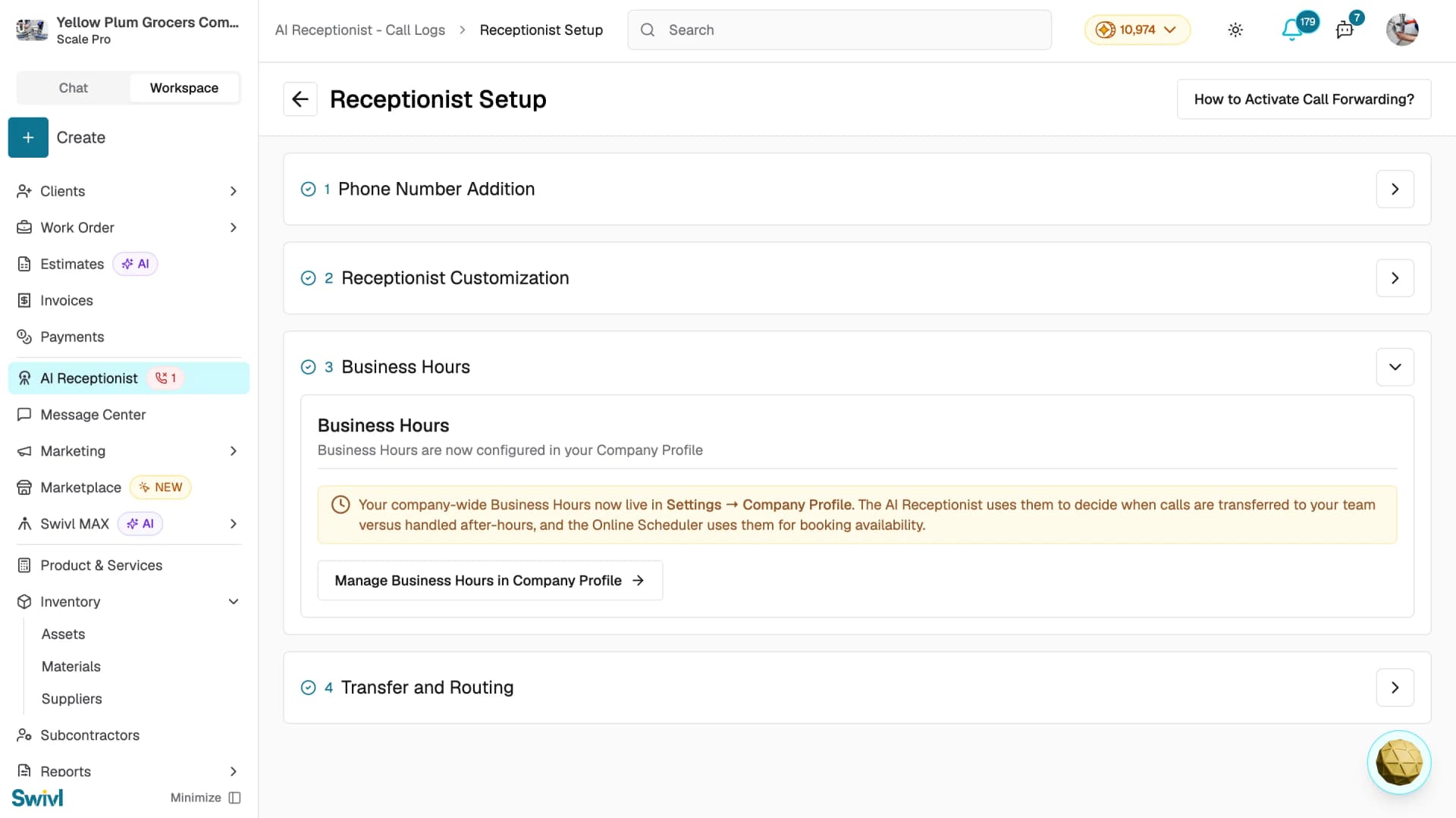
Or go directly to Settings → Company Profile and scroll to the Business Hours section.
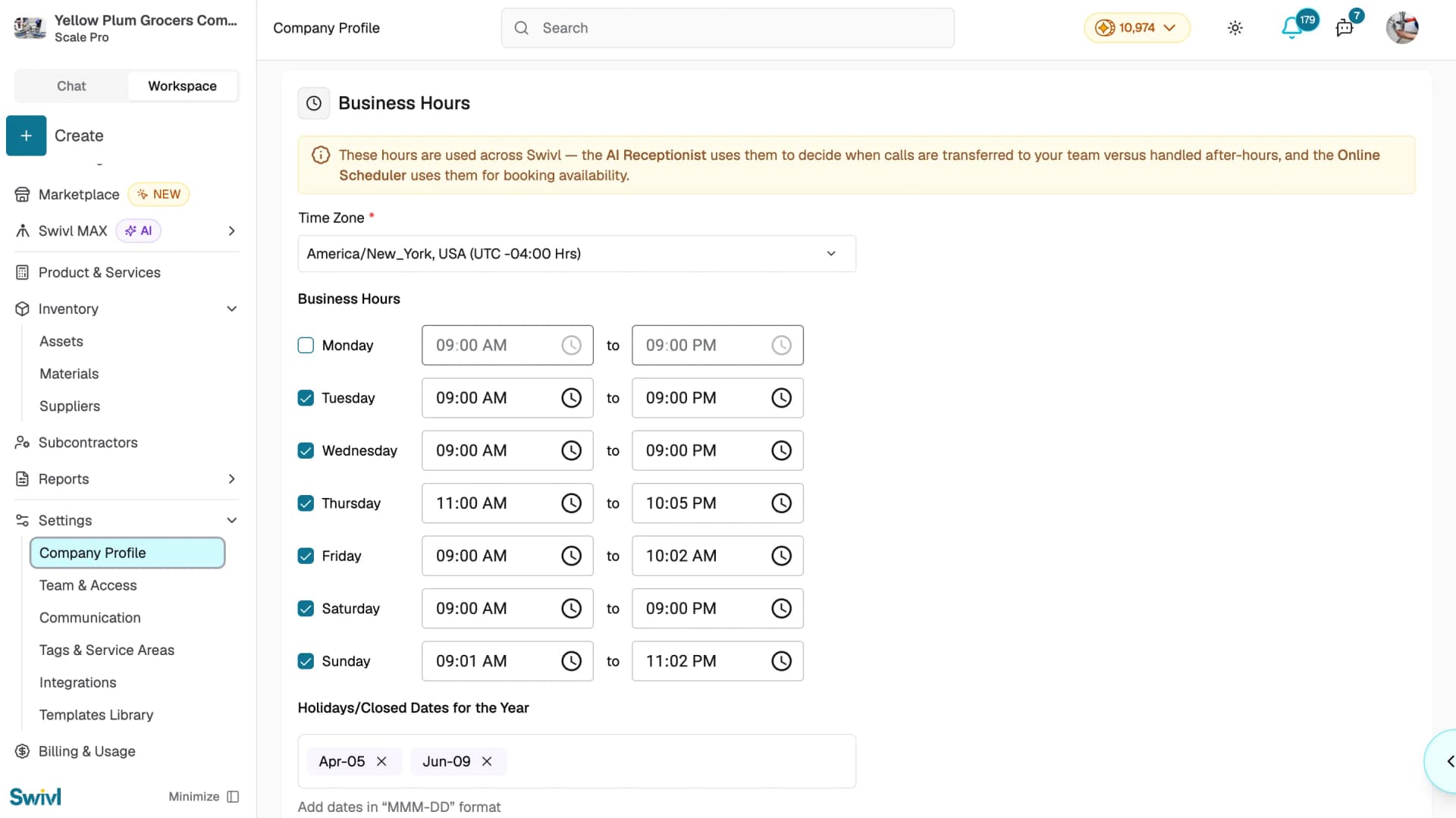
Time zone
Select your business time zone from the Time Zone dropdown. Each option shows the IANA time zone name with the UTC offset.
Business hours
- Tick the box next to each day your team is available.
- Set the start time and end time using the time pickers (12-hour format with AM/PM).
- By default, Monday through Friday are enabled with 9:00 AM to 5:00 PM. Saturday and Sunday are off.
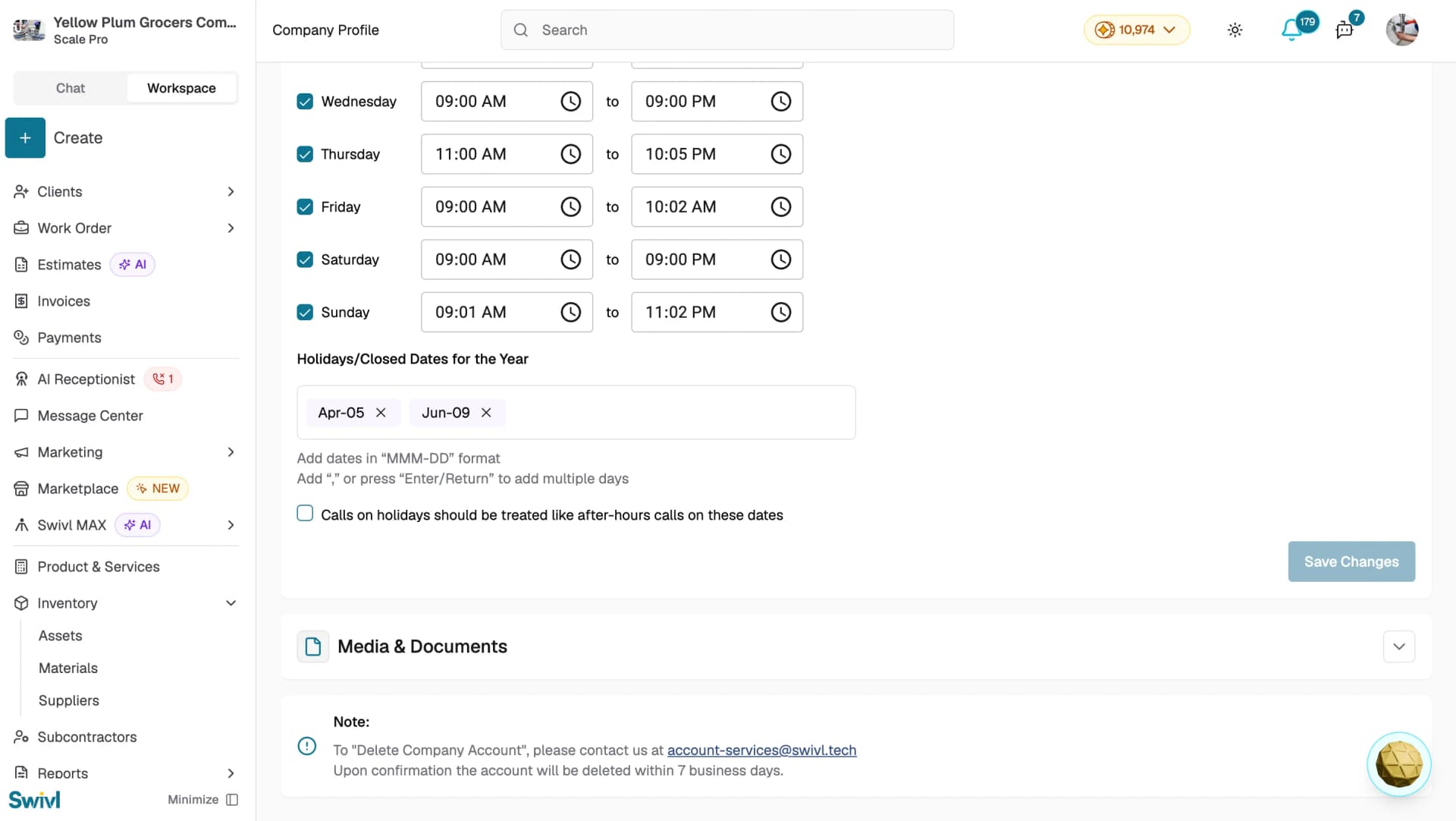
Holidays/Closed Dates for the Year
- Enter dates in MMM-DD format (e.g. Apr-05 or Dec-25) in the Holidays/Closed Dates for the Year field.
- Add a comma or press Enter/Return to add multiple dates.
- Each date appears as a tag click X to remove it.
- Tick Calls on holidays should be treated like after-hours calls on these dates to prevent transfers on those dates.
Click Save Changes when done.
Configuring call transfers
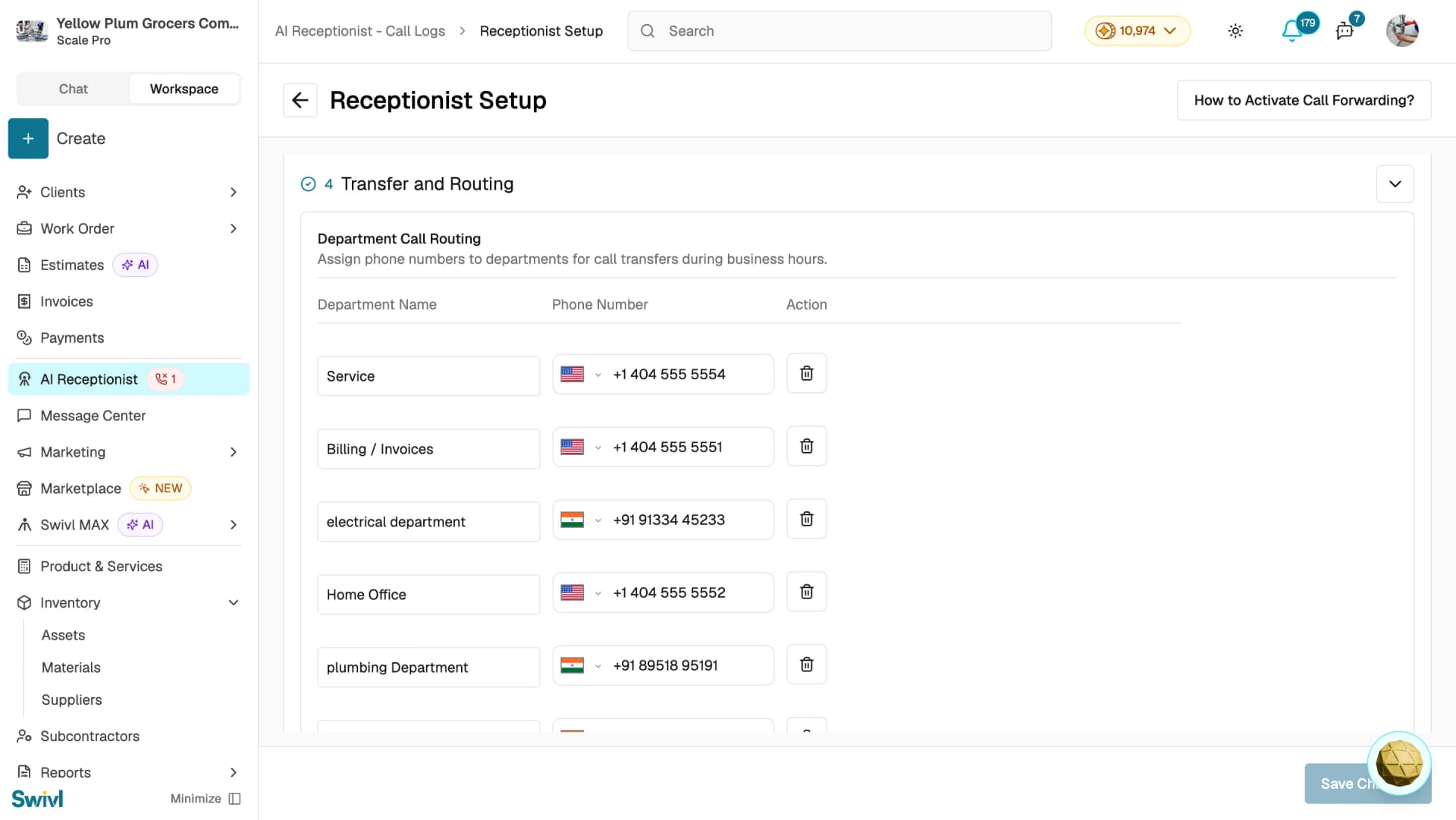
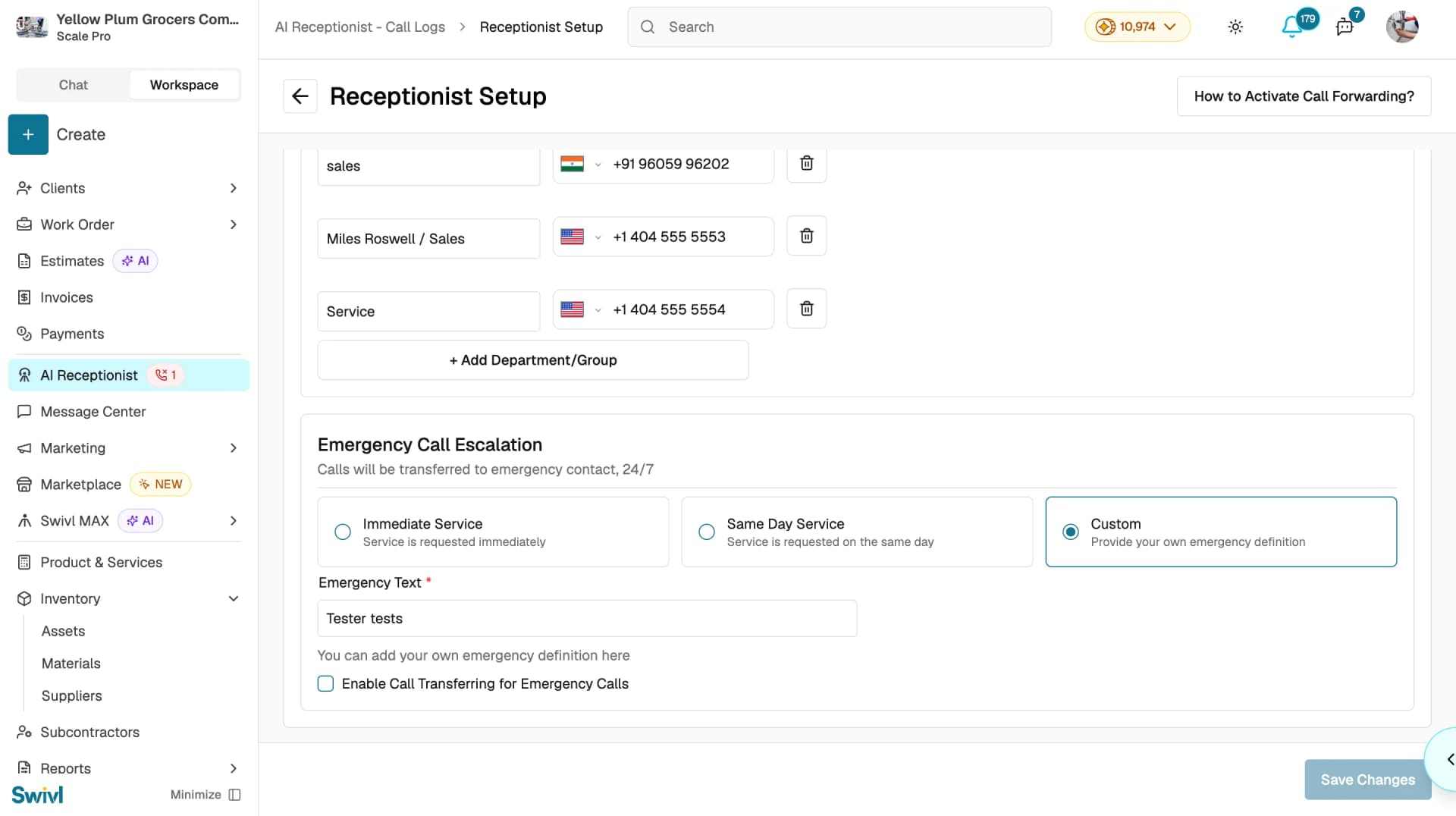
Go to AI Receptionist → Receptionist Setup and open Step 4 Transfer and Routing.
Department Call Routing
Assign phone numbers to departments for call transfers during business hours.
- Click + Add Department/Group.
- Enter a Department Name (e.g. Sales or Service).
- Enter the department's Phone Number.
- Add as many departments as needed. Click the delete icon to remove one.
Emergency Call Escalation
Calls will be transferred to the emergency contact 24/7, regardless of business hours.
- Select an emergency trigger: Immediate Service (service is requested immediately), Same Day Service (service is requested on the same day), or Custom (provide your own emergency definition in the Emergency Text field).
- Tick Enable Call Transferring for Emergency Calls.
Click Save Changes when done.
Tips
- Even when all business-hours days are unticked, the AI still answers calls it simply will not attempt any transfers.
- Holiday dates are year-agnostic no year is required.
- Add at least one department contact so the AI has a transfer destination during business hours.
- Emergency transfers work around the clock, so choose the emergency contact carefully.