
Adding a material to inventory
Adding materials to your Swivl inventory creates a record of every part, supply, or consumable your team uses. Once a material is in the system, it can be logged against jobs, tracked for cost, and linked to a supplier.
Overview
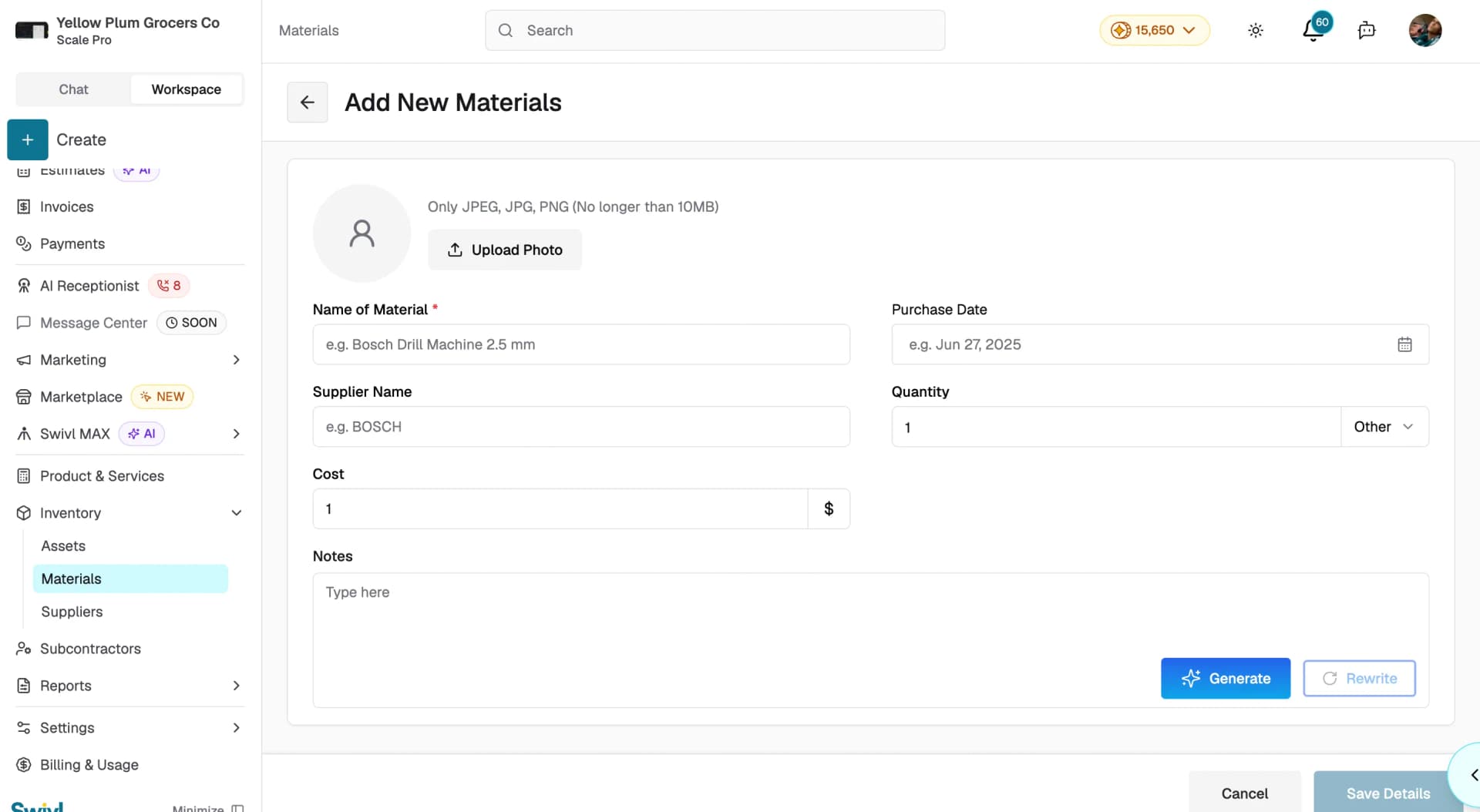
The Add New Materials form lets you record the name, cost, quantity, unit of measurement, supplier, and purchase date for each item. You can also upload a photo and attach supporting documents like spec sheets or receipts for easy reference in the field.
Who can access this
- Super Admin: can add and edit materials.
- Admin: can add and edit materials.
- Lead Technician: can add and edit materials.
- Technician: can add and edit materials.
How to add a material
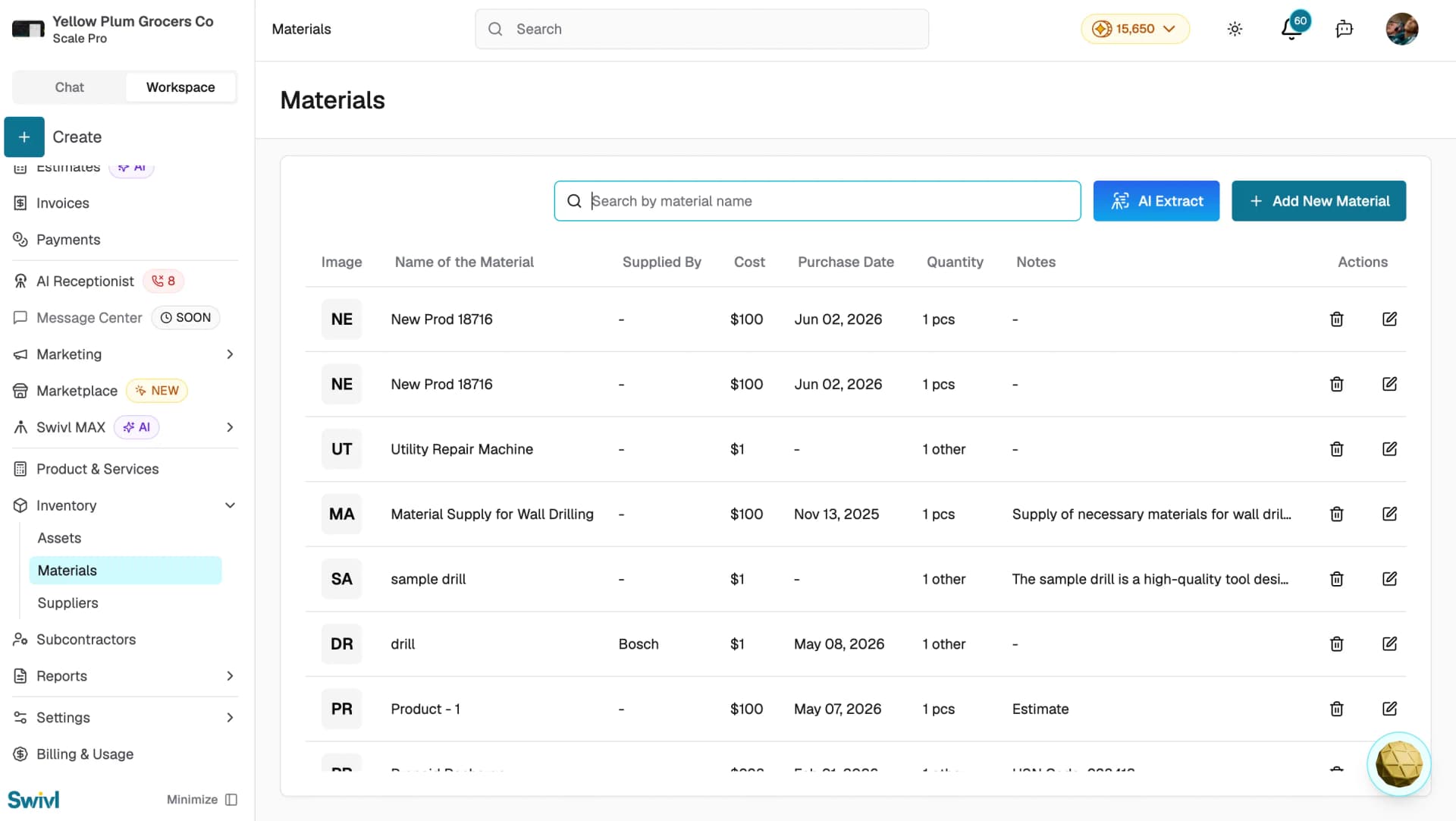
- Navigate to Inventory > Materials.
- Click the + Add New Material.
- You will be taken to the material creation form.
- Fill in the details and click Save.
Form fields
Field | Required | Description |
|---|---|---|
Name of Material | Yes | A clear, descriptive name (e.g., 3/4 in PVC Pipe). |
Supplied By | No | The vendor who supplies this material. |
Cost | No | The per-unit cost (e.g., $2.50\$2.50$2.50). |
Quantity | No | How many units you have in stock. Defaults to 1. |
Purchase Date | No | The date the material was purchased. |
Notes | No | Handling instructions, specifications, or grade. Use the Generate button to auto-generate a description, or Rewrite to refine existing notes. |
Uploading images and documents
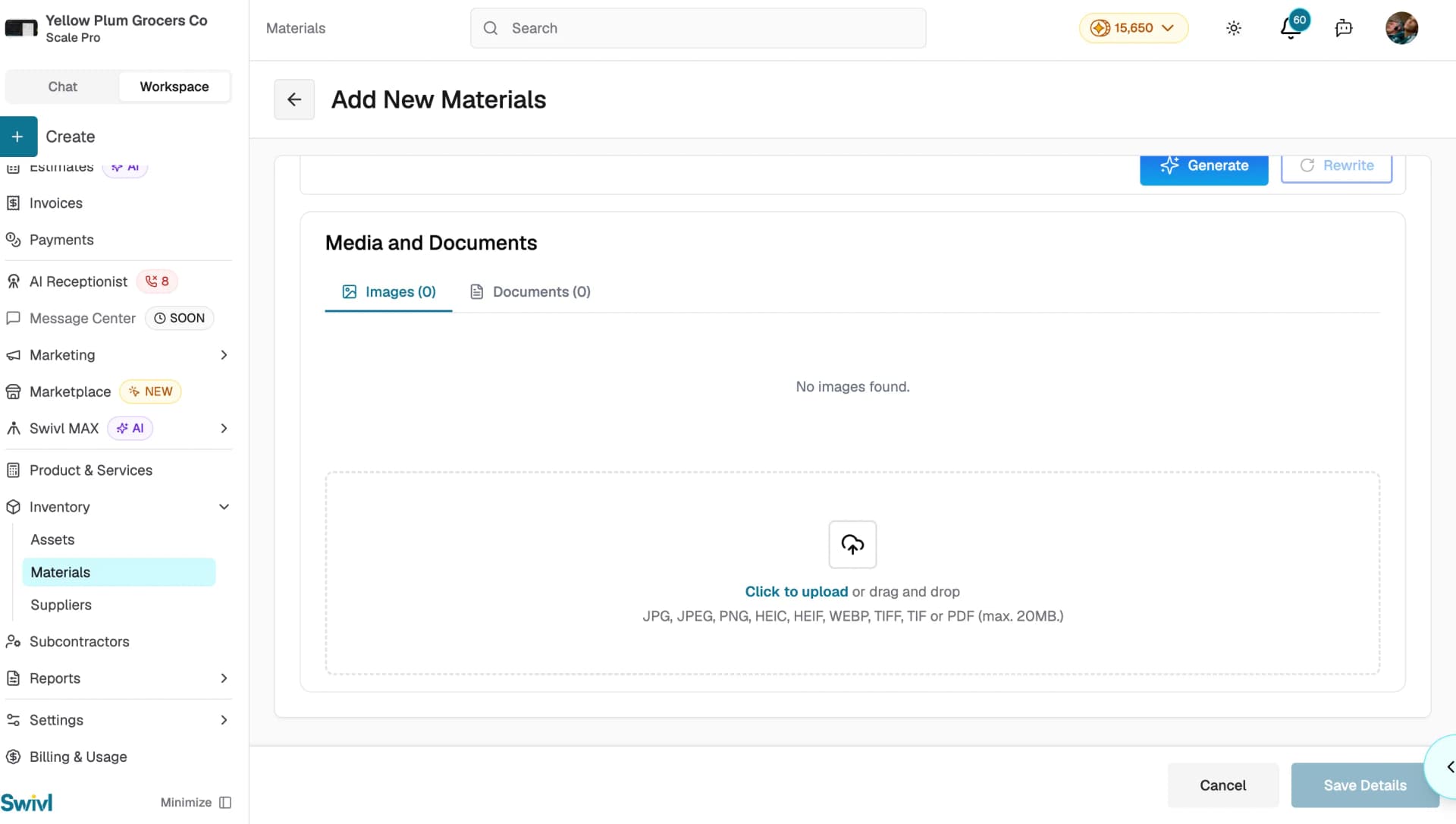
In the Media and Documents section you can upload images and documents to support the material record:
- Images: upload a photo of the material to help with visual identification (JPG, JPEG, PNG, HEIC, HEIF, WEBP, TIFF, or TIF, max. 20MB).
- Documents: attach supporting files such as spec sheets, safety data sheets, or receipts (PDF, max. 20MB).
Editing a material
From the Materials table, click the edit icon on any row. The form opens with all existing data pre-filled. Make your changes and click Save Details.
Deleting a material
Click the delete icon on any row. You will be asked to confirm this action it cannot be undone.
Using AI Extract
Need to add multiple materials at once? Use AI Extract to import materials from a receipt or invoice in seconds. See Materials Overview and AI Extract for full details.
Tips
- Always specify the unit of measurement, it prevents confusion between "10 feet of wire" and "10 pieces of wire."
- Fill in the Cost field so Swivl can calculate total amounts and include material costs in job estimates and invoices.
- Use consistent naming conventions across your team to avoid duplicate entries.
- Use the Generate button in the Notes field to auto-generate a material description based on the name.