
Reviews & Ratings Overview
Collect, manage, and showcase customer feedback from one place. Send review requests by email, publish positive reviews to your website, and connect your Google Business Profile to sync Google Reviews automatically.
Overview
Once a review request is sent, responses come in as Unpublished giving you full control over what goes live on your website. Connect your Google Business Profile to automatically sync Google Reviews every 24 hours, or use Internal Reviews to collect and manage feedback directly within Swivl.
Who can access this
- Super Admin: full access to all Reviews & Ratings features
- Admin, Lead Technician, and Technician: no access by default. Access can be granted through Settings → Team & Access → Roles & Permissions.
How the reviews board is organized
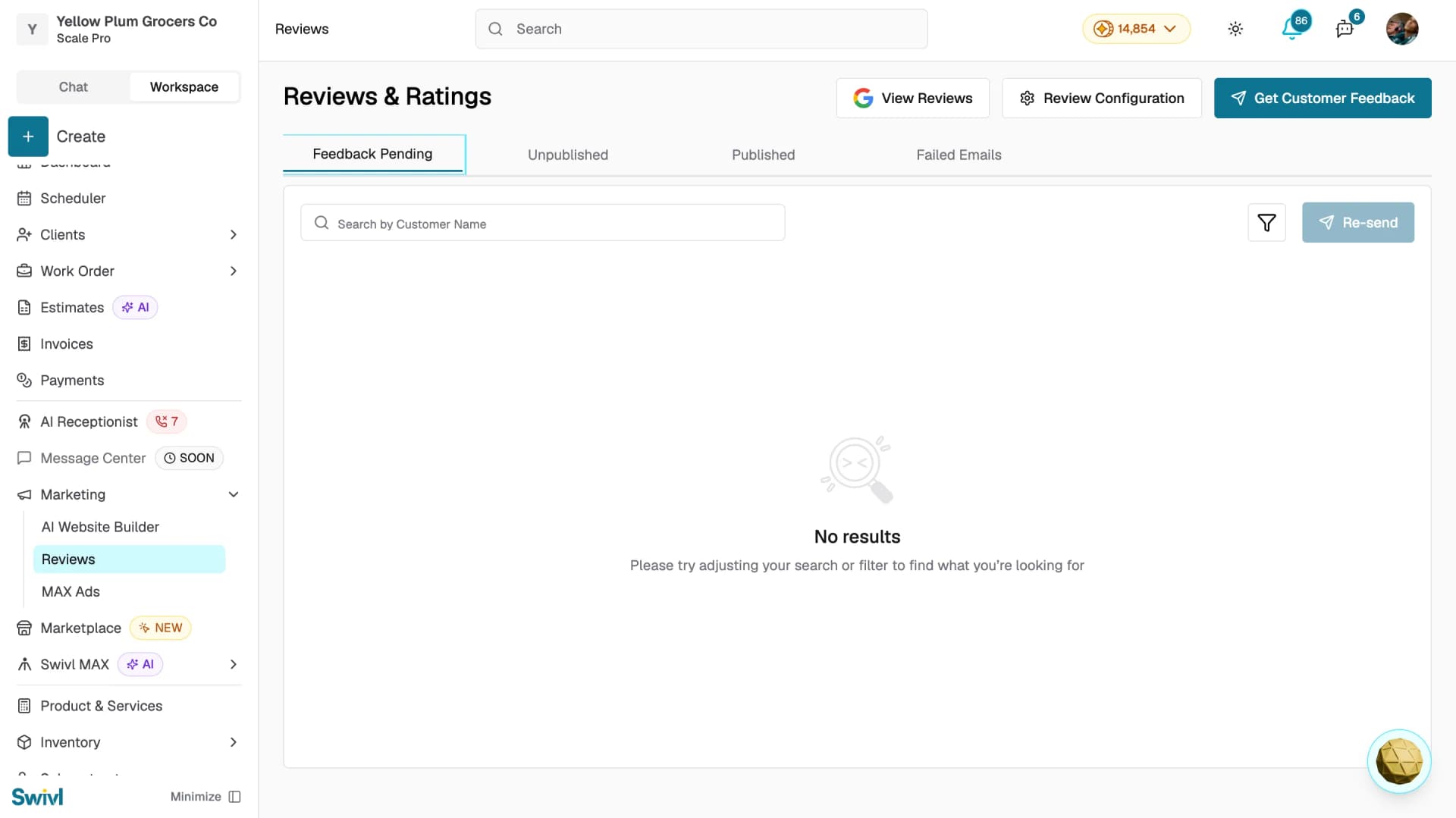
The reviews board is divided into four tabs:
- Feedback Pending: review requests sent but not yet responded to. Use the Re-send button to resend a request.
- Unpublished: reviews received but not yet published. Select reviews and click Publish to make them visible.
- Published: reviews that are live and visible on your public reviews page. Use Unpublish to remove a review.
- Failed Emails: review request emails that could not be delivered.
Use the Search by Customer Name bar to find a specific review quickly.
Review modes
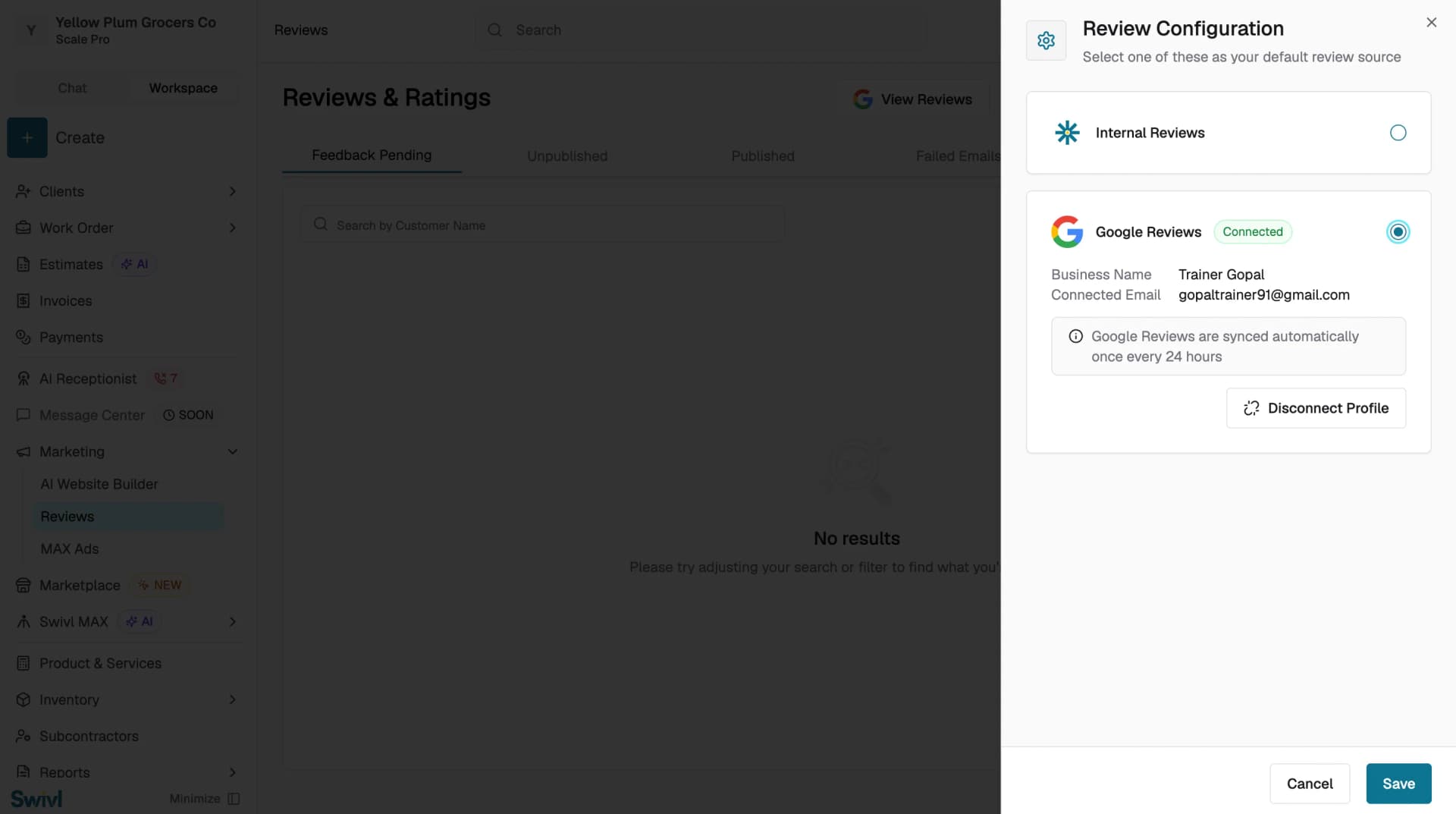
Click Review Configuration at the top of the reviews page to open the review source panel. Swivl supports two modes:
- Internal Reviews: customers submit feedback through a Swivl-hosted form. You receive the review inside Swivl and decide whether to publish it.
- Google Reviews: customers are directed to leave a review on your Google Business Profile. Reviews sync back into Swivl automatically every 24 hours. Once connected, your Business Name and Connected Email are shown. Click Disconnect Profile to remove the connection.
Select your preferred mode and click Save.
Key actions
- Get Customer Feedback: sends a review request email to one or more customers.
- View Reviews: opens your public reviews page in a new tab. Shows your Swivl-hosted page in Internal mode or your Google Reviews page in Google mode.
- Review Configuration: select your default review source and manage your Google Business Profile connection.
- Copy Link: copy your review form link or Google review link to share manually via any channel.
Tips
- Check the Failed Emails tab regularly incorrect email addresses are the most common reason for delivery failures. Use the Re-send button to resend a request.
- Connect Google Reviews to automatically sync customer feedback without manually chasing reviews.
- Use the Unpublished tab to review feedback before it goes live this gives you full control over what appears publicly.
- Publishing reviews to your website builds trust with new visitors aim to publish reviews as soon as you verify them.
- Use Copy Link to share your review form directly via WhatsApp, SMS, or any other channel.