
Tracking Lead Sources
Knowing where your leads come from helps you understand which marketing channels are working and where to invest your time and budget. Swivl automatically tags every lead with a source so you can track performance at a glance.
Overview
Knowing where your leads come from helps you understand which marketing channels are working and where to invest your time and budget. Swivl automatically tags every lead with a source so you can track performance at a glance.
Who can access this
- Super Admin: can view lead sources and source-based stats.
- Admin: can view lead sources and source-based stats.
- Lead Technician: no access to the Leads module.
- Technician: no access to the Leads module.
Lead source types
Swivl tracks three lead sources:
Source | How leads arrive |
|---|---|
Direct | Manually created by a team member inside Swivl, from phone calls, walk-ins, referrals, or any other channel where your team enters the information by hand. |
Website | Submitted through a contact form or booking widget on your website. These leads are created automatically when a visitor fills out your online form. |
AI Receptionist | Captured by Swivl's AI Receptionist during inbound phone calls. The AI gathers caller details, service needs, and scheduling preferences, then creates the lead automatically. |
MAX Ads | Generated through Swivl's MAX AI advertising platform via Facebook and Instagram campaigns. |
Where to see lead sources
Every lead in the table has a Source badge in the Source column showing where it originated. You can filter the list by source to view only leads from a specific channel.
To filter by source:
- Click the Filter icon (top-right of the leads table).
- Expand the Source filter.
- Select one or more sources: Direct, Website, or AI Receptionist.
- Click Apply.
On the Stat Cards
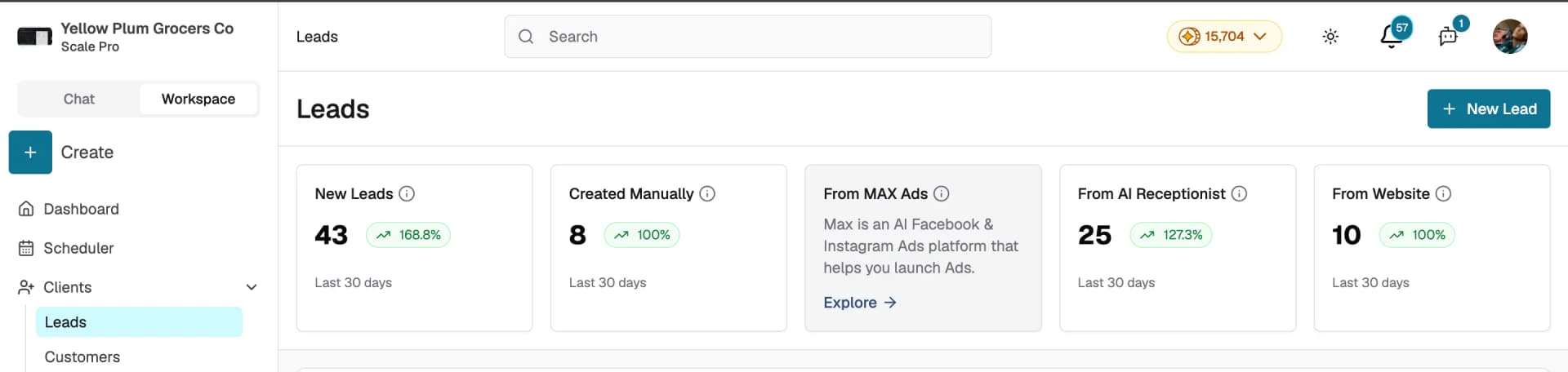
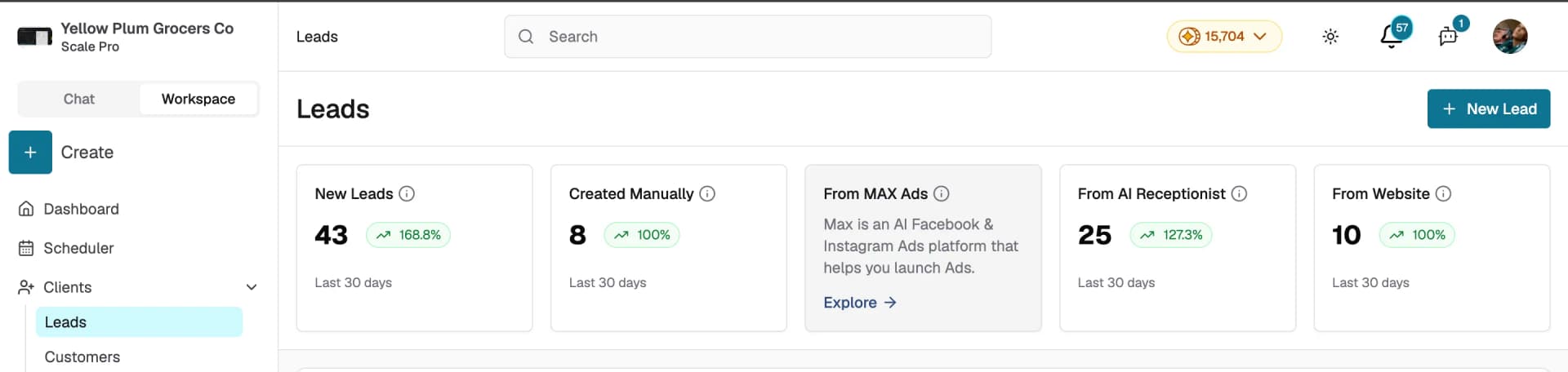
The stat cards at the top of the Leads page give you a quick overview of lead volume by source over the last 30 days:
- New Leads: total leads received across all sources.
- Created Manually: leads entered directly by your team.
- From AI Receptionist: leads captured during inbound AI-handled calls.
- From Website: leads submitted through your online forms.
- From MAX Ads: leads generated through Swivl's MAX AI advertising platform. This card currently shows an Explore prompt and is not yet tracking live data.
Each card shows a percentage trend so you can see whether a channel is growing or declining compared to the previous period.
On the lead detail page
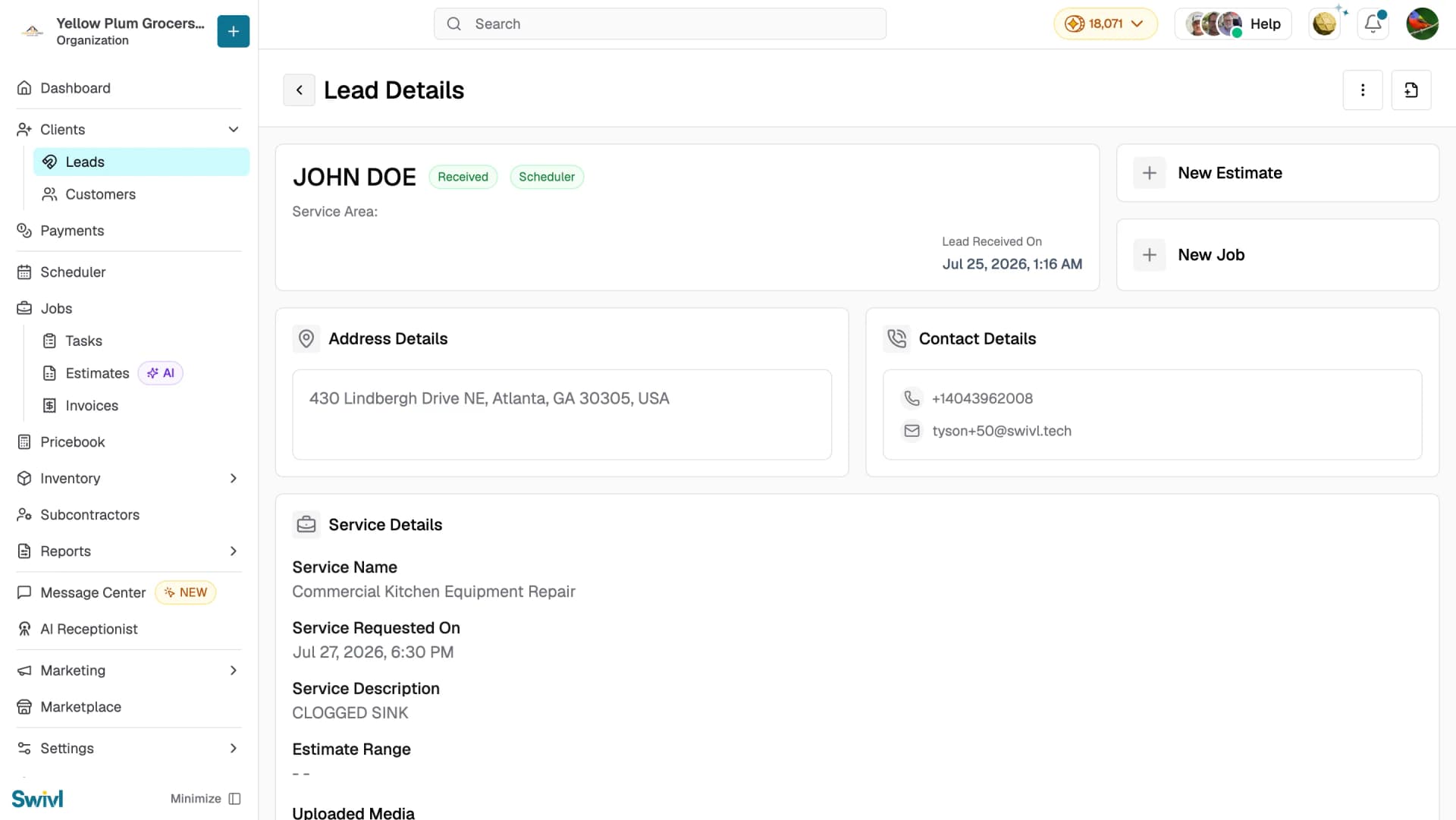
When you open an individual lead, the Source badge appears next to the lead name. For AI Receptionist leads, a View Call Details button is available at the top-right of the page, letting you jump directly to the call log to review the conversation.
Exploring Your Lead Channels
If a source stat card shows zero leads, Swivl displays an Explore prompt instead. Clicking it takes you to the setup page for that channel:
- AI Receptionist: opens the AI Receptionist settings where you can configure or enable it.
- Website: opens the Marketing section where you can manage your website and forms.
- MAX Ads: opens the MAX Ads dashboard where you can launch AI-powered ad campaigns.
Tips
- Review your source stats weekly to identify your best-performing channel and focus your efforts there.
- If AI Receptionist leads are low, check your AI Receptionist settings to make sure it is enabled and configured correctly.
- Use the Source filter when reviewing leads to measure the performance of specific marketing channels.
- Leads captured by the AI Receptionist include a direct link to the call recording, making it easy to review what the customer requested.