
Sales Commission Overview
The Sales Commission report gives you a clear picture of how much commission is owed to your sales managers on every job. It is split into two tabs Open for jobs still in progress and Closed for completed jobs so you can track expected earnings alongside final payouts in one place.
Overview
The Open tab shows jobs currently in progress with their estimated amounts and projected commission. The Closed tab shows completed jobs with the final billed amount, customer payment, and commission earned giving you a full picture of what has been paid out and what is still pending.
Who can access this
- Super Admin: full access to all commission data, including the ability to click into any sales manager's profile
- Admin: full access, same as Super Admin
- Lead Technician and Technician: can view their own commission figures but cannot view other sales managers' data
Navigating the Sales Commission report
- Go to Reports in the main navigation.
- Select the Sales Commission tab at the top of the page.
- Use the Open and Closed tabs to switch between active and completed jobs.
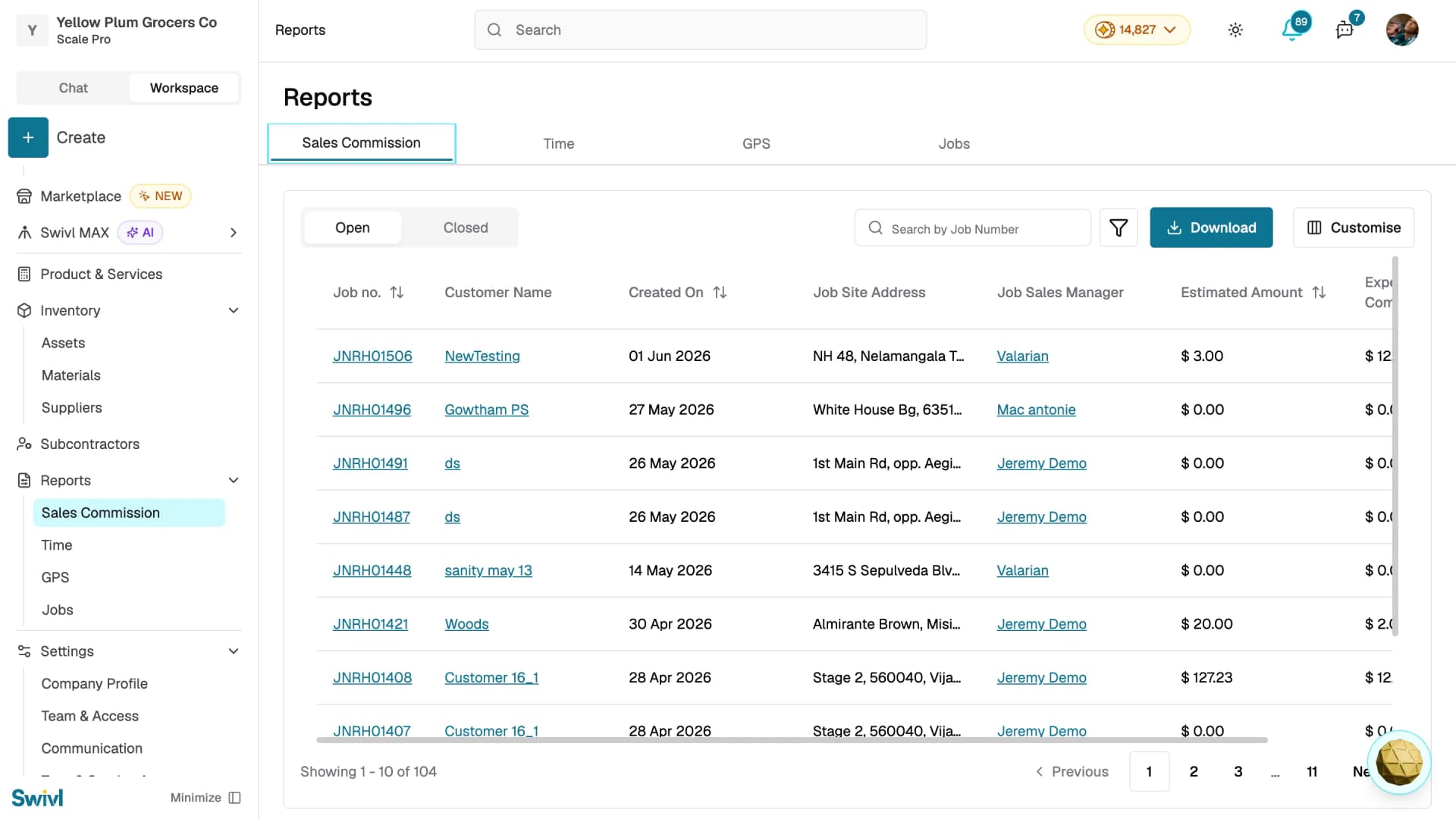
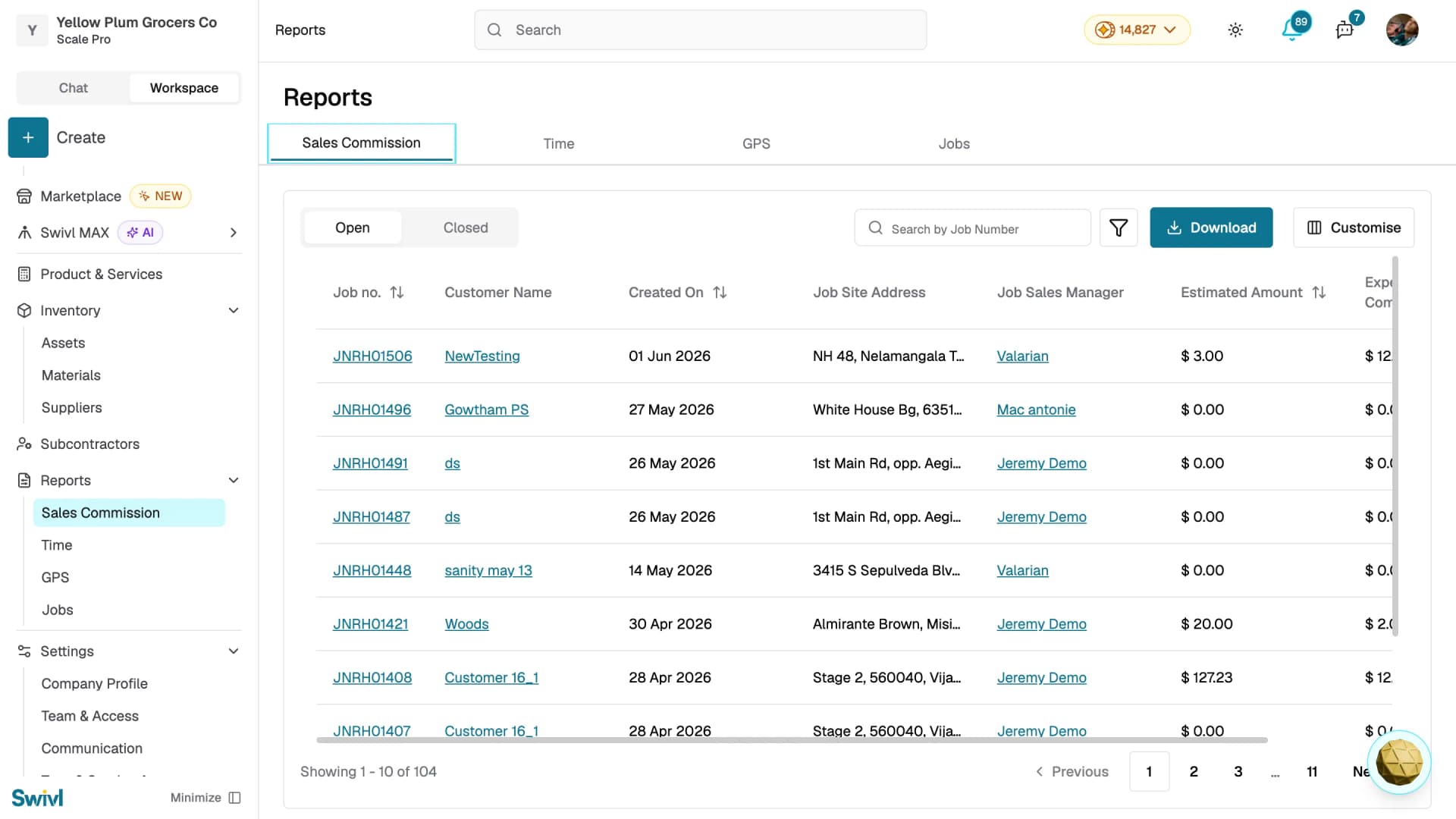
Open jobs table
The Open tab shows jobs that are still in progress:
- Job No: click to open the job details
- Customer Name: click to open the customer profile
- Created On: when the job was created
- Job Site Address: the service location
- Job Sales Manager: click to open the sales manager's profile (visible to Super Admin and Admin only)
- Estimated Amount: the estimated value of the job
- Expected Commission: the projected commission based on the estimate
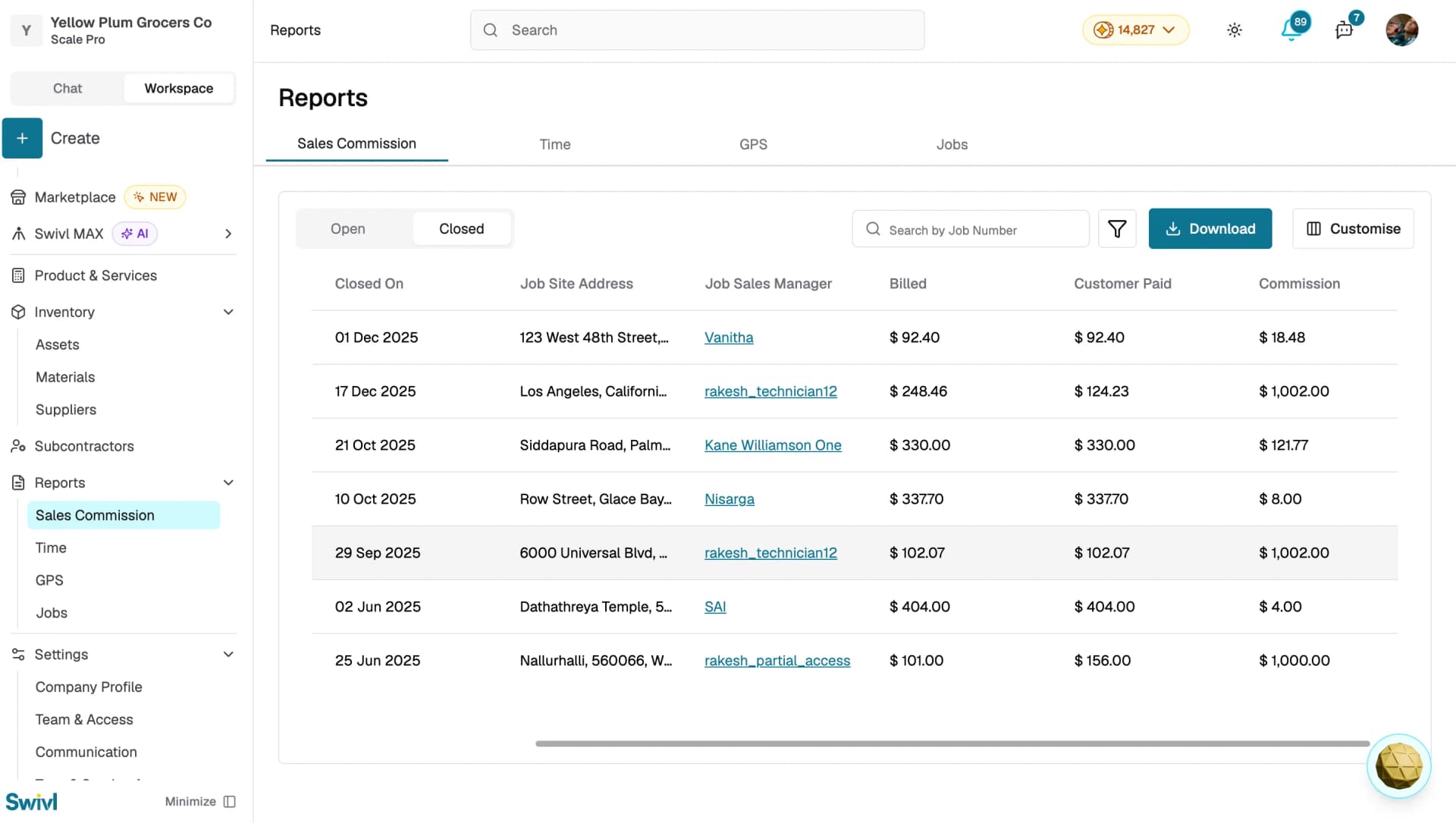
Closed jobs table
The Closed tab shows completed jobs with all the columns from the Open tab, plus:
- Closed On: when the job was closed
- Billed: the total billed amount
- Customer Paid: the amount the customer has paid
- Commission: the final commission earned
Searching and filtering
- Use the Search by Job Number bar to find a specific record.
- Click the filter icon to narrow results by Sales Manager, Site Address, Customer, or Date Range.
- Click any column header's sort icon to sort ascending or descending.
Downloading the report
Click Download to export the current view as an Excel file. The export respects the active tab (Open or Closed) and any filters you have applied.
Customising visible columns
Click Customise at the top-right of the table to show or hide columns. Your preferences are saved automatically.
Tips
- Switch between the Open and Closed tabs to compare projected commissions against actual payouts.
- Use the Date Range filter to generate monthly or quarterly commission summaries before downloading.
- Click any Job No. to jump directly to the job details and review what was completed.
- Click a Job Sales Manager name to open their profile and verify their commission rate.
- If a job shows no sales manager, the job may not have been assigned one yet — open the job details to update it.