
Work Order
Scheduling a Task on the Calendar
Scheduling places a task on the calendar with a specific start time, end time, and assignee. Since each job can have multiple tasks, each task is scheduled independently giving you precise control over your team's workday.
Overview
Scheduling places a task on the calendar with a specific start time, end time, and assigned technician or subcontractor. In Swivl, tasks are scheduled individually each job can have multiple tasks, each planned and dispatched independently.
Who can access this
- Super Admin: can schedule any task.
- Admin: can schedule any task.
- Lead Technician / Technician: cannot schedule tasks.
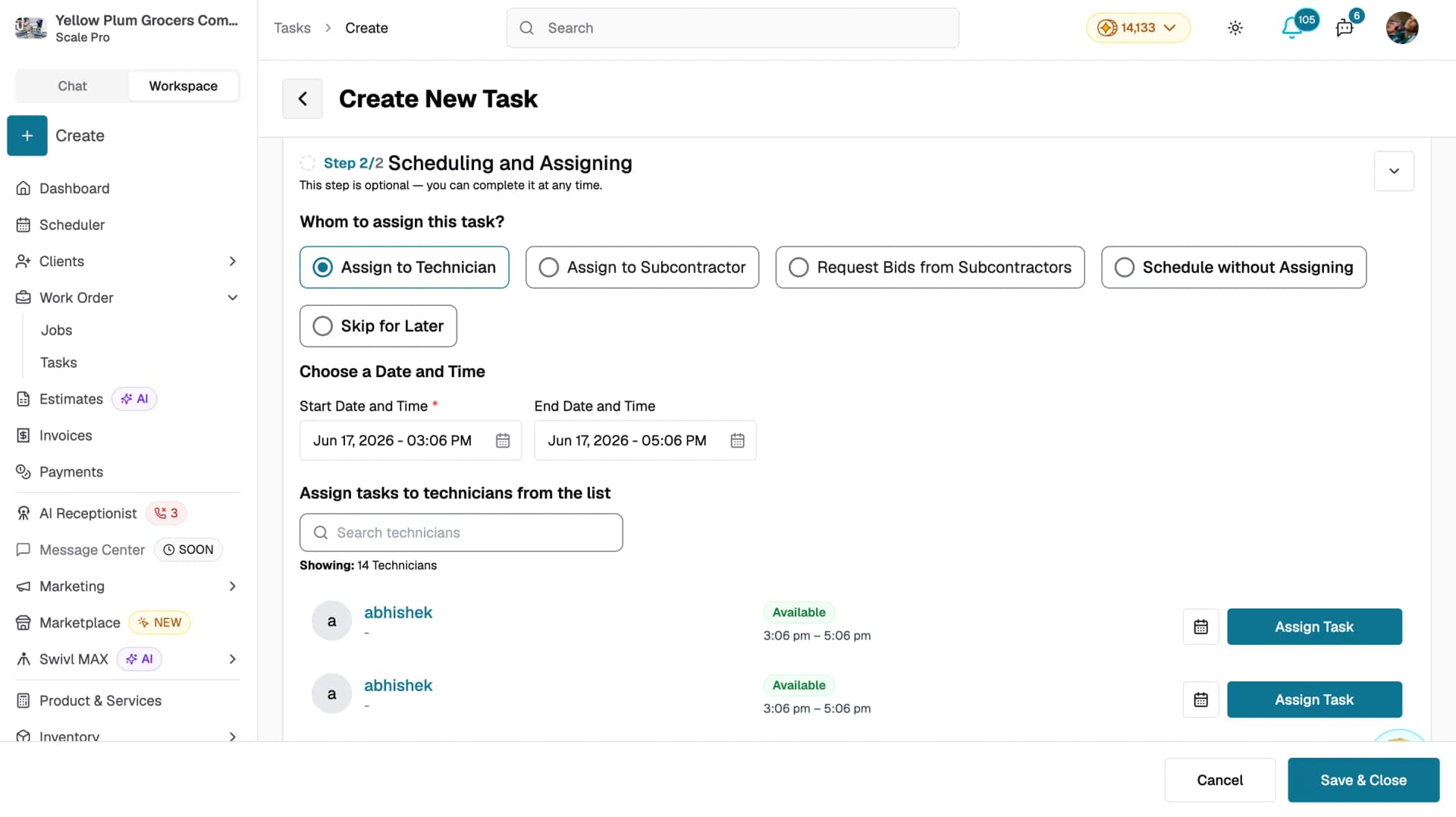
How to schedule a task from the task creation form
- Go to Work Order → Tasks and click + Create Task or click + from the Tasks & Financials tab on a job detail page.
- Fill in the required fields like customer, job, site address, and task name.
- In Step 2: Scheduling and Assigning, set the Start Date and Time and End Date and Time.
- Choose an assignment method:
- Assign to Technician: pick a team member from the list
- Assign to Subcontractor: directly assign to a subcontractor
- Request Bids from Subcontractors: send bid requests
- Schedule without Assigning: set the time slot without an assignee
- Skip for Later: leave unscheduled for now
- Click Assign Task and then Save & Close
How to reschedule a task from the list view
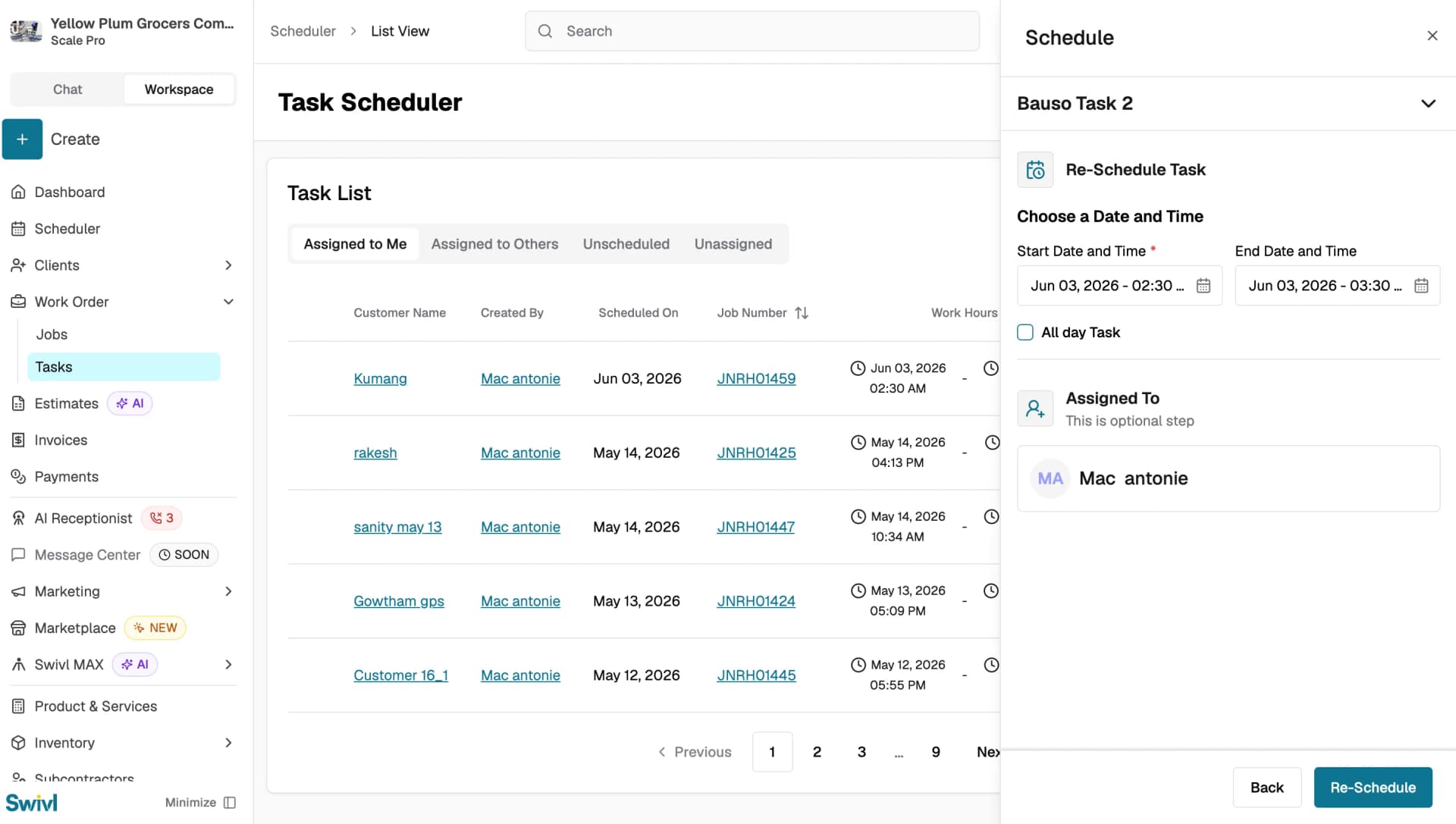
- Go to Scheduler → List View
- Find the task in the Task List and click the calendar icon in the Actions column
- The Schedule panel opens on the right showing Re-Schedule Task
- Update the Start Date and Time and End Date and Time
- Toggle All day Task if needed
- Update the Assigned To if required
- Click Re-Schedule
Tips
- Tasks default to a 2-hour duration adjust the end time as needed.
- If you schedule a task from a job detail page, the job and customer fields are pre-filled automatically.
- Use the Unscheduled tab in the Task List to quickly find all tasks that still need a time slot.
- Use the Unassigned tab to find tasks that have a time but no technician assigned yet.
- The calendar updates in real time, so dispatchers can schedule while technicians are in the field.