
Assigning Account Managers and Sales Managers
Assign account managers and sales managers to customer accounts to keep ownership clear and ensure the right team members are responsible for each relationship.
Overview
Keep customer relationships organised by assigning dedicated account and sales managers to each account. Swivl supports multiple assignees per role and lets you update them whenever needed.
Who can access this
Role | Access / Permissions |
|---|---|
Super Admin | Can assign and update account managers and sales managers |
Admin | Can assign and update account managers and sales managers |
Lead Technician | Can view manager assignments only |
Technician | Can view manager assignments only |
What are account managers and sales managers?
- Account Manager: the team member responsible for the ongoing customer relationship, day-to-day communication, and service delivery.
- Sales Manager: the team member responsible for winning the customer's business, managing quotes, and overseeing the sales pipeline.
Both roles draw from your active team member list in Swivl, and a single customer can have multiple assignees of each type.
How to assign managers during customer creation
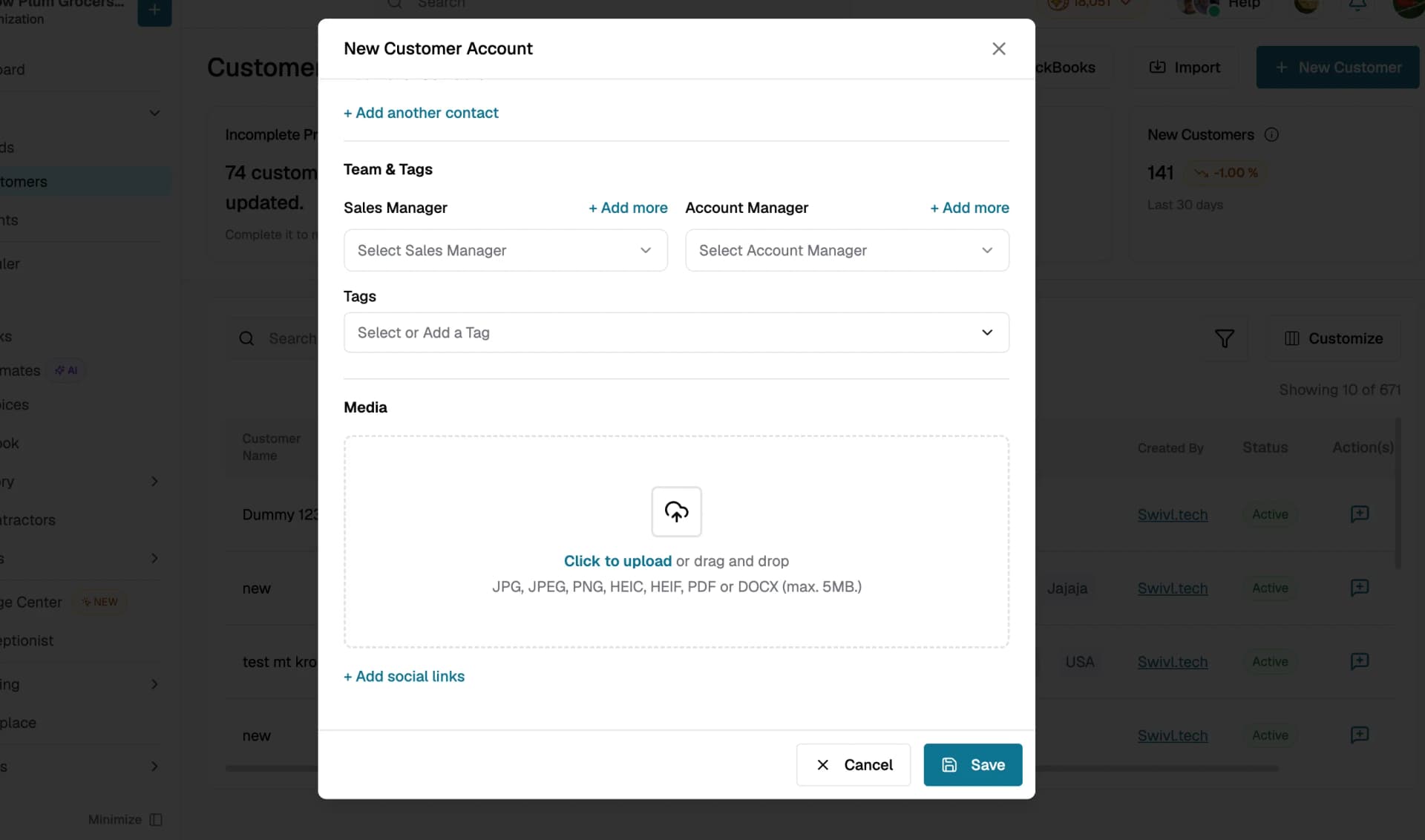
- Go to Clients → Customers and click + New Customer.
- Scroll to the Additional Details section.
- Under Sales Manager, click the search field, type a team member's name, and select them from the dropdown.
- To add another, click + Add Sales Manager and repeat.
- Under Account Manager, follow the same steps.
- Complete the rest of the form and click Save Details.
How to update managers on an existing customer
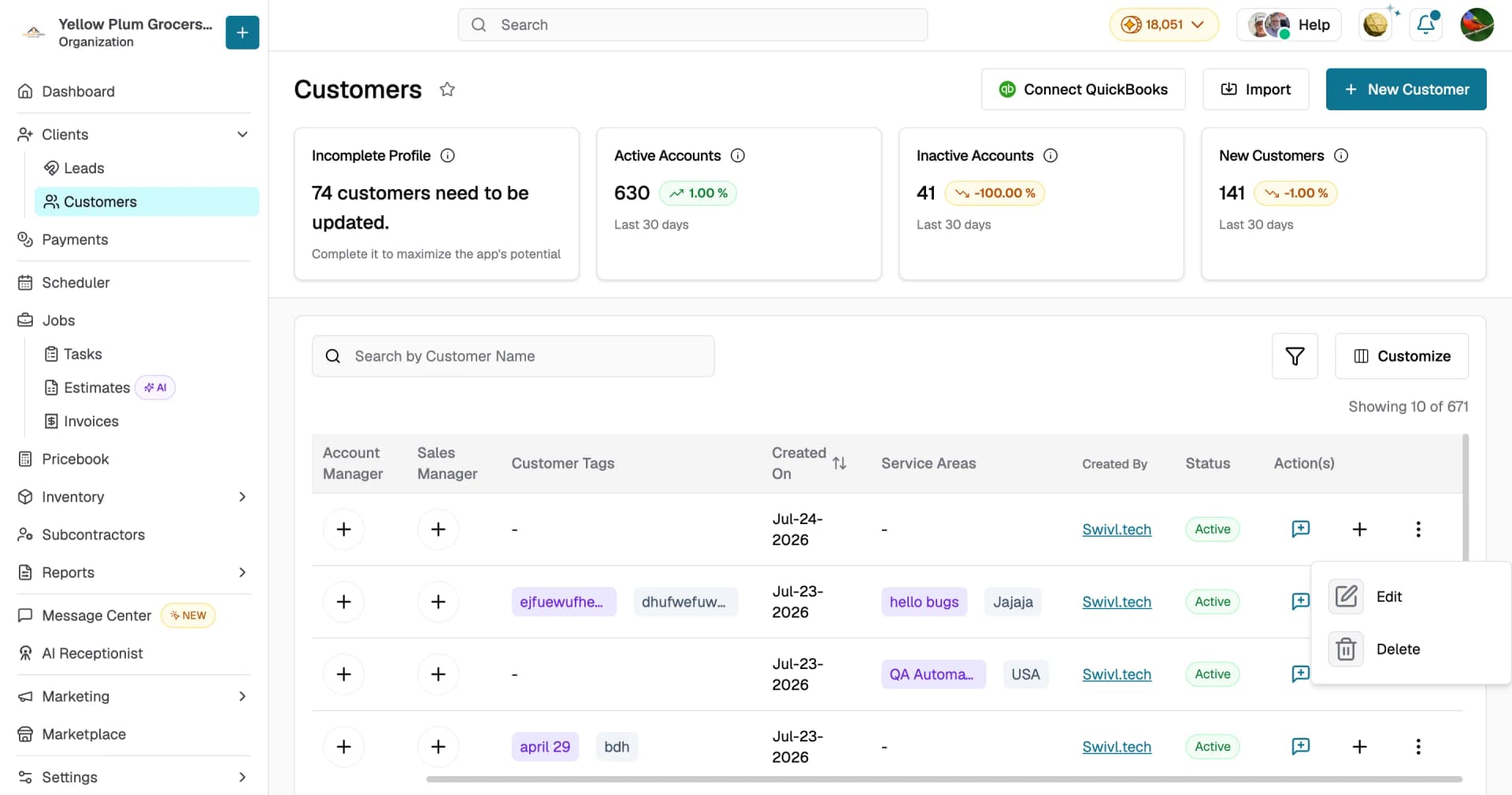
- Go to Clients → Customers and click the customer's name.
- Click the three-dot menu and select Edit.
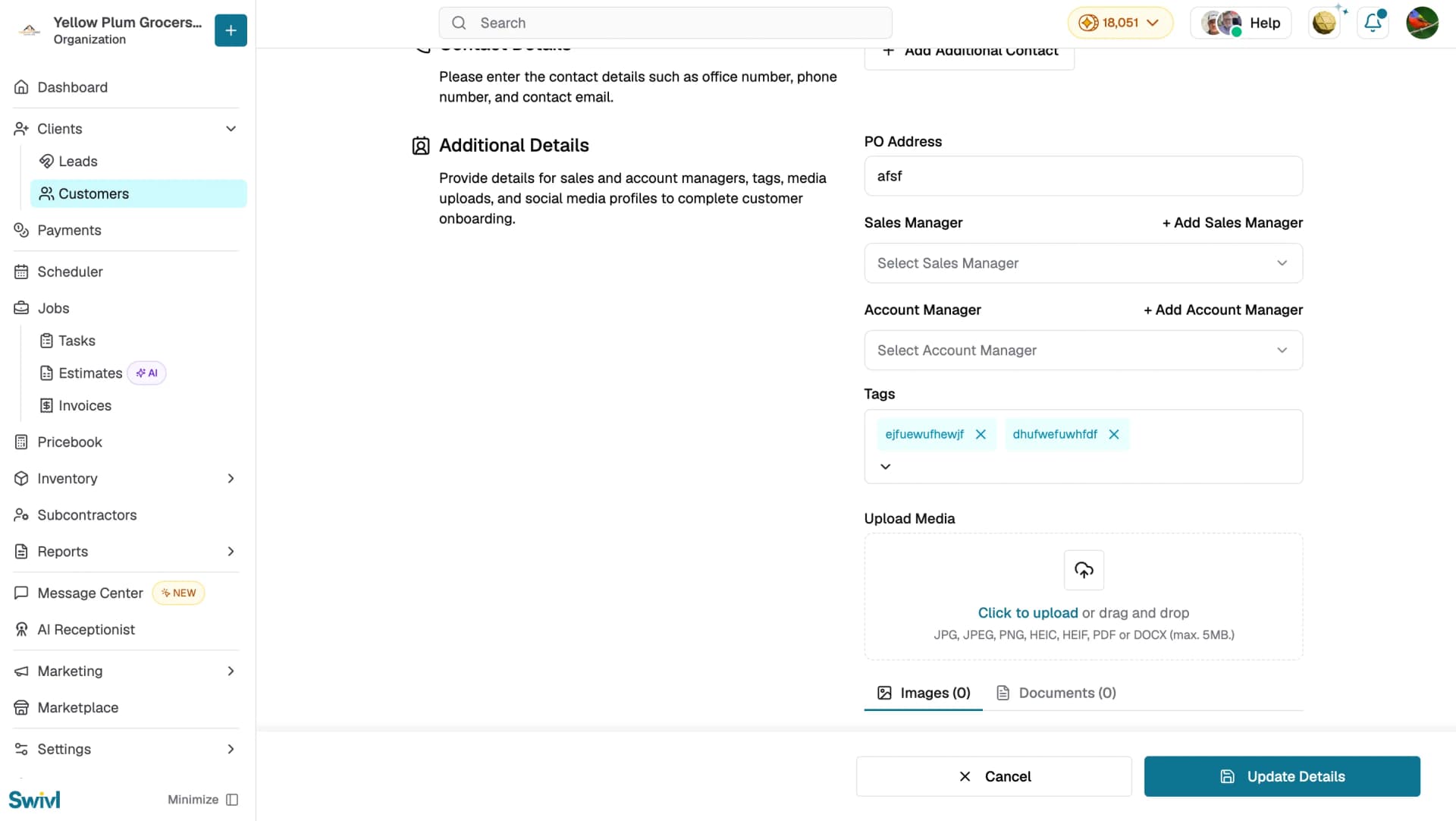
- Scroll to the Additional Details section.
- Update the Sales Manager or Account Manager fields as needed:
- To change a manager, click the field and select a different team member.
- To remove a manager, click the trash icon next to their name.
- To add another, click + Add Sales Manager or + Add Account Manager.
- Click Update Details to save.
Viewing manager assignments
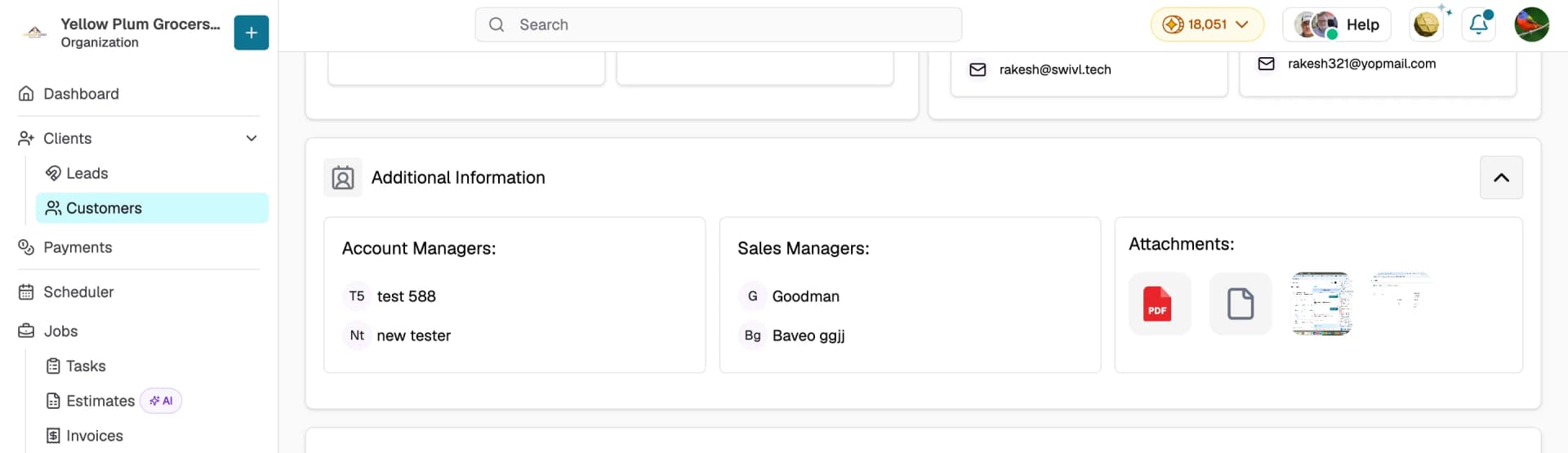
On the customer profile, scroll to the Additional Information section to view the assigned account managers and sales managers. If there are more than two assignees, click View More to see the full list.
Filtering by manager
- Go to Clients → Customers and click Filter.
- Select Sales Manager or Account Manager from the filter options.
- Choose one or more team members.
- Click Apply.
Tips
- A team member can only be assigned once per role on a customer Swivl automatically filters out already-assigned users from the dropdown.
- Use the Account Manager and Sales Manager filters on the customer list to quickly see each team member's portfolio.
- If a team member leaves or changes roles, update their assignments across customer accounts to keep your records accurate.