
GPS Tracking Rules: Flags, Rules and Zone Checks
Use GPS Tracking Rules in Swivl to automatically monitor technician activity and flag patterns that fall outside expected behavior, helping you maintain accountability across your field team.
Overview
Swivl GPS Tracking Rules automatically evaluate your technicians' activity records and flag patterns that fall outside expected behavior, such as extended time in transit, long breaks, or visits to locations outside their assigned area. Once configured, rules are applied automatically whenever a technician clocks out of a task.
Who can access this
- Super Admin: Full access , can view applied rules, configure GPS rules, and manage service areas
- Other roles: Can view applied rules in the GPS report if GPS permission is enabled. Configuring GPS rules requires Full Access to both GPS and Finance & Billing
How GPS rules work
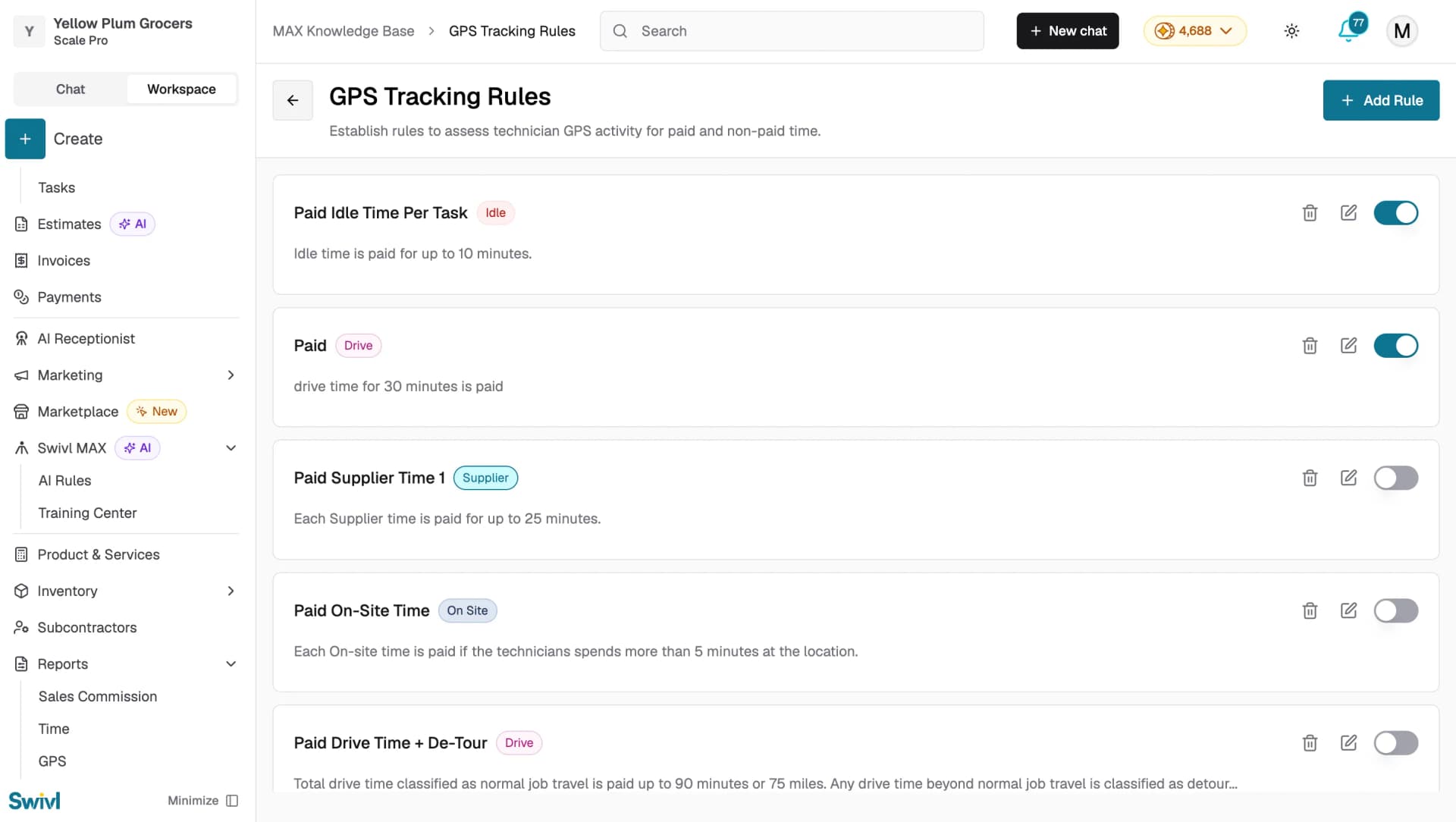
GPS rules are configured under Swivl MAX → AI Rules → GPS Tracking Rules. When a technician completes a task and clocks out, Swivl automatically evaluates the GPS activity record against your active rules. If a rule matches, it is applied to that record.
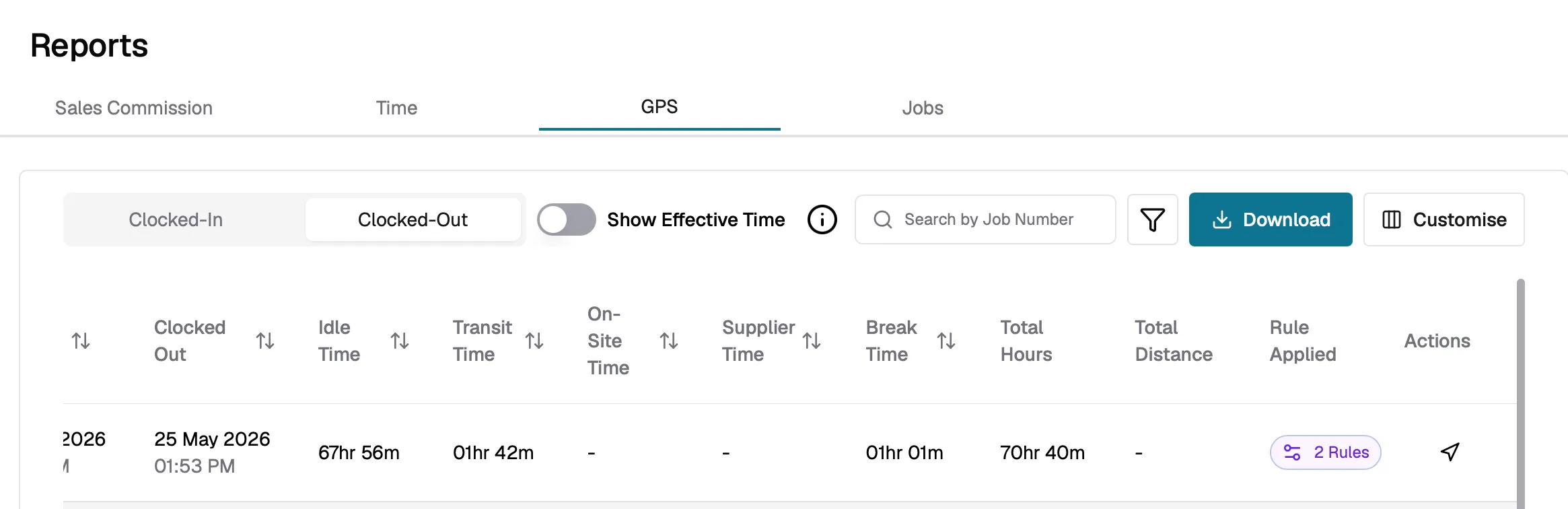
In the GPS report Clocked-Out tab, the Rule Applied column shows how many rules were triggered for each record. If rules were applied, a badge displays the count , for example, 2 Rules.
Viewing applied rules
- Go to Reports > GPS and select the Clocked-Out tab.
- Look for records with a Rule Applied badge.
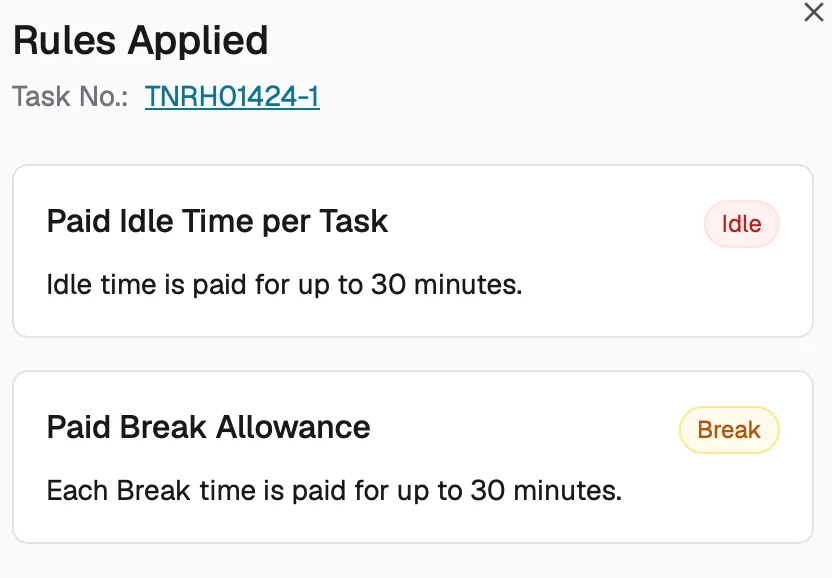
- Click the badge to open the Rules Applied side panel.
The side panel shows:
- Task Number : which task the rules apply to, with a clickable link to the task details.
- Rule cards: each applied rule is listed with:
- Rule name: the name you gave the rule.
- Activity state: which activity type the rule applies to (Drive, On Site, Break, Idle, Supplier), shown as a colored badge.
- Description: a detailed explanation of what the rule checks for.
Configuring GPS rules:
- Go to Swivl MAX → AI Rules → GPS Tracking Rules and click + Add Rule. You can also access this directly from the Rules Applied panel by clicking Setup Rules.
- Define the rule conditions, such as:
- Maximum idle time allowed before flagging.
- Expected on-site duration ranges.
- Drive time limits between locations.
- Toggle the rule on to activate it, it will be applied automatically to future GPS records.
You can toggle individual rules on or off, edit existing rules, or delete rules you no longer need at any time.
Connecting zones to violations
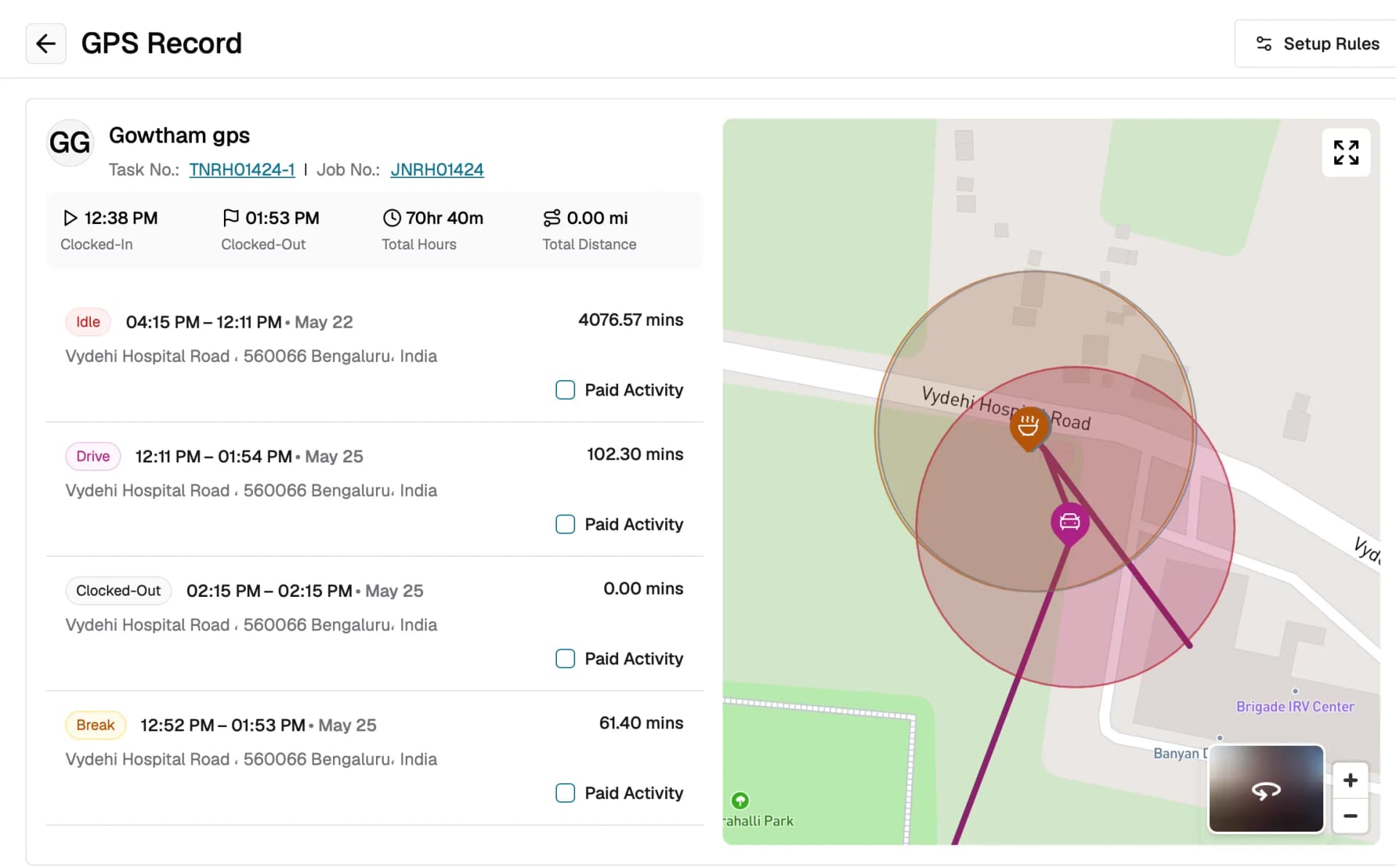
Service areas define geographic boundaries for your field team and are displayed as overlapping circles on the GPS route map. While GPS rules handle time-based and activity-based checks, service areas enable location-based analysis. You can combine both to get a fuller picture of technician activity:
- Assign service areas to jobs.
- Open any Clocked-Out GPS record and review the map, service area zones are shown as overlapping circles around the technician's location, so you can visually check whether they stayed within the expected boundaries.
- Use the Job Service Area(s) column in the Jobs report to filter and cross-reference with GPS data.
Tips
- Start with a few simple rules such as maximum break time or maximum idle time — before adding more complex ones.
- Review the Rules Applied panel regularly to identify recurring patterns that may indicate training needs.
- Enable Show Effective Time alongside GPS rules to see how flagged activities impact paid hours.
- Click Setup Rules directly from the Rules Applied panel for quick access to rule configuration without navigating away from the report.