
Creating a lead manually
When a potential customer reaches out, you can capture their details in Swivl straight away so no enquiry gets missed.
Overview
When a potential customer reaches out by phone, email, or in person you can quickly capture their information in Swivl so nothing falls through the cracks. This article walks you through creating a lead manually.
Who can access this
Role | Access / Permissions |
|---|---|
Super Admin | Full access to create and manage leads |
Admin | Full access (same as Super Admin) |
Lead Technician | No access |
Technician | No access |
How to create a new lead
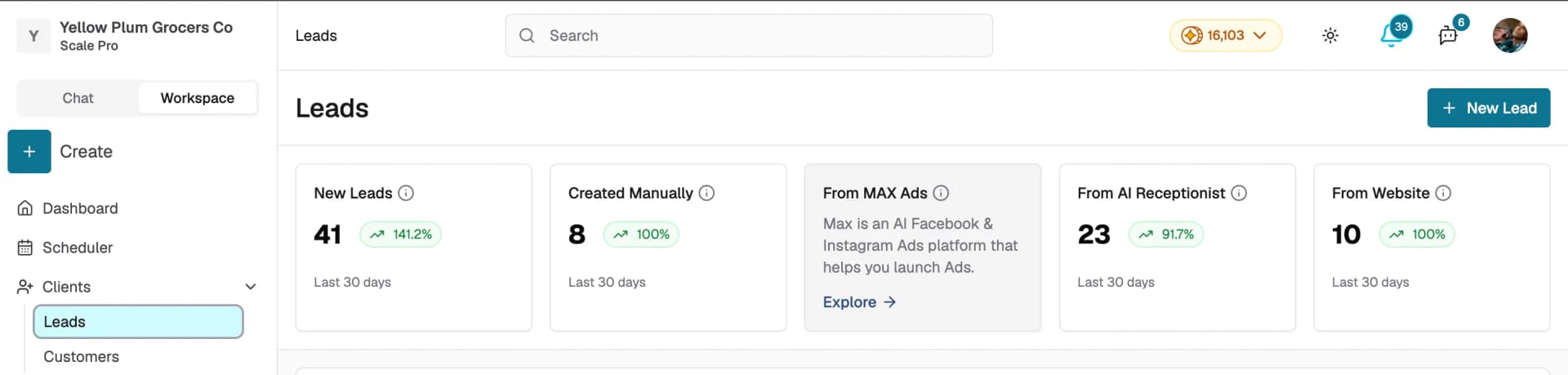
- Navigate to Clients → Leads from the left sidebar
- Click + New Lead at the top right of the page
- Complete the form sections described below
Step 1: Primary Details
- Enter a Lead Name (required). This is typically the prospect's name or business name.
Step 2: Address Details
- Address Line 1 (required): start typing and Swivl will suggest matching addresses automatically. Select a suggestion to automatically fill in City, State, Zipcode, and Country
- Building / Unit: optionally add a unit, floor, or suite number
- City, State, Zipcode, Country (all required): auto-filled from the address suggestion but can be edited manually
- Notes: optionally add landmarks or access instructions
Step 3: Contact Details
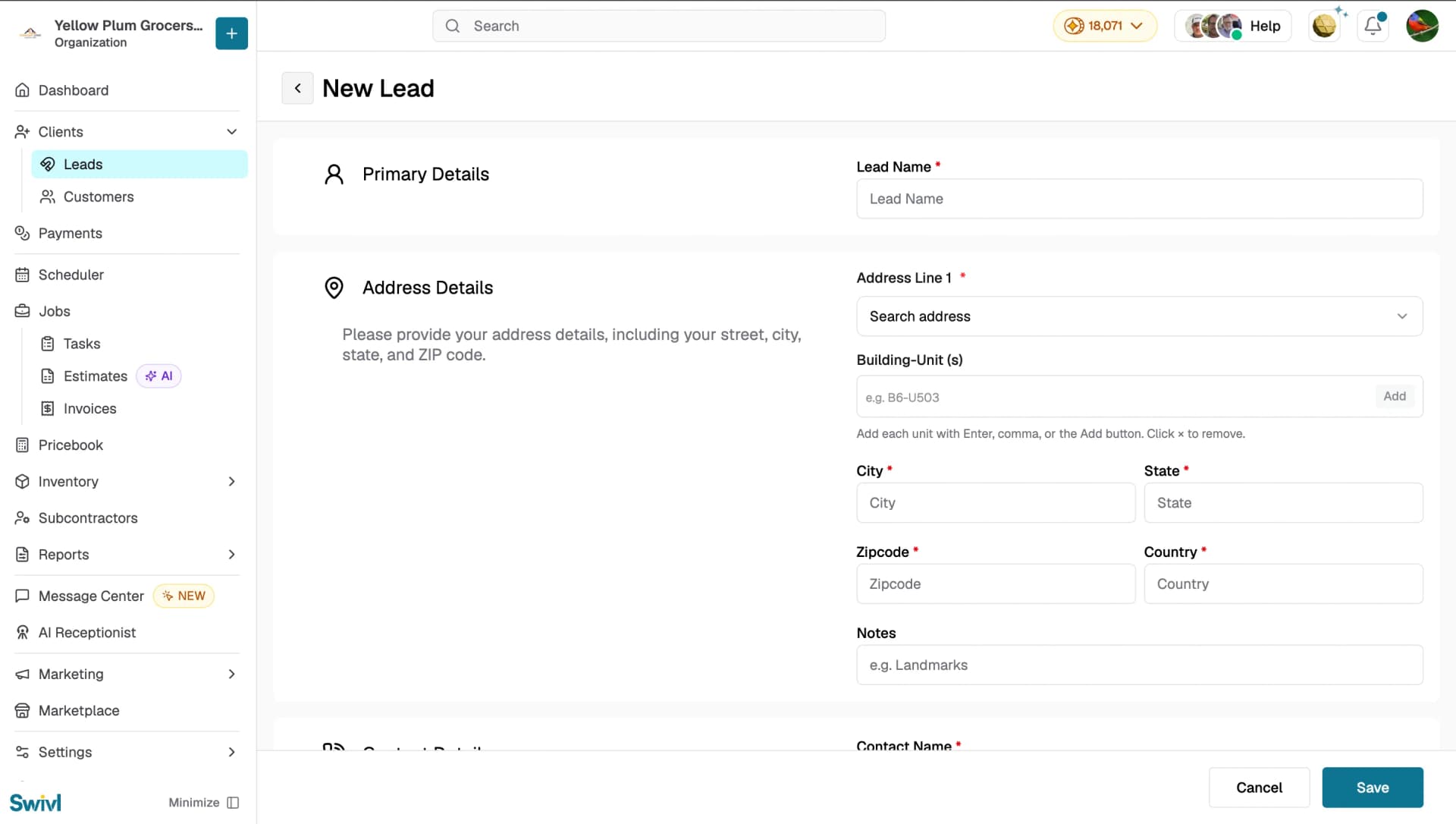
- Contact Name (required): auto-filled with the lead name but can be changed
- Office Number: optional. Check Add extension if you need to include an extension
- Mobile Number (required): the primary phone number for this lead
- Contact Email: optional email address
Step 4: Service Details
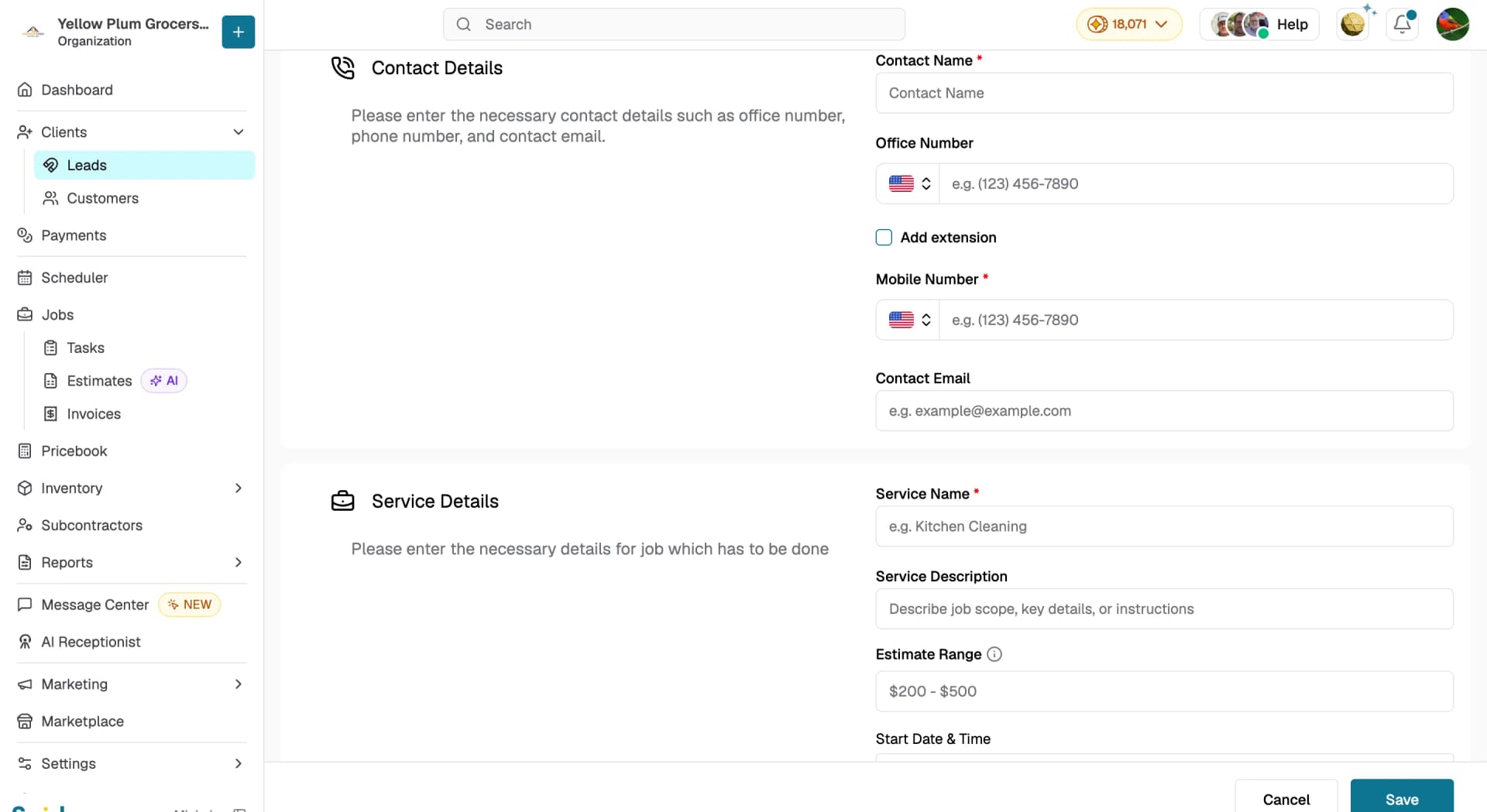
- Service Name (required): describe the service the lead is asking about, for example "Kitchen Cleaning"
- Service Description: optionally describe the job scope, key details, or special instructions
- Estimate Range: an optional dollar range such as "$200 - $500"
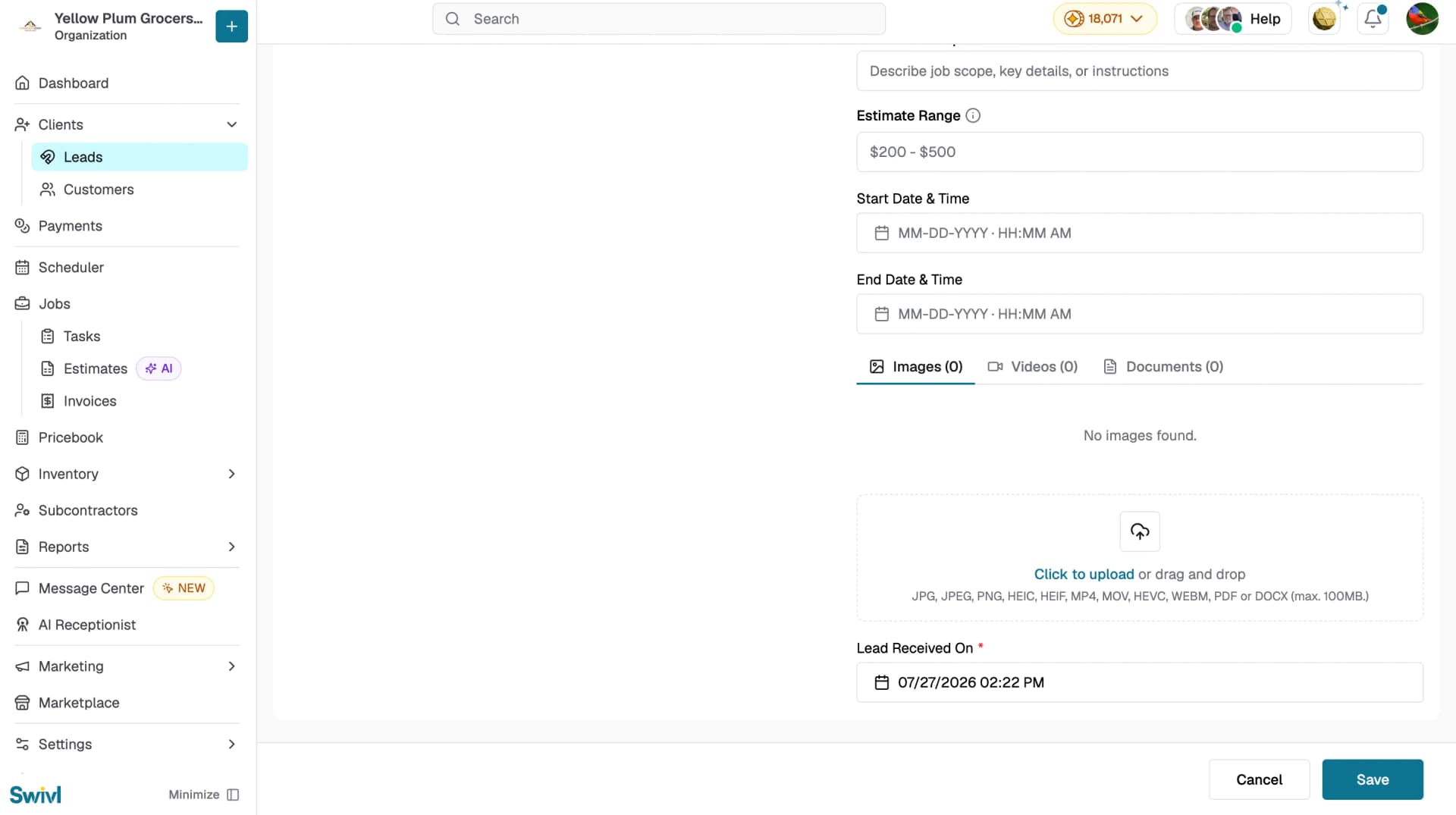
- Start Date & Time and End Date & Time: optionally set the preferred scheduling window
- Media: upload supporting images, videos, or documents (JPG, JPEG, PNG, HEIC, HEIF, MP4, MOV, HEVC, WEBM, PDF or DOCX, max 100MB)
- Lead Received On (required): defaults to the current date and time. Adjust if the enquiry came in earlier
Step 5: Save
Click Save at the bottom of the page. You will be taken back to the leads list where your new lead will appear. To discard the form click Cancel.
Editing a lead
To update a lead after creation, open the lead from the table, click the Actions menu and select Edit. Make your changes and click Update.
Tips
- Fill in the Lead Received On date accurately , it helps you track response times and follow up promptly
- Use the Service Description field to note anything the customer mentioned so your team has full context before the job begins
- Upload any photos the customer sends using the Media section so technicians can review them before arriving on site
- The Estimate Range field accepts values like "$200 - $500" and can hold up to 20 characters