
Updating job status
A job's status reflects where it stands in its lifecycle Open, Closed, or Cancelled. Updating the status is how you mark work as complete, void a job, or reopen one that needs additional attention.
Overview
Swivl gives you three ways to act on a job once work is underway close it when everything is done, cancel it if the project is no longer going ahead, or reopen it if more work is needed. Each status change has its own set of conditions and confirmation steps to make sure nothing is missed.
Who can access this
- Super Admin: can close, cancel, and reopen any job.
- Admin: can close, cancel, and reopen any job.
- Lead Technician: can update the status of jobs they are assigned to as Job Lead.
- Technicians cannot change job status.
Job status lifecycle
- Open → Closed
- Open → Cancelled
- Closed → Reopened (Open)
- Cancelled → Reopened (Open)
How to close a job
The Close Job option only appears in the three-dot menu once the job is ready all tasks must be completed and all invoices created, sent, and paid.
- Open the job detail page.
- Click the three-dot menu in the header and select Close Job.
- A checklist dialog appears confirm all three items:
- All invoices for this job have been created and sent to the customer.
- All tasks, estimates, and media have been completed and sent.
- All invoices are fully paid by the customer.
- Click Close Job to finalise the button is only active once all checkboxes are checked.
How to cancel a job
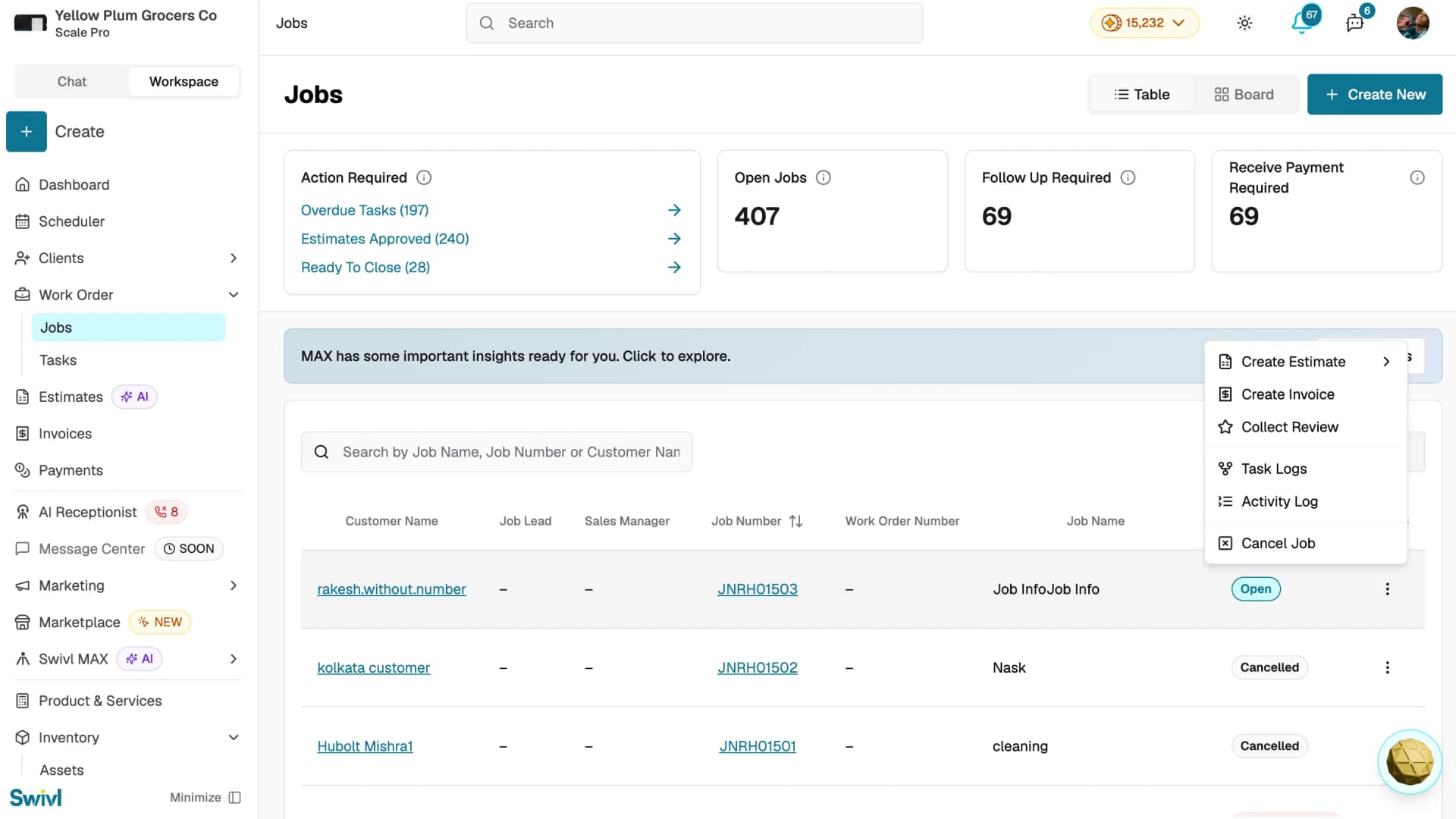
Cancelling is available from the jobs list when the project is no longer going ahead.
- Go to Work Order → Jobs.
- Find the job in the table and click the three-dot menu on the job row.
- Select Cancel Job.
- Confirm the cancellation in the dialog.
How to reopen a job
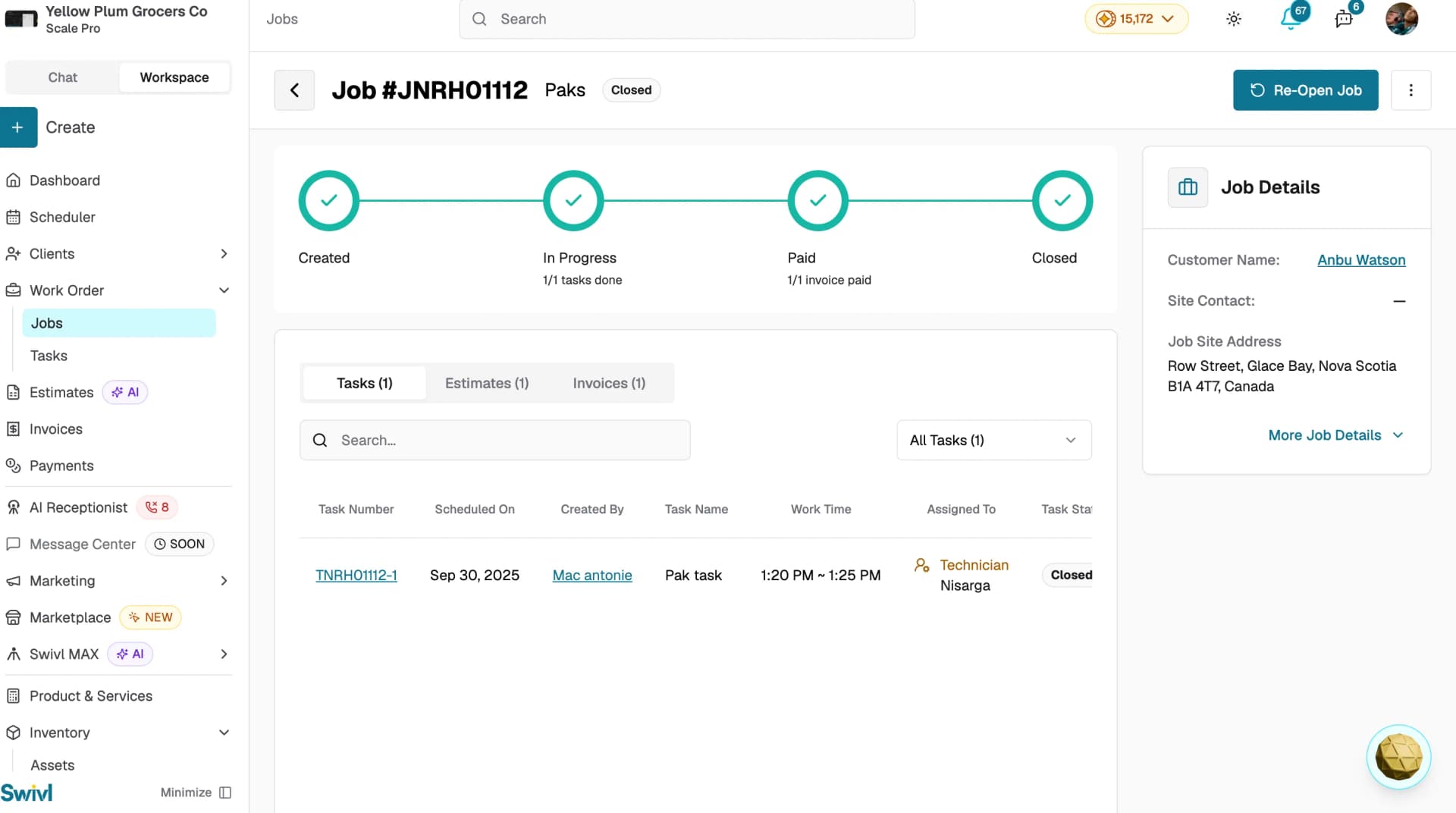
If a closed or cancelled job needs more work:
- Open the job detail page.
- Click Re-Open Job at the top-right of the page.
- The job status returns to Open.
Status indicators on the jobs list
Each job on the jobs list shows a status badge providing more context:
- Open: the job is in progress.
- Action Required: the job needs attention before it can progress.
- Cancelled: the job has been voided.
- Overdue Tasks: one or more tasks are past their scheduled end date.
- Ready To Close: every task is done and the job is ready to be closed.
Tips
- All three checklist items must be checked before the Close Job button becomes active ensuring all loose ends are tied up before closing.
- Closing a job does not delete any data all tasks, invoices, and estimates remain accessible.
- Once a job is eligible to be closed, a Ready To Close prompt will appear in the Action Required card on the Jobs page use this as your trigger to action it.