
Website Chatbot: Engage Visitors Around the Clock
Engage website visitors instantly with an AI chatbot that answers questions, guides customers to your services, and captures leads automatically, no manual effort required.
Overview
The Chatbot adds an AI assistant to your business website, built with the Swivl AI Website Builder. It engages visitors in real time, answers questions about your services, and helps customers book appointments or get an estimate, around the clock.
Who can access this
Role | Access Level |
|---|---|
Super Admin | Can enable, configure, and manage the Chatbot |
Admin | Can view Chatbot settings |
Lead Technician / Technician | No access |
How to Enable Chatbot
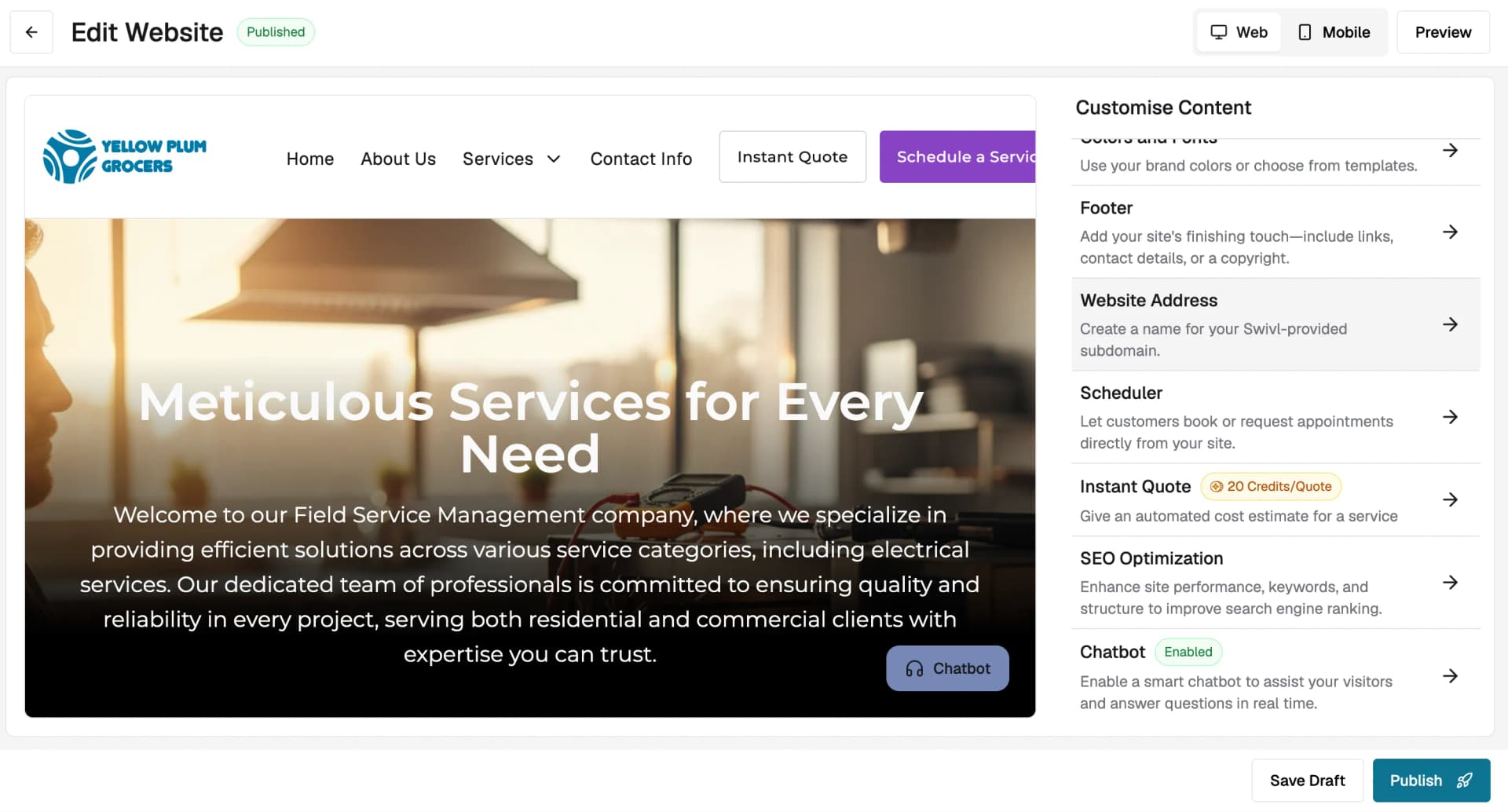
- Go to Marketing → AI Website Builder and click Edit Website.
- In the Customise Content panel on the right, scroll down and click Chatbot.
- Toggle Enable Chatbot on.
Once enabled, the Chatbot icon will appear as a floating button on your website for visitors to use.
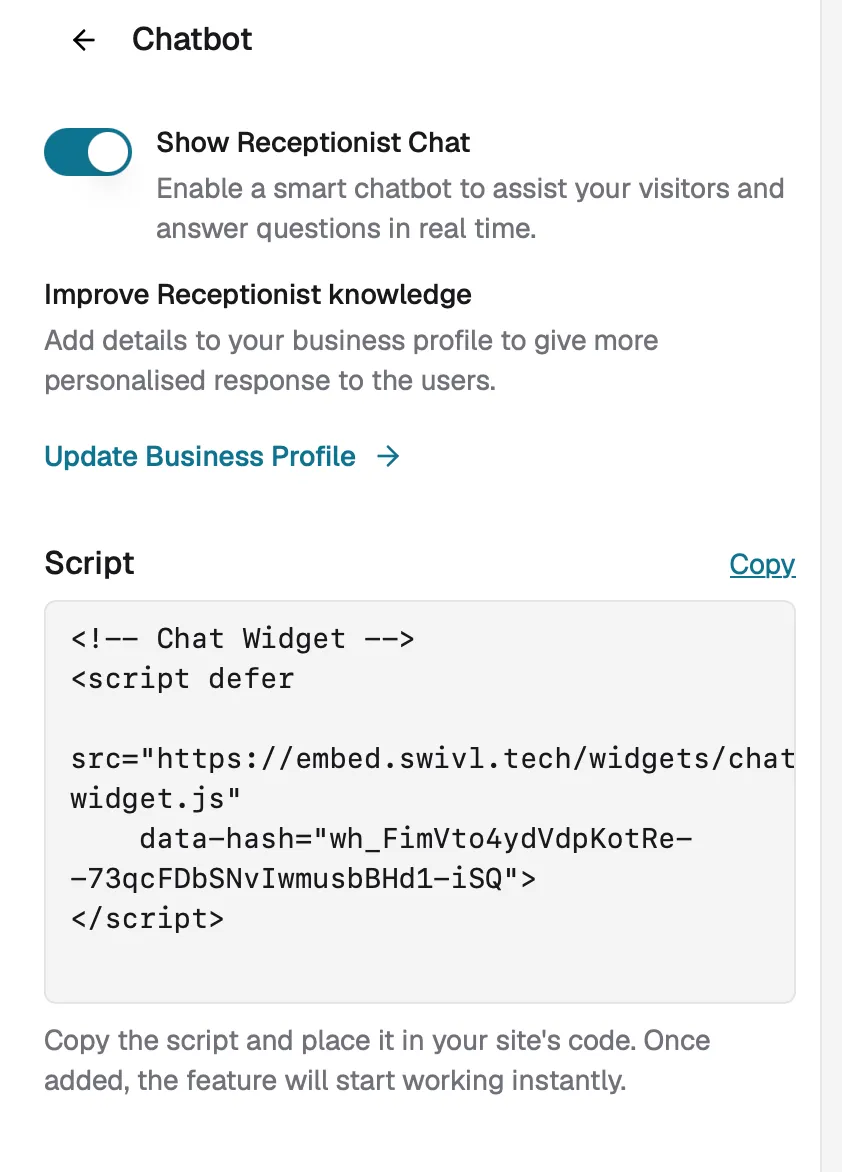
Note: To disable the Chatbot, simply toggle it off from the same screen.
On an external website
If you have your own website outside of Swivl, you can embed the Chatbot using a script or share it as a direct link:
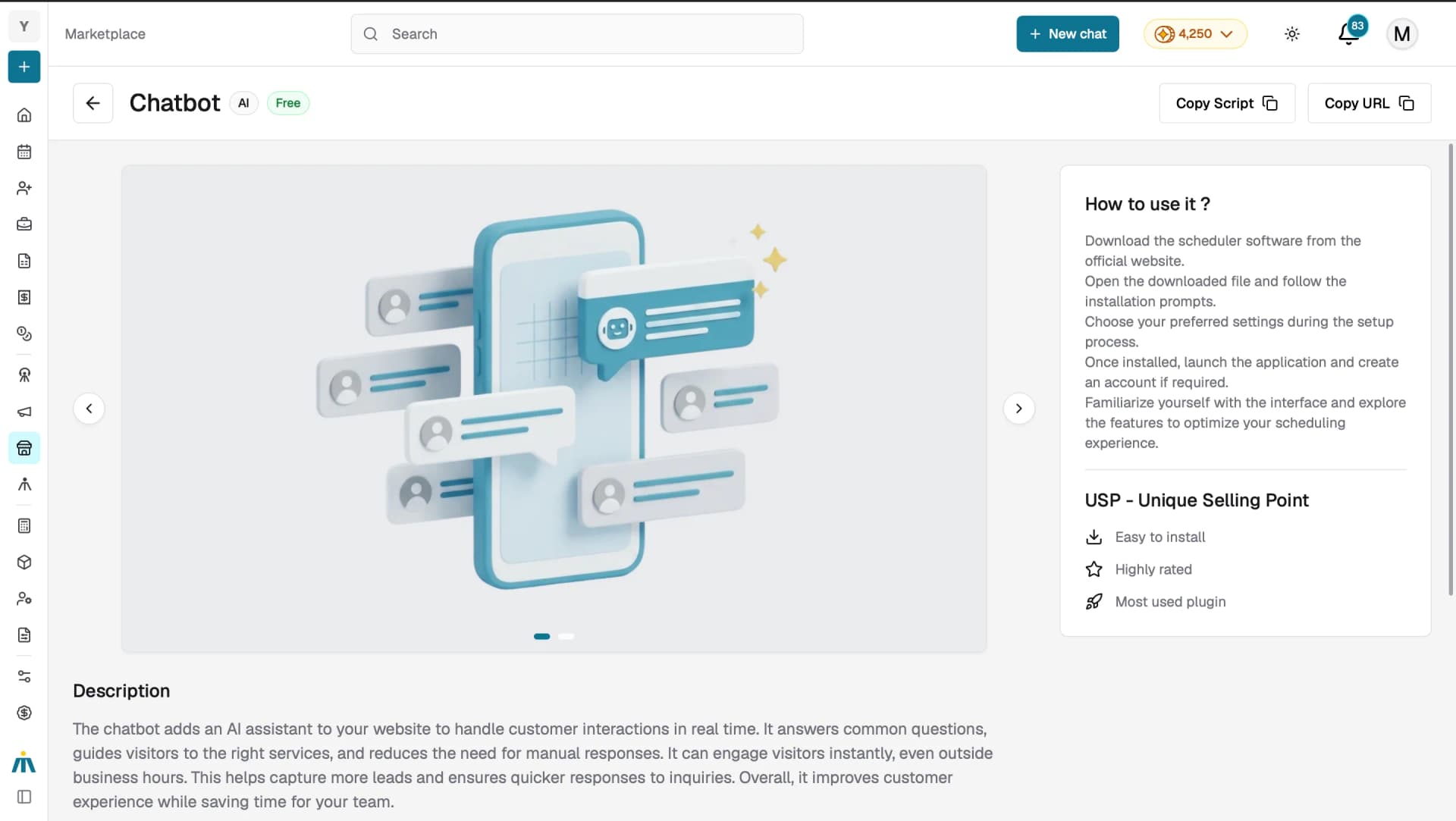
- Go to Marketplace → Chatbot.
- Click Copy Script to embed it on your website, or click Copy URL to share it as a standalone link.
How It Works for Visitors
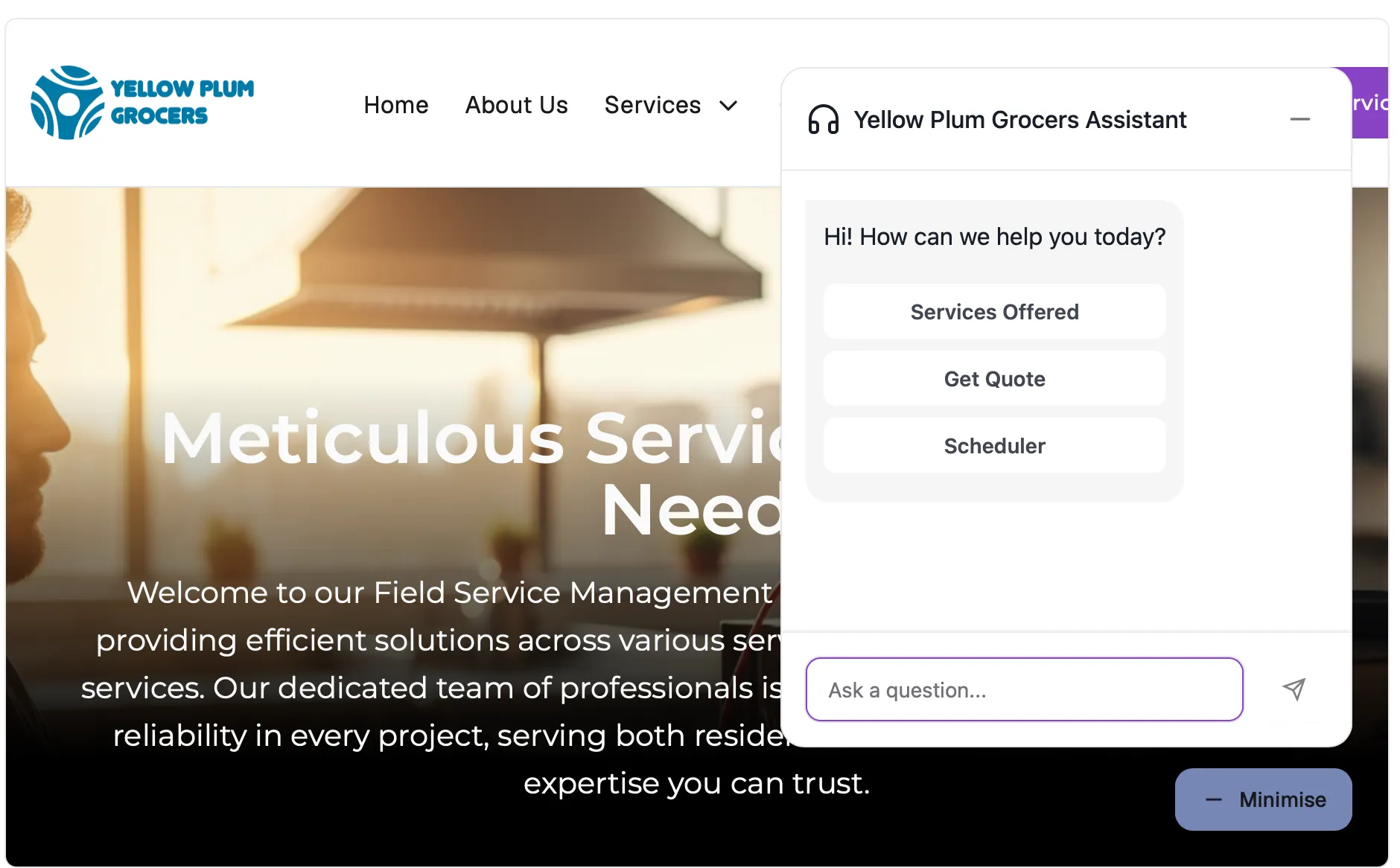
When a visitor clicks the Chatbot icon on your website, they are greeted and asked for their name, mobile number, and email. Once provided, they can choose from the following options (these are examples, the options may vary based on your business configuration):
- Book a Service: redirects the visitor to your Online Scheduler to book an appointment.
- Services Offered: shows your service categories. The visitor can explore specific services and then choose to book or get an estimate.
- Get an Estimate: redirects the visitor to the Instant Quote flow to get an AI-generated price range. This option is only shown if you have Instant Quote enabled on your website.
Visitors can also type free-text questions about anything related to your business such as services, pricing, availability, location, or contact details. The Chatbot uses your company information to respond accurately.
Note: You can track your Chatbot performance including chat attempts, leads generated, and conversion rate under the Analytics section in the AI Website Builder dashboard.
Tips
- Make sure your company profile is complete and up to date as the Chatbot uses your business information to respond accurately to visitor questions.
- Enable Instant Quote on your website to unlock the Get an Estimate option in the Chatbot flow giving visitors more ways to engage.
- From the Marketplace, use Copy URL to share the Chatbot as a standalone link or Copy Script to embed it on an external website.
- Monitor your Chatbot performance regularly under the Analytics section in the AI Website Builder dashboard to track engagement and leads.