
Map
Global Map Overview
Stop juggling separate screens to track your field operation. Swivl's Global Map plots your technicians, jobs, leads, customers, suppliers, and subcontractors together in real time, so you can spot nearby opportunities, cut travel time, and dispatch smarter all from one map.
Overview
Global Map brings your whole operation onto one interactive map. Instead of switching between separate screens for technicians, jobs, customers, leads, suppliers, and subcontractors, everything is displayed in one place, a real-time view of your business across your service area. You can instantly see where your technicians are working, which jobs are in progress, where your customers are located, and where new leads are coming from.
Who can access this
- Global Map is available on the Growth Plan and above.
- Super Admins have full access, while other roles can use the map based on the Map and GPS permissions enabled in Settings > Team & Access > Roles & Permissions.
Accessing the Global Map
- Go to Map in the main navigation.
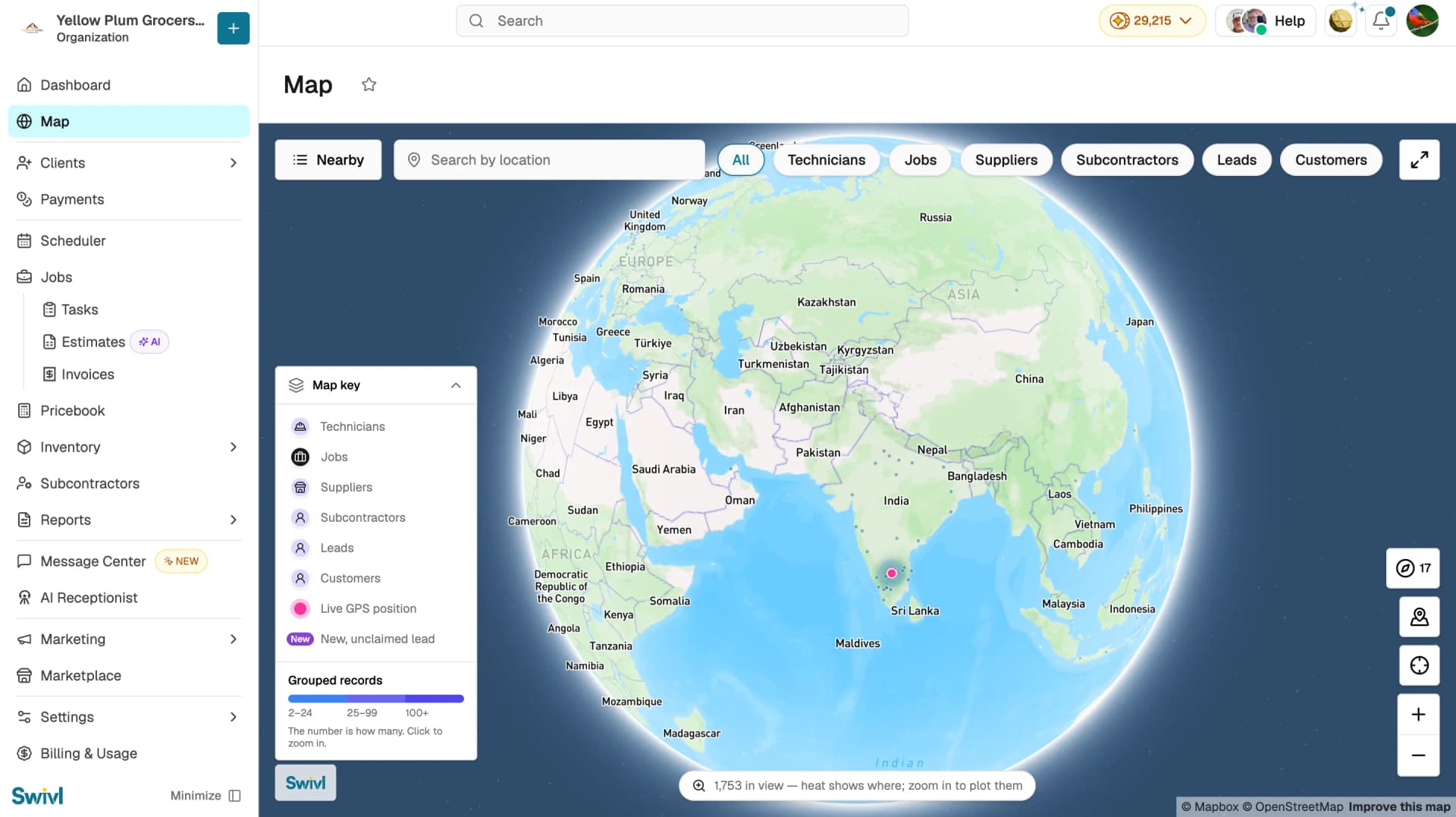
- The map opens with all record types displayed. Zoom out for a full view of your operation, or zoom in to plot individual records.
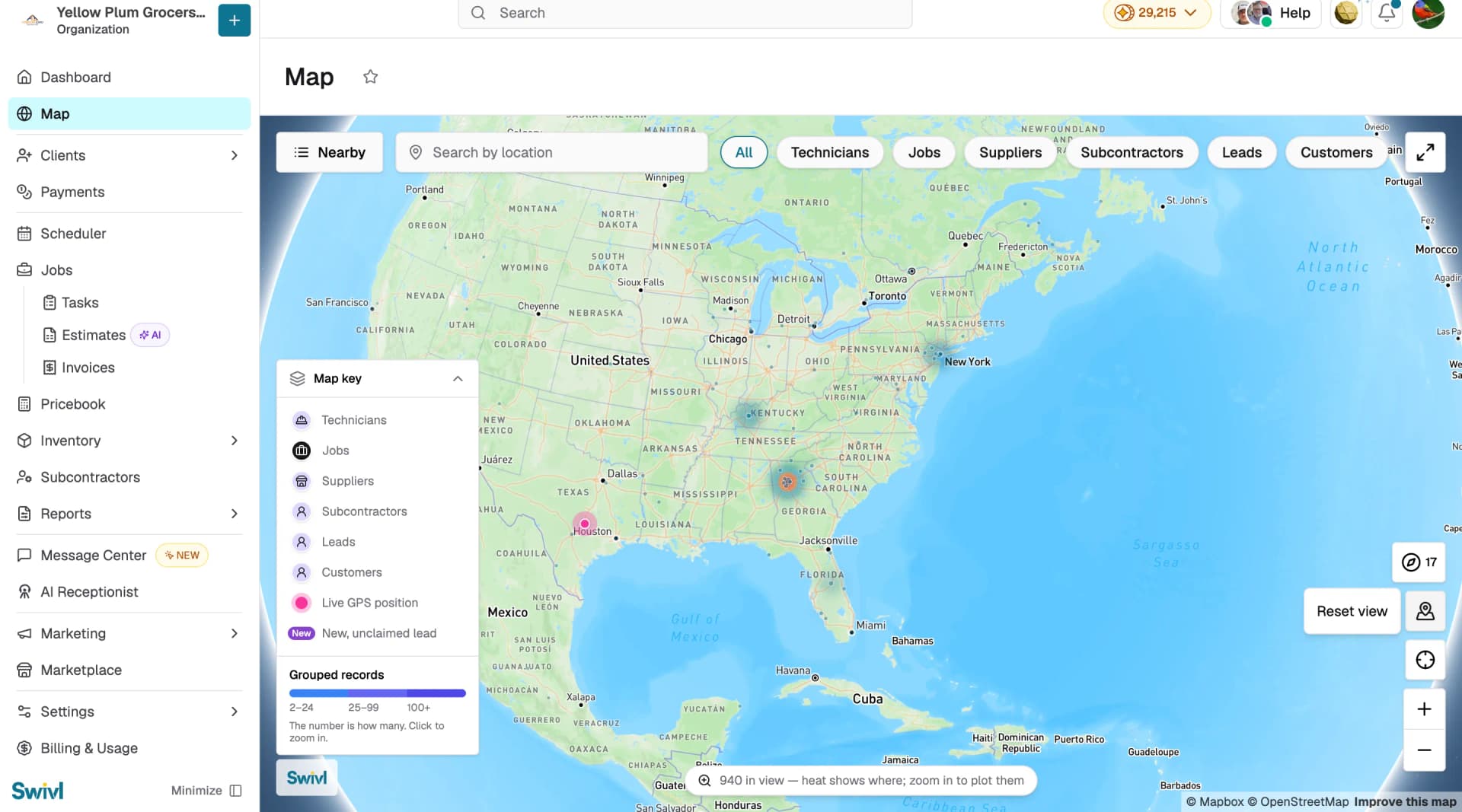
- Use the counter at the bottom of the map (e.g. "712 in view") to see how many records are in the current view. Heat shading shows where records are concentrated, zoom in to plot them individually.
Filtering the map
- Use the filter chips at the top of the map All, Technicians, Jobs, Suppliers, Subcontractors, Leads, Customers to focus on a specific entity type.
- Use Search by location to jump to any area on the map.
Understanding the map key
- Technicians: team members and their locations.
- Jobs: active and scheduled work.
- Suppliers: vendor locations.
- Subcontractors, Leads, Customers: contact records plotted at their addresses.
- Live GPS position (pink dot): a technician's real-time location.
- New badge: a new, unclaimed lead.
- Grouped records: when records cluster together, a number shows how many are in the group. Click to zoom in.
Finding what's nearby
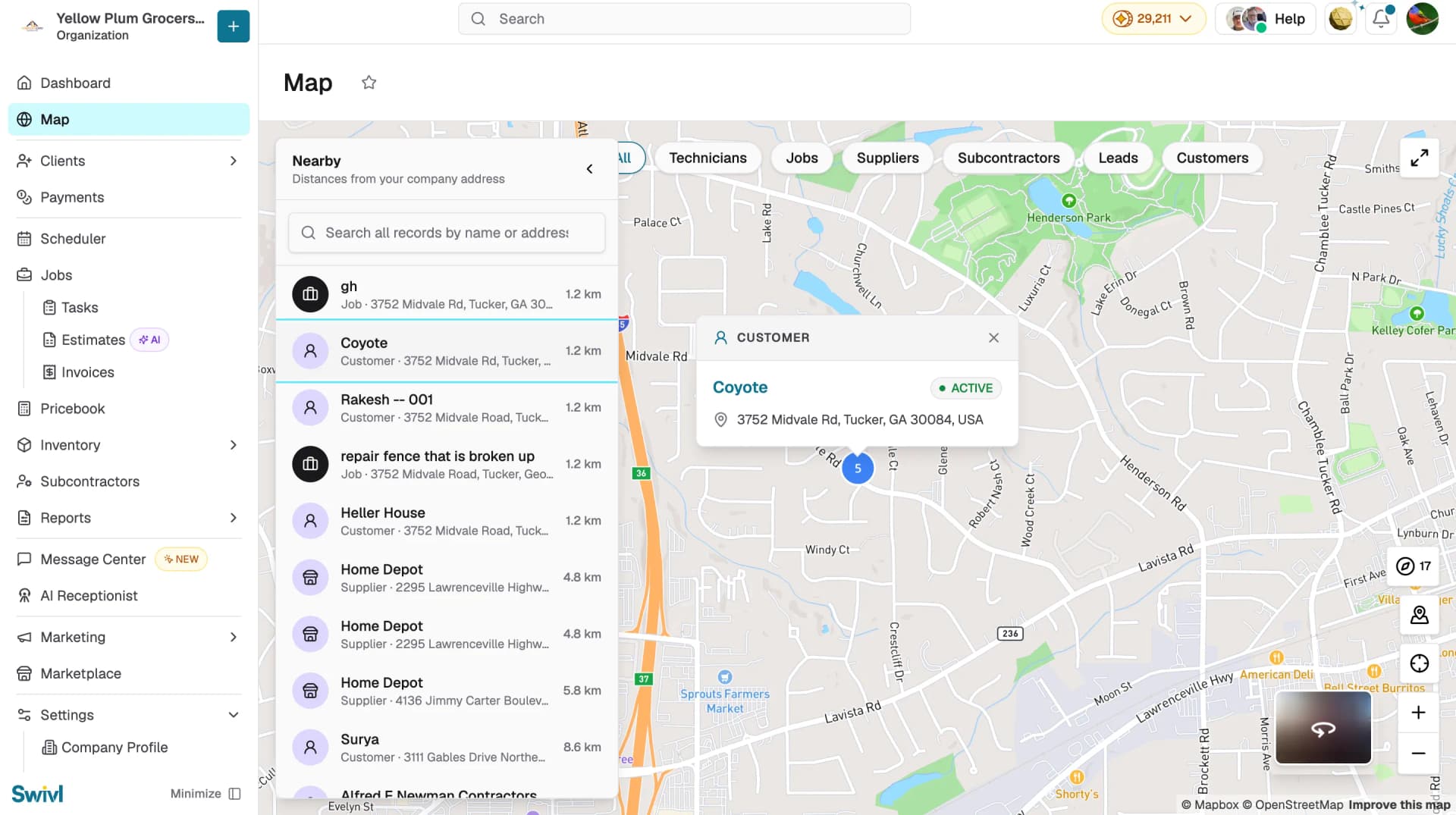
- Click Nearby to open a panel showing all records sorted by distance from your company address.
- Search the panel by name or address to find any job, customer, supplier, subcontractor, or lead.
- Each result shows the record type, address, and distance, so technicians can quickly answer: "What else is near me?"
- Click any record in the list to highlight it on the map and open a detail card showing its name, status (e.g. Active), and full address. From there you can open the record or navigate to the location.
Taking action from the map
- Take quick actions directly from the map, such as calling a lead, opening a job, or navigating to a location.
- New leads appear on the map in real time as they are created, so you get visibility into opportunities near your active work areas as they happen.
Important notes
- Global Map is available from the Growth Plan. On lower plans, upgrade from Billing & Usage to access it.
- Live GPS positions appear only for technicians who are clocked in with GPS and internet connectivity enabled on their mobile device.
- Heat shading appears when many records are in view; zoom in to see individual pins.
Tips
- If a new lead is created near an active job, contact the customer immediately, schedule an estimate, or complete the work while your technician is already in the area.
- Group nearby work together to reduce fuel costs, save travel time, improve response times, and serve more customers each day.
- Before dispatching a technician, check the map for other open jobs or unclaimed leads along their route.