
Converting a Lead to a Customer or Job
Once you have gathered enough information from a lead, the next step is to convert it into actionable work. Swivl lets you create a job or an estimate directly from a lead, automatically linking it to a customer record so you never lose context.
Overview
When a lead is ready to move forward, you can convert it into a job or estimate directly from the leads list or the lead detail page. Swivl links the lead to a customer automatically, carrying over the address, contact details, and service information so you do not have to re-enter anything.
Who can access this
- Super Admin: can convert leads to jobs and estimates.
- Admin: can convert leads to jobs and estimates.
- Lead Technician: no access.
- Technician: no access.
Creating a Job from a Lead
You can create a job from two places:
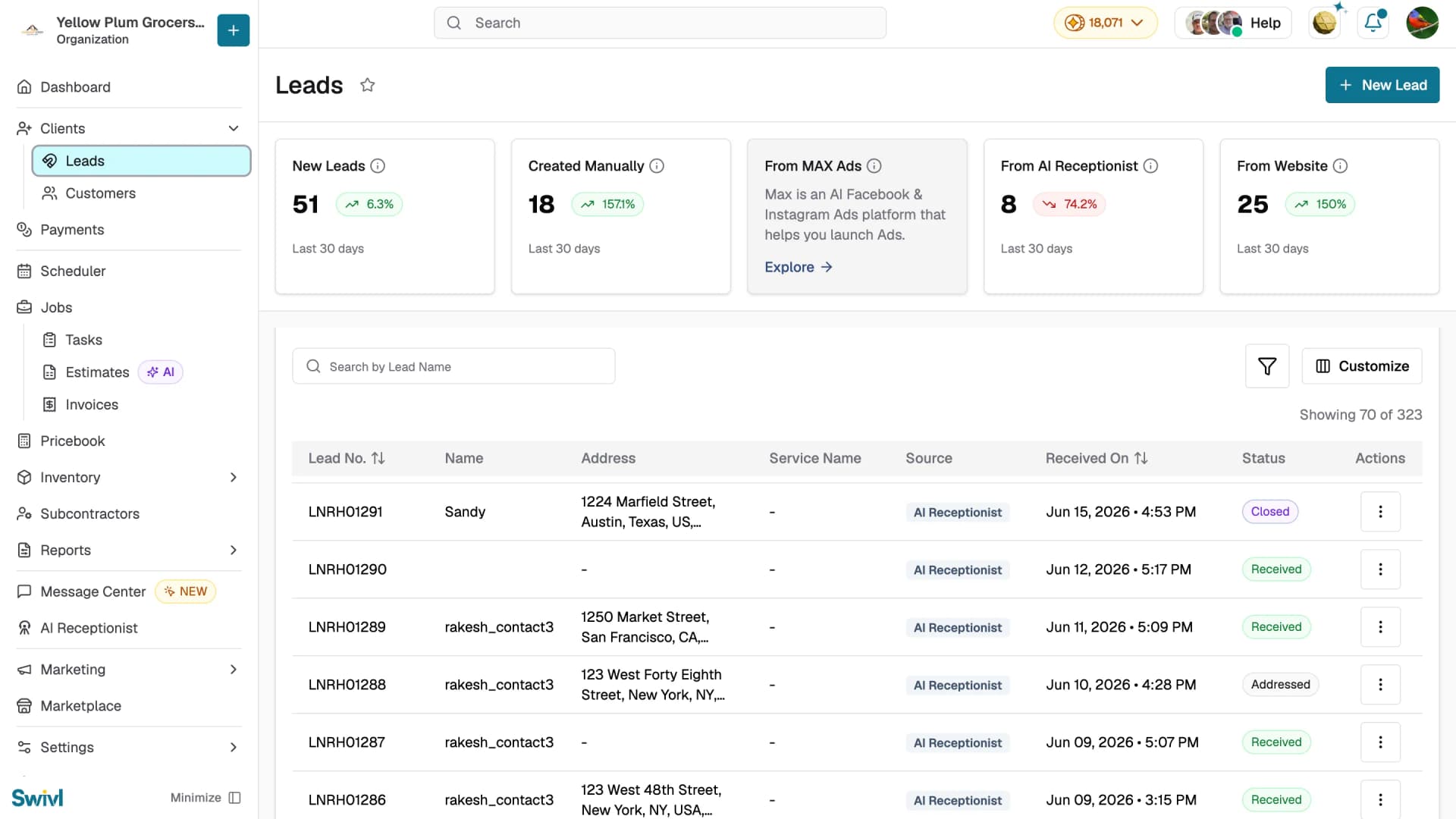
From the leads list: Go to Clients → Leads, click the three-dot menu on the lead, and select New Job.
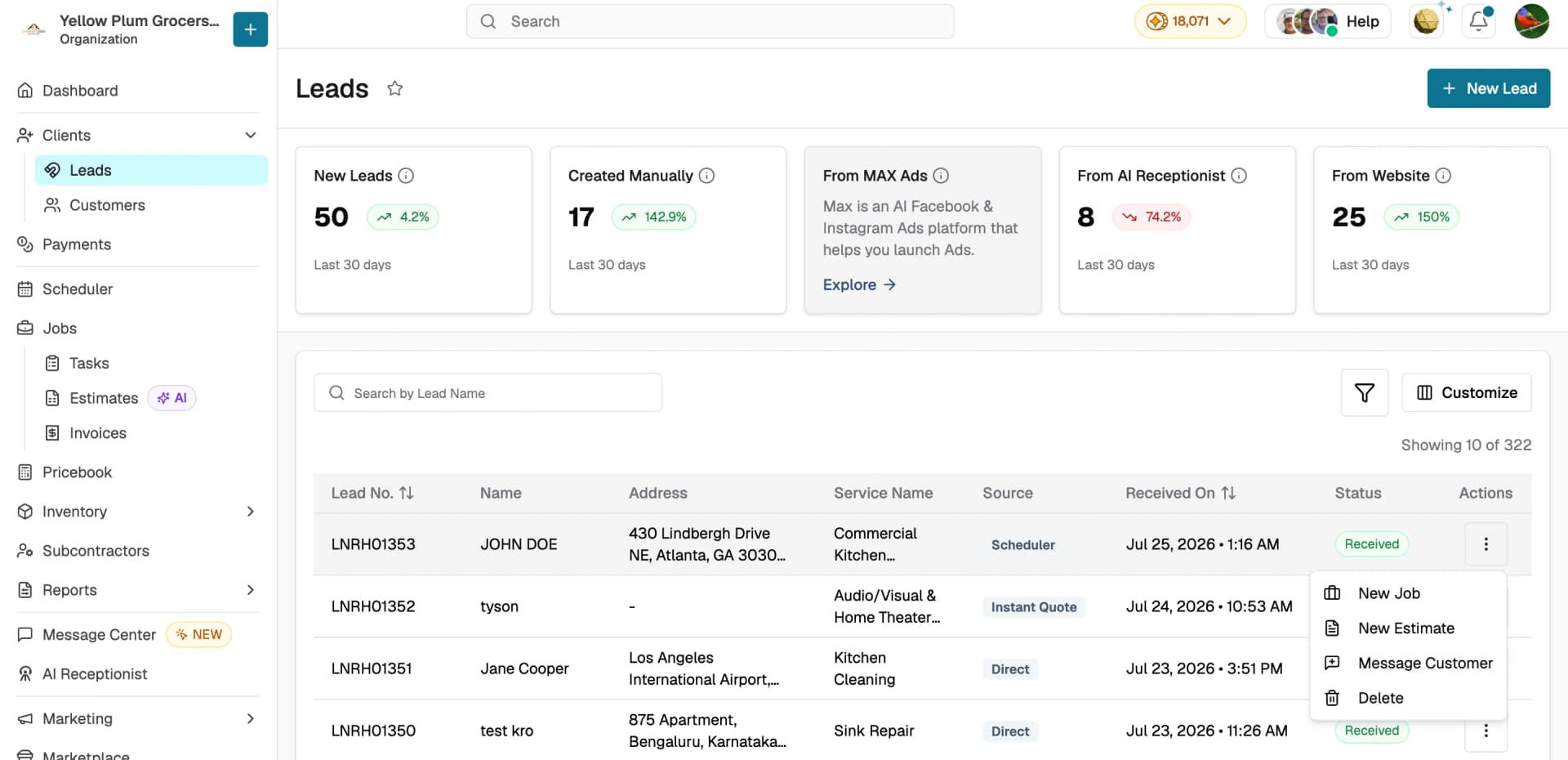
From the lead detail page:
- Go to Clients → Leads and click the lead to open it.
- Click the Create Job card on the right side of the page.
- Swivl checks if the lead is already linked to a customer:
- If yes: you are taken directly to the job creation form with the customer and lead details pre-filled.
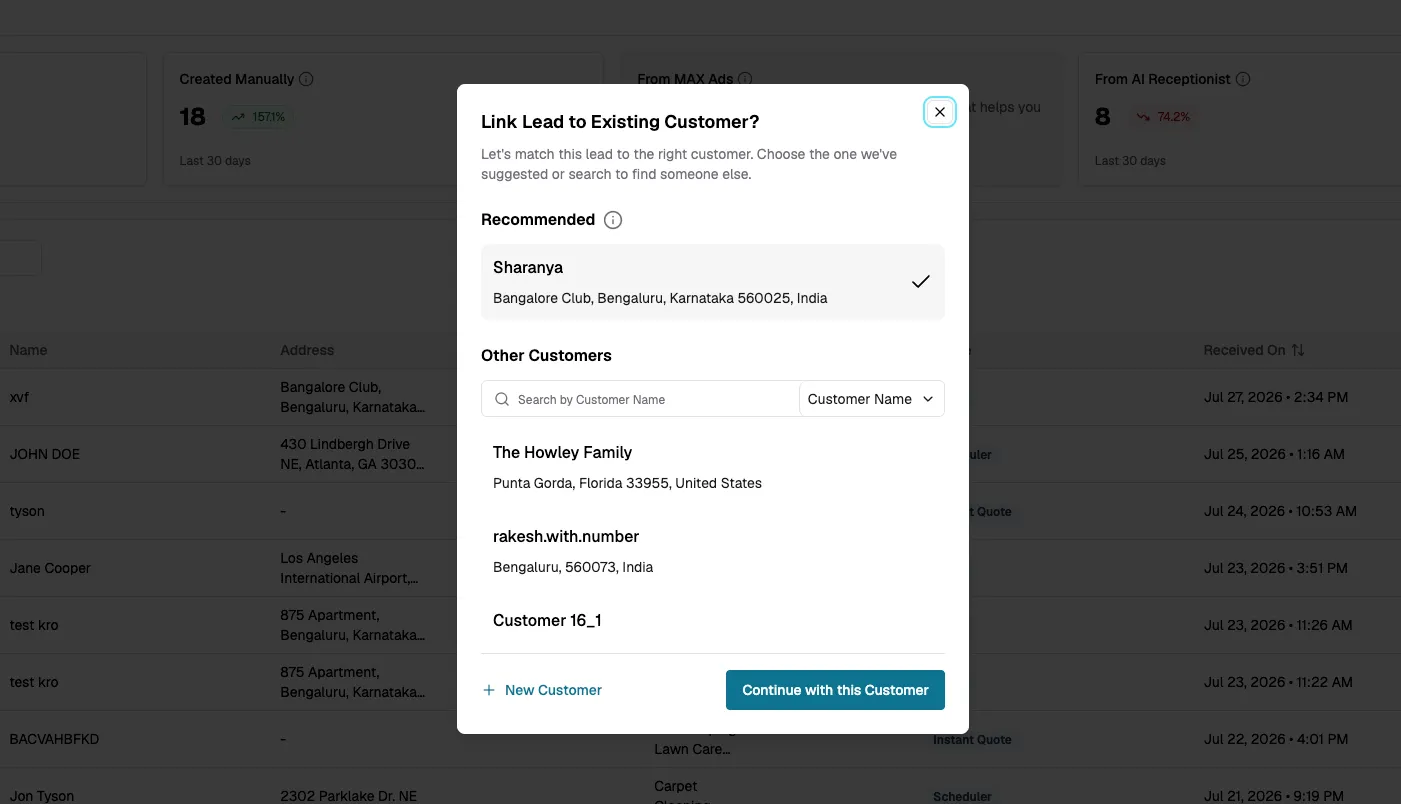
- If no: a Link Lead to Existing Customer dialog appears.
- Complete the job creation form and click Save.
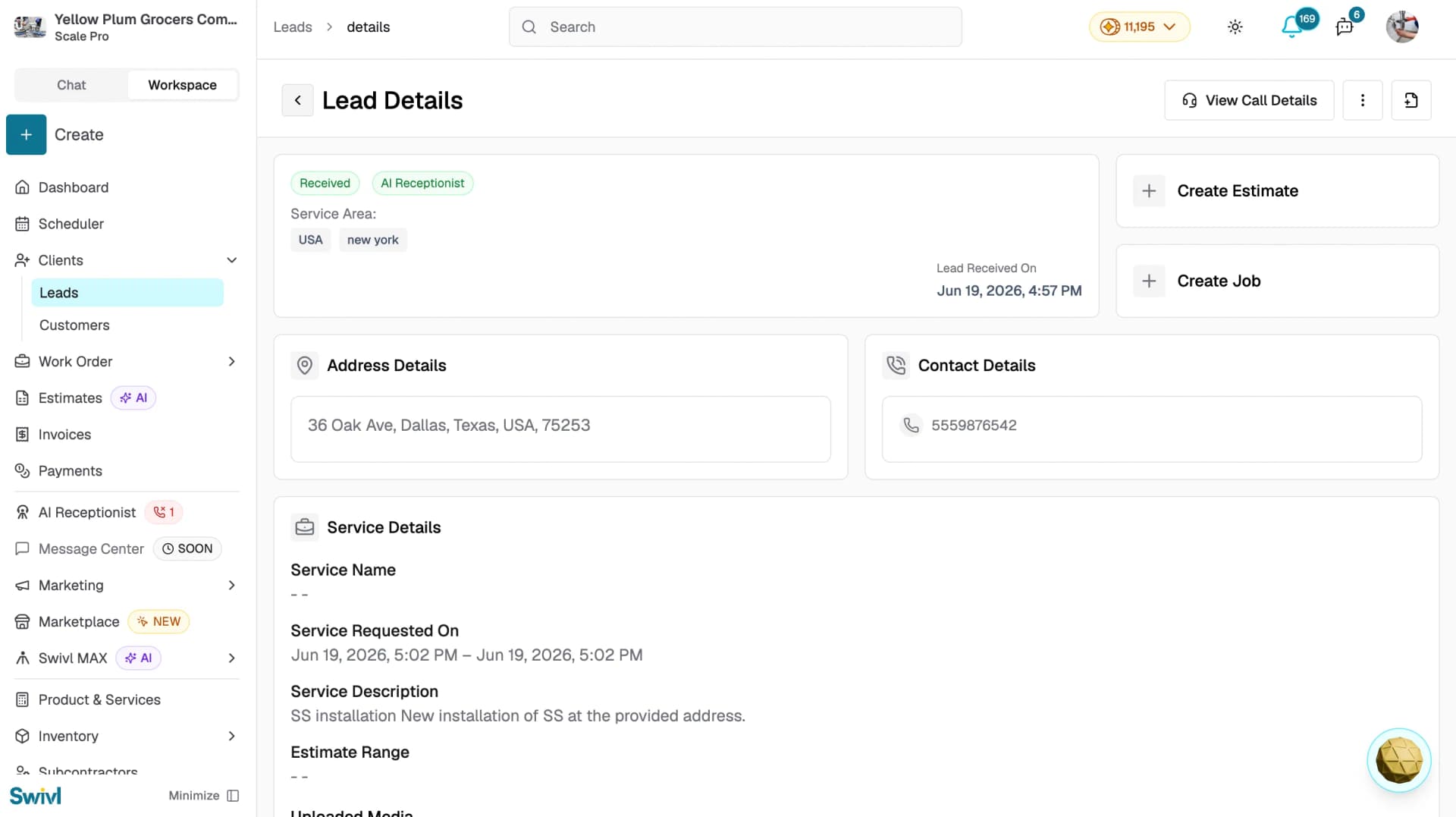
Once the job is created, the lead detail page shows a Job Details chip with the job number click it to jump straight to the job.
Creating an estimate from a lead
You can create an estimate from two places:
From the leads list: Go to Clients → Leads, click the three-dot menu on the lead, and select New Estimate.
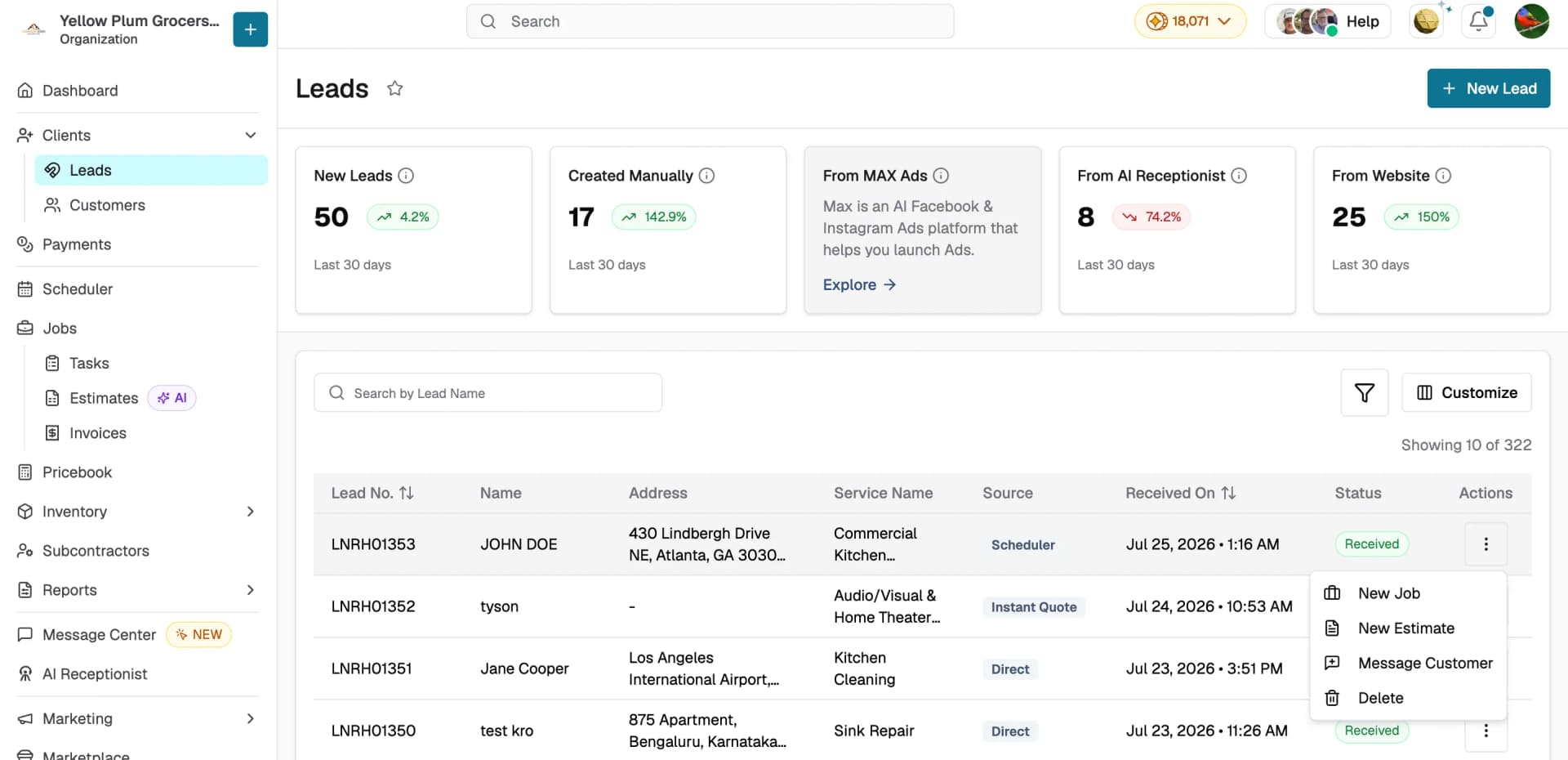
From the lead detail page:
- Go to Clients → Leads and click the lead to open it.
- Click the New Estimate card on the right side of the page.
- If the lead is not yet linked to a customer, you will be prompted to link or create one.
- Choose between generating an AI-powered estimate or creating a manual estimate.
- Complete the estimate and click Save.
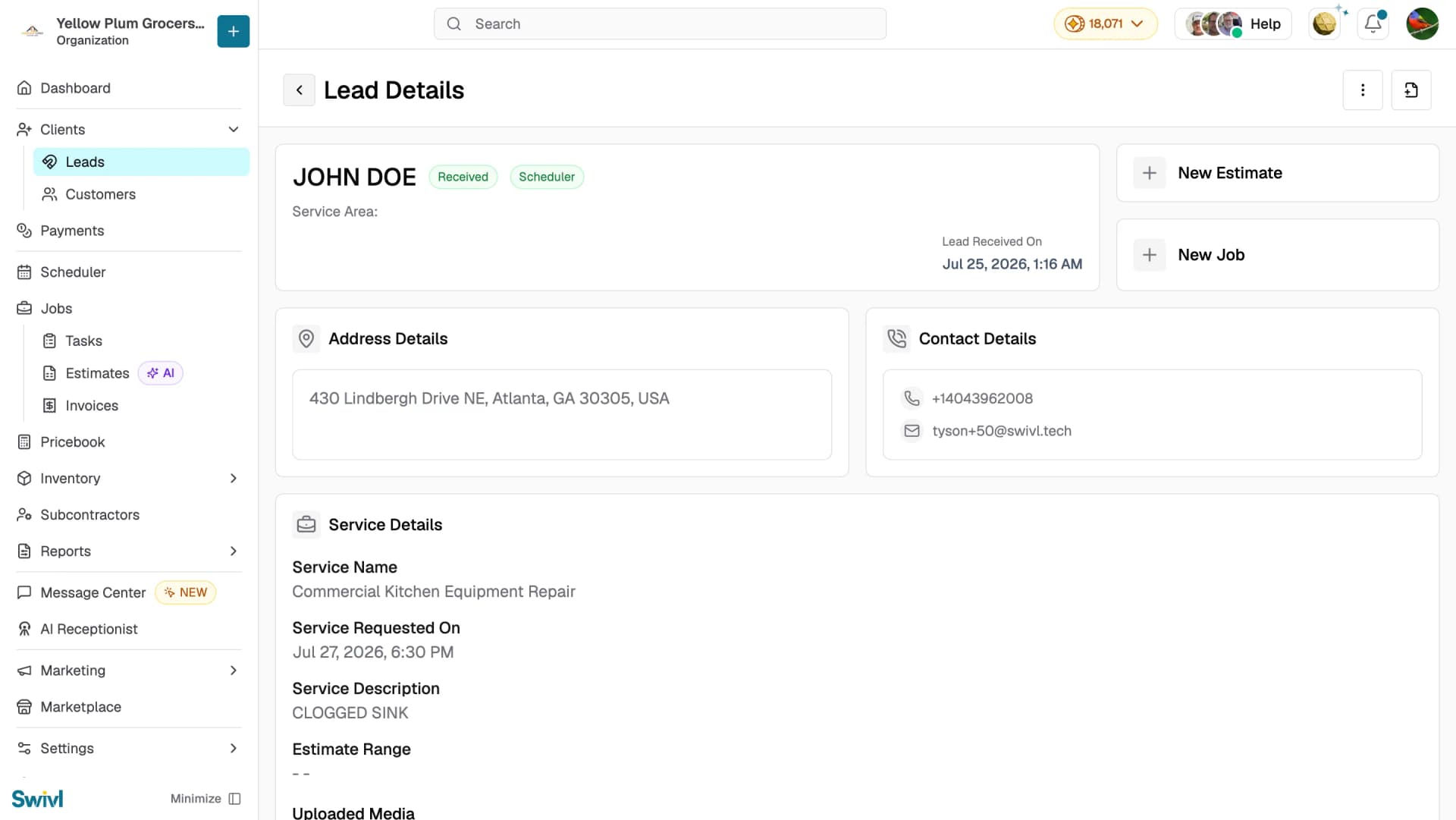
After the estimate is created, it appears on the lead detail page as an Estimate Details chip showing the estimate number and status.
Note: If a job already exists for this lead, the New Estimate option is replaced with a message directing you to create the estimate from the job page instead.
Linking a lead to a customer
When you convert a lead that is not yet linked to a customer, Swivl opens the Link Lead to Existing Customer? dialog:
- Browse the Other Customers list or search by Customer Name or Location to find the right customer.
- Click a customer to select them a tick appears next to their name.
- Click Continue with this Customer to proceed.
- If the customer does not exist yet, click + New Customer to add them on the spot.
When address or contact details differ
If the lead's address or phone number differs from the selected customer's records, Swivl will ask whether you want to add the lead's details to the customer profile:
- Add the details: the lead's address or phone is saved as an additional entry on the customer record, and the job uses the lead's address.
- Skip: proceed with the customer's existing information.
Understanding Lead Statuses after Conversion
Status | Meaning |
|---|---|
Received | The lead is new and has not been acted on yet |
Addressed | A job has been created from this lead |
Closed | The lead has been fully handled, the job and/or estimate completed |
Inactive | The lead has been deactivated |
Deleting a lead
- Go to Clients → Leads and click the three-dot menu on the lead.
- Select Delete.
- A confirmation dialog appears, click Delete to permanently remove the lead.
Note: This action cannot be undone and will remove all associated data.
Tips
- Always link leads to the correct customer to keep your records clean searching by Customer Name or Location makes this quick.
- If a lead came in with an incomplete address, Swivl will prompt you to fill in the missing details before creating a job.
- Use New Estimate to send a quote before committing to a full job this keeps the lead active until the customer approves.