
Managing Add-On Features
Add-on features in Swivl let you pay only for what you use. Each feature draws from your monthly credit balance, so you can enable or disable them at any time without affecting your base plan.
Overview
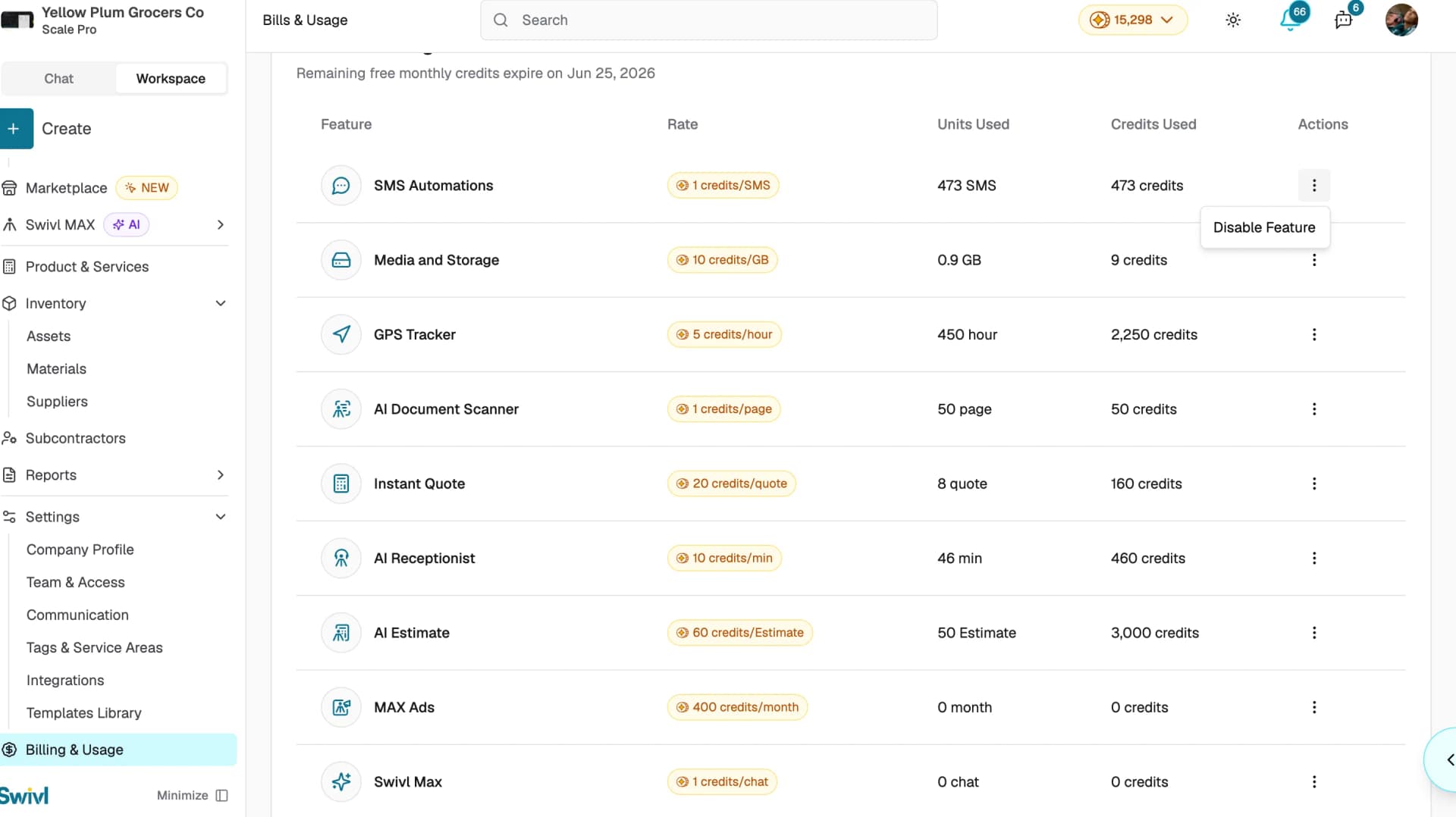
Each add-on feature has a credit rate for example, the AI Receptionist costs 10 credits per minute and GPS Tracker costs 5 credits per hour. You can monitor usage, check how many credits each feature has consumed, and enable or disable features at any time from the Billing & Usage page.
Who can access this
- Super Admin: can enable, disable, and monitor all add-on features.
- Admin, Lead Technician, and Technician roles cannot change feature settings.
Available add-on features
Each feature consumes credits at a specific rate. Here is a summary of the credit-based add-ons:
Feature | Credit cost |
|---|---|
SMS Automations | 1 credit / SMS |
GPS Tracker | 5 credits / hour |
Media and Storage | 10 credits / GB |
AI Document Scanner | 1 credit / page |
Instant Quote | 20 credits / quote |
AI Receptionist | 10 credits / minute |
AI Estimate | 60 credits / estimate |
MAX Ads | 400 credits / month |
Swivl Max | 1 credit / chat |
AI Website Builder | Free |
Training Center | Included |
Features marked "Included" do not consume credits from your balance.
Enabling and disabling features
- Go to Bills & Usage in the sidebar.
- Find the feature you want to manage in the table.
- Click the three-dot menu on the feature row and select Disable Feature.
- A confirmation dialog will appear click Confirm to apply the change.
Disabling a feature stops it from consuming credits going forward. Any data already created scanned documents, sent messages, or uploaded files remains accessible.
Checking feature usage
The Bills & Usage page shows a row for each add-on with:
- Rate: the credit cost per unit (e.g., 5 credits/hour).
- Units Used: how many units you have consumed this billing cycle.
- Credits Used: the total credits that feature has consumed.
- Limit Reached: appears if you have hit a quota for that feature. You will need to upgrade your plan or purchase more credits to continue using it.
Tips
- Disabling a feature you are not actively using prevents accidental credit consumption.
- If a feature shows Limit Reached, you can either upgrade your plan for a higher credit limit or purchase additional credits.
- The AI Receptionist stops answering calls when disabled, but your call logs and phone number are preserved.
- Remaining free monthly credits expire at the end of each billing cycle check Bills & Usage regularly to make sure you are making the most of your allowance.