
AI Receptionist Call Logs
Every call handled by your AI Receptionist is logged with a full recording, transcript, and AI-generated summary. This article explains how to search, filter, and review call logs to follow up on leads and monitor call quality.
Overview
Every call handled by your AI Receptionist is logged with a full recording, transcript, and structured summary. The call logs page lets you search, filter, and review each interaction so you can follow up on leads, monitor call quality, and spot patterns in customer requests.
Who can access this
- Super Admin: can view call logs and access Receptionist Settings.
- Admin: can view call logs and call details.
- Lead Technician and Technician roles cannot access call logs.
Viewing the call log
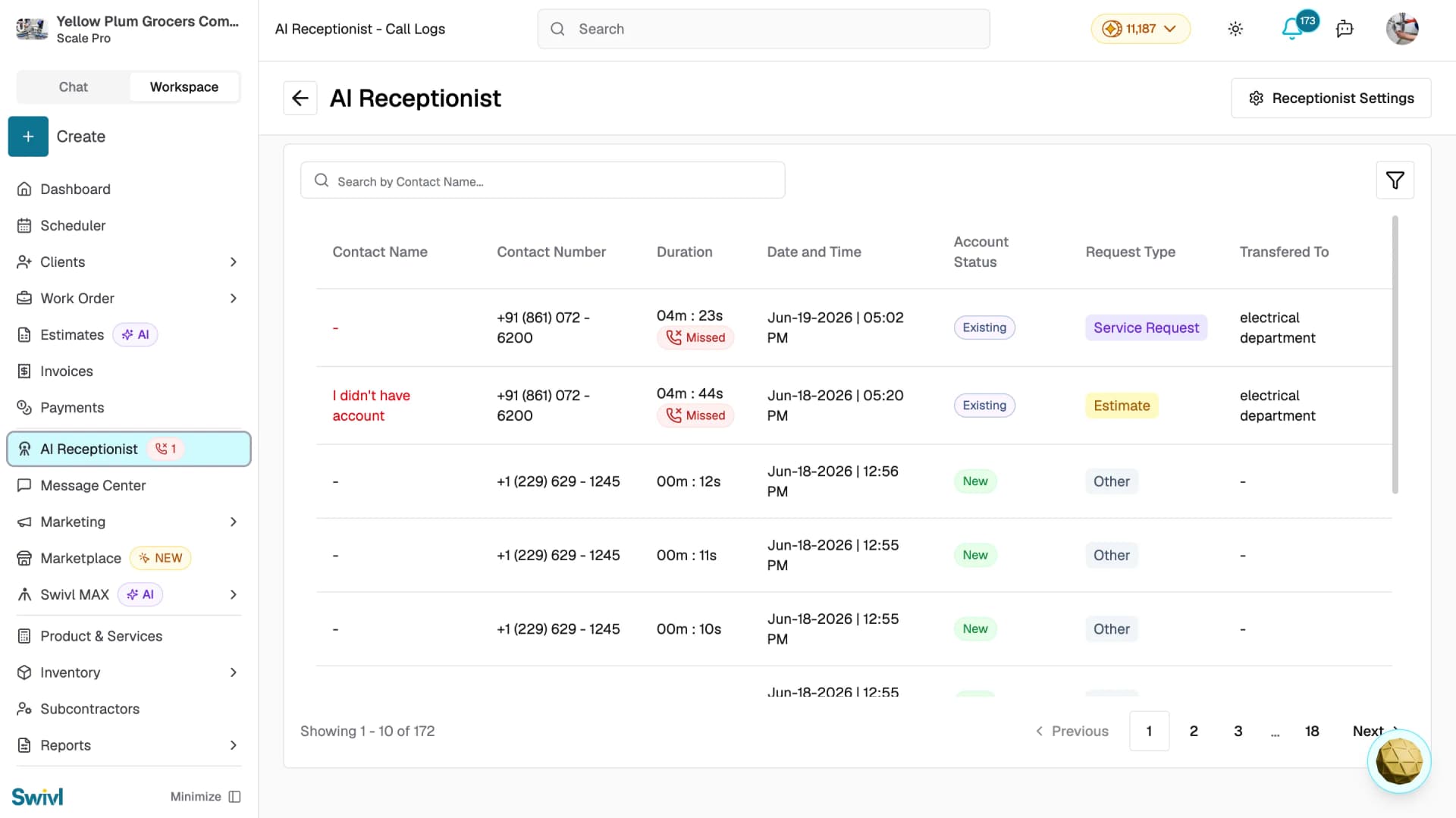
Click AI Receptionist in the left sidebar. The main page displays a table of all incoming calls.
Column | Description |
|---|---|
Contact Name | The caller's name as captured by the AI |
Contact Number | The phone number the call came from |
Duration | How long the call lasted missed calls are shown in red with a Missed badge |
Date and Time | When the call was received |
Account Status | Whether the caller is a New or Existing account in Swivl |
Request Type | The call category: Service Request, Estimate, or Other |
Transferred To | The department the call was forwarded to, if applicable |
Searching and filtering
Use the Search by Contact Name bar to find calls by contact name the list filters in real time.
Click the filter icon to narrow results by:
- Created On: select a date range to view calls from a specific period
- Account Status: filter by All, Existing, or New
- Request Type: filter by Other, Estimate, or Service Request
Click Apply to update the results. Use Clear All to reset all filters.
Viewing call details
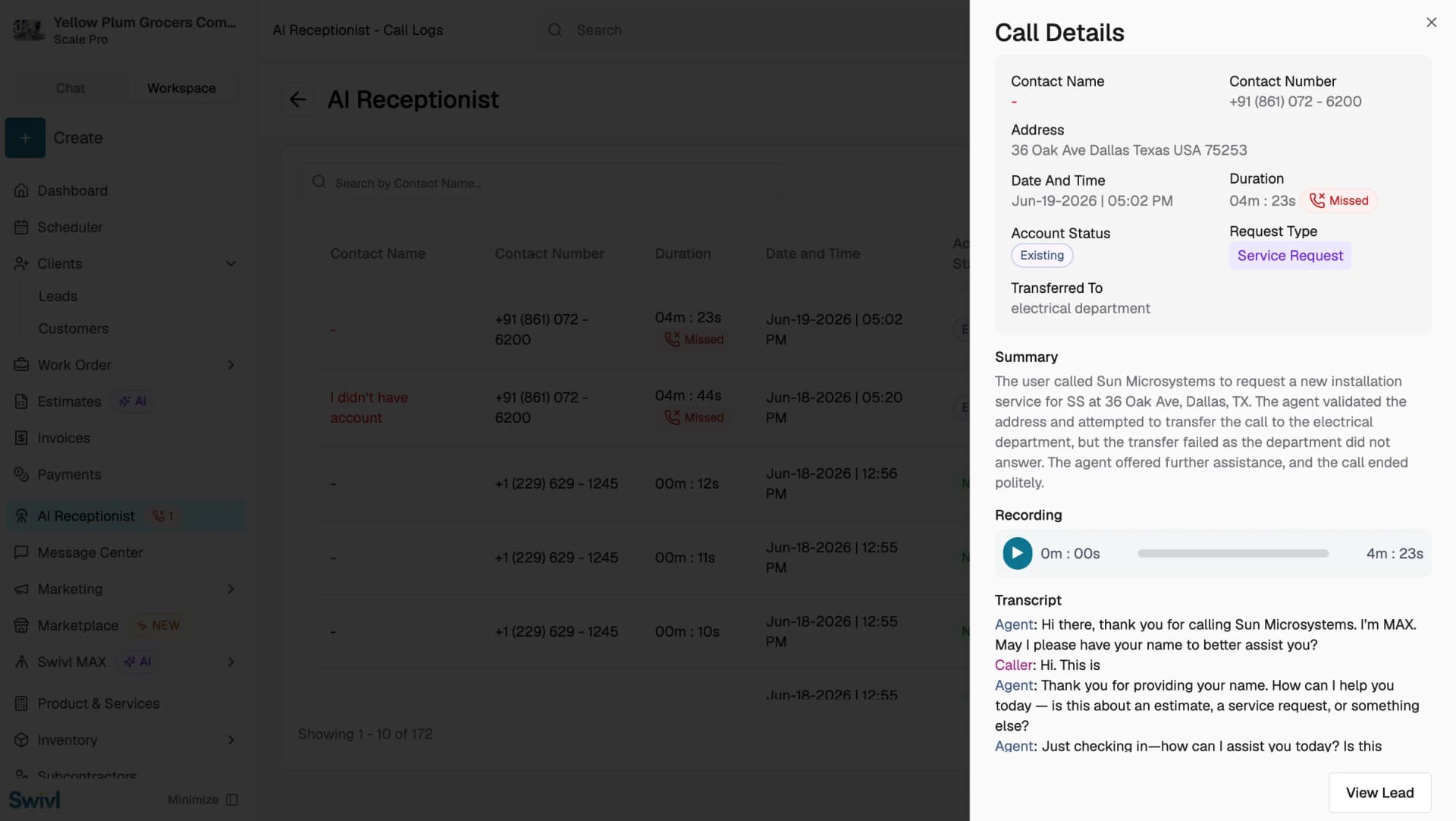
Click any row in the call log table to open the Call Details panel on the right.
Following up on a lead
At the bottom of the Call Details panel, click View Lead to jump directly to the lead record in Swivl. From there you can create a job or estimate and take follow-up actions.
Tips
- Use date range filters to review calls from a specific day or week during team meetings.
- Listen to recordings alongside the transcript to evaluate how well the AI handled the call and whether your rules need adjusting.
- Pay attention to the Account Status column, New calls represent fresh leads that may need immediate follow-up.
- The Transferred To column helps you verify that calls are reaching the right departments.