
Calendar Views
The Task Scheduler calendar gives you a full picture of your team's workday. Switch between Day, Week, and Month views to plan schedules, dispatch work, and stay on top of every task.
Overview
The Task Scheduler calendar gives you full visibility into your team's schedule. Switch between Day, Week, and Month views to plan, dispatch, and stay on top of every task.
Who can access this
- Super Admin: full access to all calendar views.
- Admin: full access to all calendar views.
- Lead Technician: can view the calendar, primarily their own schedule.
- Technician: can view their own schedule on the calendar.
Available Views
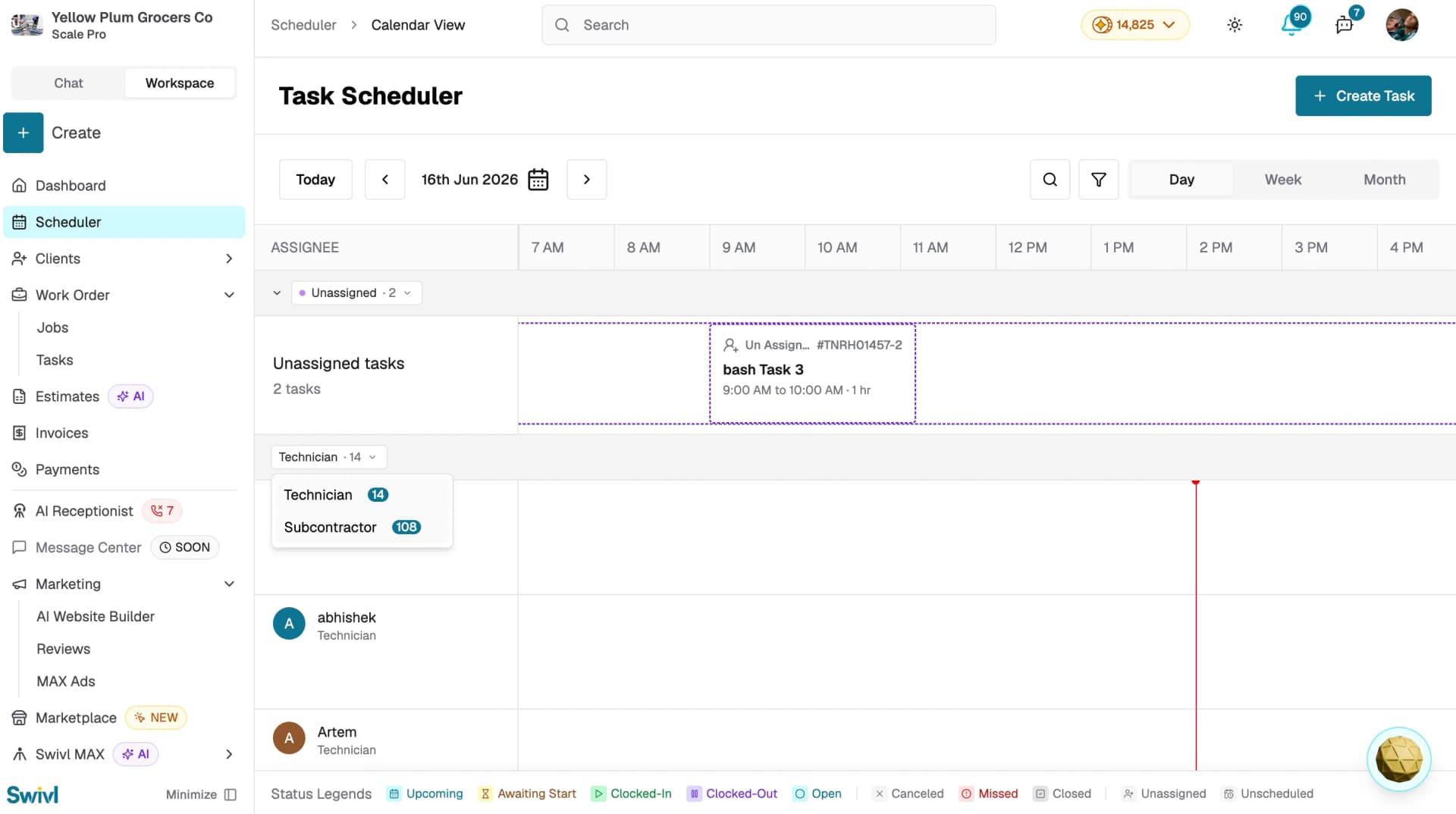
Day view shows a single day's schedule broken into time slots.
- Best for precise scheduling and seeing exact times for each task.
- Tasks appear as blocks spanning their scheduled duration.
- Drag-and-drop and resizing are most accurate in this view.
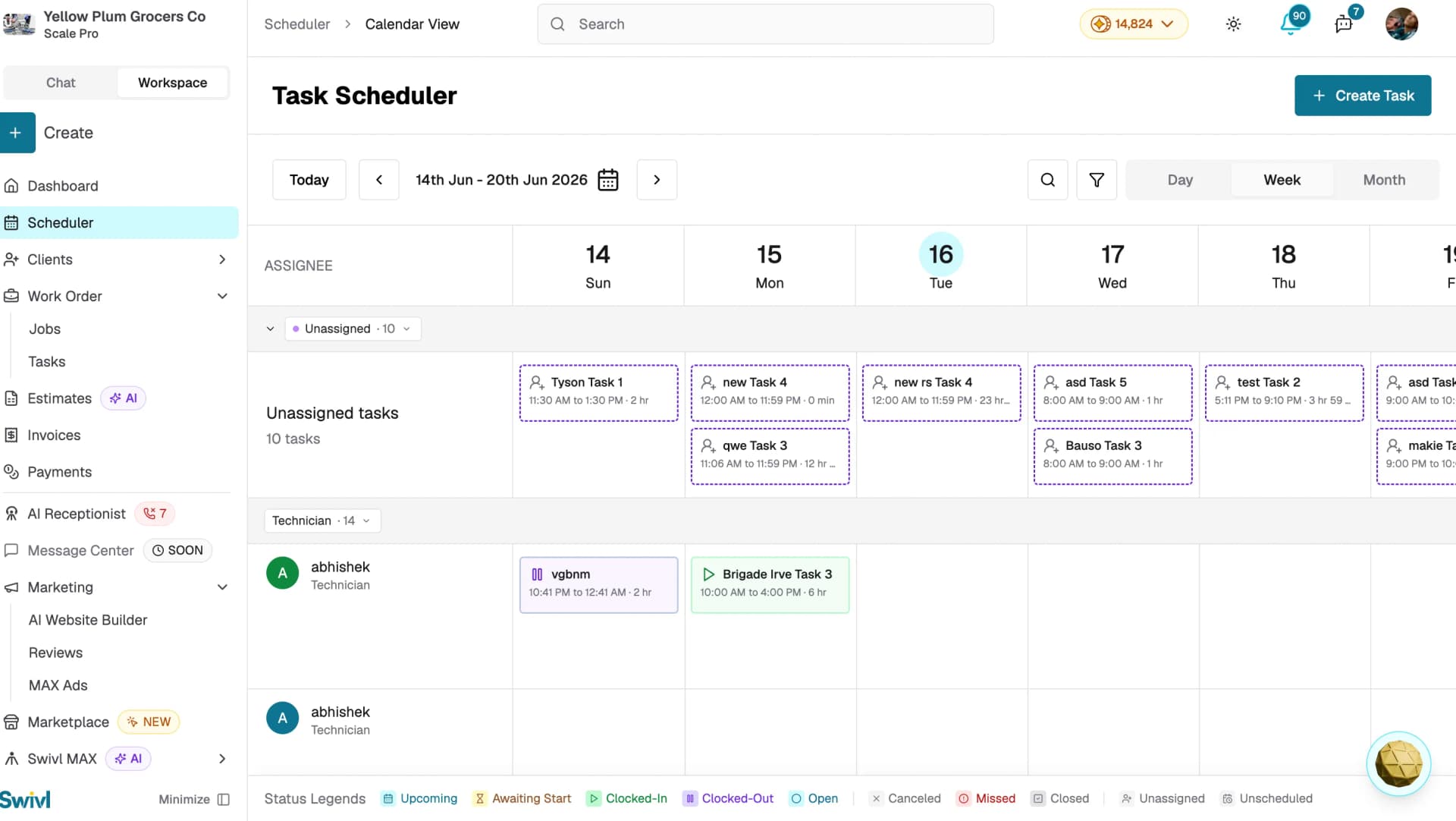
Week view shows seven days at a glance with hourly time slots.
- Best for weekly planning and balancing workloads across the week.
- This is the default view when you open the calendar.
- Each day column shows all tasks scheduled for that day, with the current date highlighted.
- Unassigned tasks appear at the top, grouped separately from assigned technicians.
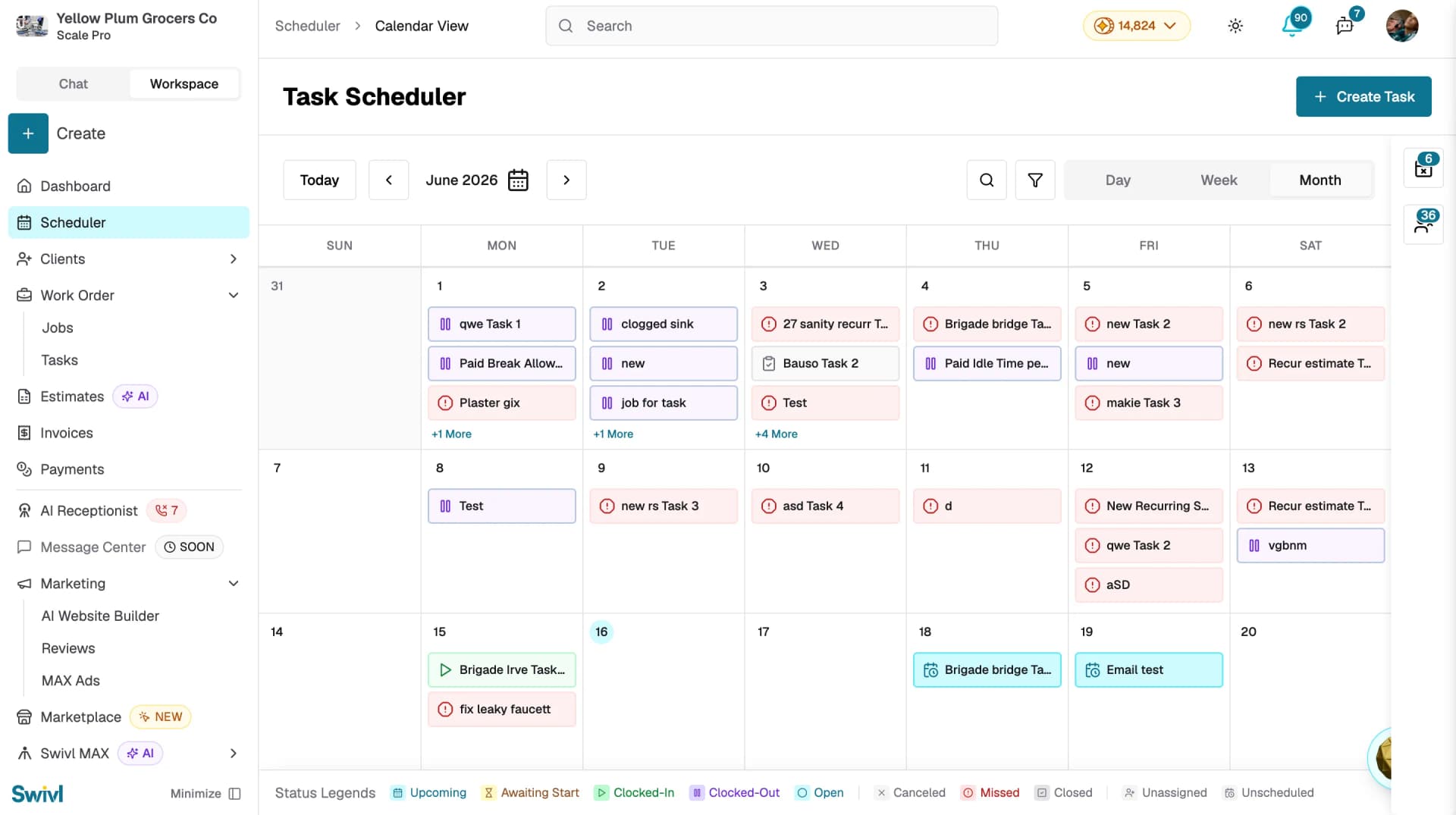
Month view shows the entire month in a traditional calendar grid.
- Best for long-term planning, spotting busy or free days, and identifying recurring patterns.
- Tasks appear as compact bars on their scheduled days.
- Days with more tasks show a +X More link click it to see the full list.
- Click any date to drill into the Day view for that date.
How to switch views
- How to switch views
- Go to Work Order → Task Scheduler.
- In the top-right of the calendar, click Day, Week, or Month.
The calendar updates immediately.
Filtering by technician
- Click the Technician dropdown in the calendar toolbar.
- Select Technician or Subcontractor to filter by team type.
- Click a name to toggle their tasks on or off.
To show or hide the sidebar, use the team filter toggle in the navigation bar.
Unscheduled and Unassigned Tasks
- Click the search icon in the toolbar to open the Unscheduled Tasks panel — showing tasks that have not been given a date or time yet.
- Click the filter icon to open the Unassigned Tasks panel — showing tasks that have no technician assigned.
Both panels show the task number, task name, and scheduled time, and are accessible in all calendar views.
Navigating dates
- Use the left and right arrows to move backward or forward by one day, week, or month depending on your current view.
- Click Today to jump back to the current date.
- Click the calendar icon next to the date to pick a specific date directly.
Tips
- Start your day in Day view to see what's immediately ahead, then switch to Week view for broader planning.
- Use the Technician filter to focus on one team member at a time when dispatching work.
- Unscheduled Tasks and Unassigned Tasks are accessible from the toolbar in all views keep an eye on both to make sure nothing slips through.
- On mobile, the calendar adjusts to a single-column layout optimised for smaller screens.