
Reviewing and Refining an AI-Generated Estimate
Review and fine-tune your AI-generated estimate before sending it to a customer. Adjust line items, quantities, materials, and markup percentages directly in the cost panel or through the chat with Max.
Overview
After Max generates a cost breakdown, you can review every line item, adjust quantities, swap materials, change markup percentages, and add or remove entries all before converting it into a formal estimate.
Who can access this
- Super Admin: full access to review and edit.
- Admin: full access to review and edit.
- Lead Technician / Technician: no access.
Reviewing the cost breakdown
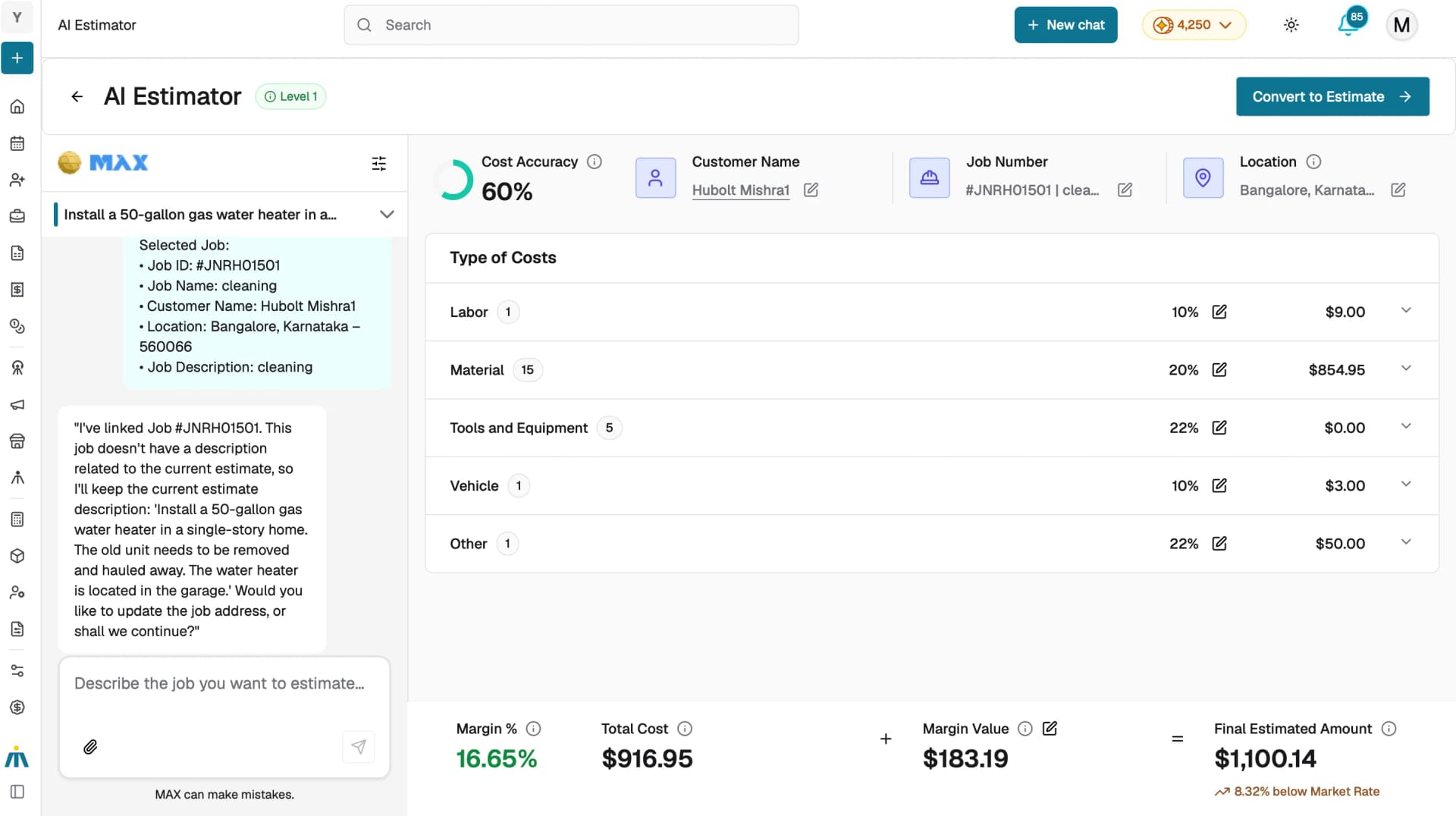
The cost details panel on the right side of the screen organizes the estimate into expandable sections:
Category | What it includes |
|---|---|
Labor | Technician name, hours, minutes, and cost per tech |
Material | Supplier, description, and cost per item |
Tools and Equipment | Equipment name, hours, minutes, and cost |
Vehicle | Vehicle name, miles driven, and cost |
Other | Miscellaneous description and cost |
Click any section header to expand or collapse it. Each section shows:
- Number of line items
- Category margin %
- Category total cost
Editing individual line items
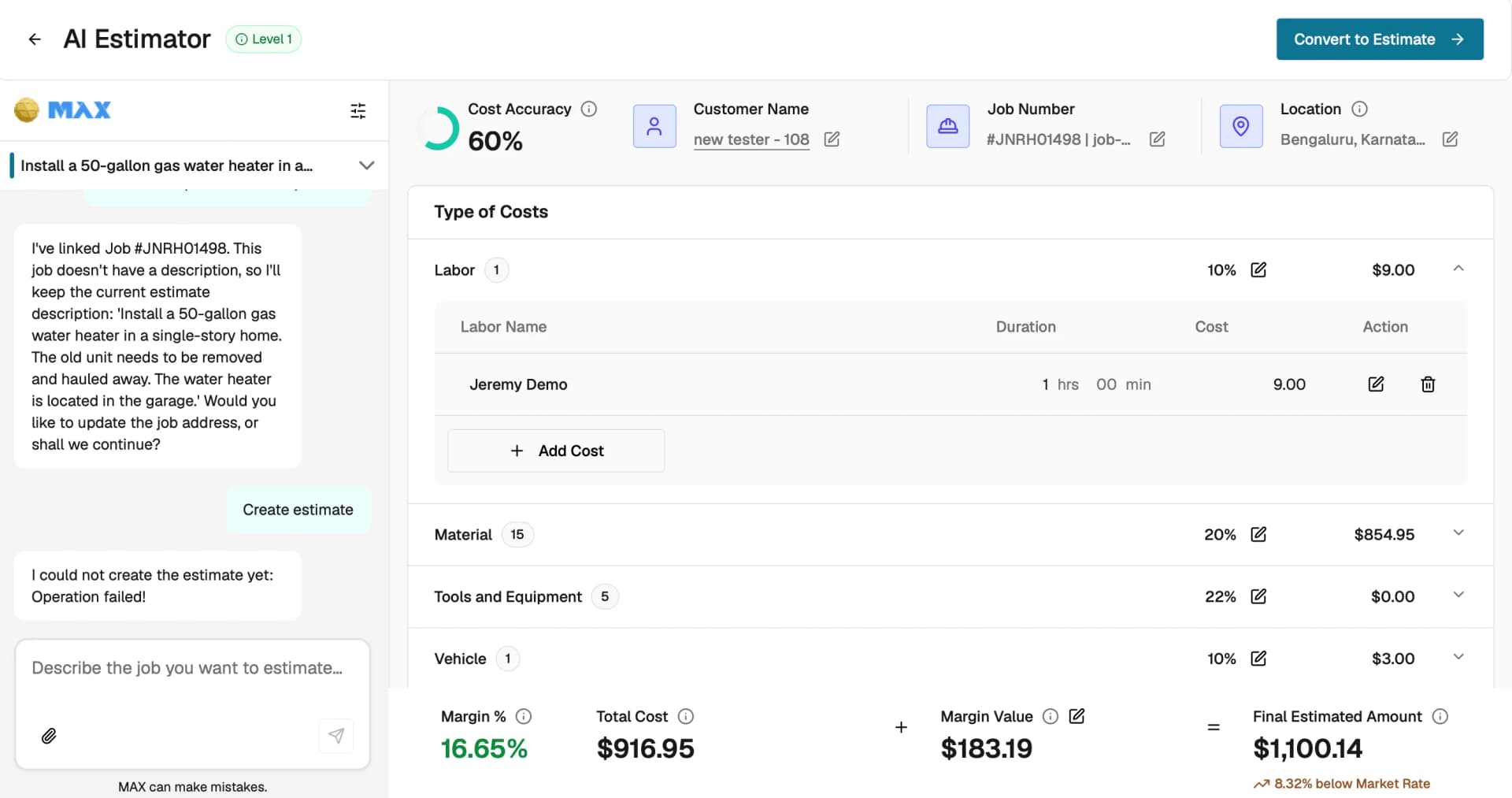
To modify an existing entry, click the edit icon next to the line item. You can change:
- Quantities (hours, minutes, miles, etc.)
- Costs
- Descriptions or names
- Suppliers, equipment, or vehicle selections
To remove a line item, click the delete icon.
To add a new entry, click the Add option within any category section. You can also add items by continuing the conversation with Max in the chat.
Adjusting margins and markup
Adjusting a category margin:
- Click the edit (pencil) icon next to the category margin.
- Enter the new margin percentage.
- The category total and Final Estimated Amount update automatically.
Adjusting the overall margin:
Each cost category has its own margin percentage click the edit icon next to the category margin to adjust it. The category total updates automatically.
To adjust the overall margin, click the edit icon next to Margin Value in the bottom bar.
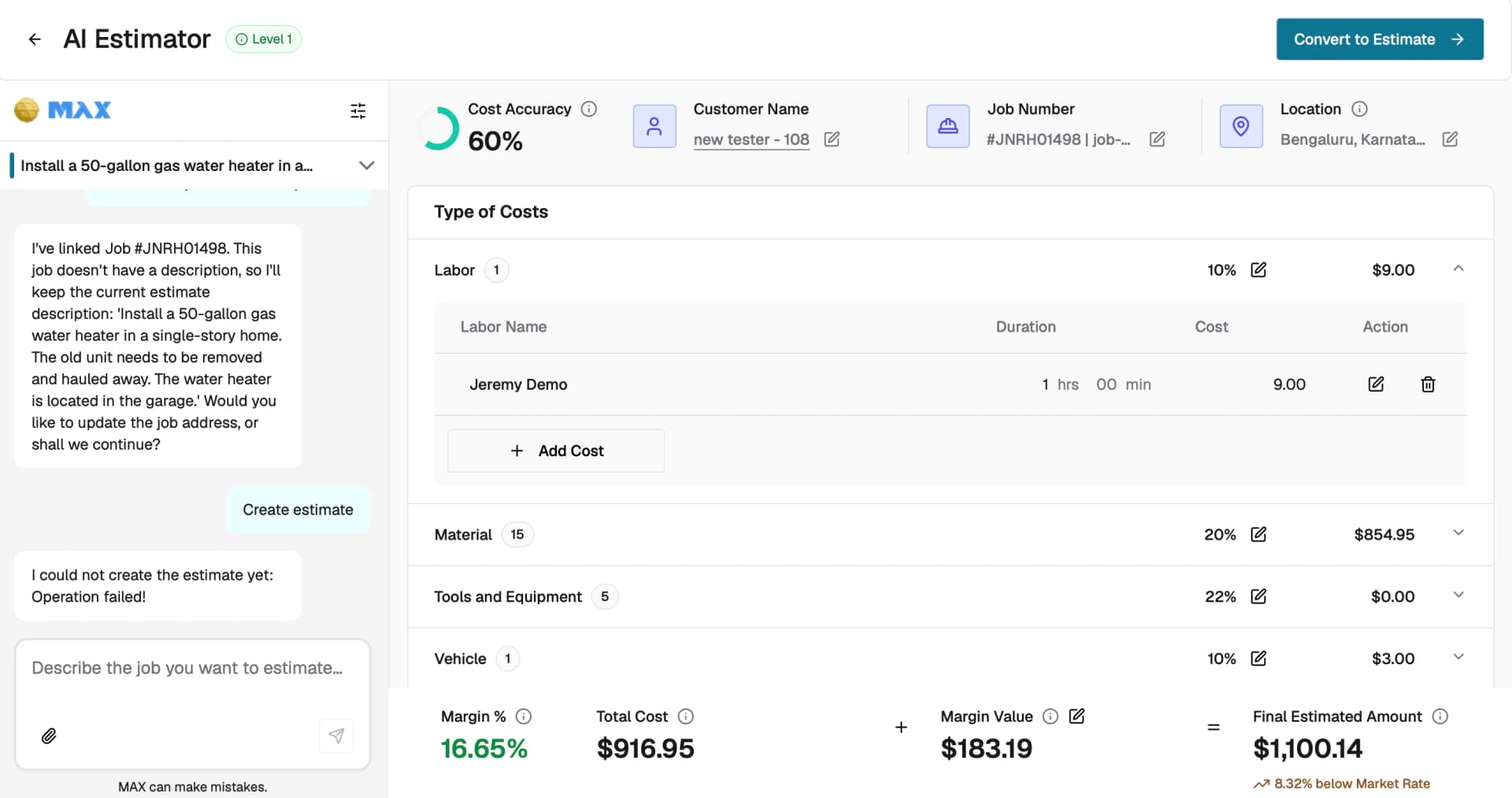
The bottom bar always displays four key figures:
- Margin % : the overall margin percentage against the final amount.
- Total Cost: the sum of all category costs.
- Margin Value: the dollar amount added as markup.
- Final Estimated Amount: Total Cost + Margin Value.
Refining via chat
YYou can also refine the estimate by continuing the conversation with Max in the chat panel. Simply type your changes in plain language and Max will update the cost breakdown in real time.
For example:
- "Swap the copper pipes for PEX."
- "Add a second technician for 4 hours."
- "Increase the material markup to 20%."
Changing the location
The Location field defaults to the customer's primary address or the job site address. You can change it by:
- Clicking the edit icon next to the Location field and selecting a different address on file.
- Typing a new city, state, or ZIP code in the chat, Max will update the location and adjust regional pricing accordingly.
Tips
- Use the chat for big-picture changes , for example, "switch to premium materials" and the cost panel for precise number edits.
- Check the Market Rate indicator next to the Final Estimated Amount to see whether your estimate is above or below typical rates for similar jobs.
- Your manual edits are always preserved, even when Max updates the breakdown with new AI data.