
Materials Overview and AI Extract
Track all the parts, supplies, and consumables your team uses on jobs with cost, quantity, supplier, and unit of measurement. Use AI Extract to import materials instantly from a receipt or invoice.
Overview
The Materials section is your central inventory for all the parts, supplies, and consumables your team uses on jobs. Every material can be tracked with its cost, quantity, unit of measurement, and supplier and logged against specific jobs for accurate cost breakdowns. Use AI Extract to import materials instantly from a receipt, invoice, or packing slip without manual data entry.
Who can access this
Role | Access / Permissions |
|---|---|
Super Admin | Full access to create, edit, and delete materials |
Admin | Full access to create, edit, and delete materials |
Lead Technician | Full access to create, edit, and delete materials |
Technician | Full access to create, edit, and delete materials |
Navigating the Materials page
- Go to Inventory → Materials in the sidebar.
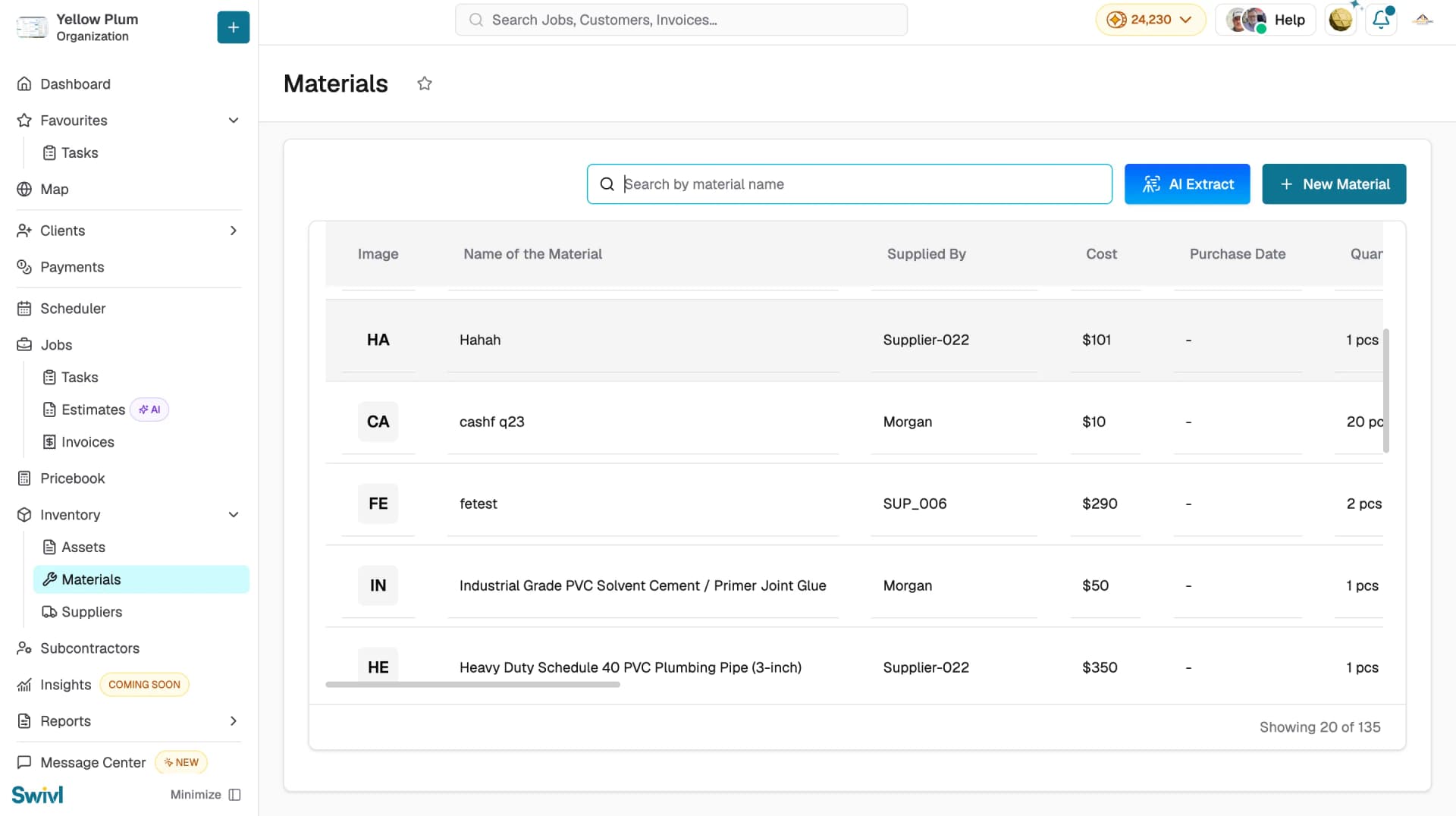
The table displays the following columns:
Column | Description |
|---|---|
Image | A photo of the material if one has been uploaded. |
Name of the Material | The name of the item. |
Supplied By | The vendor that supplies this material. |
Cost | The per-unit price. |
Purchase Date | When the material was last purchased. |
Quantity | How many units are in stock, along with the unit of measurement. |
Notes | Any additional details or handling instructions. |
Actions | Edit or delete the material. |
Adding a material
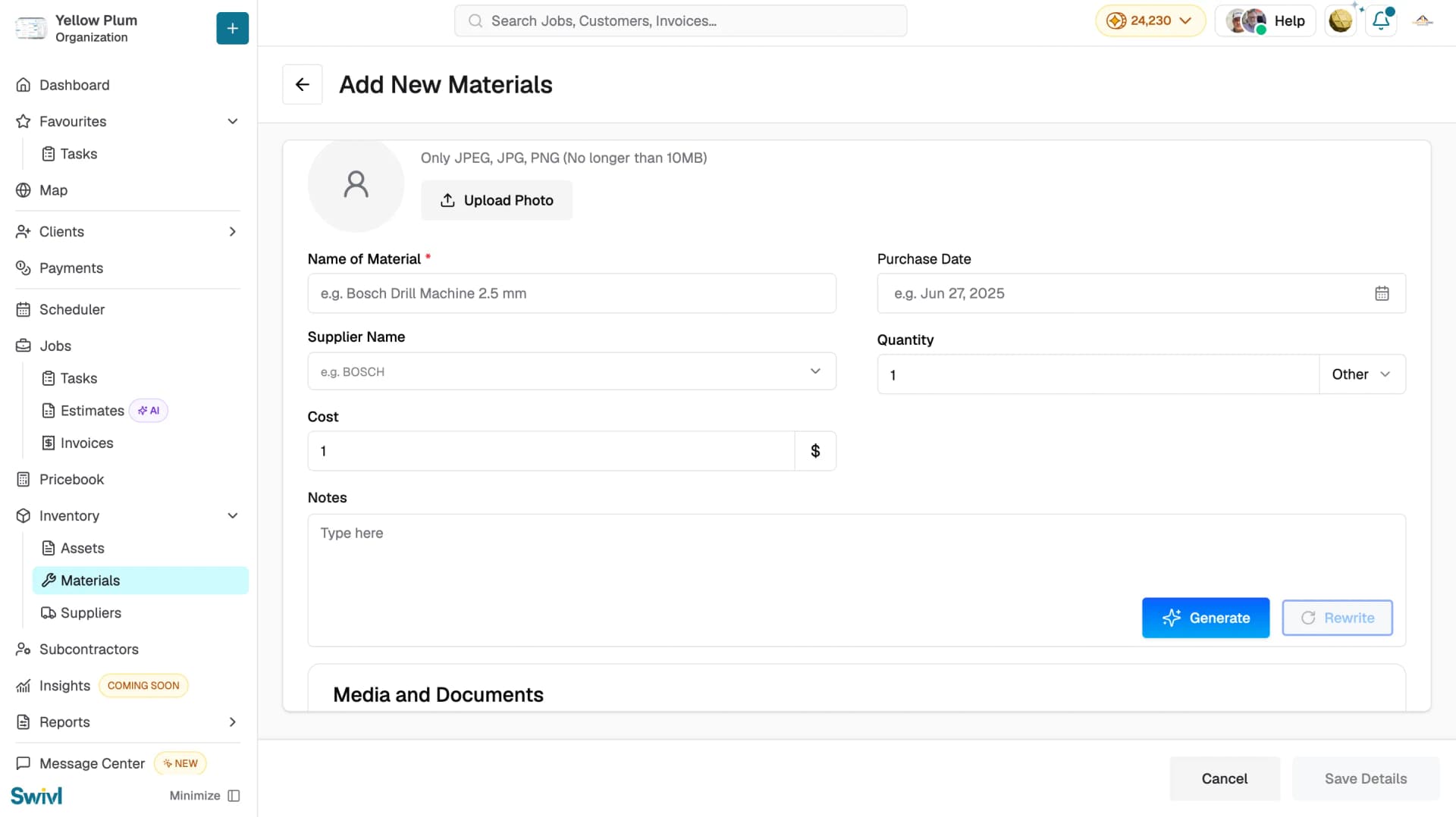
Click + Add New Material to open the Add New Materials form. Fill in the following details:
- Upload Photo: add a photo of the material (JPEG, JPG, or PNG, max. 10MB).
- Name of Material: the item name (required).
- Supplier Name: the vendor that supplies this material.
- Cost: the per-unit price.
- Purchase Date: when the material was purchased.
- Quantity: how many units are in stock, along with the unit of measurement.
- Notes: any additional details. Use Generate to let Swivl's AI write the notes for you, or Rewrite to refine existing notes.
You can also attach images and documents under the Media and Documents section before saving.
Click Save Details to add the material to your inventory.
Searching for materials
Use the Search by material name bar to find materials by name. Results update as you type.
Units of measurement
Swivl supports a wide range of units so you can track materials in whatever measurement makes sense for your business:
Piece, Meter, Feet, Roll, Liter, Kilogram, Bag, Box, Pack, Sheet, Square Feet, Cubic Feet, Can, Tube, and Other.
AI Extract
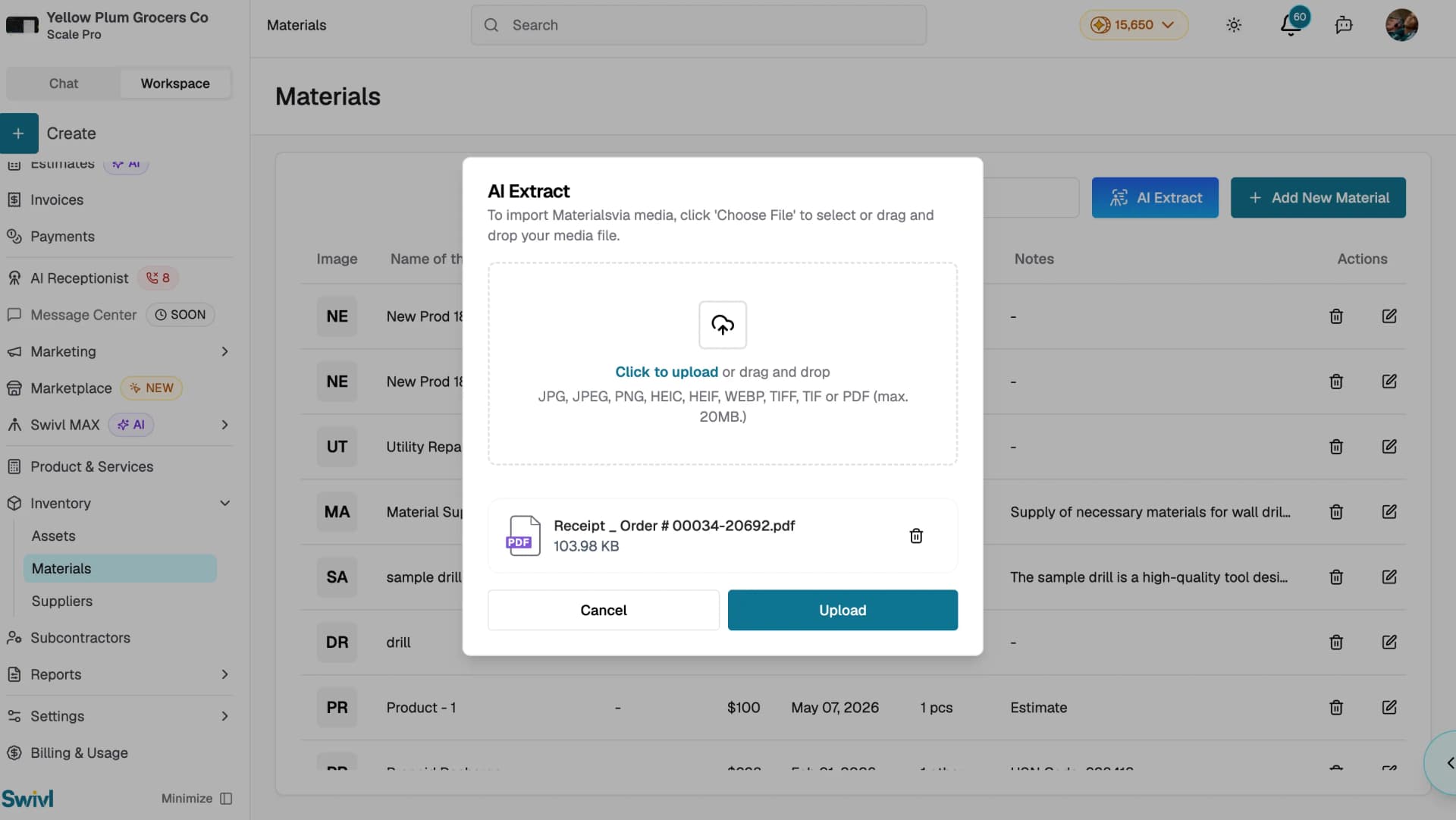
Click AI Extract to import materials from a receipt, invoice, or packing slip without entering data manually. Swivl's AI scans the document and extracts material names, quantities, costs, and supplier information automatically.
Supported file types: JPG, JPEG, PNG, HEIC, HEIF, WEBP, TIFF, TIF, or PDF (max. 20MB)
To use AI Extract:
- Click AI Extract at the top of the Materials page.
- Upload your file by clicking Click to upload or drag and drop it into the dialog.
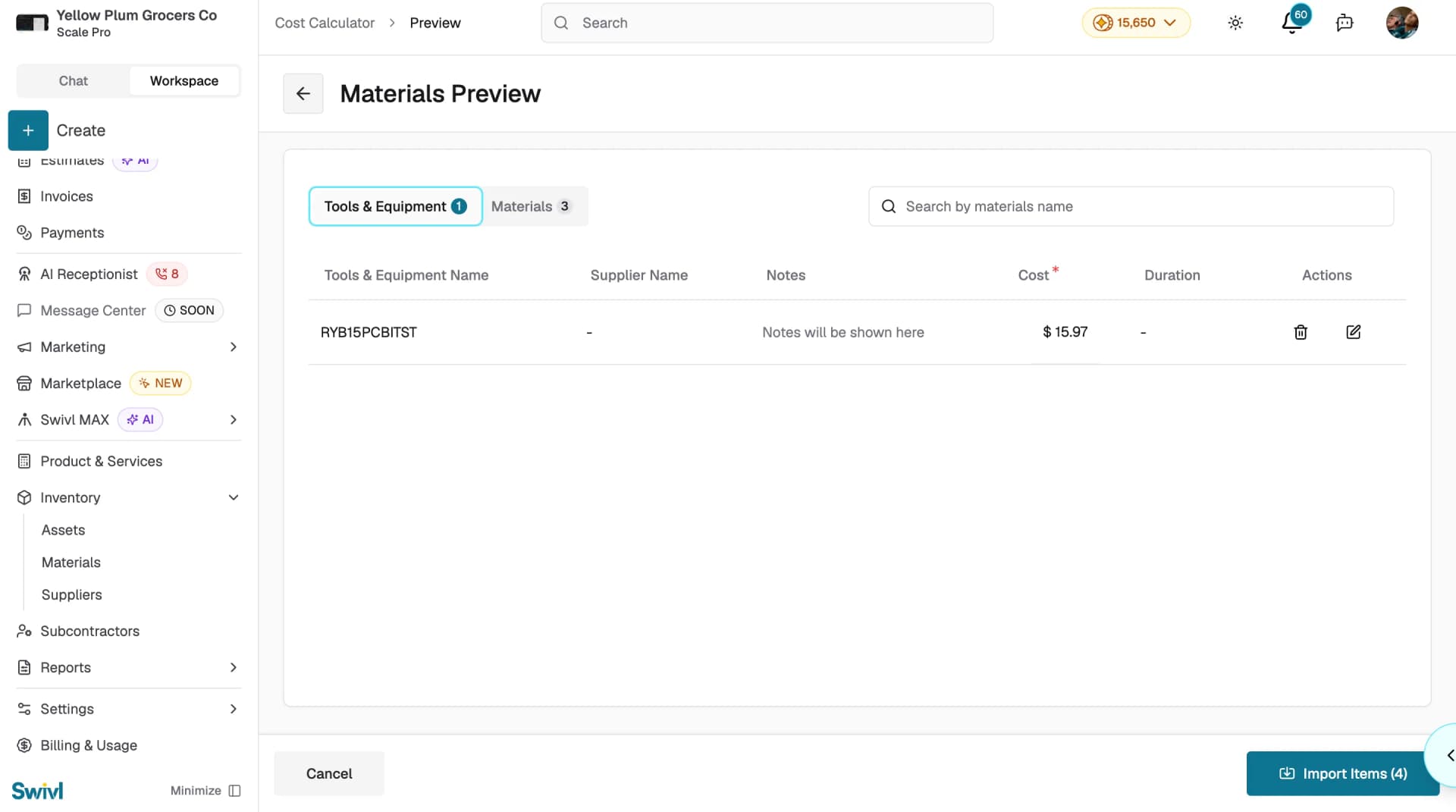
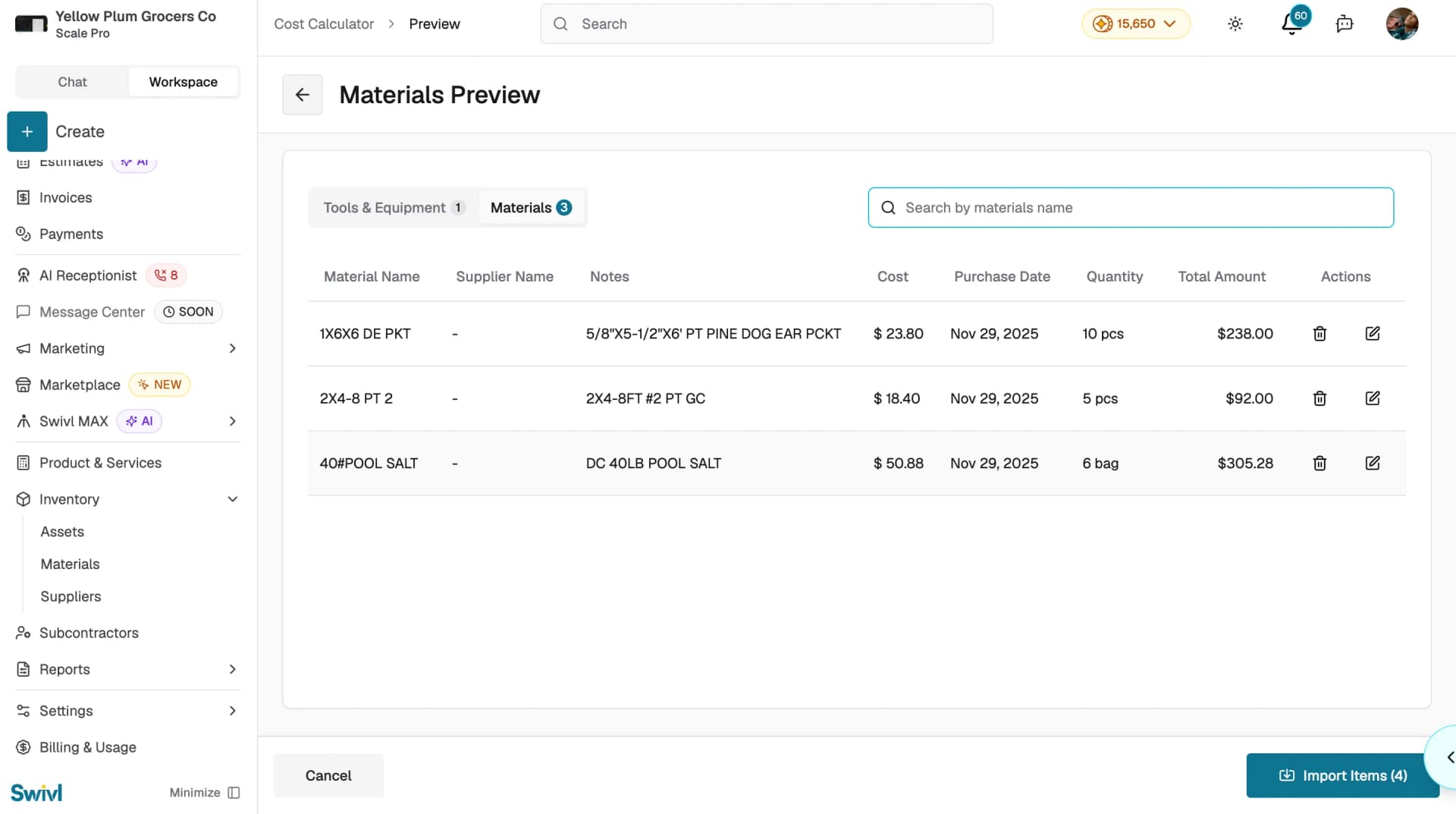
- Click Upload, Swivl will scan the document and open the Materials Preview page.
- Review the extracted items across the Materials and Tools & Equipment tabs. Edit or delete any items as needed.
- Click Import Items to add the extracted materials to your inventory.
Note: AI Extract is also available on the Swivl mobile app. Tap AI Extract on the Materials page to photograph and upload a receipt or invoice directly from your phone.
You're all set
Once your materials are added, they can be logged against jobs for accurate cost tracking, linked to suppliers, and included in estimates and invoices. Keep your inventory up to date and use AI Extract regularly to save time when processing supplier invoices.
Tips
- Keep material names consistent for example, always use "1/2 in Copper Elbow" rather than "Copper Elbow 1/2". Consistency makes searching and reporting easier.
- Upload a photo for each material so technicians in the field can confirm they have the right item.
- Use AI Extract when processing supplier invoices to add multiple materials at once without manual data entry.