
Suppliers overview
Manage all the businesses and contacts you purchase materials, tools, and equipment from in one place. The Suppliers section stores supplier details, tracks who manages each relationship, and keeps everything organised with tags and service areas.
Overview
Suppliers, also called vendors, are the businesses and contacts you purchase materials, tools, and equipment from. Swivl gives you a centralised directory to store supplier details, track who manages each relationship, and keep everything organised with tags and service areas.
Who can access this
Role | Access / Permissions |
|---|---|
Super Admin | Full access to create, edit, and delete suppliers |
Admin | Full access (same as Super Admin) |
Lead Technician | No access to the Suppliers section |
Technician | No access to the Suppliers section |
Navigating the Suppliers page
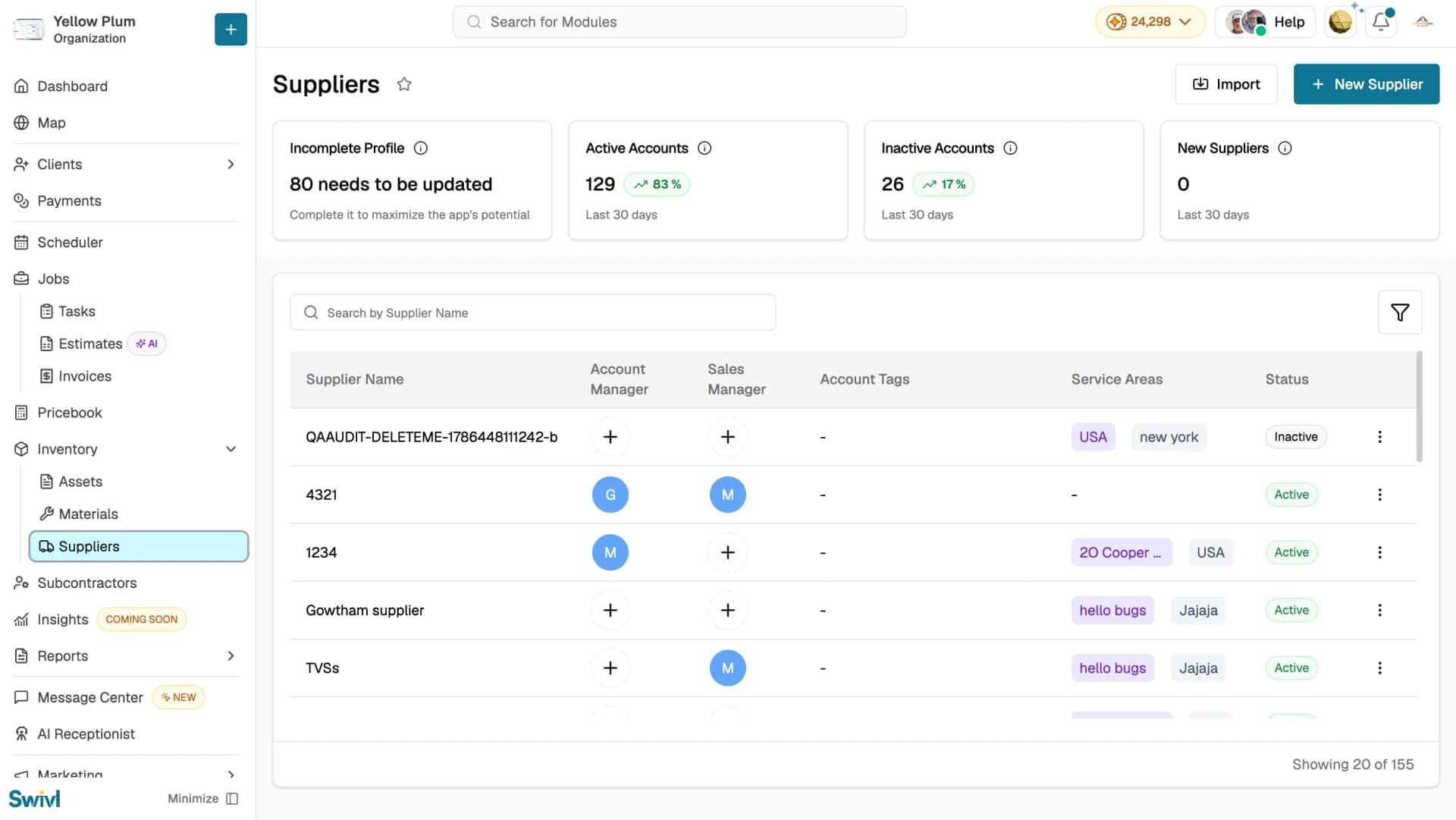
Go to Inventory → Suppliers from the left sidebar to open the suppliers list. You will see a table showing all your supplier accounts at a glance.
The table displays the following columns:
Column | Description |
|---|---|
Supplier Name | The name of the supplier account |
Account Manager | The team member responsible for the supplier relationship. Click + to assign one directly from the table |
Sales Manager | The team member handling sales with this supplier. Click + to assign one directly from the table |
Account Tags | Colour-coded labels to categorise suppliers |
Service Areas | The geographic zones this supplier covers |
Status | Active or Inactive |
Actions | Three-dot menu with Edit option |
Summary Cards
At the top of the page four cards give you a quick snapshot of your supplier base:
- Incomplete Profile: the number of accounts missing required information. Completing these helps you get the most out of Swivl
- Active Accounts: the number of currently active suppliers with a 30-day trend indicator
- Inactive Accounts: the number of deactivated supplier accounts with a 30-day trend indicator
- New Suppliers: how many supplier accounts were added in the last 30 days with a trend indicator
Searching and Filtering
Use the Search by Supplier Name bar to find a supplier quickly
Click the Filter icon to narrow results by tags, service areas, account manager, sales manager, creation date, or status
Importing Suppliers
Click the Import button at the top right of the page to bulk-import supplier records from a CSV file. This is especially useful when you are first setting up Swivl or migrating from another system.
Tips
- Assign an Account Manager and Sales Manager to every supplier so your team always knows who to contact
- Use tags to categorise suppliers by type, specialty, or preference — they make filtering much easier as your supplier list grows
- Keep inactive suppliers in the system rather than deleting them so you retain a history of past relationships