
Recording a Payment
When a customer pays, record it in Swivl using Stripe for card payments or the Other method for cash, cheque, bank transfer, and more. Recording payments keeps your financial records accurate and invoice statuses up to date.
Overview
Swivl supports two ways to record a payment against an invoice, estimate, or job Stripe for card payments, and Other for cash, cheque, bank transfer, or any non-card method. Recording payments keeps your financial data accurate and updates invoice and estimate statuses automatically.
Who can access this
Role | Access |
|---|---|
Super Admin | Can record payments via Stripe or other methods |
Admin | Can record payments via Stripe or other methods |
Lead Technician | No access |
Technician | No access |
How to Record a Payment
There are two ways to access the payment dialog:
From an invoice:
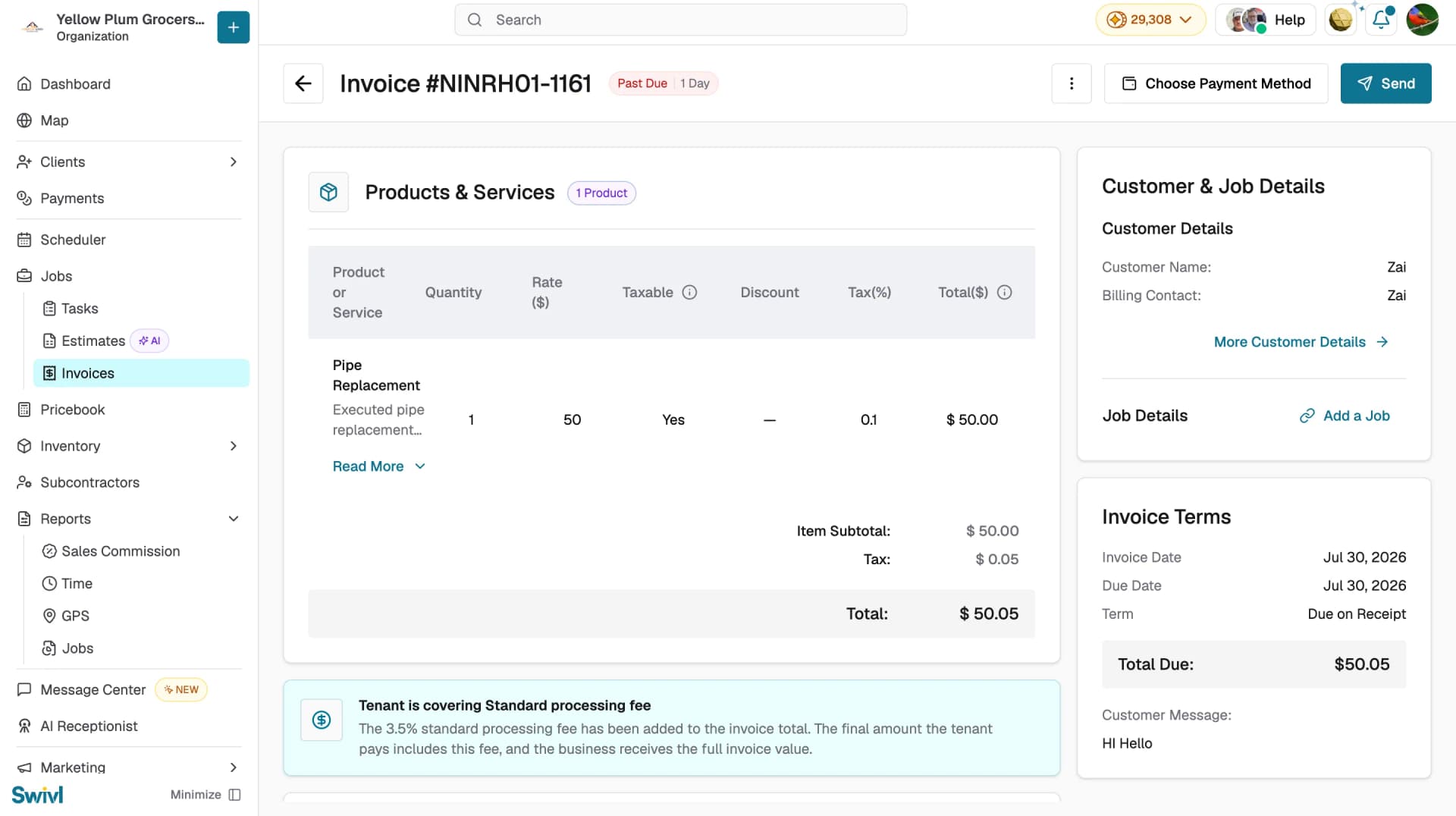
Click Invoices in the sidebar, open the invoice, and click Choose Payment Method in the header. The Choose Payment Mode dialog opens with two options: Pay Now or Other.
From Reports → Jobs:
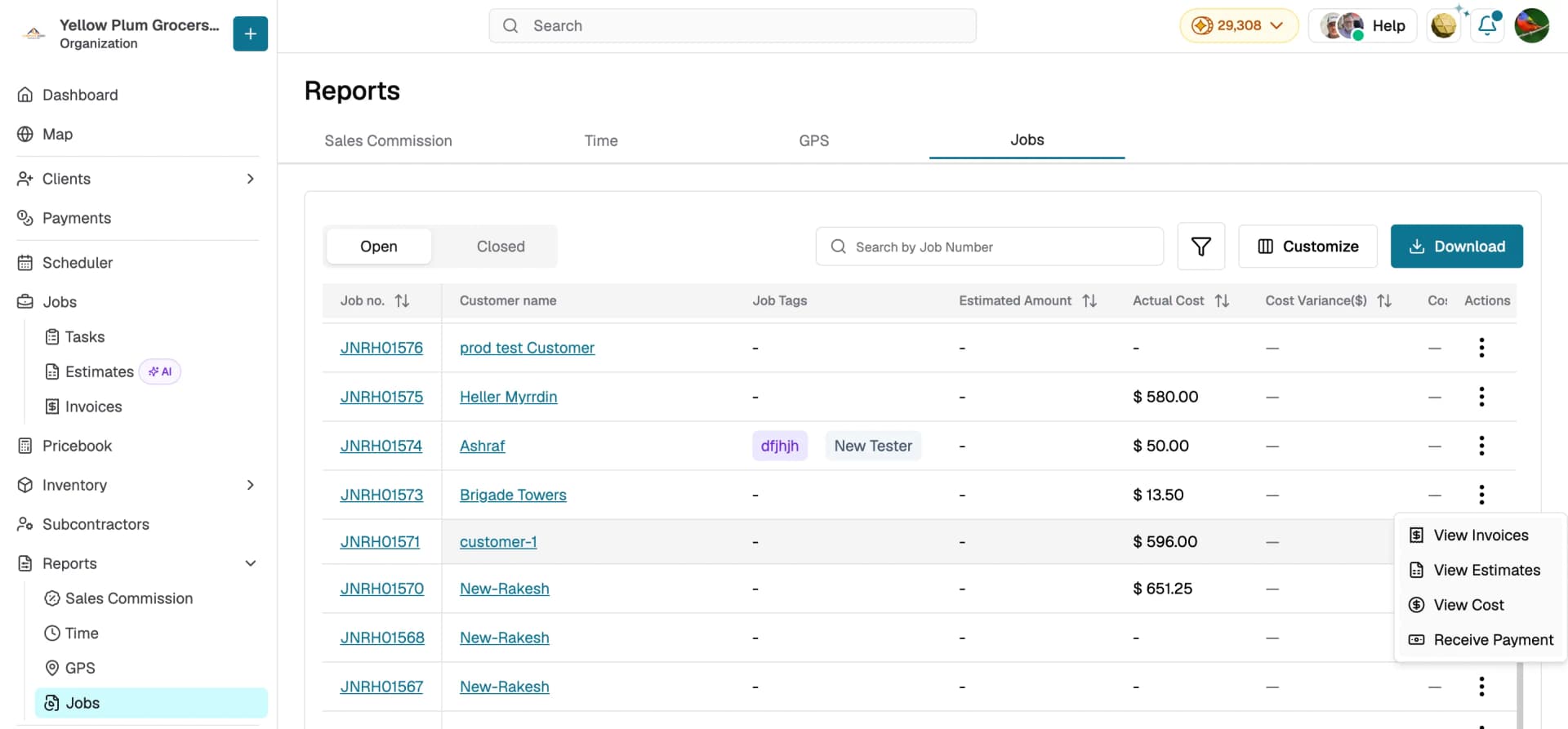
Go to Reports → Jobs, find the job in the table, click the three-dot menu, and select Receive Payment. The Receive Payment Required panel opens with two tabs:
- Invoice: the job's open invoices, showing total invoice amount, deposit received, and payment due
- Estimate: the job's open estimates with a deposit set, showing total estimate amount and deposit due
Select the document, then click Receive Payment and choose Pay Now or Other. You can also click Send Reminder to nudge the customer instead.
Once the Choose Payment Mode dialog opens, choose one of two options:
Option A: Stripe (card payment)
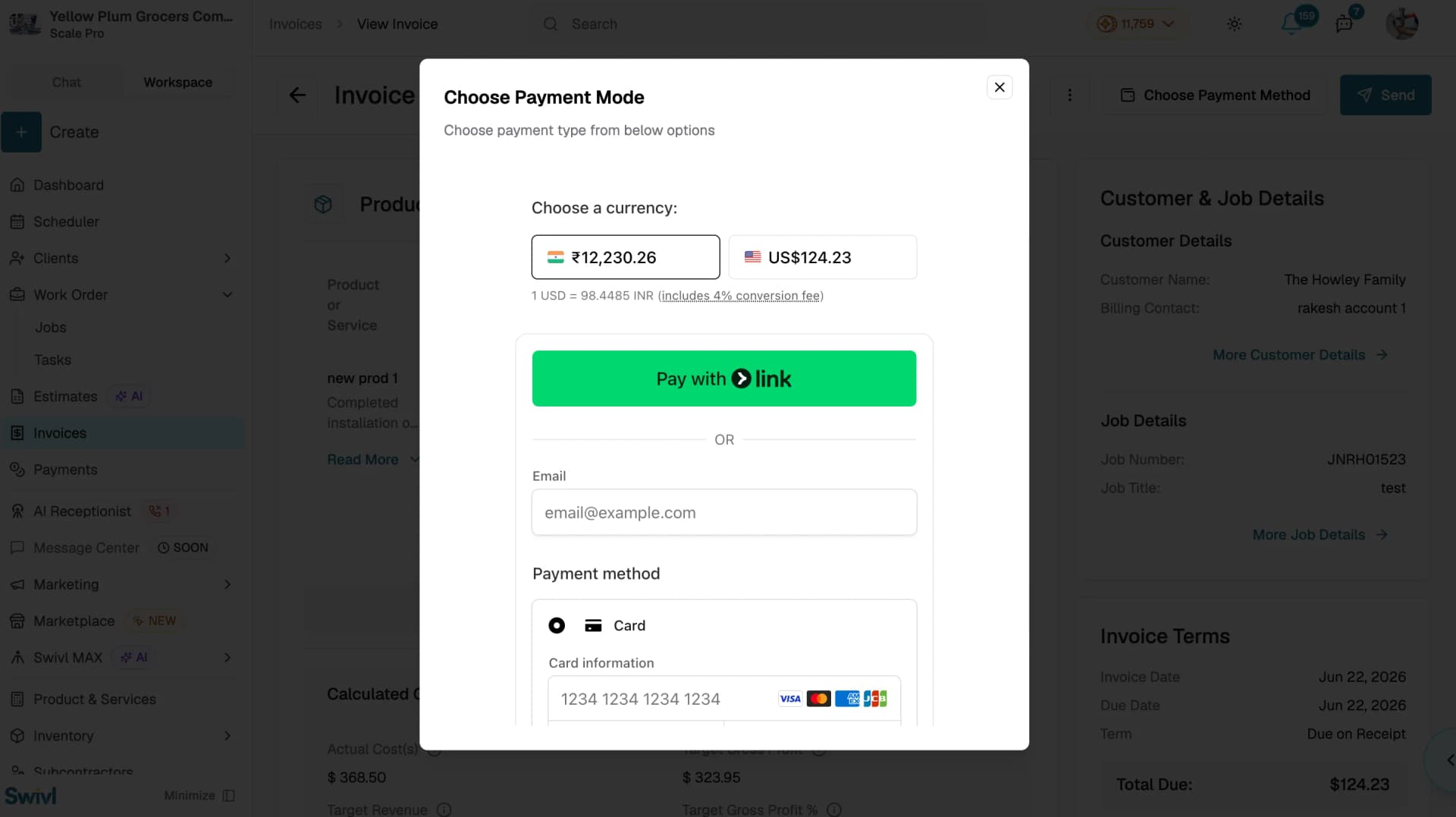
Use this to collect a card payment from your customer directly in Swivl. Available only if your Stripe account is fully set up and your business URL is configured.
- Select your preferred currency.
- Click Pay with Link to send a payment link to the customer, or enter card details directly card number, expiry, CVC, cardholder name, and country.
- Alternatively select Apple Pay if available.
- Click Pay to complete the payment.
- A confirmation dialog appears showing the invoice number and amount paid.
- Click Yes, send to send the invoice to the customer or No, will do it later to skip.
Option B: Other
Use this to record a payment you have already received outside of Stripe — cash, cheque, bank transfer, and so on.
- Click Other.
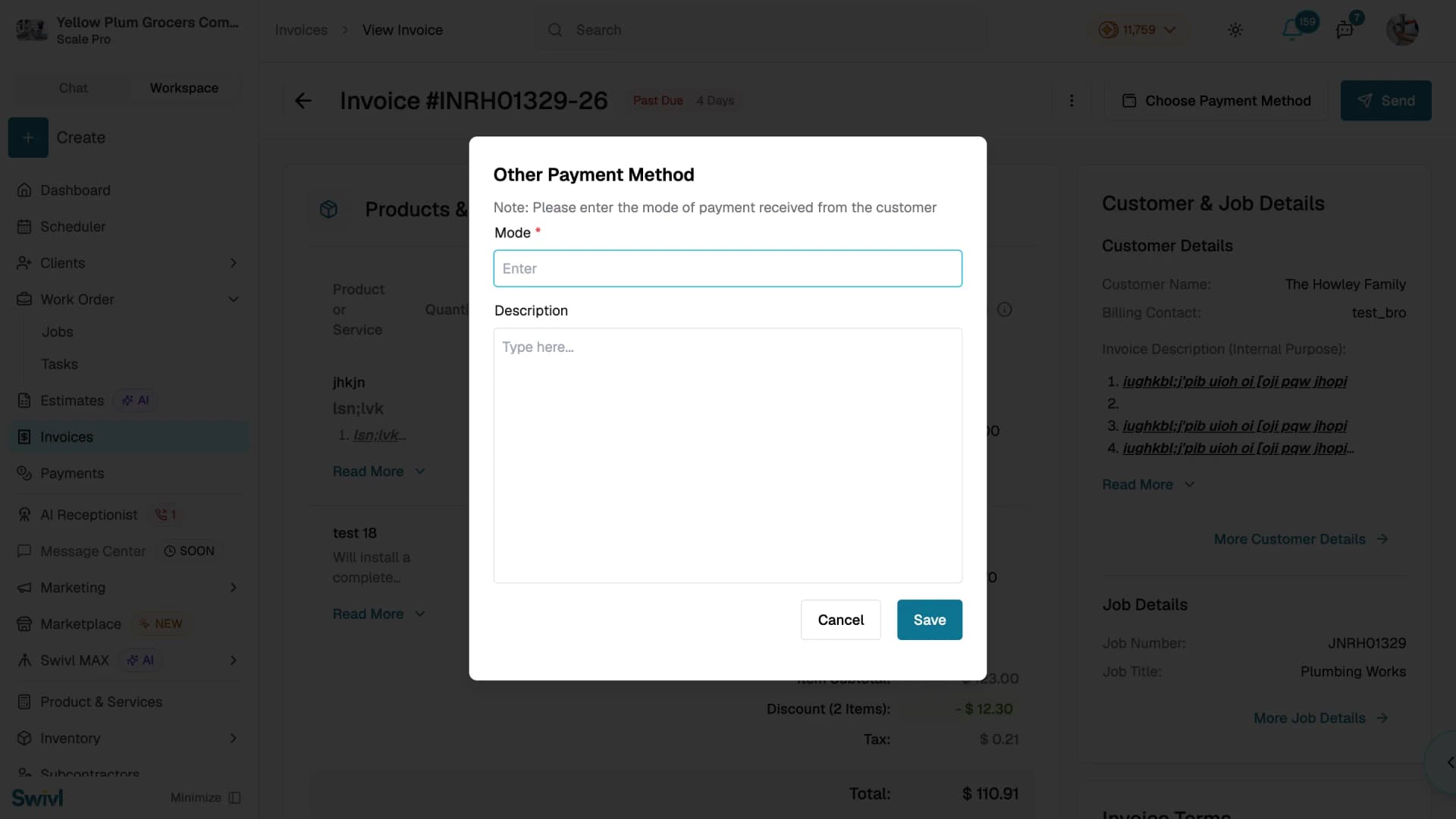
- In the Other Payment Method dialog, enter:
- Mode: describe the payment type (e.g. "Cash", "Cheque #1234", "Wire Transfer")
- Description: add any relevant notes about the payment
- Click Save.
- A confirmation dialog appears showing the invoice number and amount paid.
- Click Yes, send to send the invoice to the customer or No, will do it later to skip.
How payments work with estimates
Estimates do not have a direct payment option. To collect payment on an estimate:
- If a deposit amount is set on the estimate, the deposit can be collected before converting to an invoice. Once recorded, the estimate status updates to Deposit Paid.
- If no deposit is set, approve the estimate and click Convert to Invoice, then record the full payment from the invoice.
Reverting a payment
If a payment was recorded in error, you can revert it:
On an invoice:
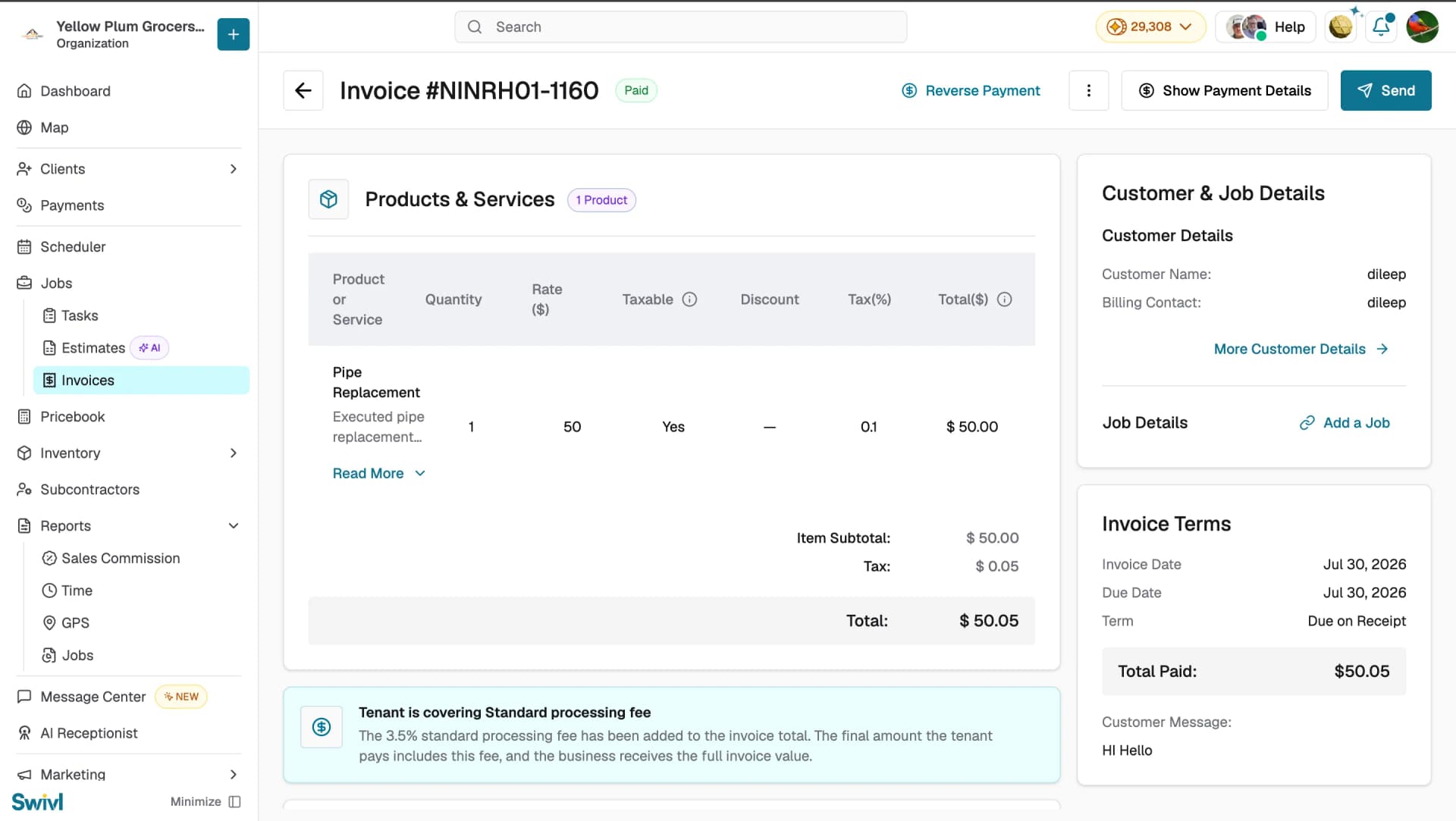
- Open the paid invoice and click Reverse Payment in the header.
- A confirmation dialog appears click Confirm to revert the payment and restore the invoice to its previous unpaid state.
On an estimate:
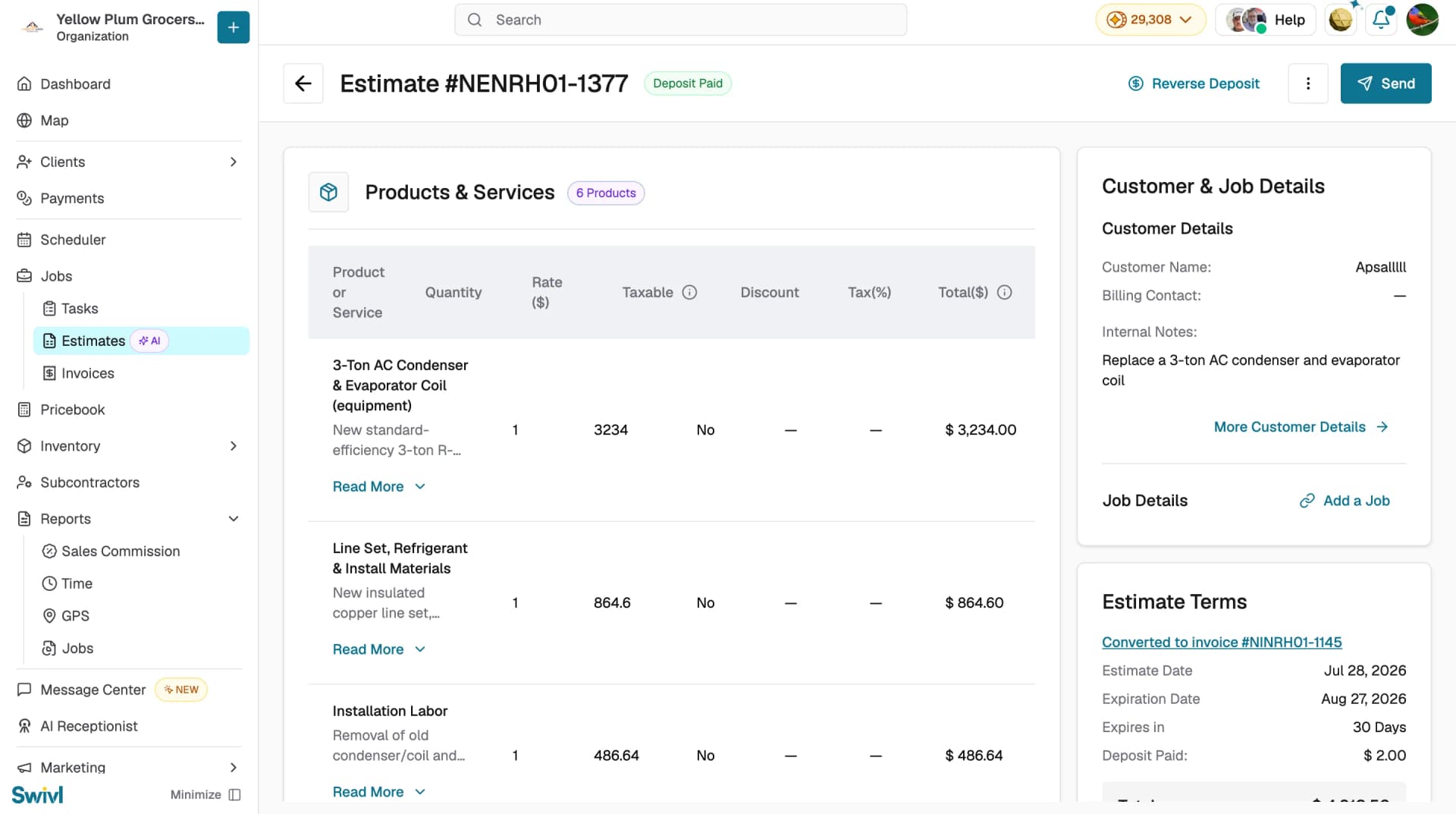
- Open the Deposit Paid estimate and click Reverse Deposit in the header.
- A confirmation dialog appears click Confirm to revert the deposit and restore the estimate to its previous unpaid state.
Viewing payment details
Once a payment has been recorded:
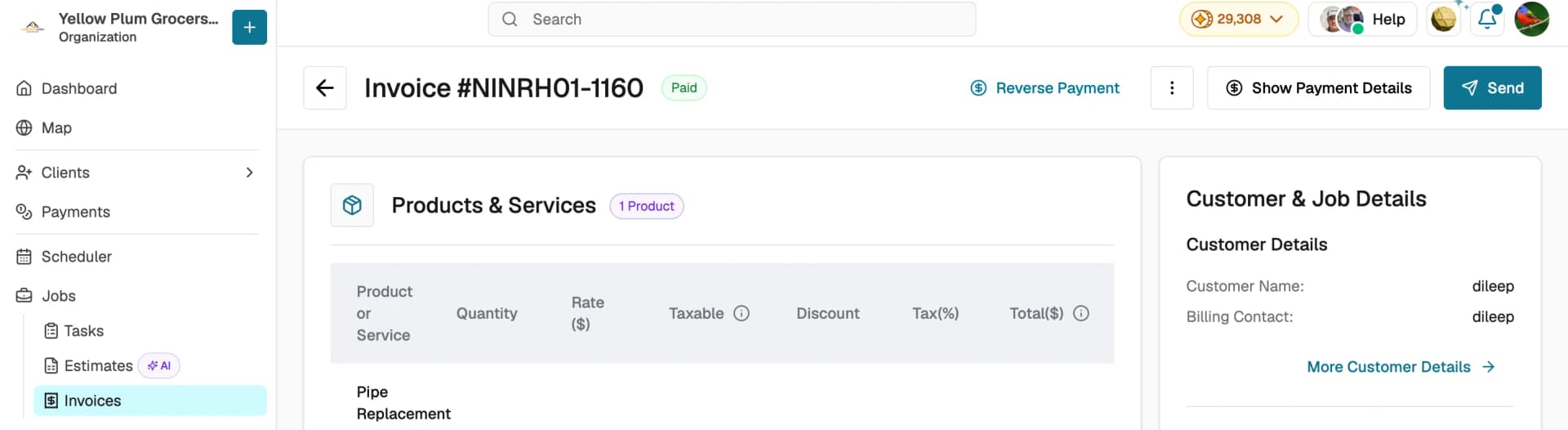
- On a paid invoice: click Show Payment Details in the header to view payment type, mode, and description.
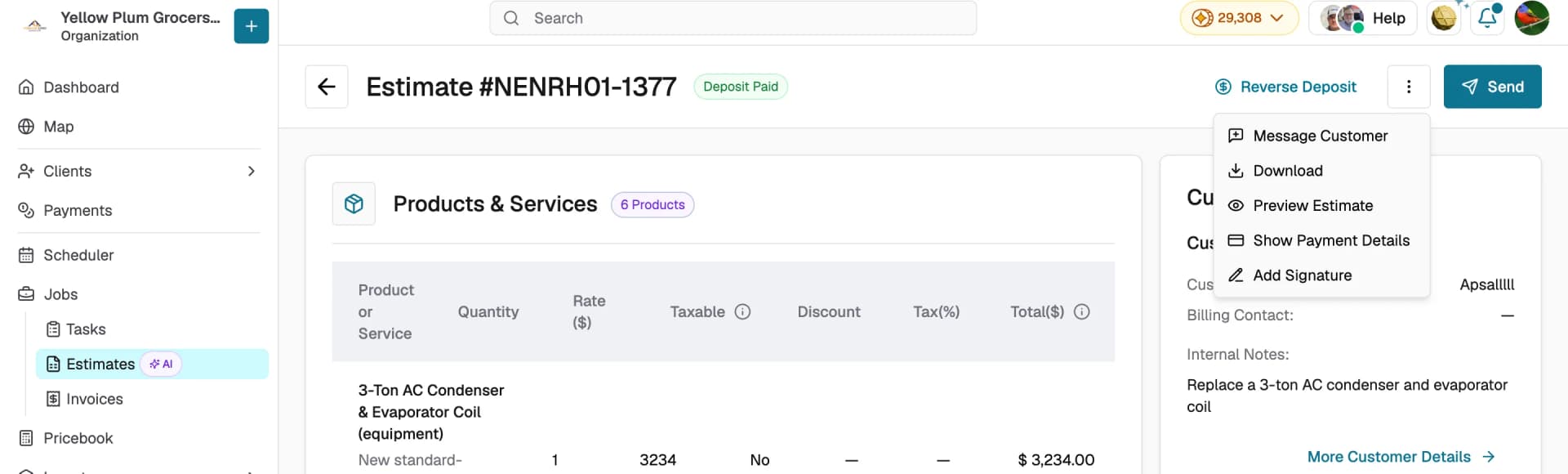
- On a Deposit Paid estimate: click the three-dot menu and select Show Payment Details.
Tips
- Use the Other method to record cash or cheque payments you have already received this keeps your invoice statuses and finance dashboard accurate.
- After recording a payment you will be prompted to send the document to the customer this is a good opportunity to share a receipt.
- Use a consistent naming convention for the Mode field (e.g. always "Cash" rather than mixing "cash" and "Cash Payment").
- If Stripe is set up, customers can pay directly using the payment link in the sent email or SMS.
- To collect full payment on an estimate, convert it to an invoice first using Convert to Invoice.