
Payments overview
The Payments page lets you track all payouts and incoming payment transactions in one place. Monitor statuses, filter by date or amount, and export records as needed.
Overview
The Payments page is where you track all incoming payments and outgoing payouts. Monitor transaction statuses, filter by date, amount, or payment method, and export records when needed.
Who can access this
- Super Admin: full access to all payment features, Finance Settings, and Stripe connection.
What you'll see on Balance page
Go to Payments from the sidebar the Balances card is visible at the top of the page.
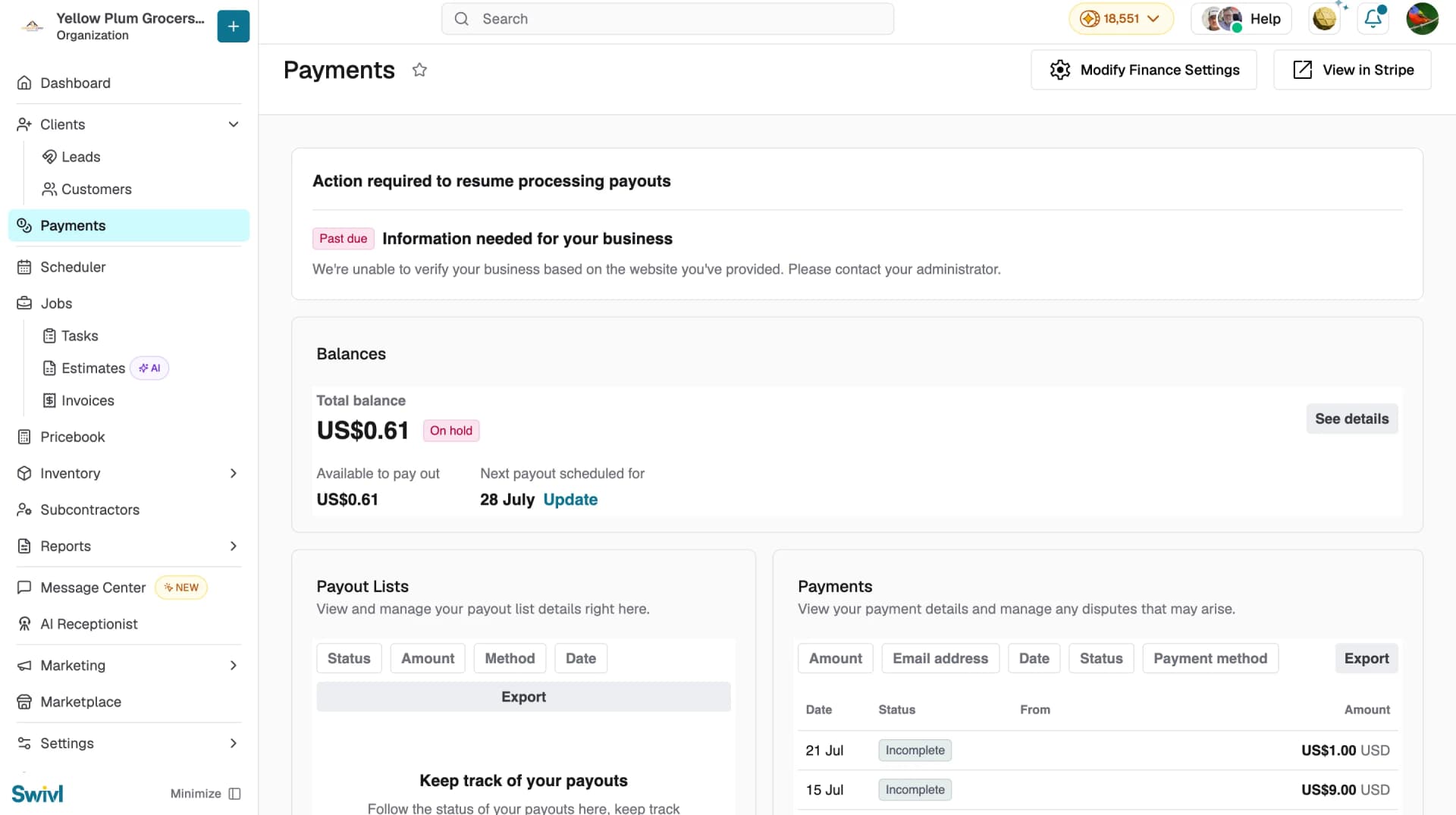
The Balances card gives you a snapshot of your current payment activity.
- Total balance: the total amount currently in your Swivl payments account
- Available to pay out: the amount ready to be transferred to your bank
- Next payout scheduled for: the date of your next scheduled payout. Click Update to manage your payout schedule and destination
- See details: opens the Your balance dialog with a full breakdown
Note: If Stripe is unable to verify your business, an Action required Past due alert appears at the top of the page and payouts are put on hold. Contact your administrator to resolve the issue.
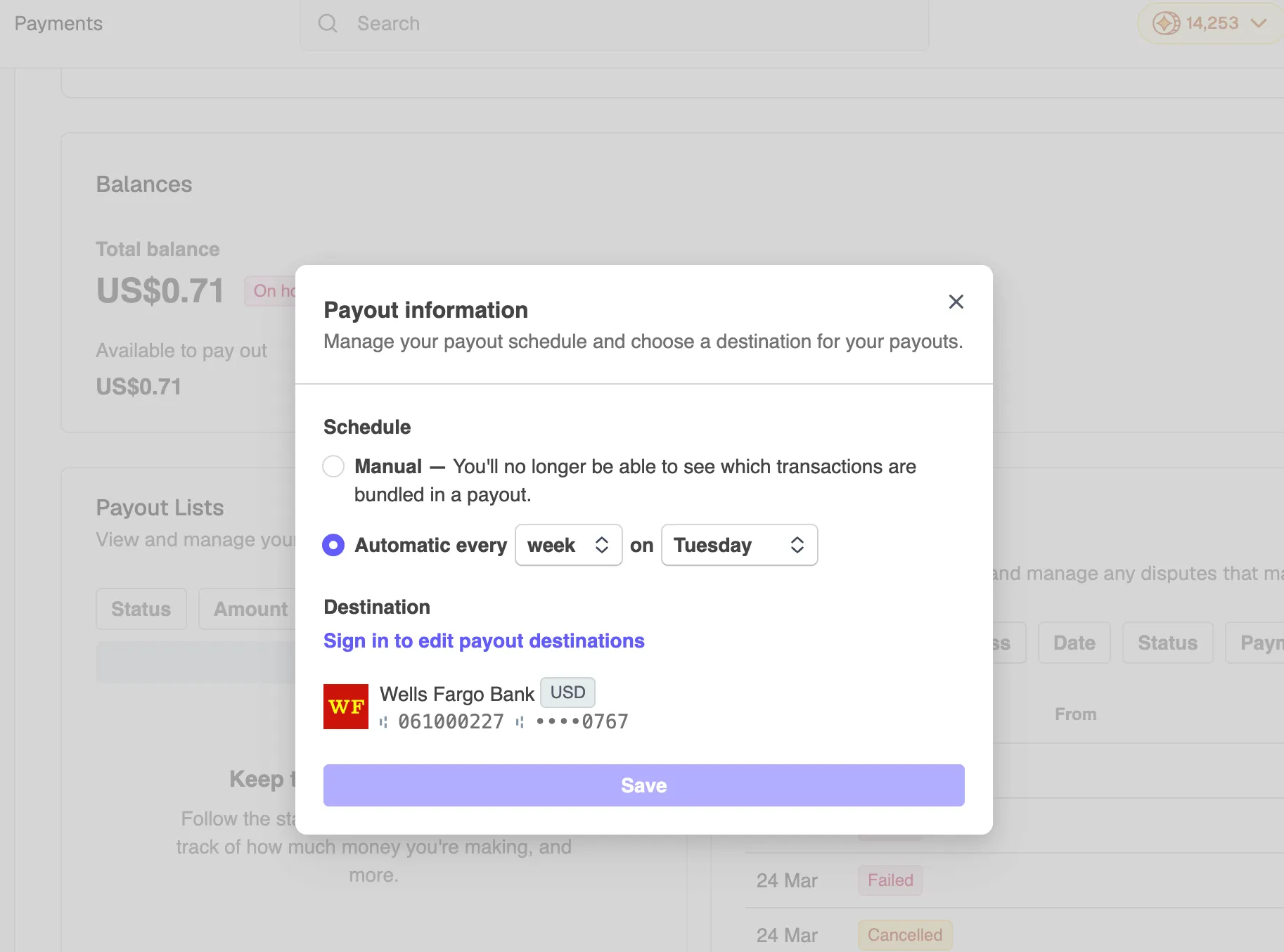
Clicking Update opens the Payout information dialog where you can:
- Set your payout Schedule: choose Manual or Automatic (by week or month on a chosen day)
- View or update your payout Destination
- Click Save to apply changes
Payout Lists
The Payout Lists section shows all payouts processed to your bank account.
- Filter by Status, Amount, Method, or Date
- Click Export to open the export dialog
- Select a Date range: Today, Current month, Last 7 days, Last month, All, or Custom
- Default export includes 13 columns: ID, Amount, Currency, Status, Method, Destination Name, and more
- Click Export to download
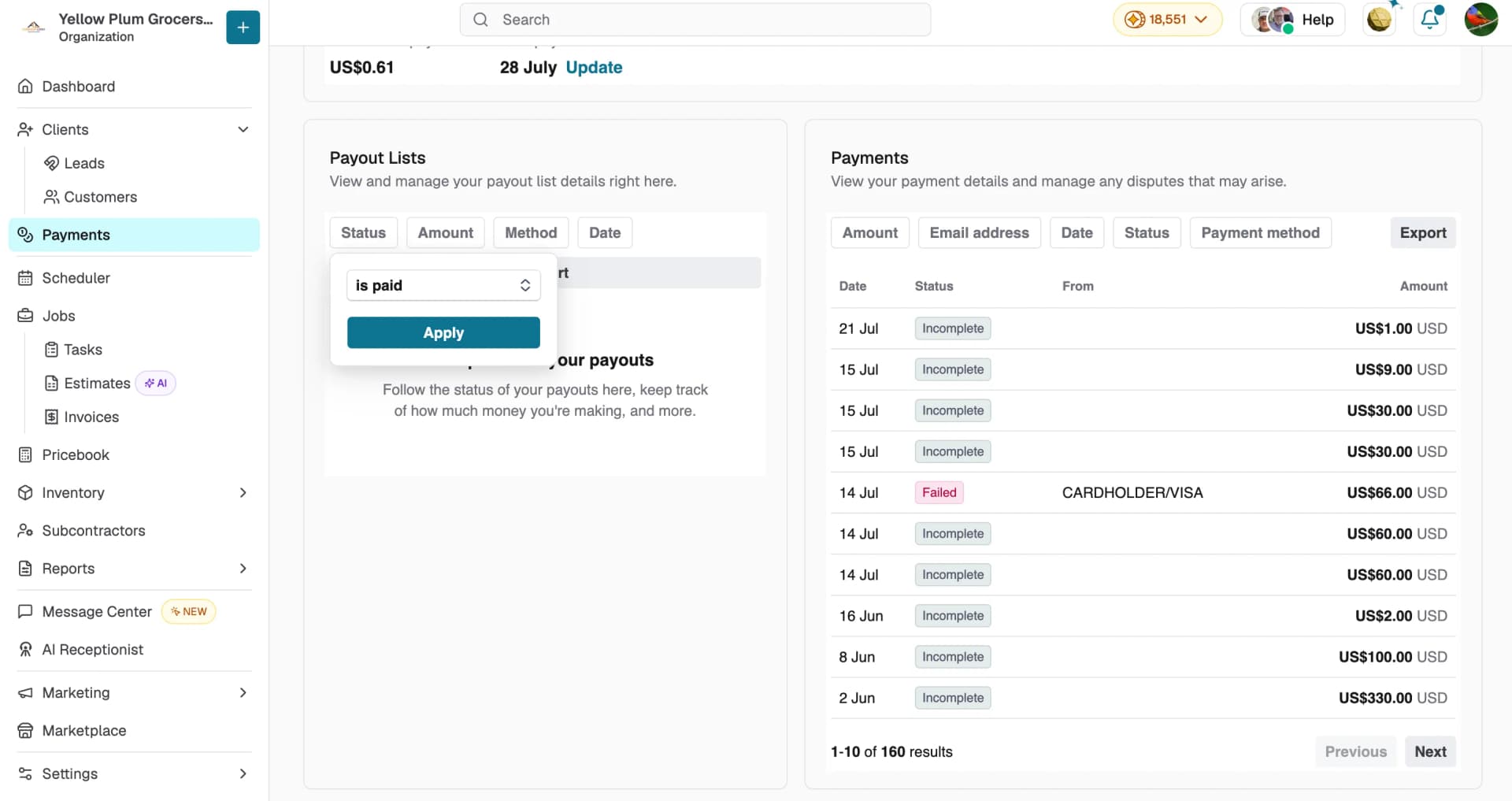
Payments
The Payments section shows all incoming payment transactions and their current status.
- Filter by Amount, Email address, Date, Status, or Payment method
- Click Previous and Next to navigate through results
Each transaction shows a status Succeeded, Failed, Incomplete, or Cancelled.
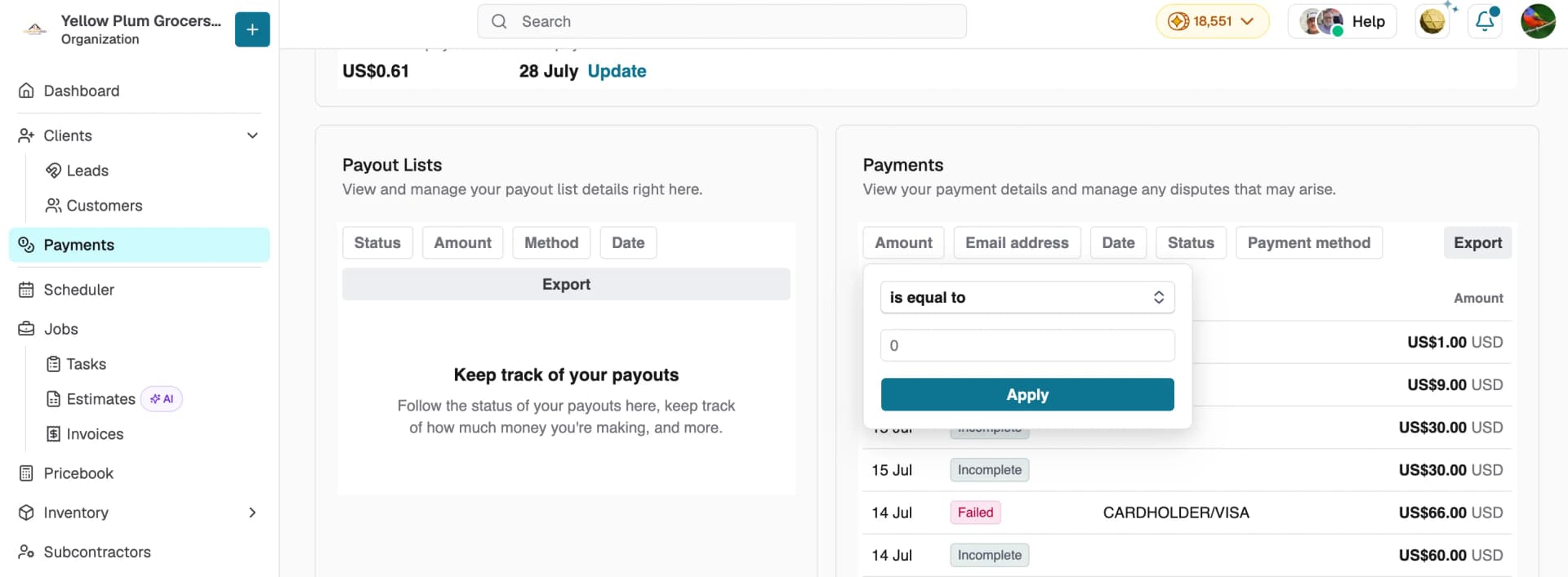
To export payments:
- Click Export to open the export dialog
- Select a Date range: Today, Current month, Last 7 days, Last month, All, or Custom
- Select the Columns to include
- Click Export to download

Finance Settings
Click Modify Finance Settings in the top-right to open Finance Settings. This is where you manage your Stripe account settings.
- Click Sign in to connect and view your Stripe account details
- Swivl partners with Stripe to process payments and keep your bank details secure
View in Stripe
Click View in Stripe in the top-right to open your Stripe dashboard directly — where you can manage advanced payment settings, view detailed transaction history, and handle disputes.
Tips
- Check Available to pay out regularly to know when funds are ready to transfer.
- Use the Date range filter when exporting to narrow down records for a specific period.
- If you see a Past due alert, resolve it promptly to avoid delays in payouts.
- Use View in Stripe to manage disputes and access detailed transaction records directly.