
Adding a Tool
Tools in Swivl are smaller, portable items your technicians carry to job sites hand tools, power tools, testing instruments, and similar gear. Tracking them in your inventory helps you monitor usage, calculate cost per hour, and keep your asset records complete.
Overview
Tools in Swivl are portable items your technicians carry to job sites hand tools, power tools, testing instruments, and similar gear. Adding them to your inventory helps you track what you own, calculate cost per hour, and record supplier details. Tools and equipment share the same form, so the process is identical whether you're adding a wrench or a large compressor.
Who can access this
- Super Admin: can add and manage tools.
- Admin: can add and manage tools.
How to add a tool
- Go to Inventory → Assets → Tools & Equipment
- Click New Tool/Equipment
- Add a photo, fill in the fields below, and attach any files under Media and Documents
- Click Save Details
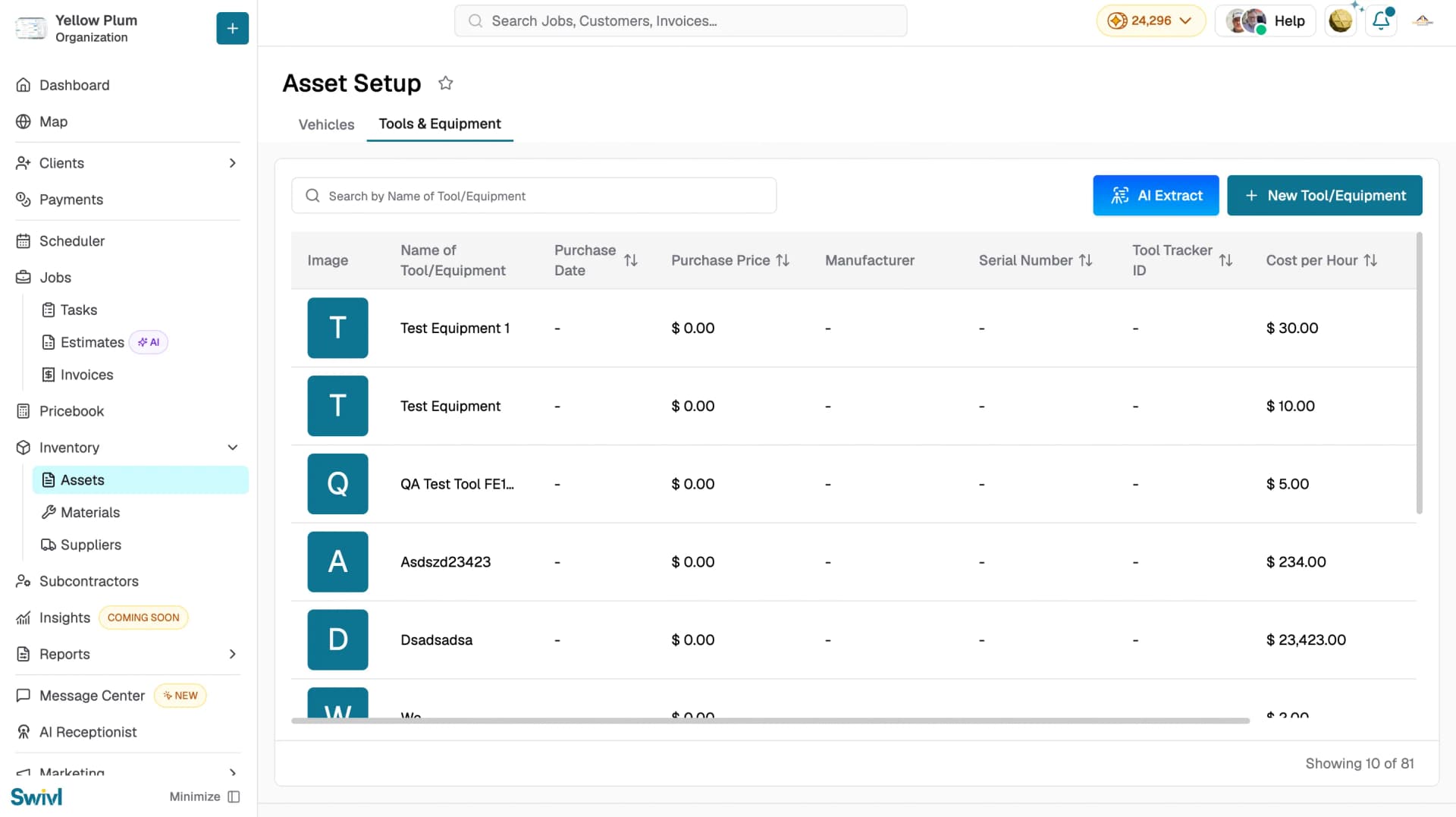
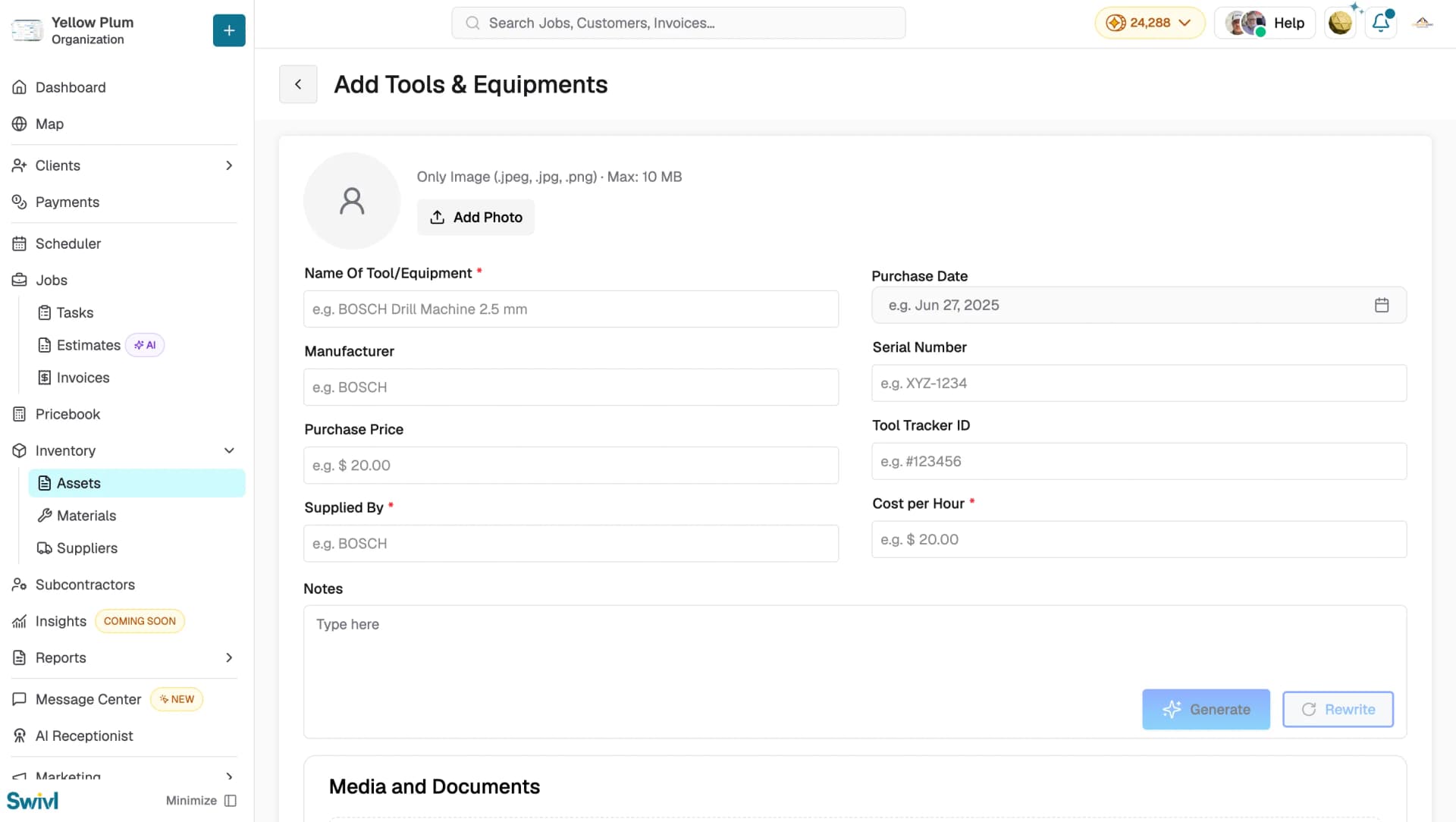
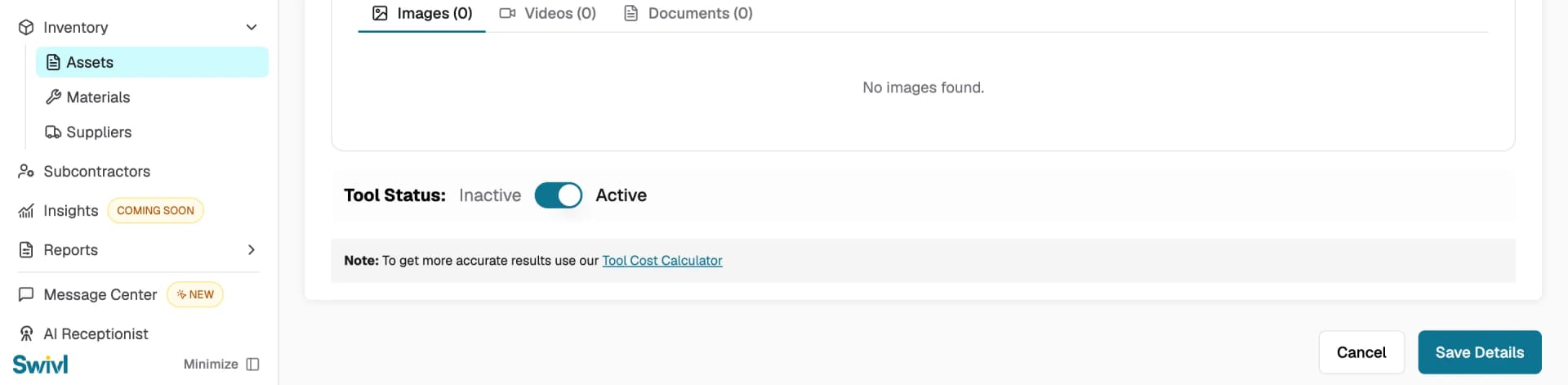
Required: Name Of Tool/Equipment, Supplied By, and Cost per Hour. Use the Tool Cost Calculator link at the bottom of the form to work out an hourly rate.
Optional: Manufacturer, Purchase Price, Purchase Date, Serial Number, Tool Tracker ID, and Notes — click Generate to have AI write the notes, or Rewrite to revise them.
Editing a tool or piece of equipment
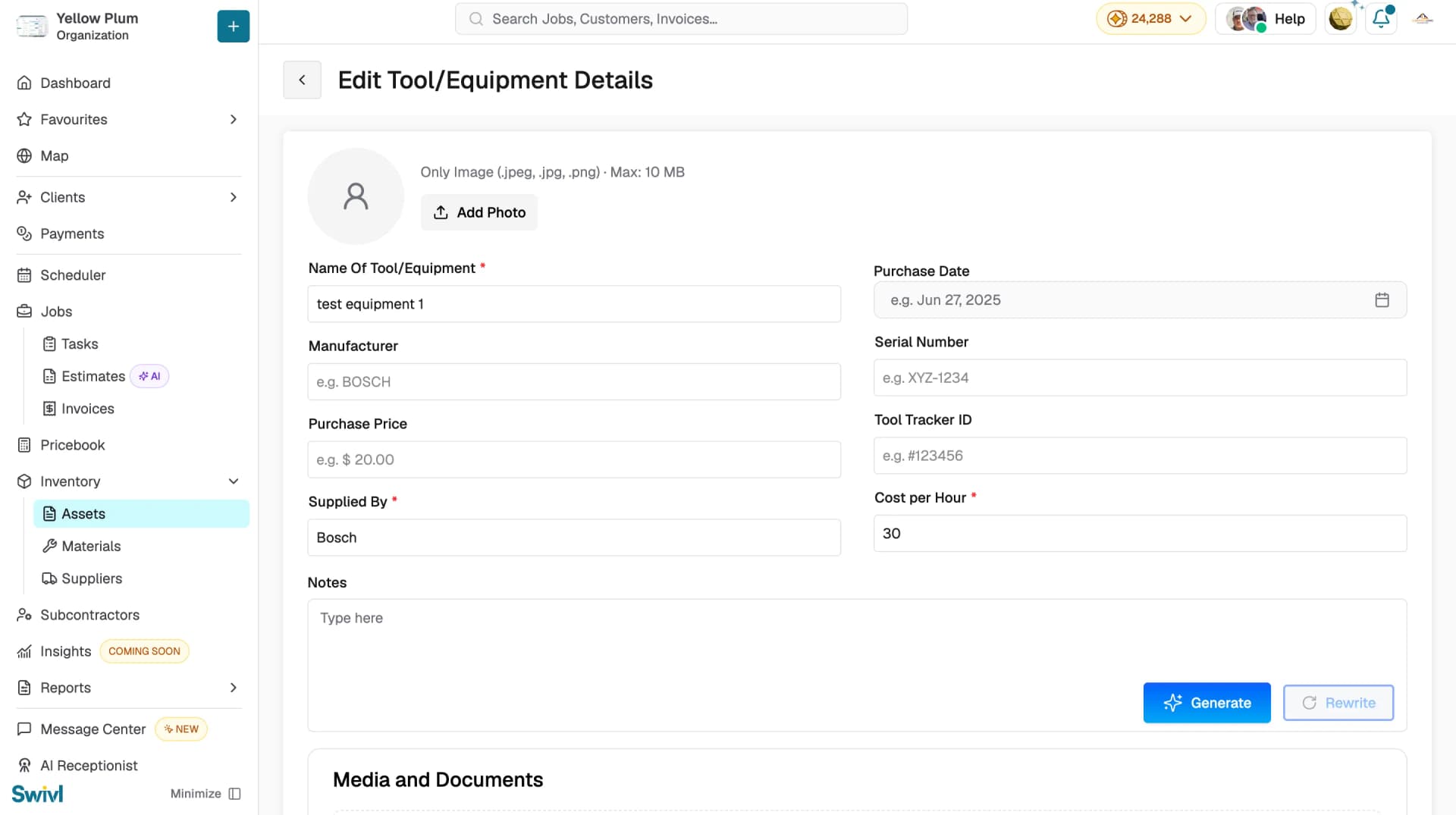
- Go to Inventory → Assets → Tools & Equipment
- Click the edit icon on the tool you want to update
- The form opens with all current details pre-filled
- Make your changes and click Save Details
Using AI Extract
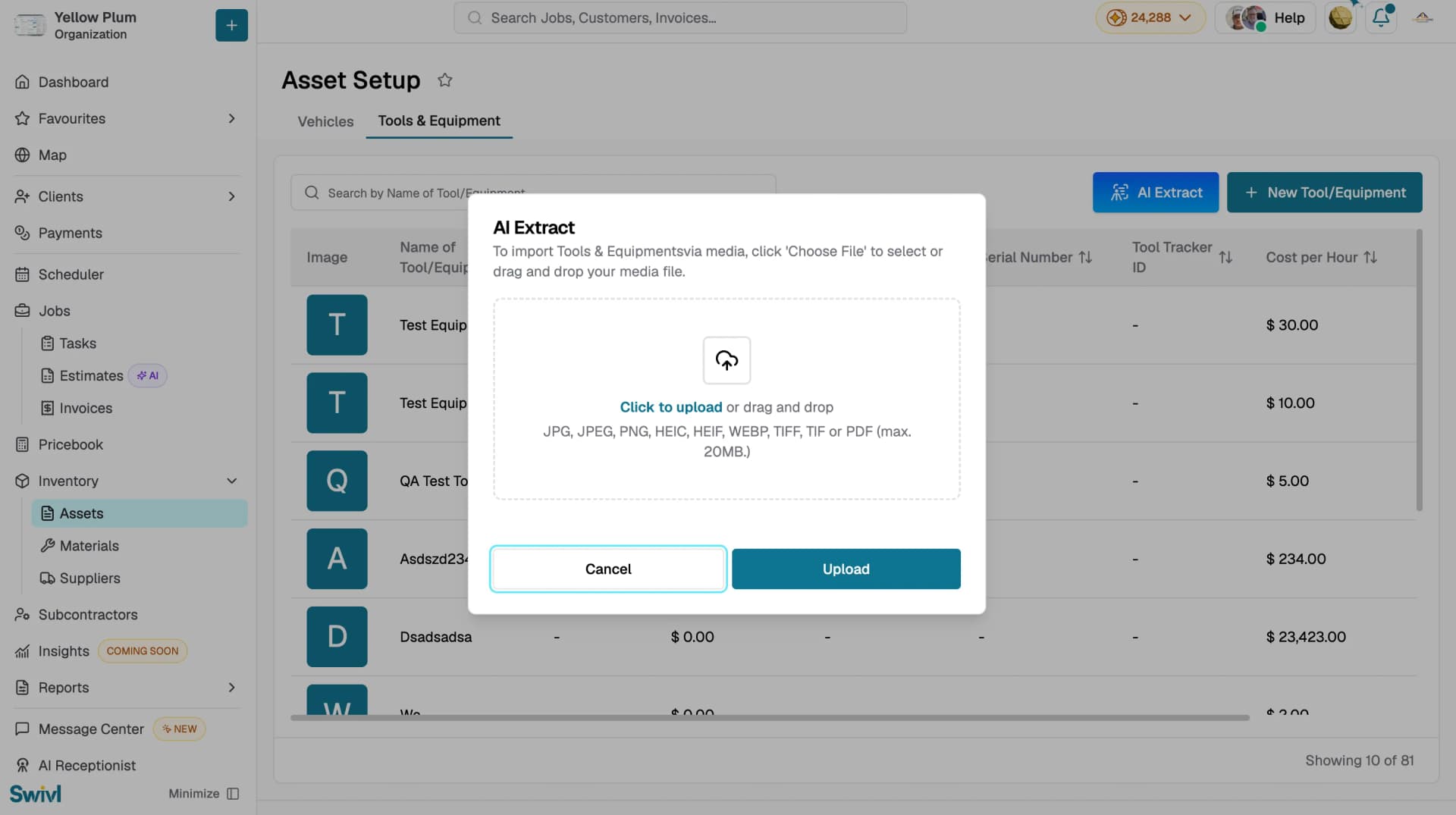
AI Extract lets you scan a document or receipt to automatically pull tool details into the form, saving time on manual data entry.
- Go to Inventory → Assets → Tools & Equipment
- Click AI Extract in the top right
- Upload or photograph the document
- Review the extracted details
- Confirm and save
Setting a Tool as Inactive
To remove a tool from active use without deleting it, click the edit icon and toggle the Status to Inactive. Inactive tools remain in your records but are excluded from active selections. Toggle back to Active when the tool returns to service.
Tips
- Keep names consistent and descriptive as the technicians will search by name when logging tool usage.
- Attach a photo to make each tool easy to identify, especially when your inventory contains similar items.
- Use AI Extract on the Tools & Equipment tab to scan tool labels and auto-populate form fields automatically.