
Work Order
Editing Job Details
After a job has been created, you can update its details at any time from the job title and site address to team assignments, tags, and descriptions. All edits are made from the same form used to create the job, with existing details pre-filled.
Overview
After a job is created, you can update its details at any time change the title, reassign the job lead, update the site address, add tags, or modify the description. All edits are made from the same form used to create the job, with existing details pre-filled.
Who can access this
- Super Admin: can edit any job.
- Admin: can edit any job.
- Lead Technician / Technician: cannot edit job details.
How to edit a job
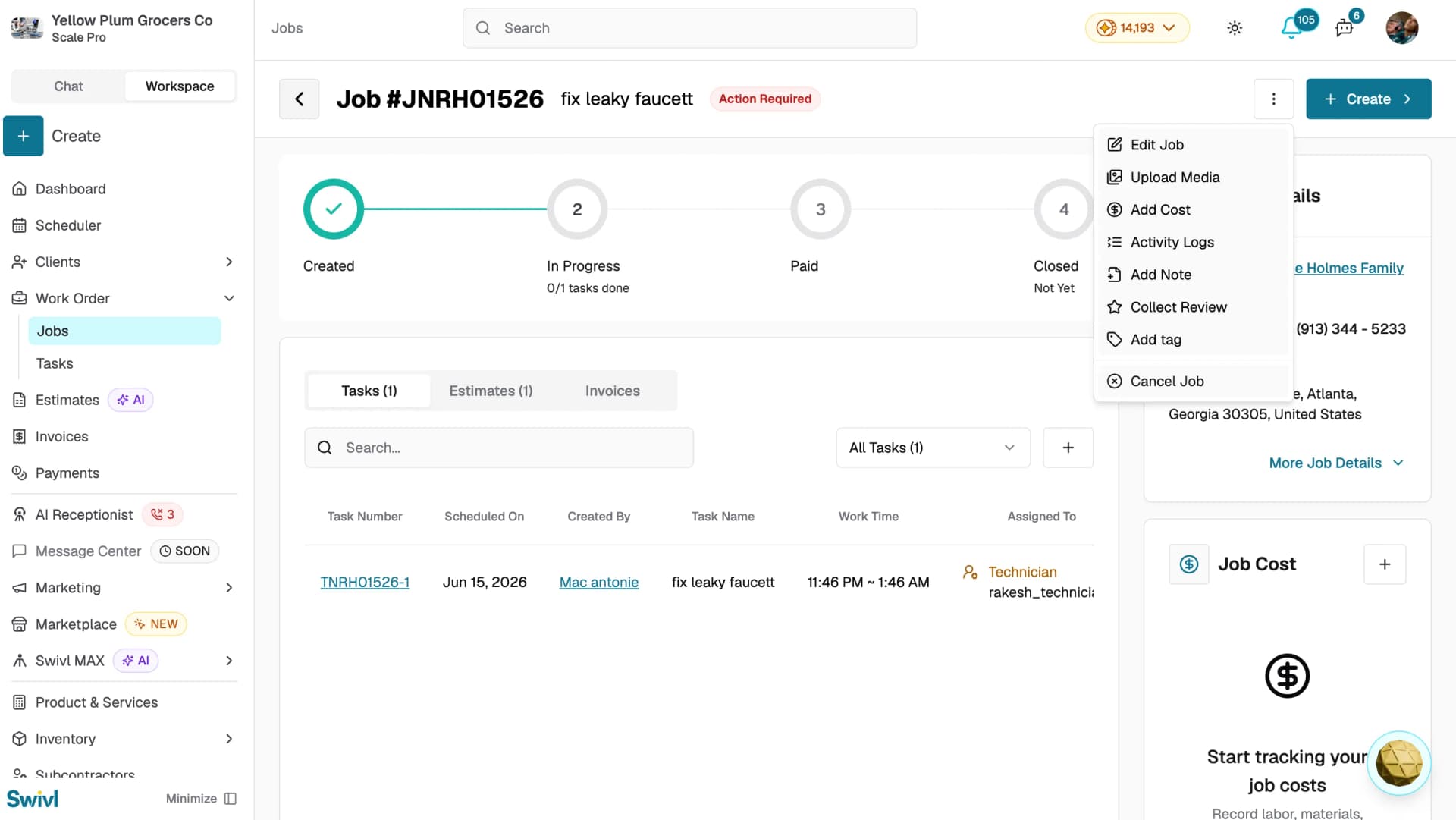
- Go to Work Order → Jobs and click the job you want to edit.
- Click the three-dot menu and select Edit Job.
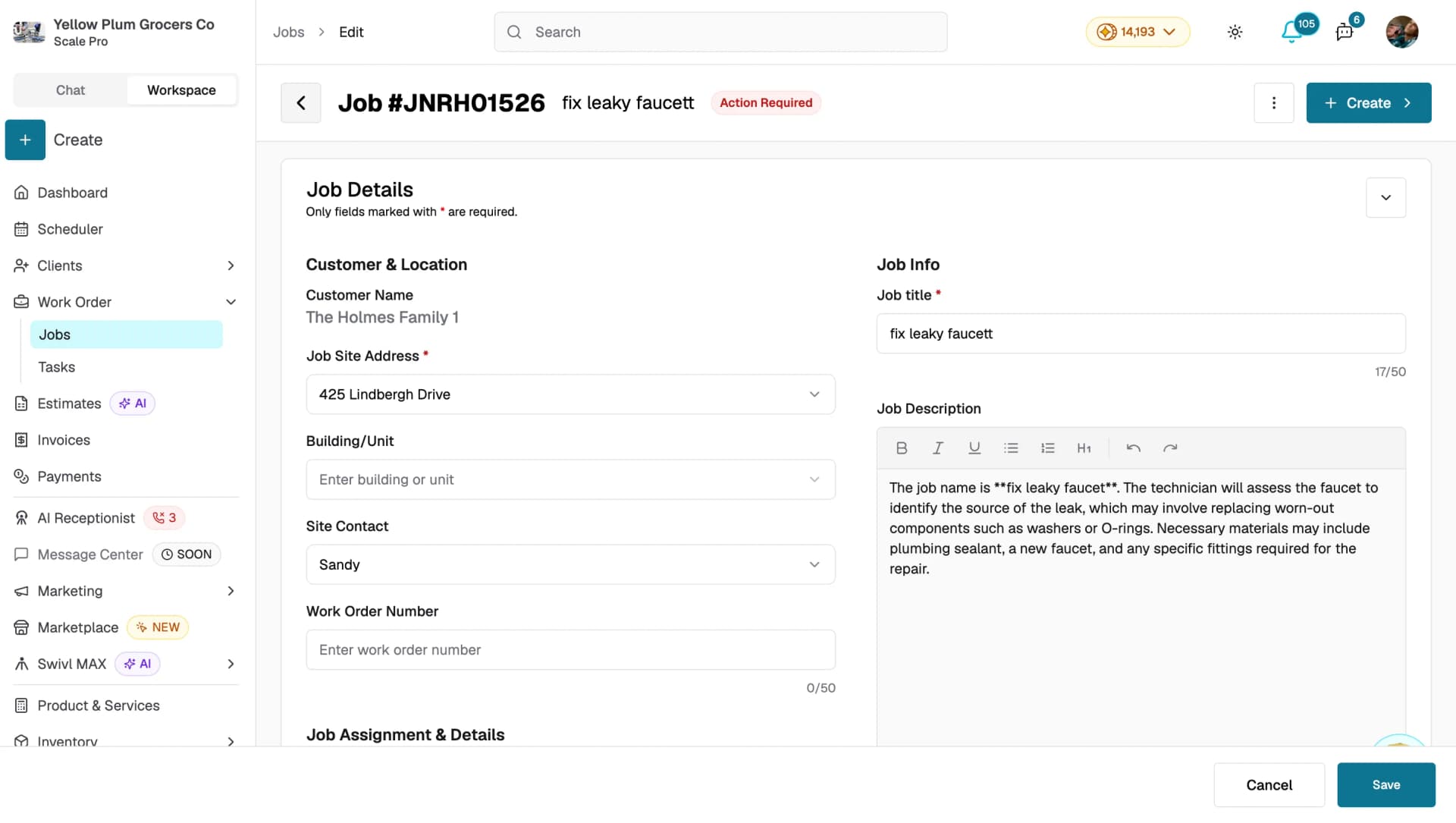
- The job form opens with all current details pre-filled.
- Make your changes and click Save.
You will see a success message confirming that the job was updated.
What you can edit
- Job Title and Description: rename the job or update the scope. Click Generate or Rewrite to use AI
- Job Site Address and Building/Unit: change the work location
- Site Contact: update who should be contacted on site
- Job Lead and Sales Manager: reassign team members
- Requested by: change the requesting contact
- Tags: add or remove tags to recategorise the job
- Media and Documents: upload or remove images, videos, and documents
What you cannot edit
- Customer Name: locked after the job is created. Create a new job if the customer needs to change.
- Job Number: system-generated and cannot be modified.
Tips
- If you navigate away with unsaved changes, Swivl will ask you to confirm before discarding your work.
- All changes are logged in Activity Logs accessible from the three-dot menu on the job detail page so you can always see who changed what and when.
- You can edit a job even when tasks, estimates, or invoices are already attached to it.