
Creating a Custom Role
Custom roles let you define exactly what each team member can see and do in Swivl. If the four built-in roles do not match your team structure, you can create a role with tailored permissions to suit any job function.
Overview
Swivl comes with four built-in roles that cover most team structures. When you need something more specific, like a dispatcher who can schedule but not invoice, or a billing coordinator who can access finance but not jobs custom roles let you build the exact permission set you need.
Who can access this
- Super Admin: full access to create and manage custom roles
How to create a custom role
- Go to Settings → Team & Access.
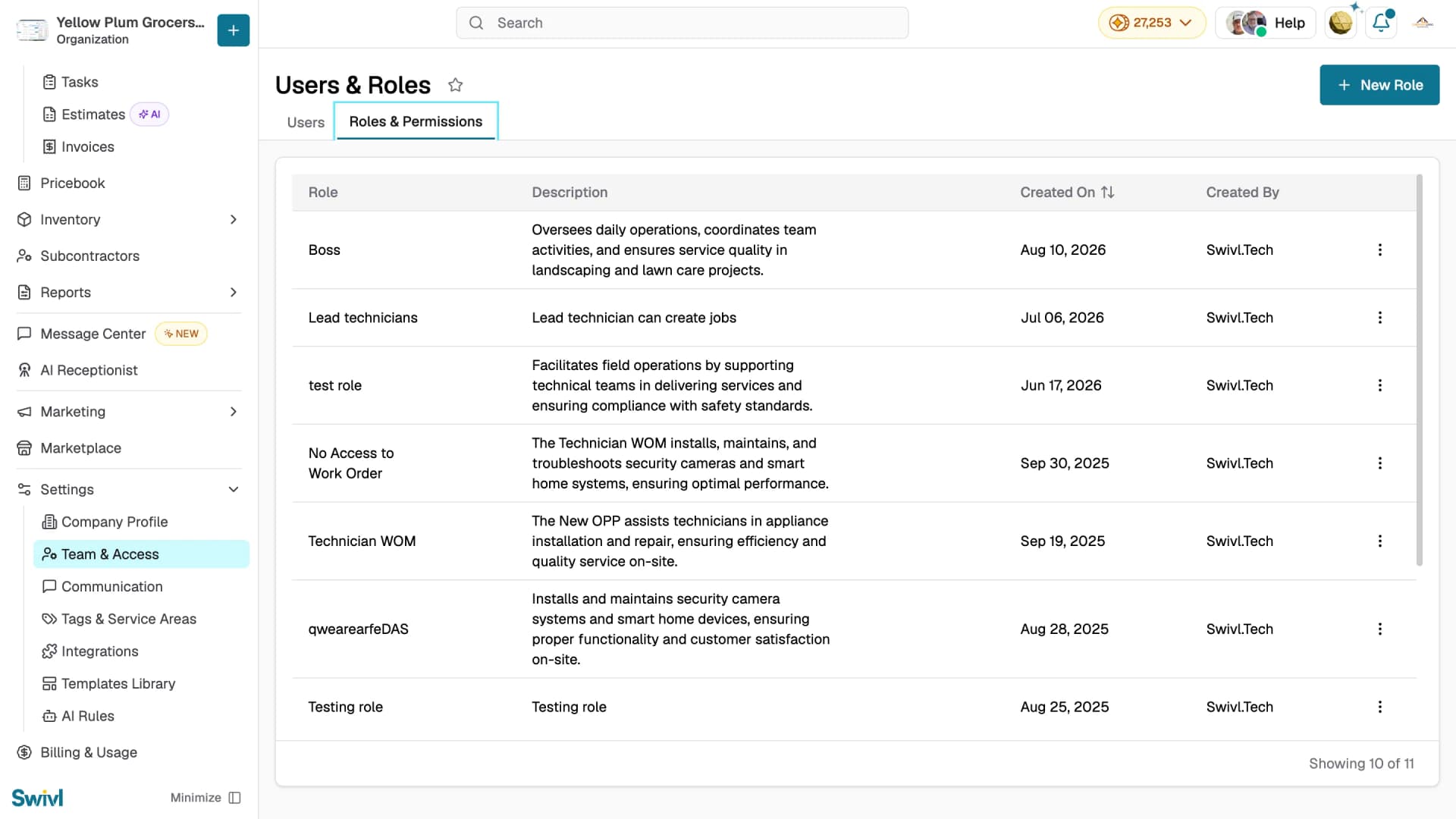
- Click the Roles & Permissions tab.
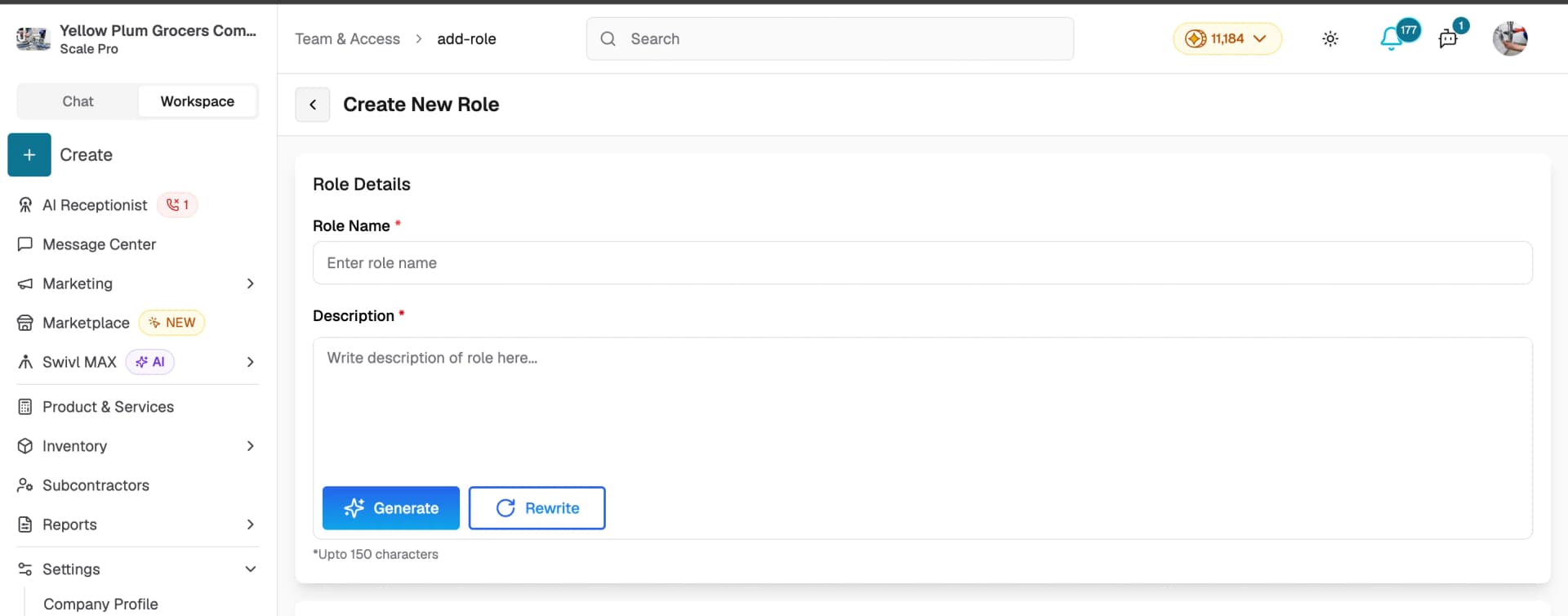
- Click + Create New Role.
- Fill in the Role Details:
- Role Name (required): give it a descriptive name such as "Dispatcher" or "Billing Coordinator"
- Description (required, max 150 characters) briefly explain what this role is for. Use Generate to create one with AI or Rewrite to refine it.
- Configure permissions in the Access Control section see below.
- Click Create Role to save.
Configuring permissions
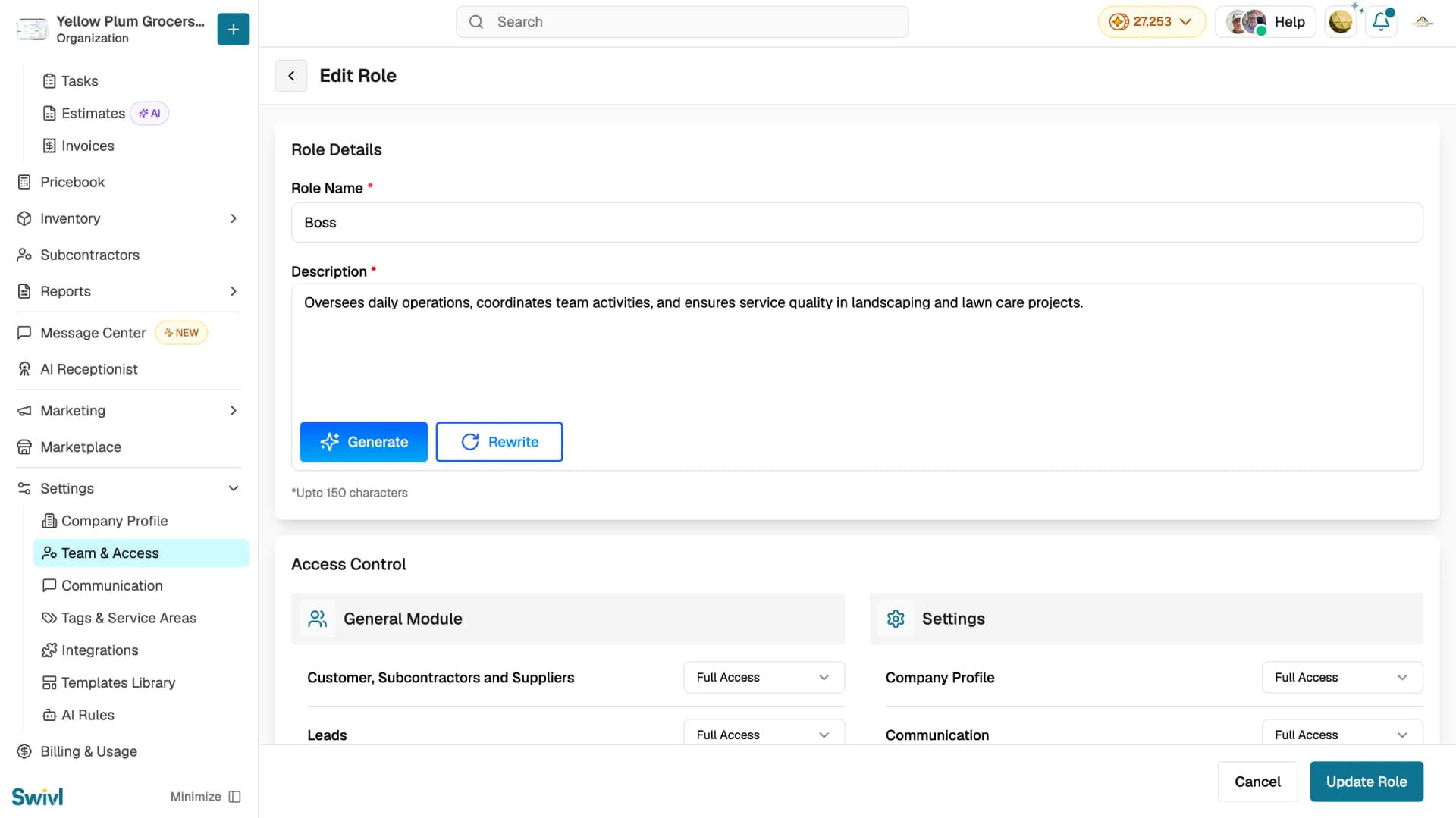
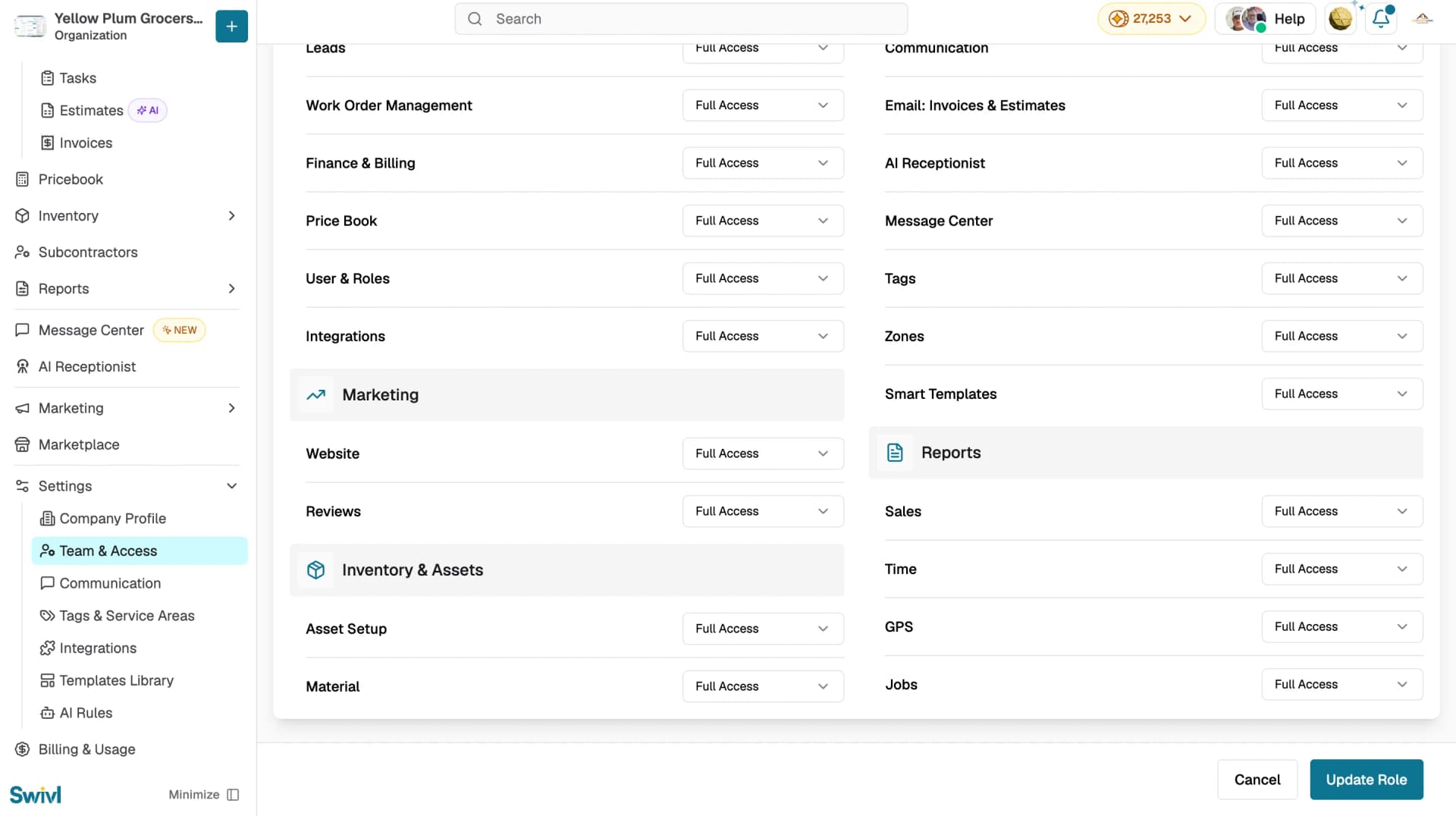
The Access Control section is divided into four groups. For each module, select one of the following access levels from the dropdown:
Access Level | What it means |
|---|---|
Full Access | Can view and edit everything in the module |
Partial Access | Can access some features within the module |
Technician Access | Access level suited to field technicians |
No Access | The module is hidden from the user |
The modules are grouped into four sections:
- General Module: core operational modules including customers, leads, work orders, finance, and more
- Settings: platform configuration including company profile, communication, AI Receptionist, and more
- Marketing: website and reviews
- Inventory & Assets: asset setup and materials
- Reports: sales, time, GPS, and jobs
After creating a role
Once saved, the new role appears in the Roles & Permissions table and can be assigned to users when inviting or editing team members. You can edit or delete custom roles at any time.
Tips
- Name roles based on job function (e.g. "Dispatcher", "Billing Coordinator") rather than individual names.
- Start with restrictive permissions and add access as needed it is easier to grant access than to revoke it.
- If a role is assigned to active users, changes to its permissions take effect the next time those users load Swivl.
- You cannot delete a custom role that is currently assigned to users reassign those users to a different role first.