
Work Order
Drag-and-Drop Reassignment
Use drag-and-drop on the Task Scheduler calendar to reschedule tasks or reassign them to a different technician all without leaving the calendar or opening any forms.
Overview
Use drag-and-drop on the Task Scheduler calendar to move tasks to a new time slot or reassign them to a different technician all without opening any forms or leaving the calendar.
Who can access this
- Super Admin: can drag and drop any task on the calendar.
- Admin: can drag and drop any task on the calendar.
- Lead Technicians and Technicians cannot use drag-and-drop on the calendar.
How to reschedule a task by dragging
- Go to Scheduler → Calendar View.
- Switch to Day or Week view for the most precise control.
- Click and hold a task block on the calendar.
- Drag it to the new date and time slot.
- Release to drop a popup appears showing the updated Task Schedule.
- Under Assigned To, select Technician, Subcontractor, or Assign Later.
- Search and select a team member from the Select a Technician list.
- Click Assign to confirm.
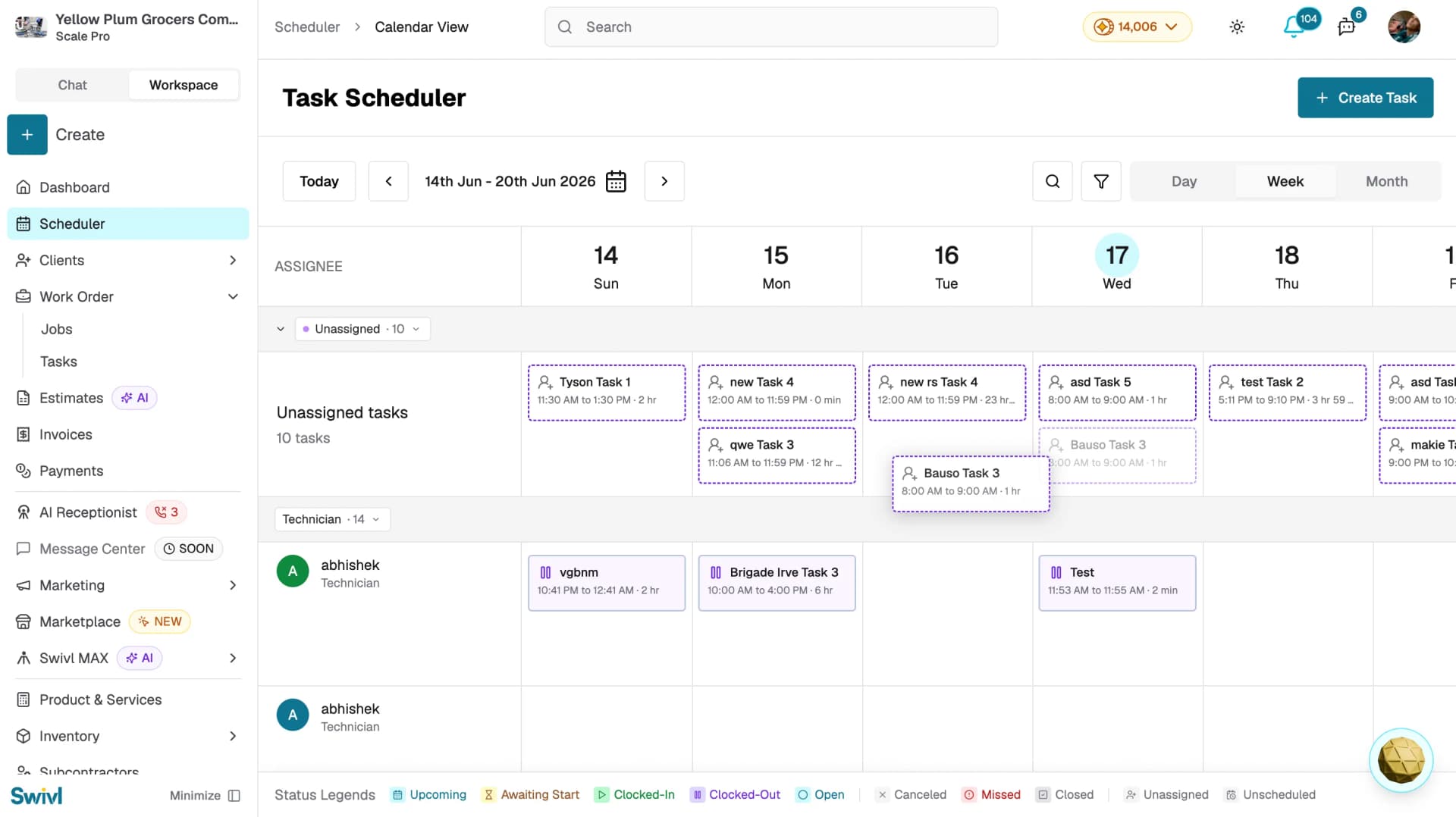
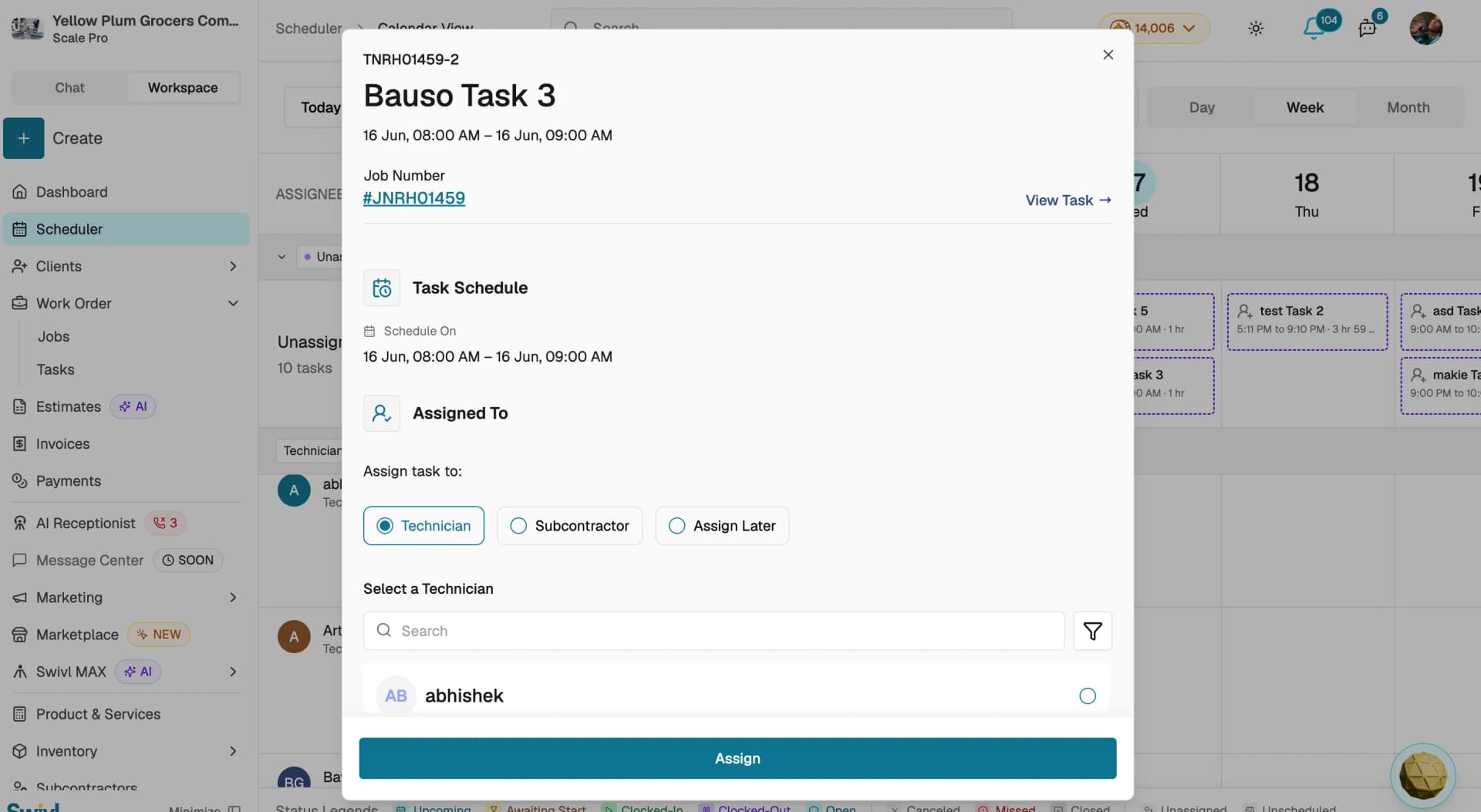
The task's scheduled start and end times are updated automatically. A confirmation may appear depending on the change.
Limitations
- Drag-and-drop works best in Day and Week views in Month view you can move tasks between days but cannot set precise times.
- Tasks on closed or cancelled jobs cannot be moved.
Tips
- Use Day view for precise scheduling it gives you the most control over exact time slots.
- If you accidentally move a task, drag it back to the original slot or click the task block to update the time from the popup.
- Use the Technician filter to focus on one team member's schedule at a time before dragging tasks around.