
Swivl Connect Overview
Build a public Swivl profile that wins customer trust. Verify your business, grow your Trust Score, earn badges for licenses and insurance, publish your track record, and add a profile video.
Overview
Swivl Connect is your business's public presence on Swivl. It combines your company details, verifications, reviews, and real activity into a public profile with a Trust Score helping customers choose you with confidence. Your profile preview is visible to you right away and goes live once your business verification is approved.
Who can access this
- Super Admin: full access (view and edit)
- Admin, Lead Technician, Technician: no access to this section
Accessing Swivl Connect
There are two ways to open Swivl Connect:
- From the navigation bar: open the left navigation bar, click Marketing, then select Swivl Connect
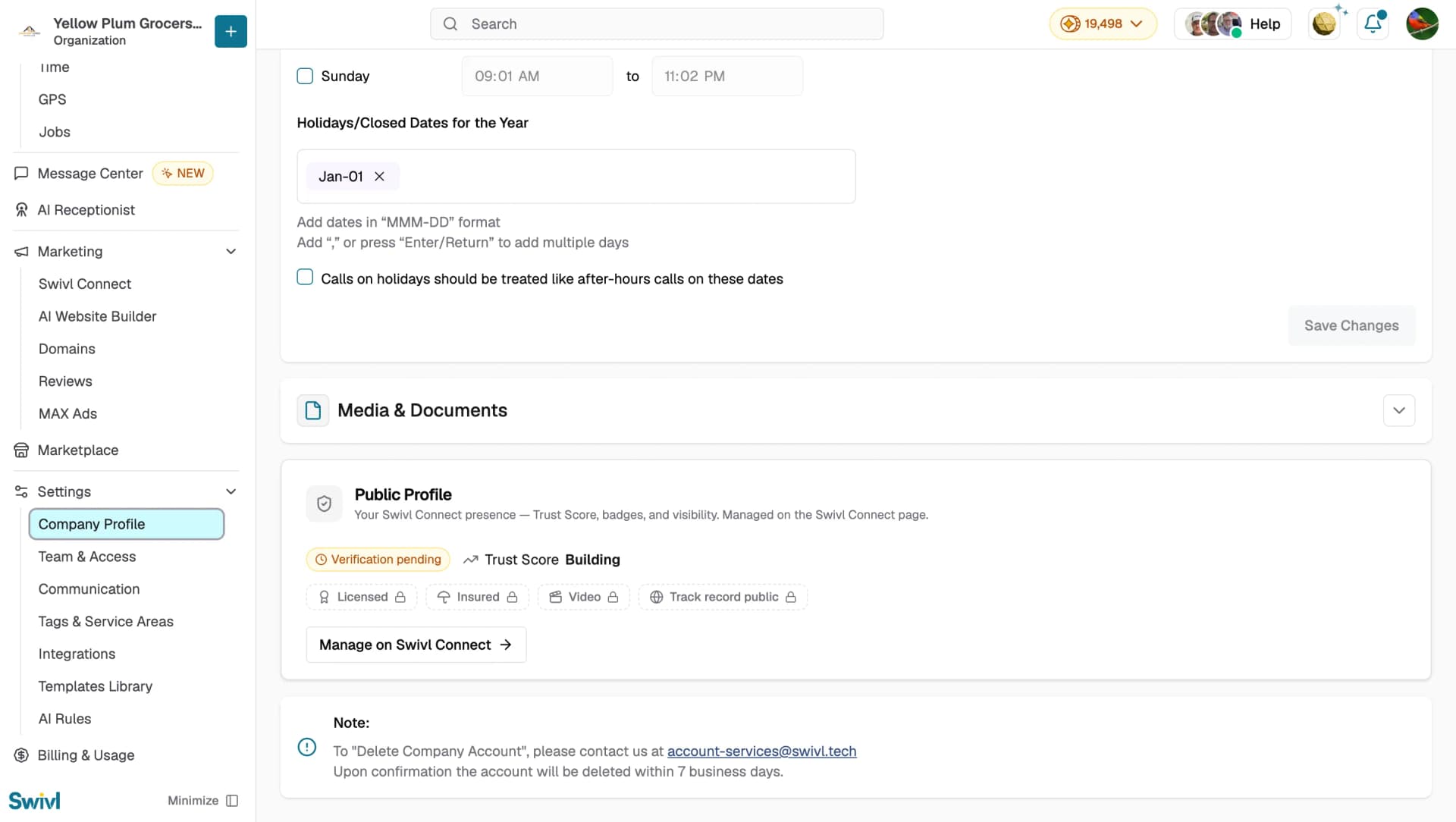
- From your Company Profile: go to Settings → Company Profile, scroll to the Public Profile card, and click Manage on Swivl Connect
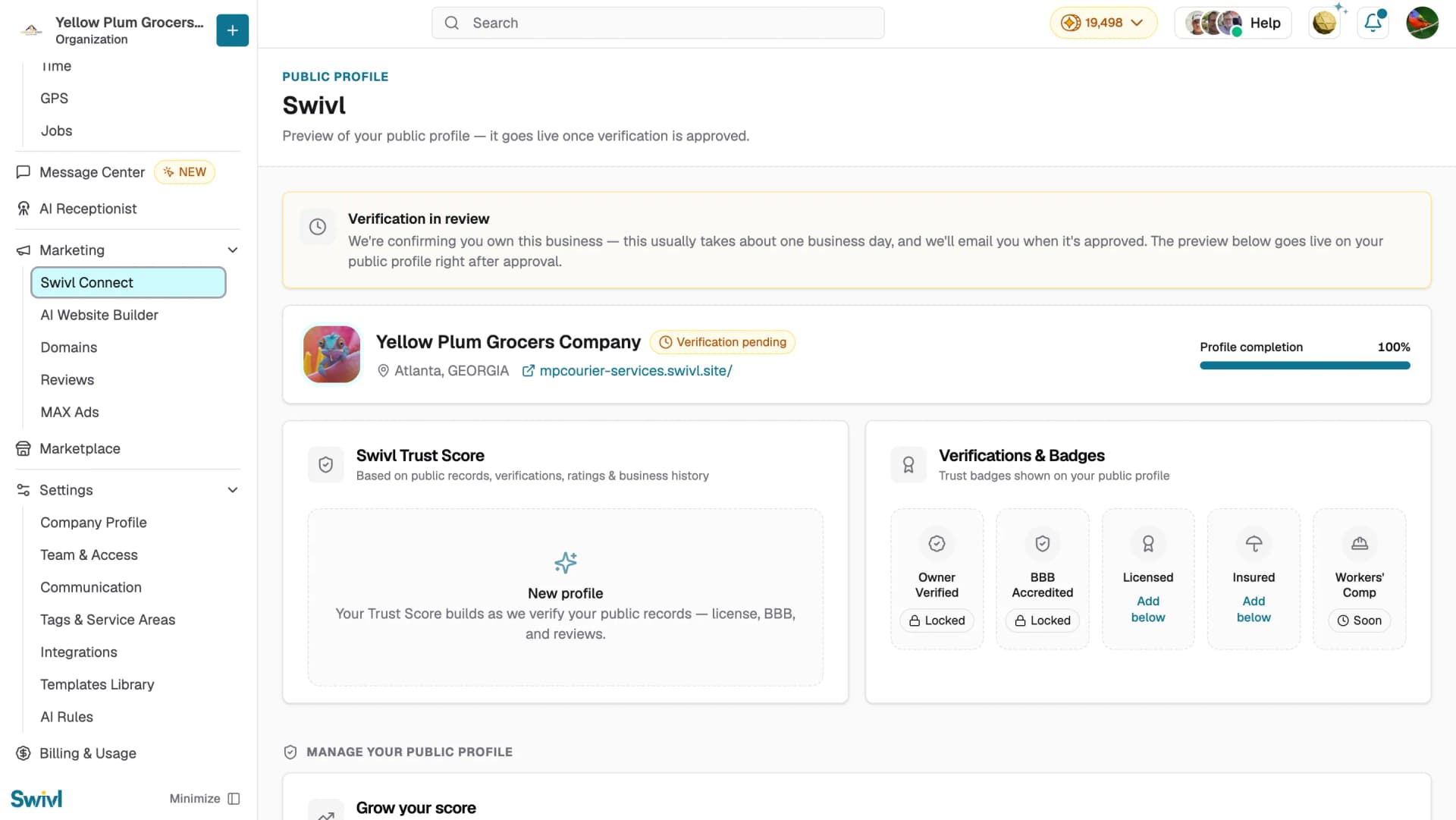
This opens your public profile preview, where you can manage your Trust Score, verifications, badges, and visibility settings.
Getting verified
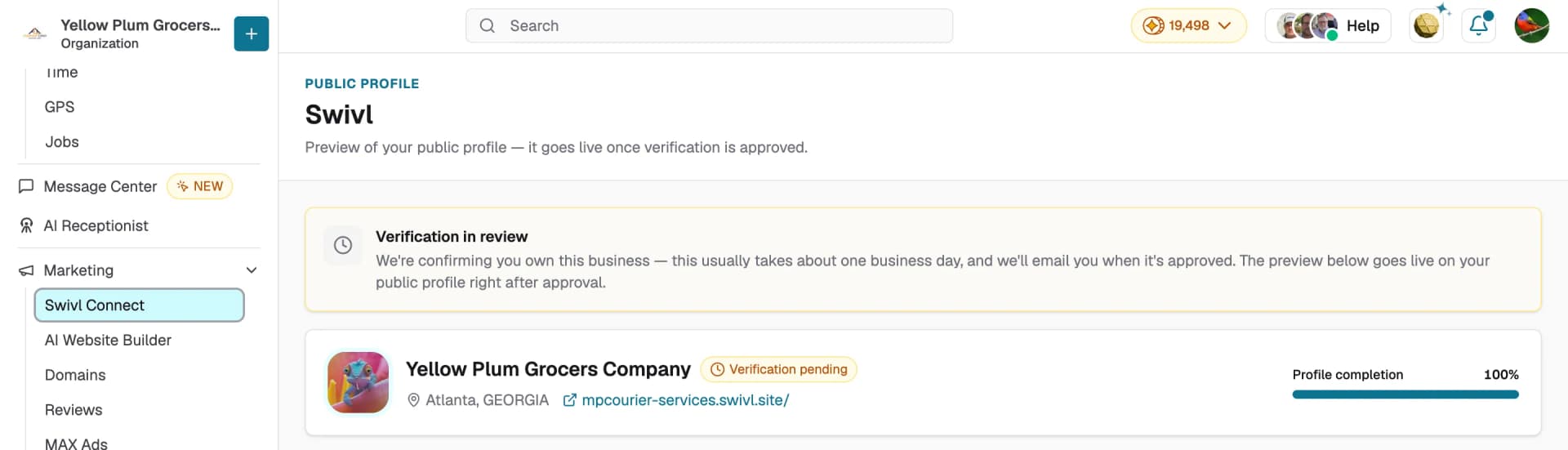
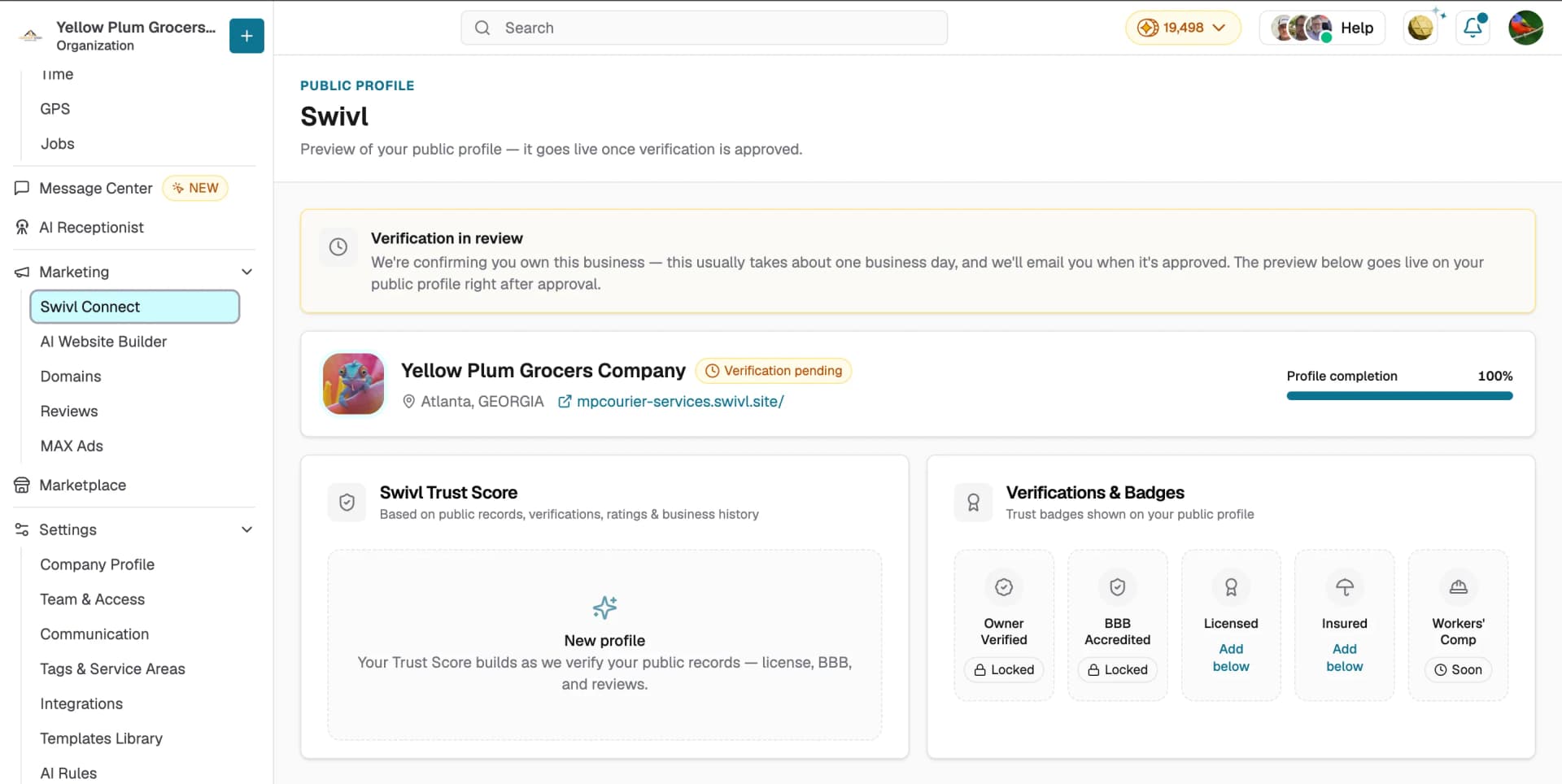
When you first set up your profile, Swivl confirms you own the business. This usually takes about one business day, and you'll receive an email when it's approved. While verification is pending:
- Your profile shows a Verification pending badge
- Your profile preview is visible only to you and goes live right after approval
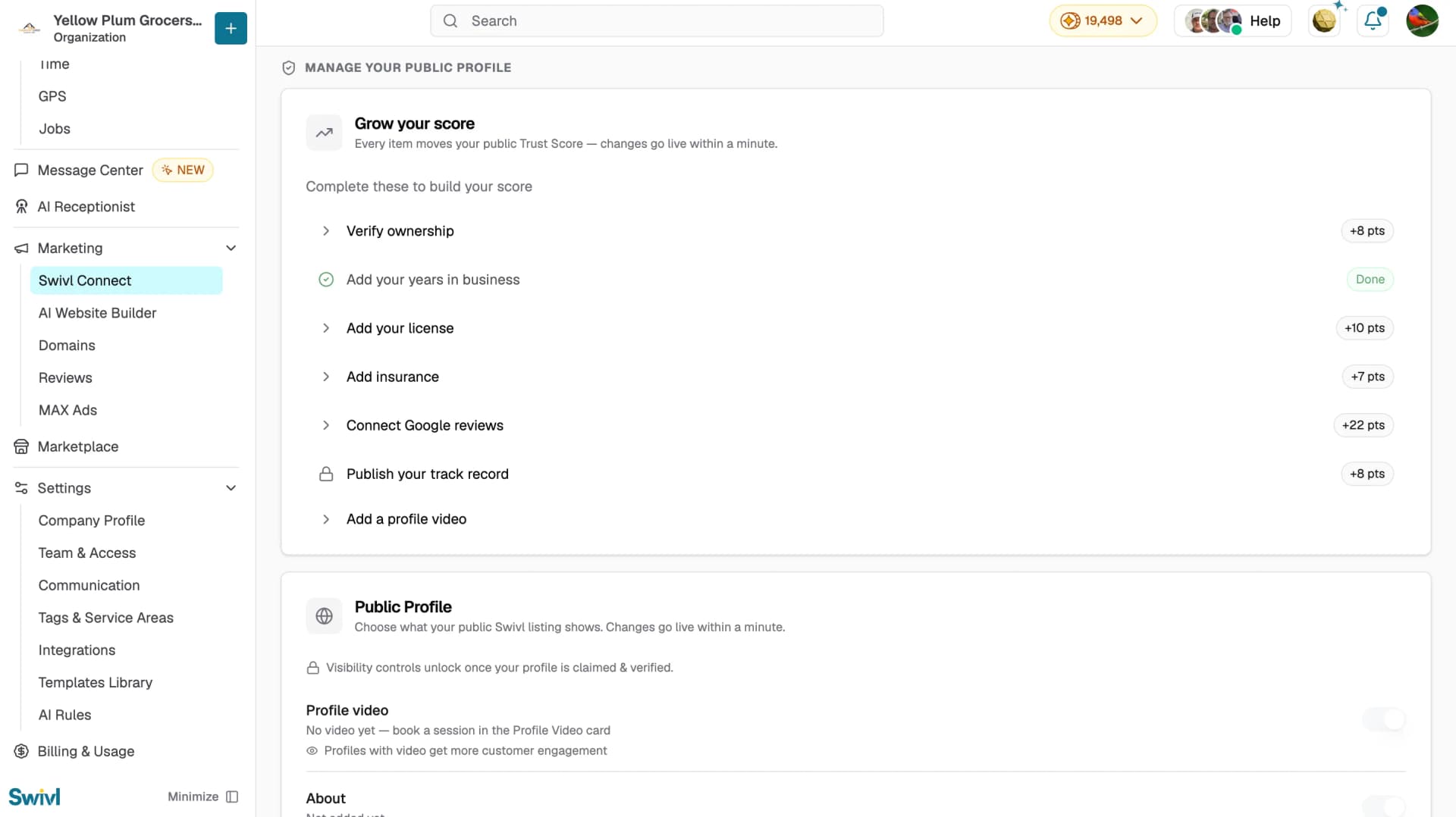
- Visibility controls, track record publishing, and certain badges stay locked until your profile is claimed and verified
Your Swivl Trust Score
Your Trust Score is based on public records, verifications, ratings, and business history. A new profile starts at Building the score grows as Swivl verifies your public records such as your license, BBB accreditation, and reviews.
Use the Grow your score checklist to build it. Every completed item moves your public Trust Score, and changes go live within a minute:
- Verify ownership (+8 pts)
- Add your years in business
- Add your license (+10 pts)
- Add insurance (+7 pts)
- Connect Google reviews (+22 pts)
- Publish your track record (+8 pts — unlocks after verification)
- Add a profile video
Verifications & Badges
Badges appear on your public profile as trust signals:
- Owner Verified: earned by completing business verification
- BBB Accredited: earned automatically from public records
- Licensed: add your trade license below
- Insured: add your general liability insurance below
- Workers' Comp: coming soon
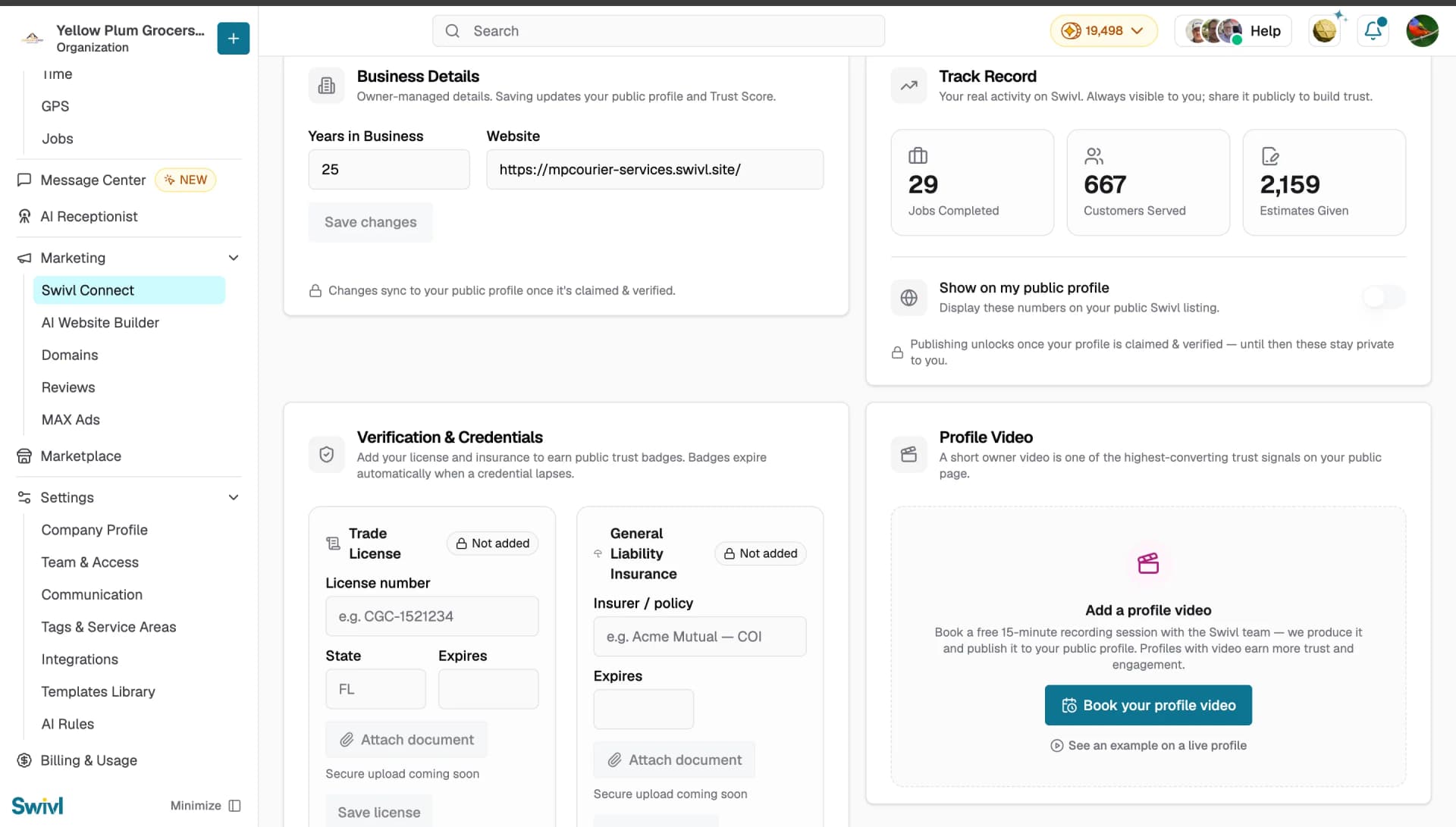
To add credentials, go to Verification & Credentials on the Swivl Connect page:
- Trade License: enter your license number, state, and expiry date, then click Save license
- General Liability Insurance: enter your insurer/policy and expiry date, then click Save insurance
Badges expire automatically when a credential lapses, so keep expiry dates current. Secure document upload is coming soon.
Business details
Update your Years in Business and Website in the Business Details card and click Save changes. Changes sync to your public profile once it's claimed and verified.
Track record
The Track Record card shows your real activity on Swivl Jobs Completed, Customers Served, and Estimates Given. These numbers are always visible to you. Turn on Show on my public profile to display them on your public listing and build trust with prospective customers. Publishing unlocks once your profile is claimed and verified.
Profile video
A short owner video is one of the highest-converting trust signals on your public page. Click Book your profile video to schedule a free 15-minute recording session with the Swivl team we produce it and publish it to your profile for you.
Controlling what your public profile shows
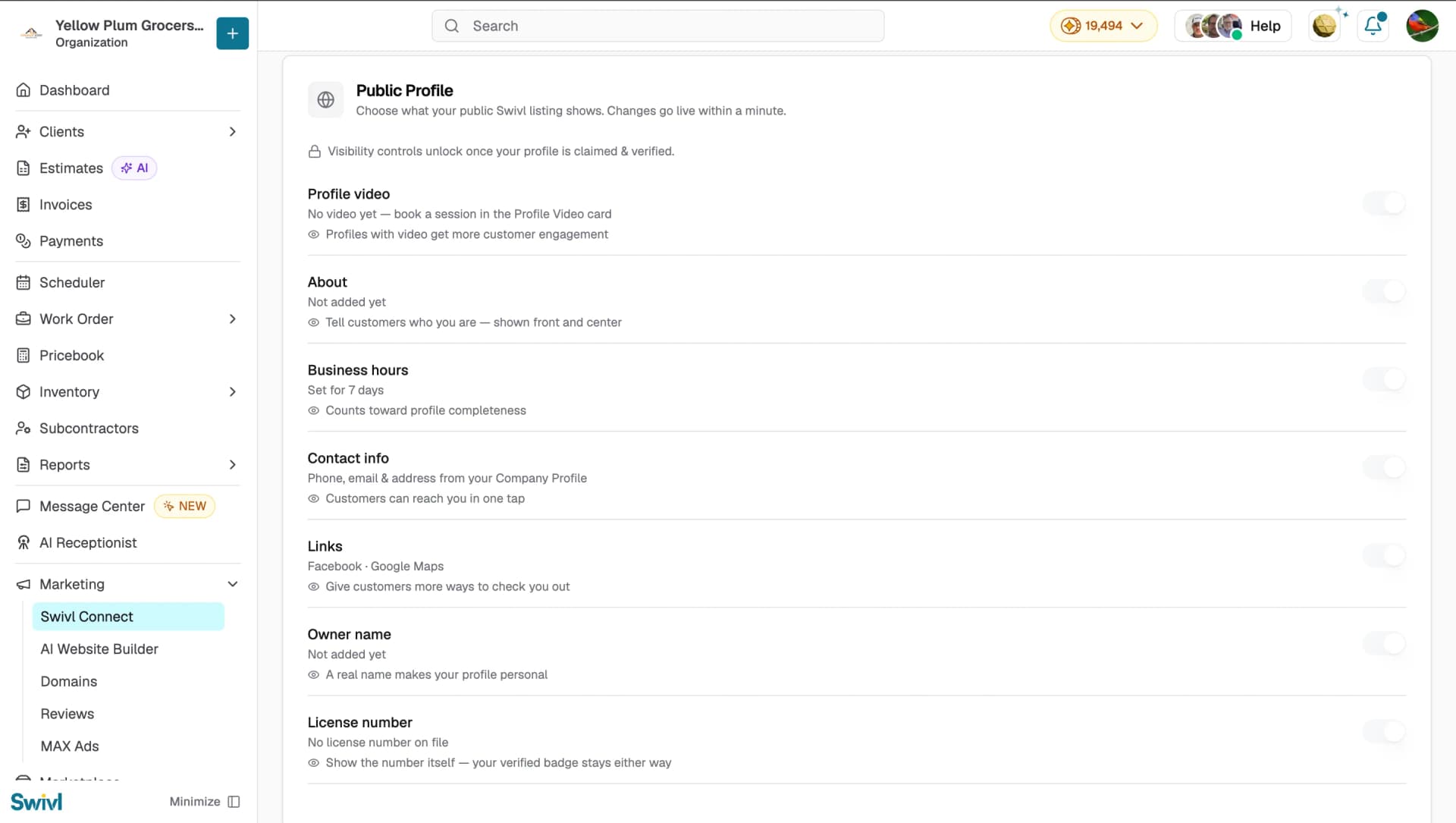
In the Public Profile section, use the toggles to choose what appears on your public listing. Changes go live within a minute:
- Profile video
- About: tell customers who you are, shown front and center
- Business hours
- Contact info: phone, email, and address from your Company Profile
- Links: Facebook, Google Maps, and other links
- Owner name
- License number: show the number itself your verified badge stays either way
Visibility controls unlock once your profile is claimed and verified.
Engagement metrics
The Engagement section shows the last 30 days of activity on your public profile: Bid Invitations, Total Link Clicks, Email Clicks, and Call / SMS Clicks. Visibility metrics (views, website and direction clicks) are coming soon.

Tips
- Complete the Grow your score checklist early connecting Google reviews alone adds +22 points, the single biggest boost.
- Add expiry dates carefully when saving your license and insurance badges drop off automatically when a credential lapses.
- Turn on your track record once verified. Real job counts are strong social proof for new customers.
- Book your profile video profiles with video earn more trust and engagement.
- Your contact info comes from your Company Profile, so keep it up to date under Settings → Company Profile.