
Viewing technician live locations
Swivl's real-time GPS tracking lets you see where your technicians are at any moment. The live location view streams position updates continuously, showing each technician's current activity status transit, on site, at a supplier, or on break.
Overview
Swivl provides real-time GPS tracking so you can see where your technicians are at any moment. The live location view streams position updates continuously, showing each technician's current activity status — transit, on site, at a supplier, or on break as it happens.
Who can access this
- Super Admin: full access to live location tracking for all technicians.
- Other roles: accessible if GPS permission is granted in Settings > Users & Roles > Roles.
Accessing live locations
There are two ways to view a technician's live location:
From the GPS report
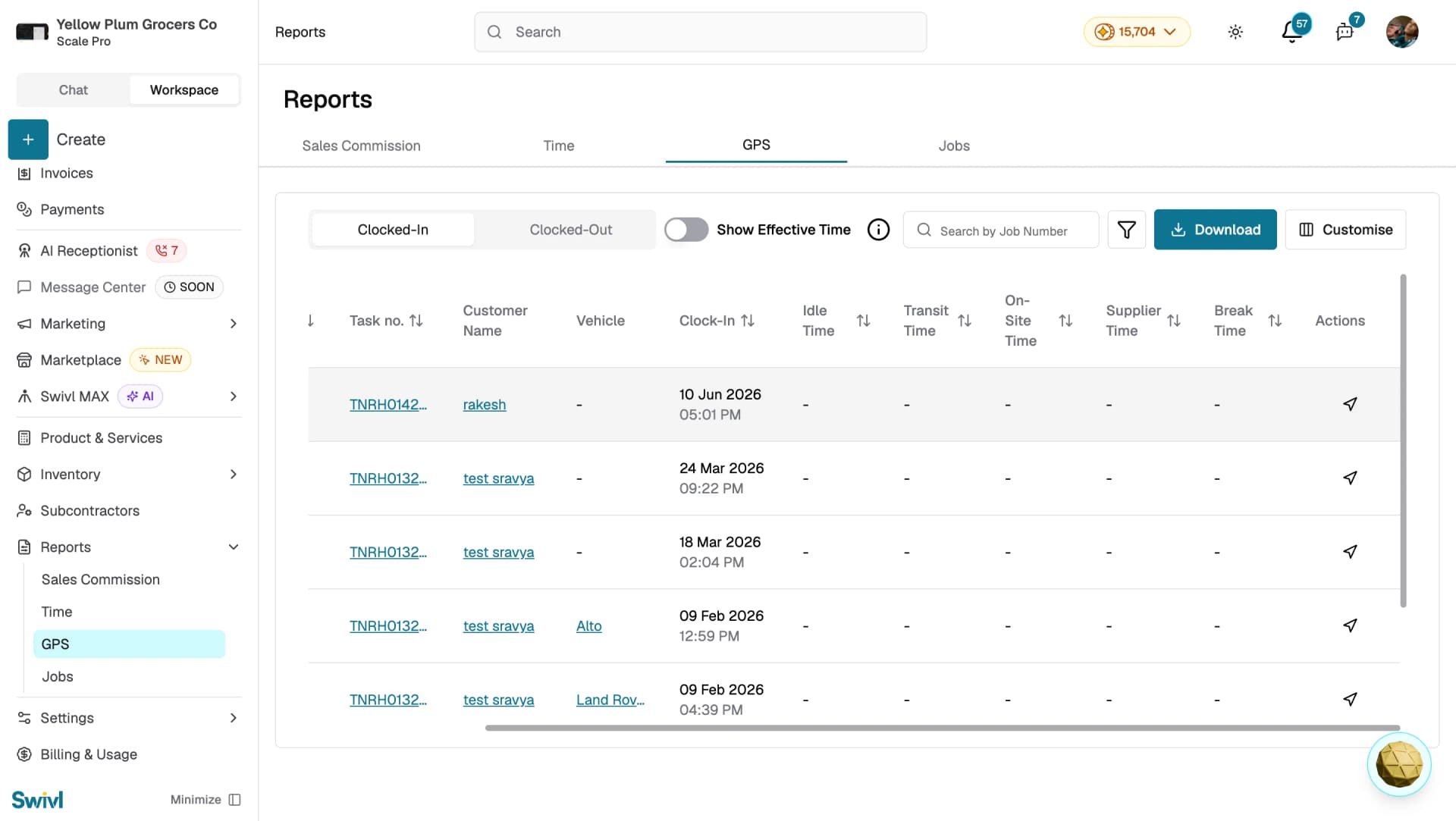
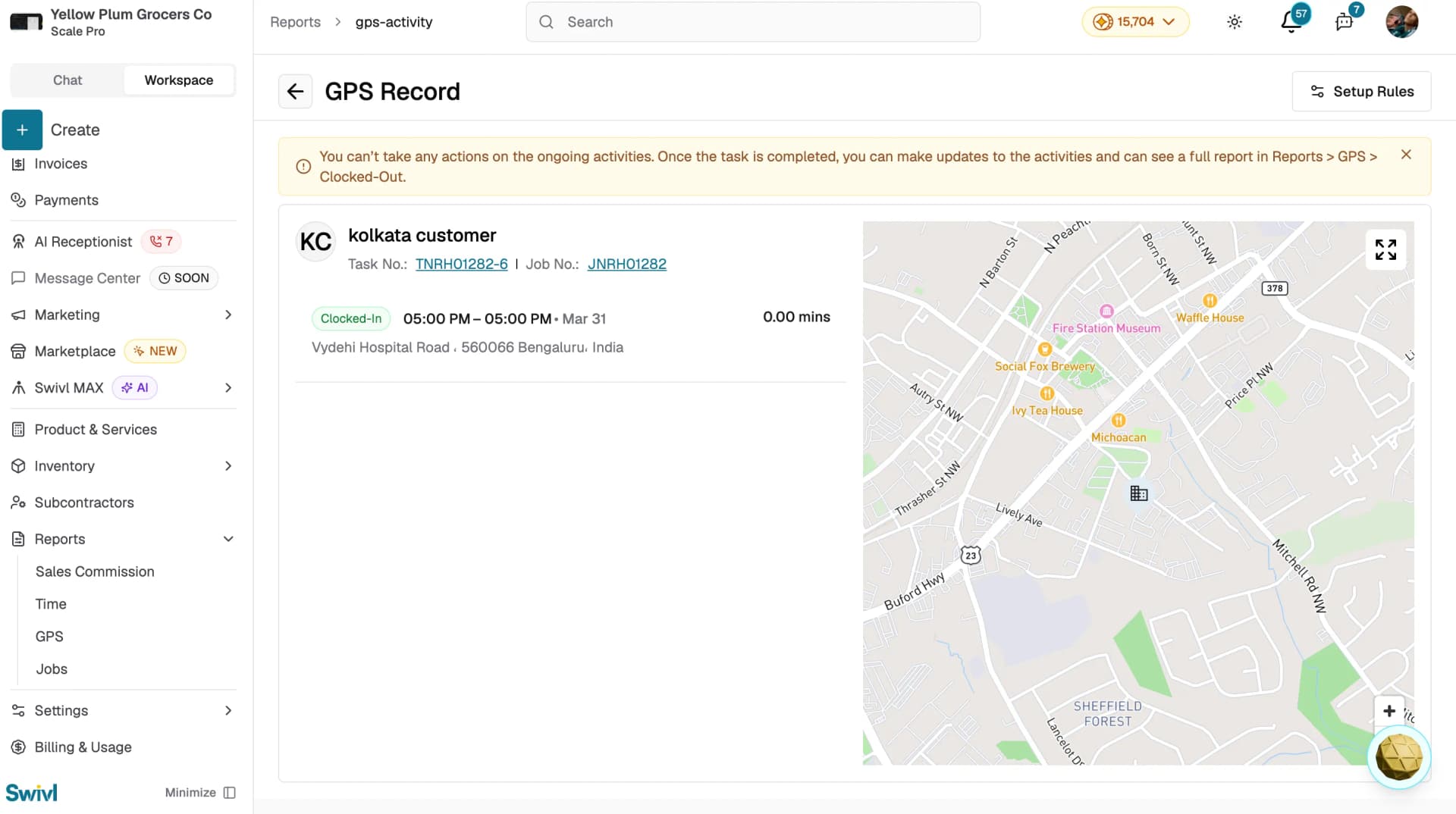
- Go to Reports → GPS and select the Clocked-In tab.
- Find the technician you want to track.
- Click the navigation icon in the Actions column for that row.
- A dialog opens showing the technician's real-time position on an interactive map.
From the GPS Record
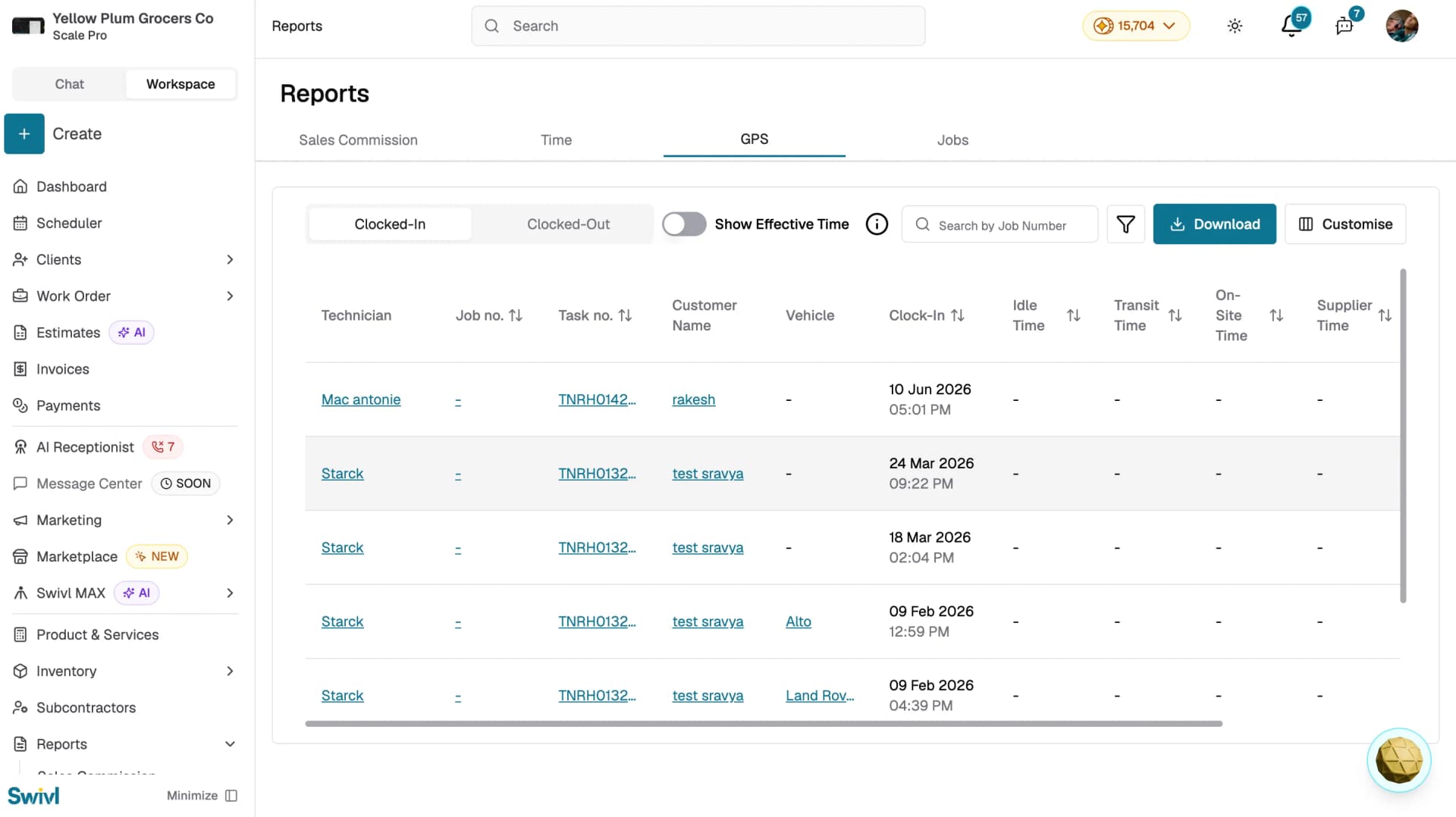
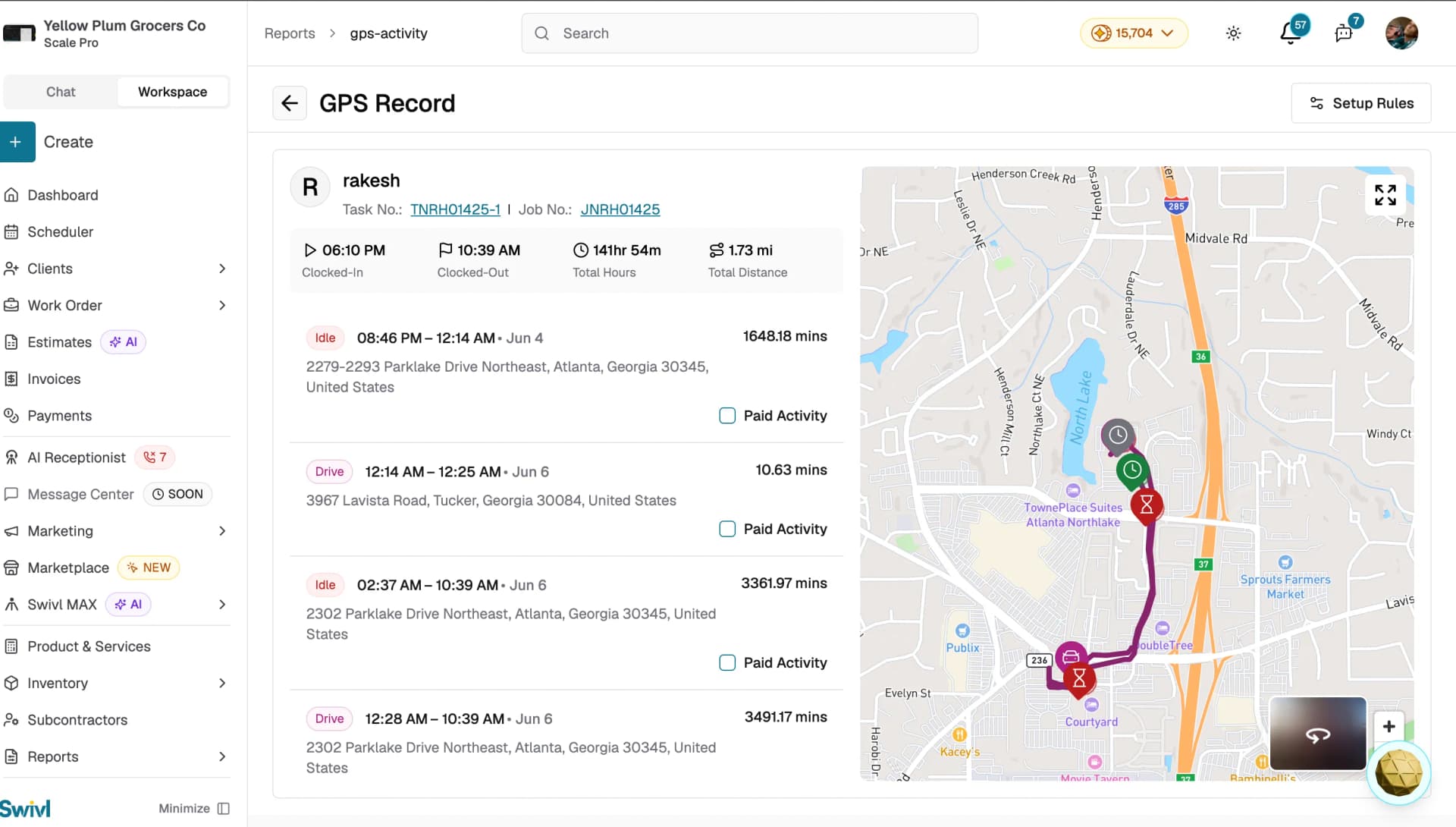
- Click any row in the Clocked-In tab to open the GPS Record.
- The map on the right shows the technician's current position updating in real time.
- On the left, you will see the activity details including clock-in time, location, and duration.
Understanding the live view
Viewing completed GPS records
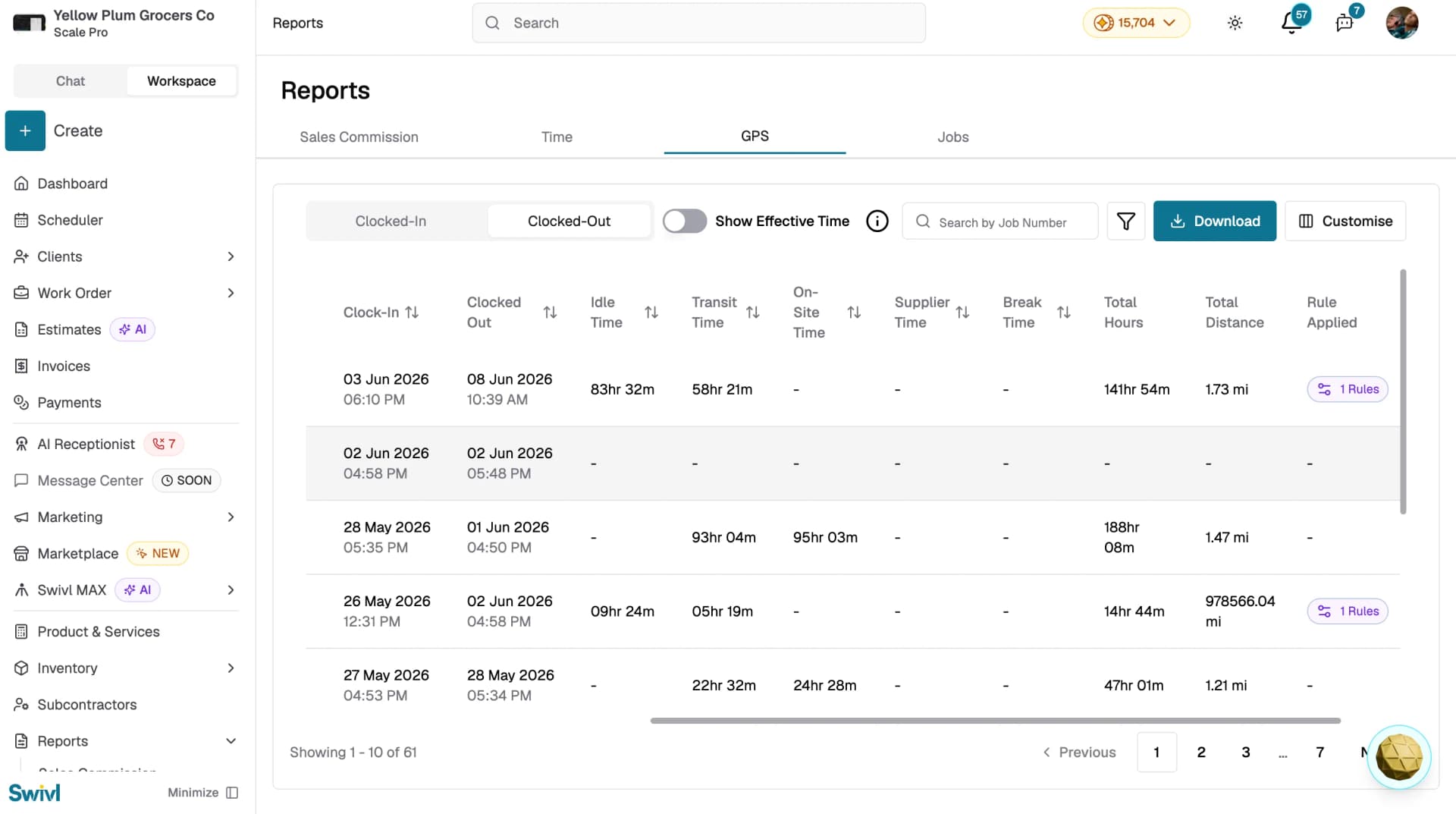
Once a technician clocks out, their record moves to the Clocked-Out tab. This tab shows a full summary of the completed session including:
- Clock-In and Clocked-Out times
- Idle Time, Drive Time, On-Site Time, Supplier Time, and Break Time
- Total Hours and Total Distance
- Rule Applied: shows any GPS rules that were applied to that session
Click any row to open the GPS Record and view the full route on the map along with a breakdown of each activity segment.
Important notes
- Live tracking is only available while a technician is clocked in. Once they clock out, the record moves to the Clocked-Out tab and the map switches to a static route view.
- You cannot take any actions on ongoing activities. Once the task is completed, you can update activities and mark them as Paid Activity from the GPS Record.
- If the live map is not updating, check that the technician's mobile device has GPS and internet connectivity enabled.
Tips
- Use live tracking to check on a technician's progress before dispatching them to a nearby job.
- If a technician appears idle for an extended period during work hours, reach out to confirm they are not experiencing any issues.
- On mobile, the GPS Record offers a List View and Map View toggle so you can switch between the activity timeline and the map.
- Live data streams automatically, you do not need to refresh the page to get updates.