
Your First Day as a Technician
As a Technician, your main focus is completing the jobs assigned to you, logging materials used, and clocking in and out. This guide helps you get set up and oriented on your first day in Swivl.
Overview
As a Technician, your main focus is completing the jobs assigned to you, logging materials used, and clocking in and out. Swivl keeps everything you need in one place so you can spend less time on paperwork and more time getting work done. This guide helps you get started on your first day.
Who can access this
- Technicians
Your day-one checklist
1. Log in and set up your account
Your Super Admin or Admin will send you an invitation email. Click the link, create your password, and log in. You will land on the Dashboard.
2. Check your Dashboard
The Dashboard gives you a quick look at your assigned work. Review any jobs or tasks that need your attention today.
3. View your assigned jobs
Go to Jobs in the sidebar to see the jobs assigned to you. Click on a job to see the full details, including:
- Customer name and address
- Job description and instructions
- Tasks you need to complete
- Any media or documents attached to the job
4. Check your scheduled tasks
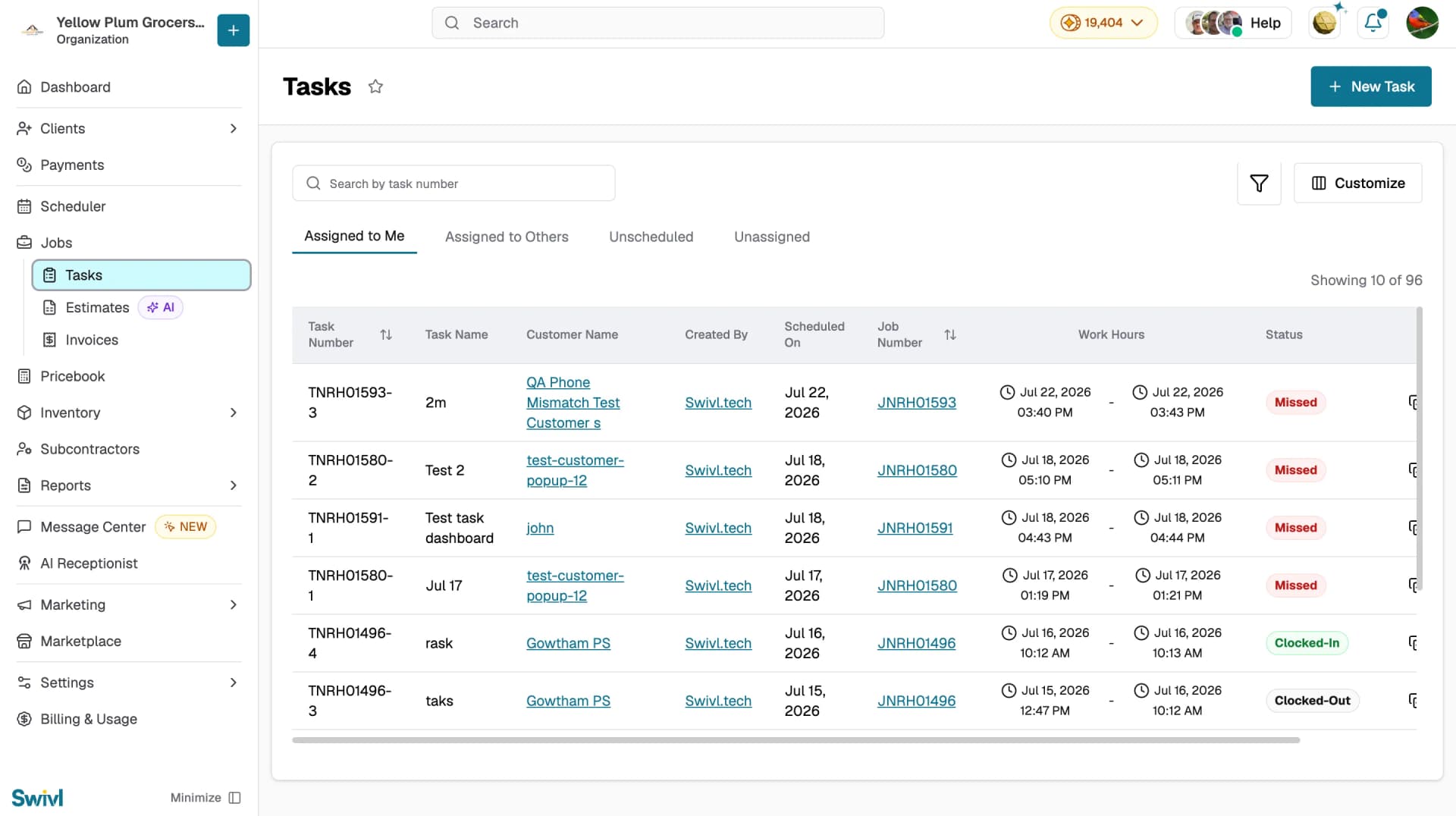
Go to Jobs → Tasks in the sidebar to see your tasks in list view. Use the tabs to filter by Assigned to Me, Assigned to Others, Unscheduled, or Unassigned. Click on any task to open its full details.
5. Clock in and out
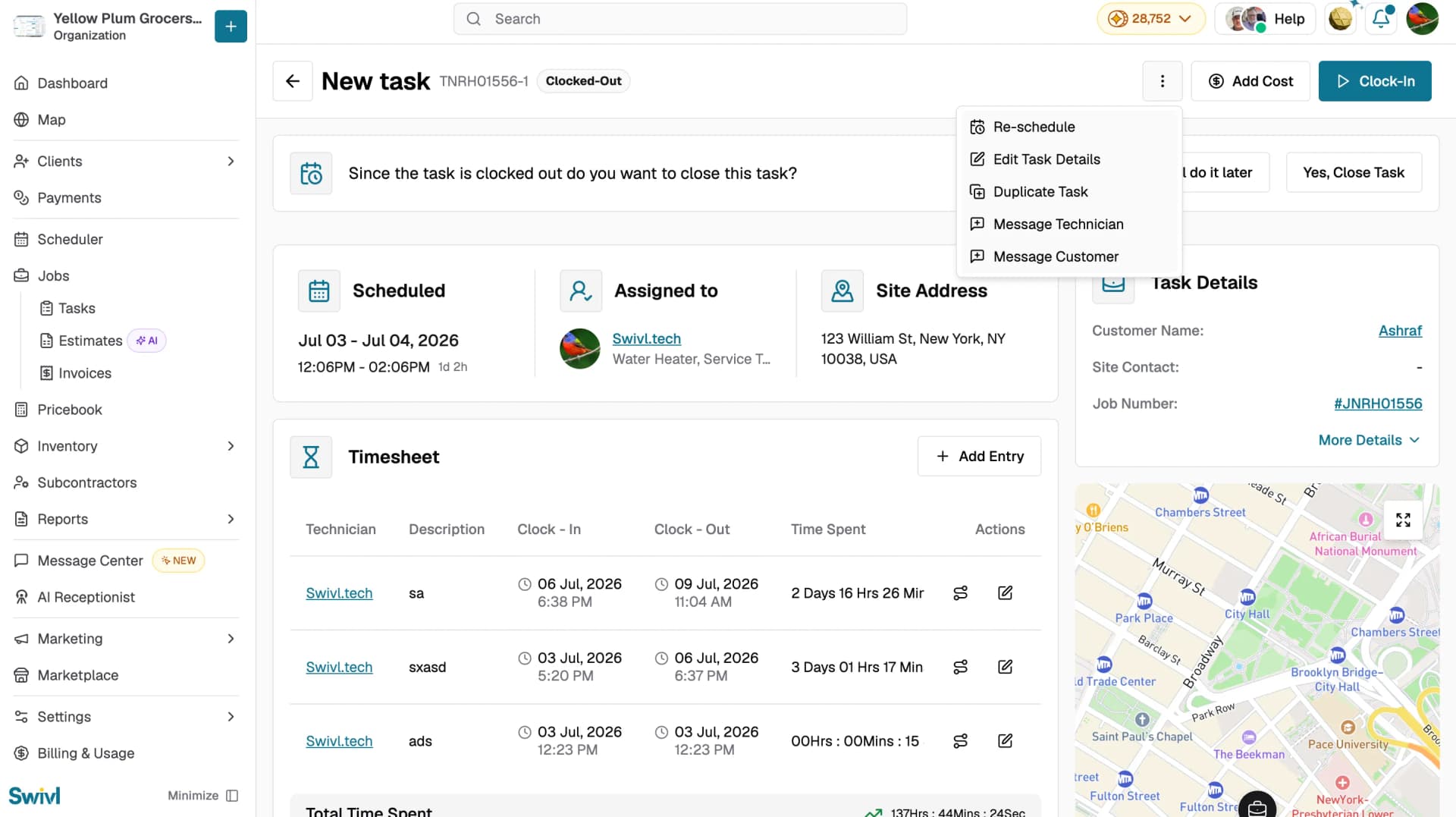
When you are ready to start work on a task, open the task and click Clock-In. Click Clock-Out when you are done. You can do this from both the desktop and the Swivl mobile app. Your logged hours appear in the Timesheet and help your company track labour costs.
6. Log materials used
When you use materials on a job, log them in the job details so your team has accurate records. Go to the job and add the materials from the available inventory.
7. Update your profile
Click your avatar in the top-right corner and select My Profile to add your phone number, profile photo, and personal email. Keeping your profile current helps your managers and teammates reach you quickly.
Tips
- Download the Swivl mobile app from the App Store or Google Play to manage jobs, clock in, and upload photos from the field.
- Use Search in the top bar to quickly find a job or customer without scrolling through lists.
- If you have questions, use Swivl MAX in the Chat tab or reach the support team via the Need Help? button in your profile menu.