
Work Order
Recurring Jobs
Recurring jobs let you handle repeat service engagements such as weekly maintenance visits or monthly inspections without recreating work from scratch each time. Recurrence is managed at the task level, so you set up a job once and let Swivl handle the rest.
Overview
Recurring jobs take the manual effort out of repeat service work. Instead of recreating tasks for every visit, you create a job once and configure a recurring schedule Swivl then keeps the tasks appearing on your calendar at the right intervals, whether that's daily, weekly, or monthly.
Who can access this
- Super Admin and Admin: can create and manage recurring tasks
- Lead Technicians and Technicians: can view and complete tasks but cannot set up recurring schedules
How to set up recurring tasks
To set up a recurring job:
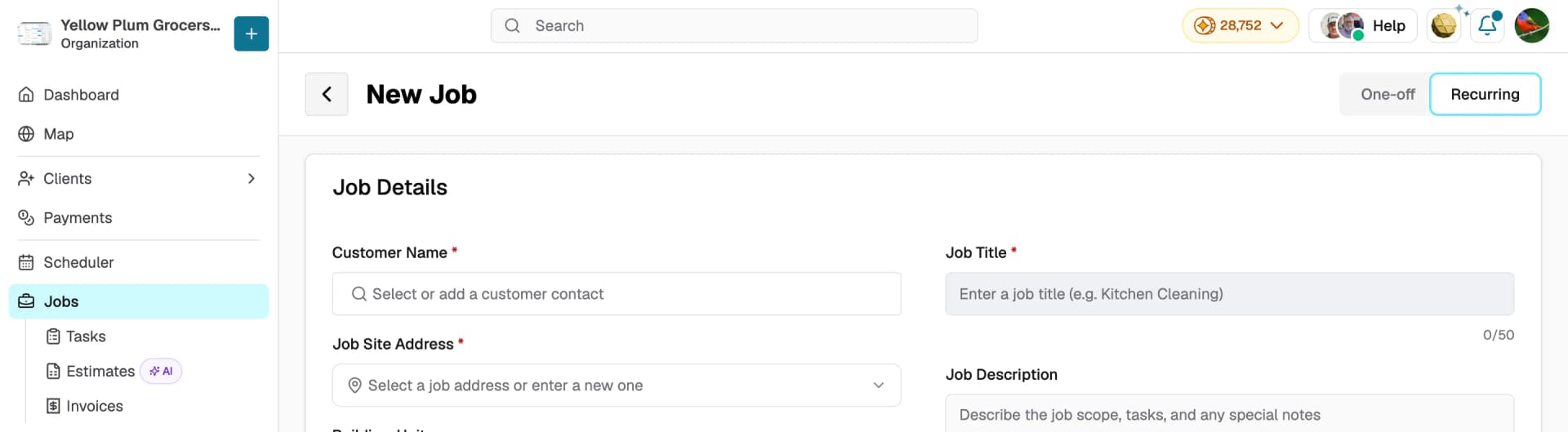
- Navigate to Jobs in the sidebar and click + New Job
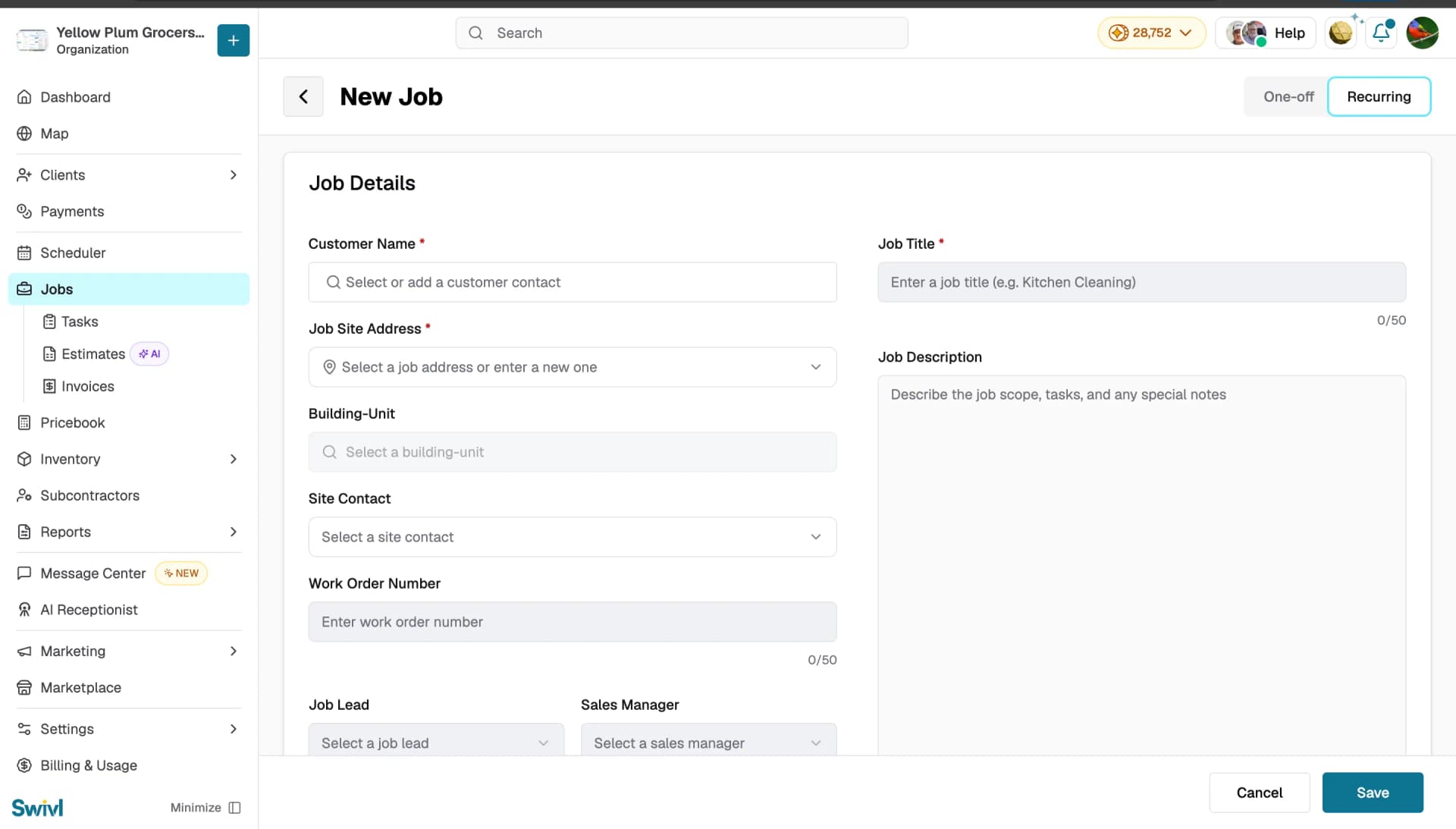
- At the top right of the New Job page, switch from One-off to Recurring
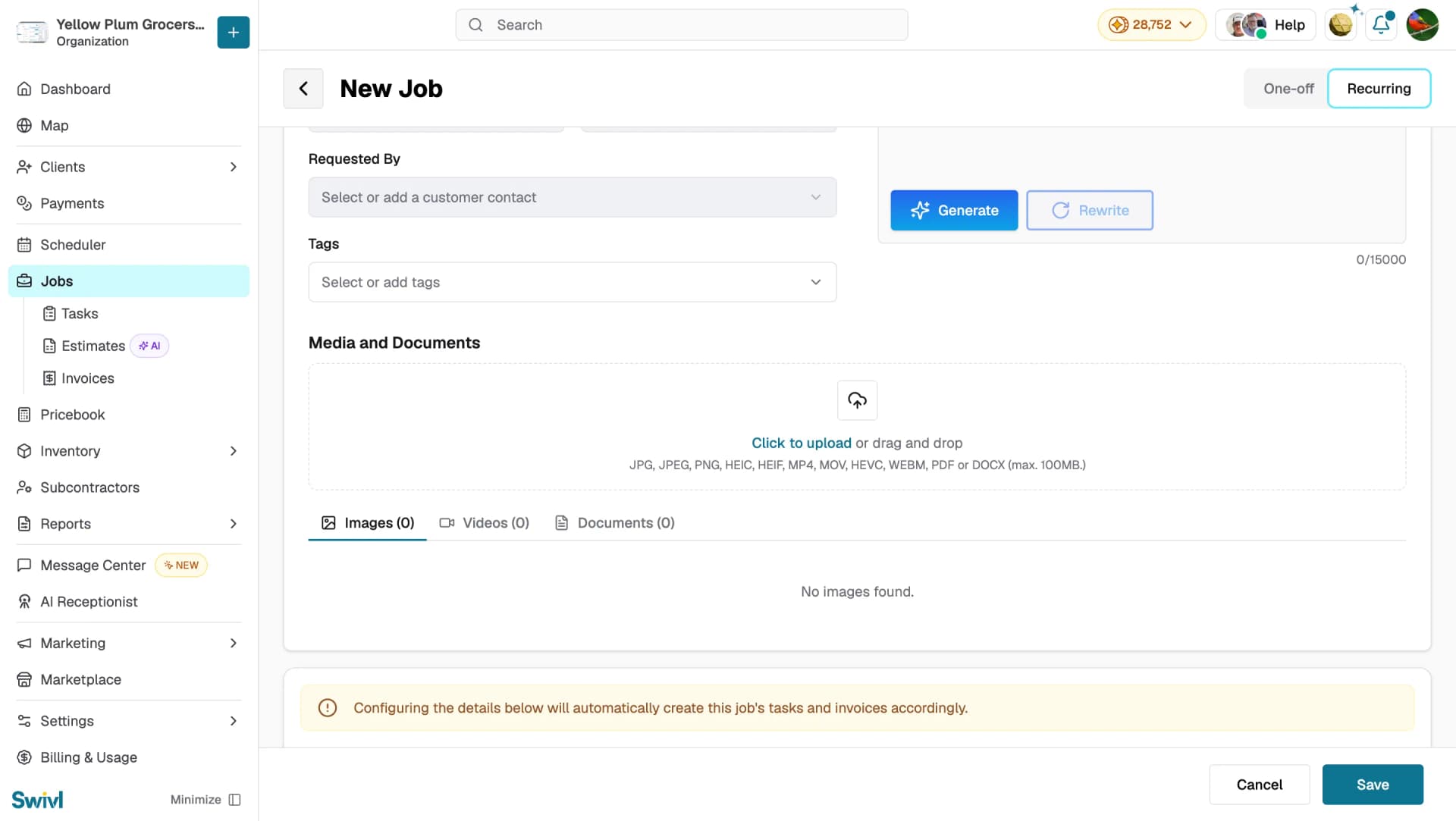
- Fill in the customer name, job site address, job title, and description
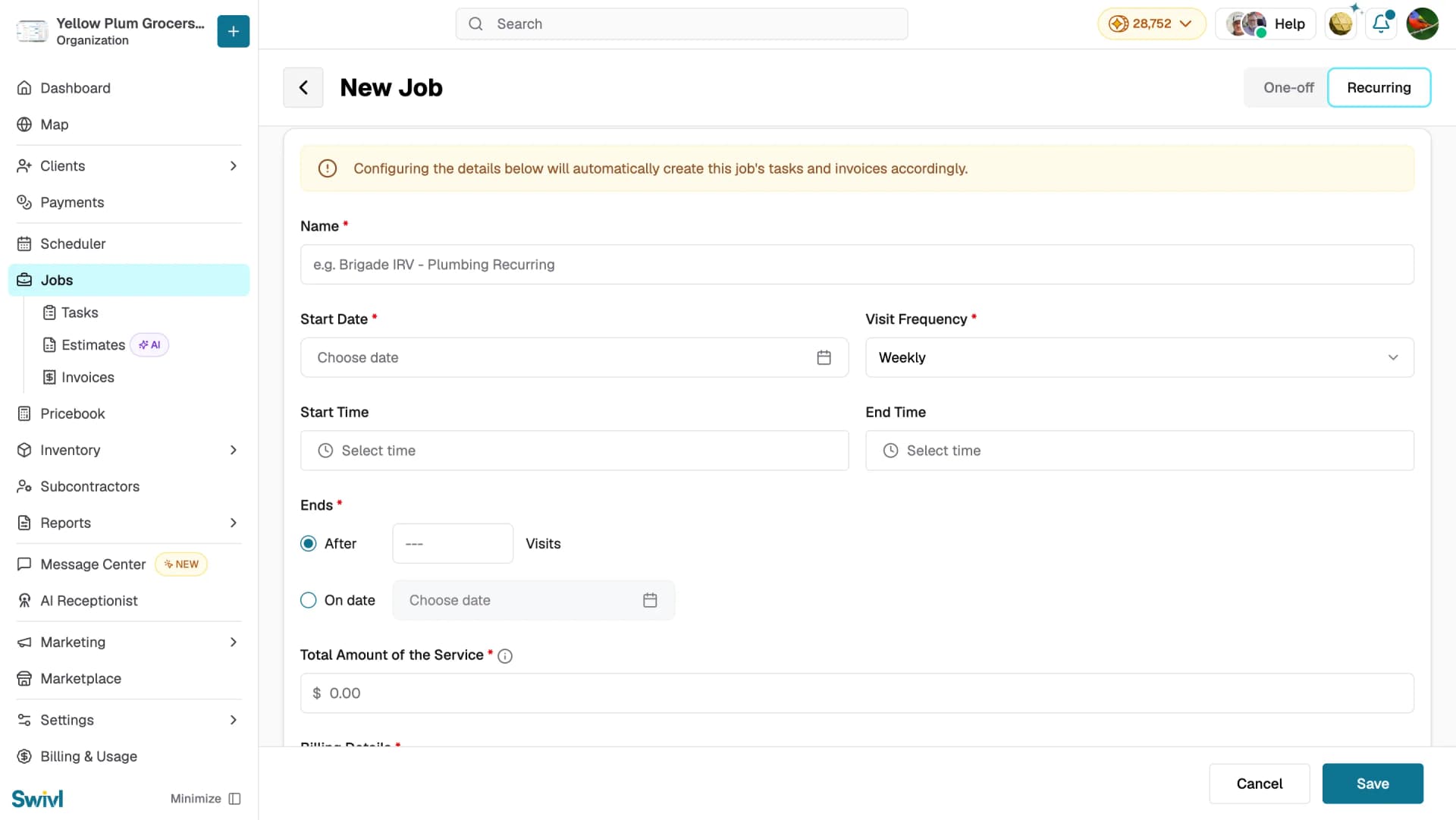
A banner appears reminding you that configuring the details below will automatically create this job's tasks and invoices accordingly.
Fill in the recurring service details:
- Name (required): give the recurring service a clear name, e.g. "Brigade IRV – Plumbing Recurring"
- Start Date (required): set when the recurring schedule begins
- Visit Frequency (required): choose how often the job repeats — Weekly is the default
- Start Time and End Time: set the visit time window
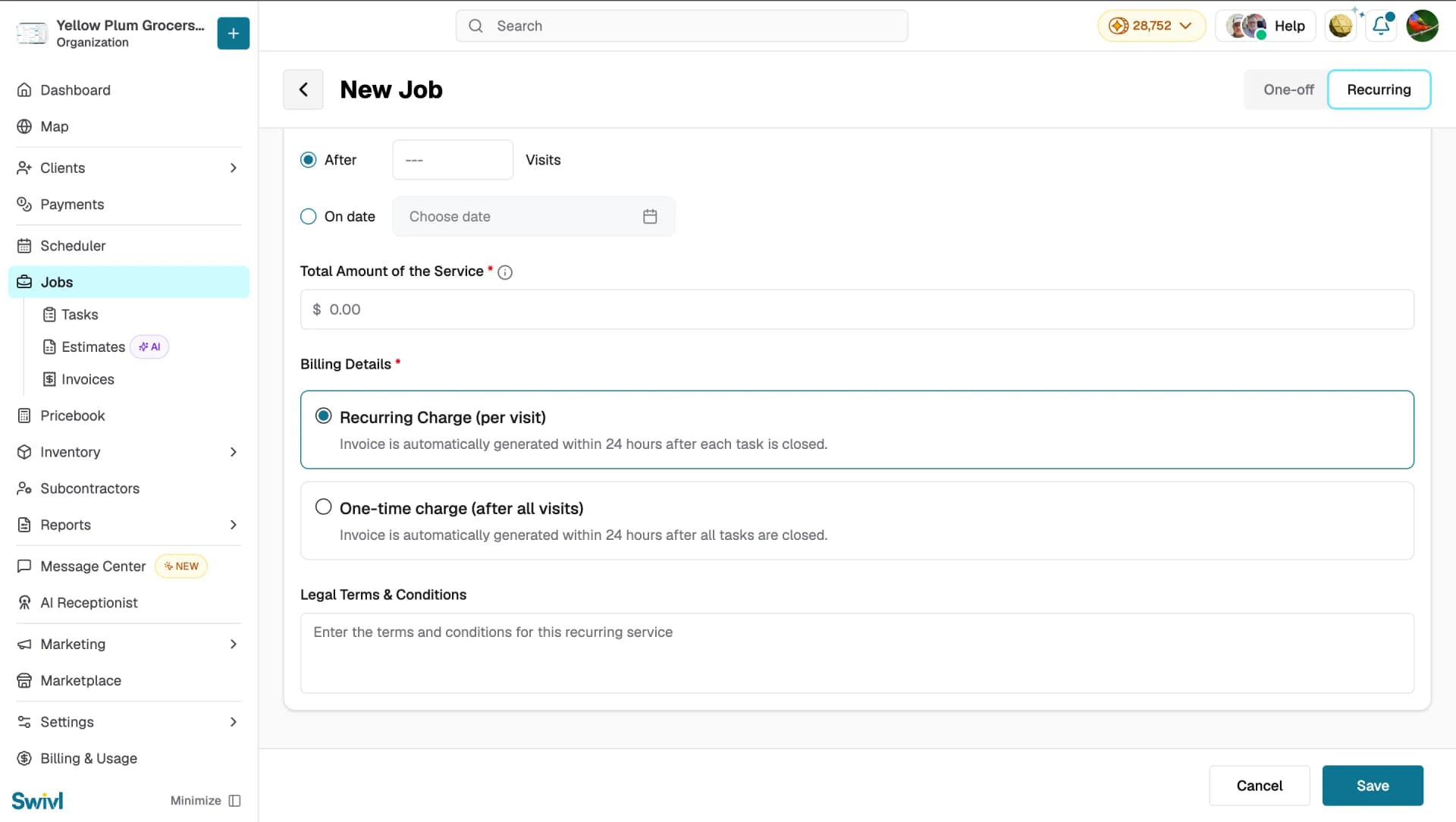
- Ends (required): choose After a set number of Visits, or On date and pick a specific end date
- Total Amount of the Service (required): enter the total value of the service
- Recurring Charge (per visit): invoice is automatically generated within 24 hours after each task is closed
- One-time charge (after all visits): invoice is automatically generated within 24 hours after all tasks are closed
- Add any Legal Terms & Conditions for this recurring service if needed
- Click Save
Managing recurring tasks
- Each occurrence of a recurring job can be edited individually for example, to change the time for one specific visit
- To stop a recurring schedule, open the job, edit the recurrence settings, and remove the repeat pattern
- All occurrences of a recurring job are visible on the calendar, where they share the same colour coding and job name
Tips
- Recurring jobs work best for preventive maintenance contracts, regular inspections, or cleaning services
- Each visit can be assigned to a different technician if needed
- Use the Month view on the Scheduler calendar to get an at-a-glance picture of all upcoming recurring visits
- Choose Recurring before filling in the rest of the form switching modes partway through may reset some fields