
Customers
Adding a Customer Account
Add a customer account to capture all the information you need to schedule work, send invoices, and stay in touch.
Overview
Adding a customer account in Swivl captures all the information you need to schedule work, send invoices, and stay in touch. The form walks you through four sections, primary details, address, contacts, and additional details.
Who can access this
- Super Admin: full access to create new customers.
- Admin: full access to create new customers.
- Lead Technicians and Technicians cannot create customer accounts.
How to add a new customer
- Navigate to Clients → Customers from the left sidebar
- Click + Customer Account at the top right of the page
- Add the details and click Save at the bottom of the page

Section 1: Customer & Contact Details
- Customer Name: enter the company or individual name. This field is required
- Mobile Number: select the country code and enter the contact's phone number
- Contact Email: enter the contact's email address
- Mark this as primary contact: designates this contact for day-to-day communications
- Mark this as billing contact: designates this contact for billing communications
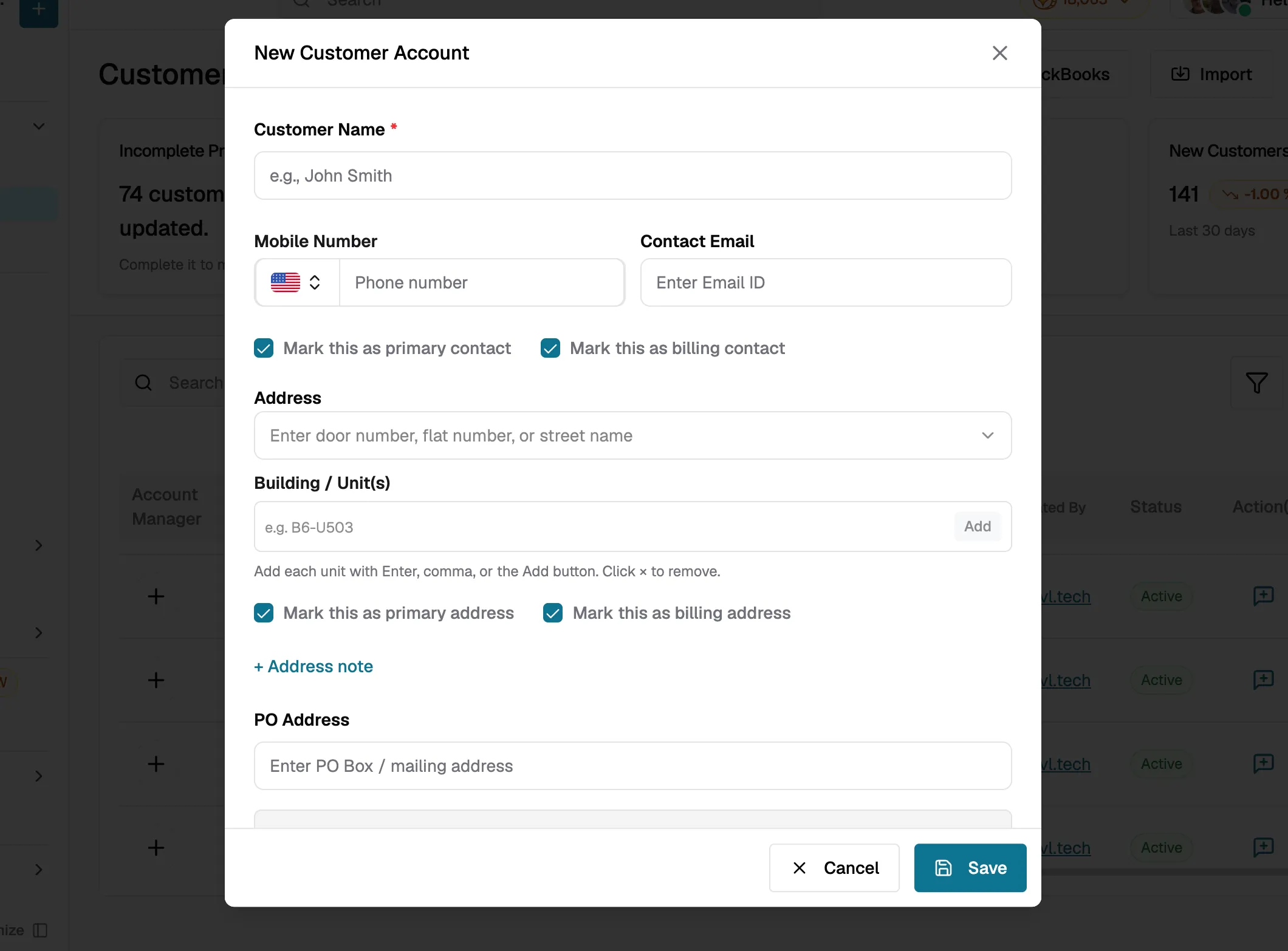
Section 2: Address Details
- Address: start typing and Swivl will auto-suggest addresses. Select a suggestion to automatically fill in the remaining address fields
- Building / Unit(s): optionally add a unit, suite, or floor number. Add each unit with Enter, comma, or the Add button; click × to remove one
- Mark this as primary address: designates this as the main service location
- Mark this as billing address: designates this as the billing address
- + Address note: add any special instructions such as gate codes or parking details
- PO Address: optionally enter a PO Box or mailing address
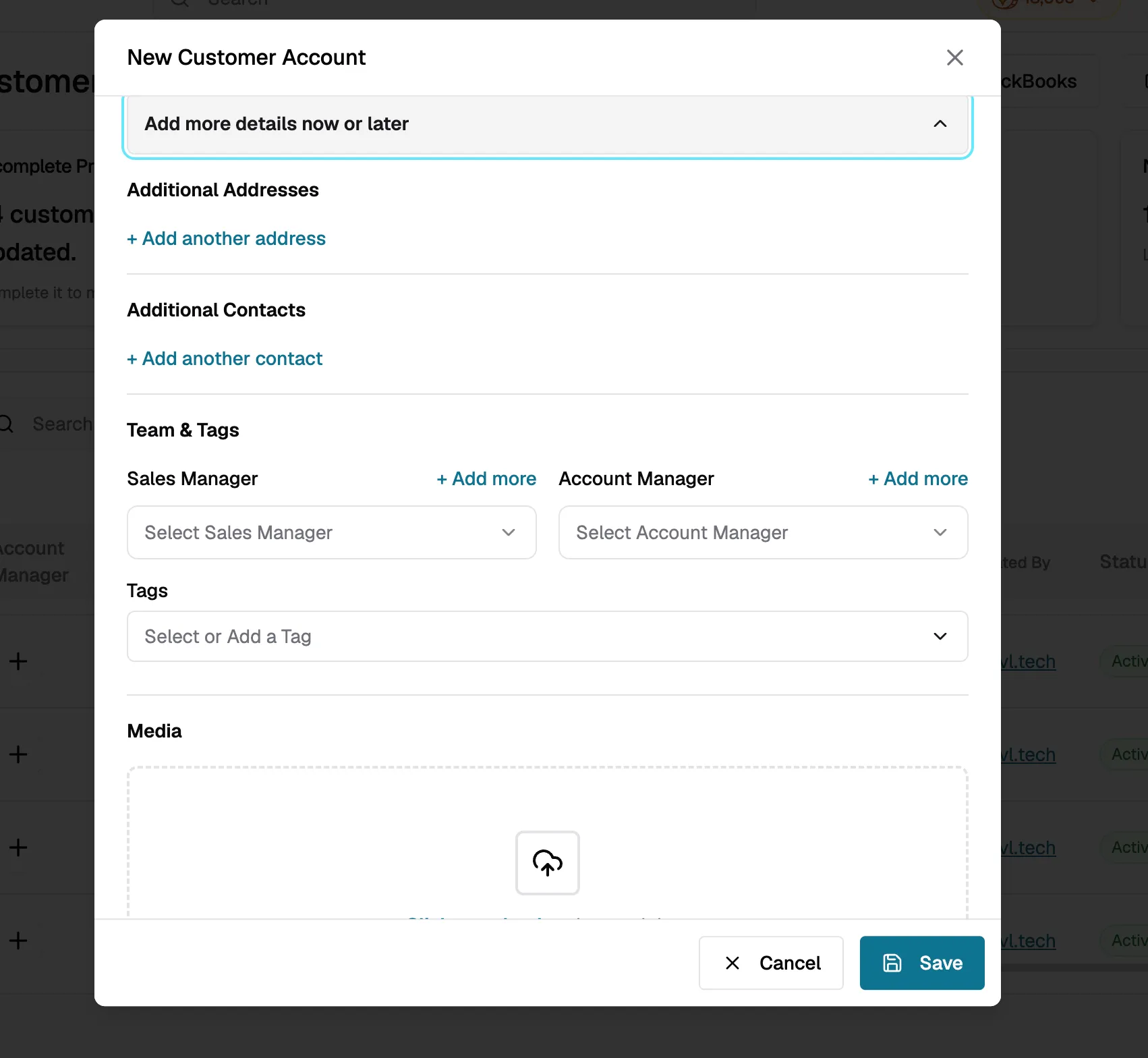
Section 3: Add more details now or later
Expand the Add more details now or later panel to fill in optional details — you can also come back and add these after saving:
- Additional Addresses: click + Add another address to add more locations for this customer
- Additional Contacts: click + Add another contact to add more contacts for this customer
- Sales Manager: select a team member to assign as sales manager. Use + Add more to assign multiple
- Account Manager: select a team member to assign as account manager. Use + Add more to assign multiple
- Tags: select existing tags or create new ones to categorise this customer
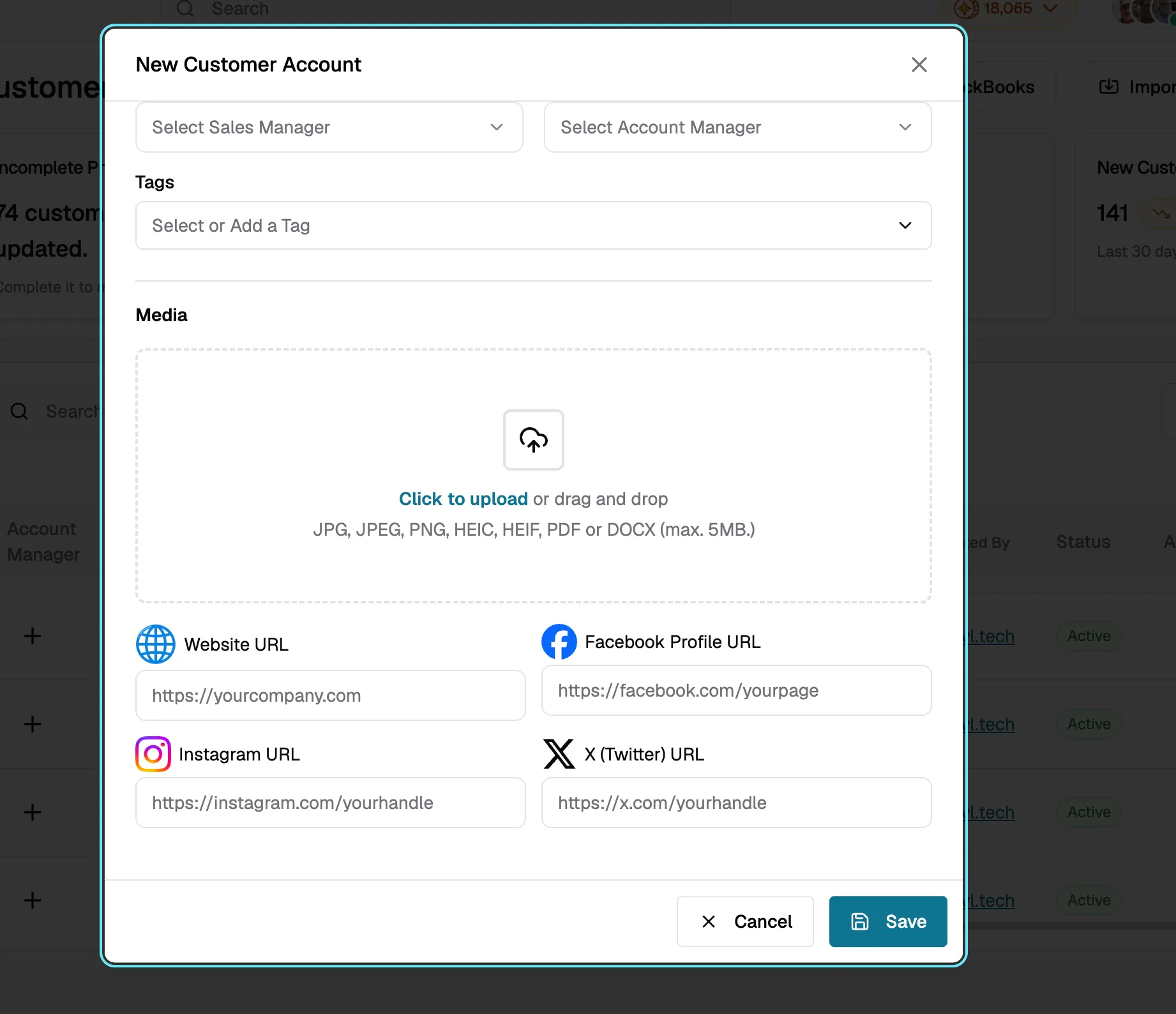
- Media: attach supporting documents such as contracts or photos (JPG, JPEG, PNG, HEIC, HEIF, PDF or DOCX, max 5MB)
- Social Media Profiles: add links to the customer's website, Facebook, Instagram, or X pages
After filling in the form, click Save. You will see a success message and be taken back to the customer list.
Tips
- Pay attention to the duplicate account suggestion that appears when you type a name that already exists, it can save you from creating a duplicate
- You can always come back and add more addresses or contacts later from the customer profile
- Use the Cancel button or the back arrow to discard changes and return to the list without saving