
Domains Overview
Your Swivl website comes with a free subdomain out of the box. Connect a domain you already own, or buy a new one, to give your site a professional address.
Overview
Every Swivl website is published to a free .swivl.site subdomain. From the Domains page you can see that address, connect a domain you already own, or buy a new one. This article covers both paths, the DNS setup, and what to do if verification fails.
Who can access this
- Super Admin: full access.
- Admin: full access.
- Lead Technicians and Technicians cannot access the website builder or domain settings.
Before you start
- Your website must be published before you can connect a custom domain.
- To connect a domain you own, you need access to your domain's DNS settings. This is usually your registrar (for example, GoDaddy or Namecheap), but if you've pointed your nameservers elsewhere, such as to Cloudflare or your web host add the record there instead.
Opening the Domains page
- Go to Marketing → Domains.
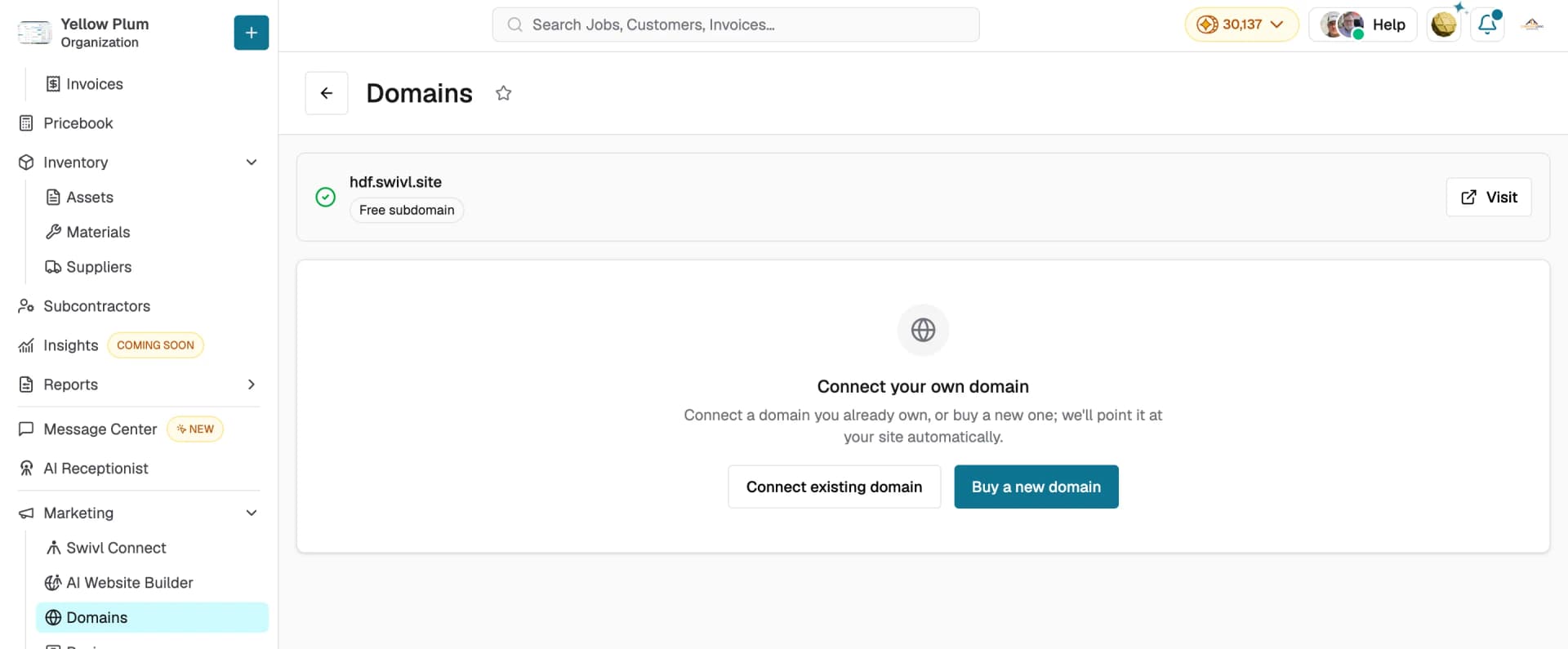
- You can also get there from Marketing → AI Website Builder and click the ⋮ menu on your website card and select Manage Domain.
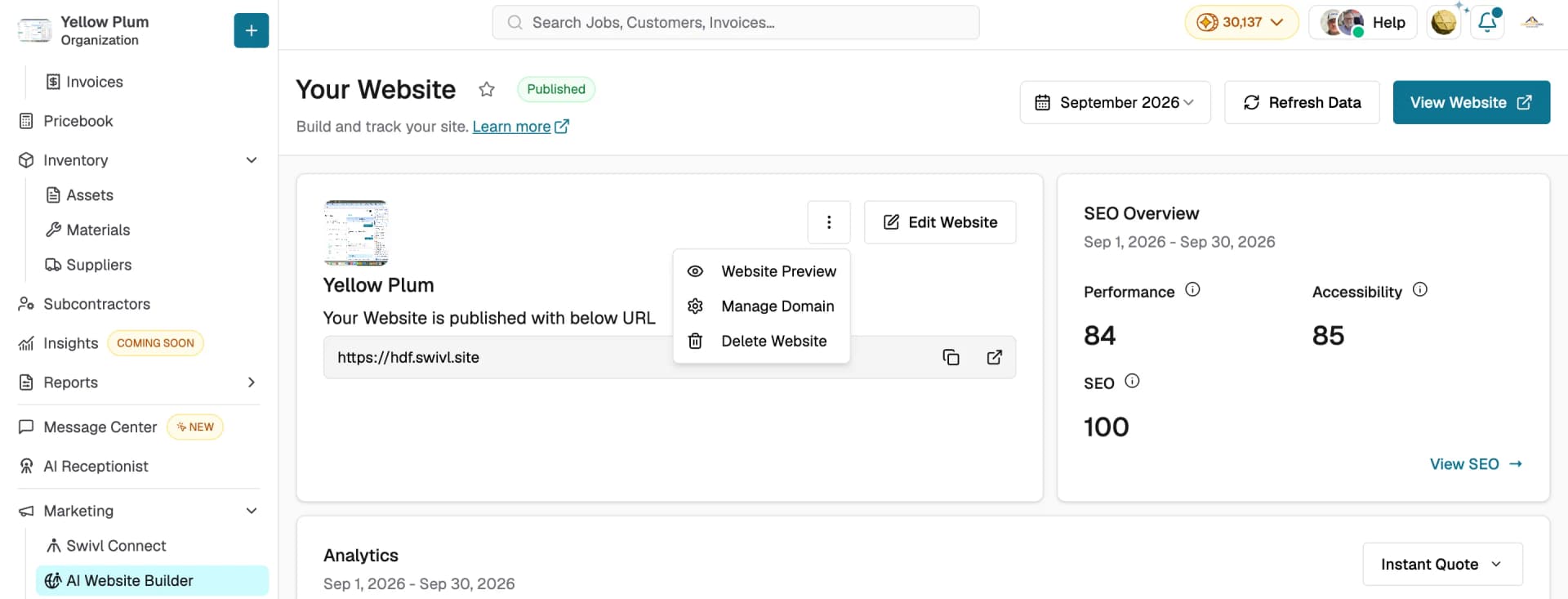
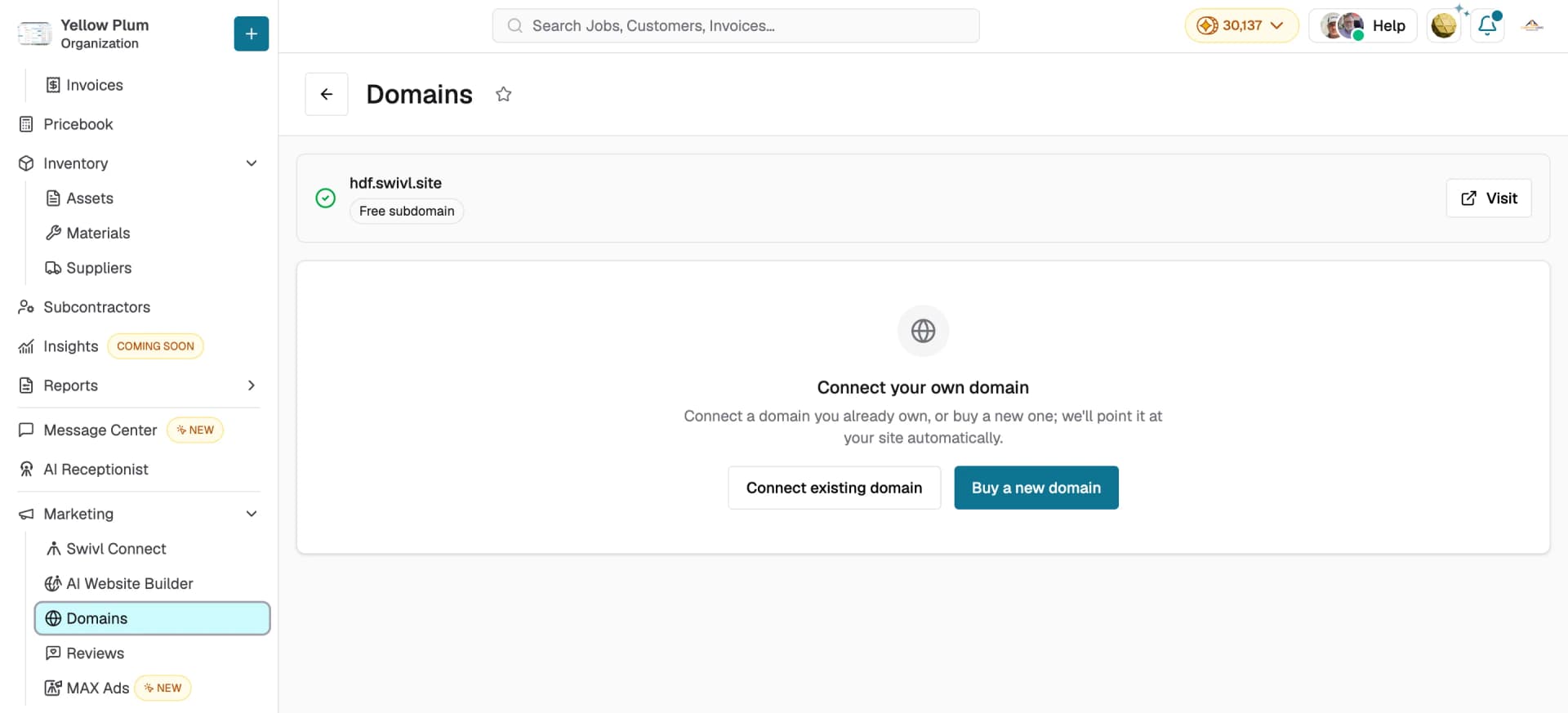
The page shows your free .swivl.site subdomain at the top. Click Visit to open your live site.
Connecting a domain you own
- On the Domains page, click Connect existing domain.
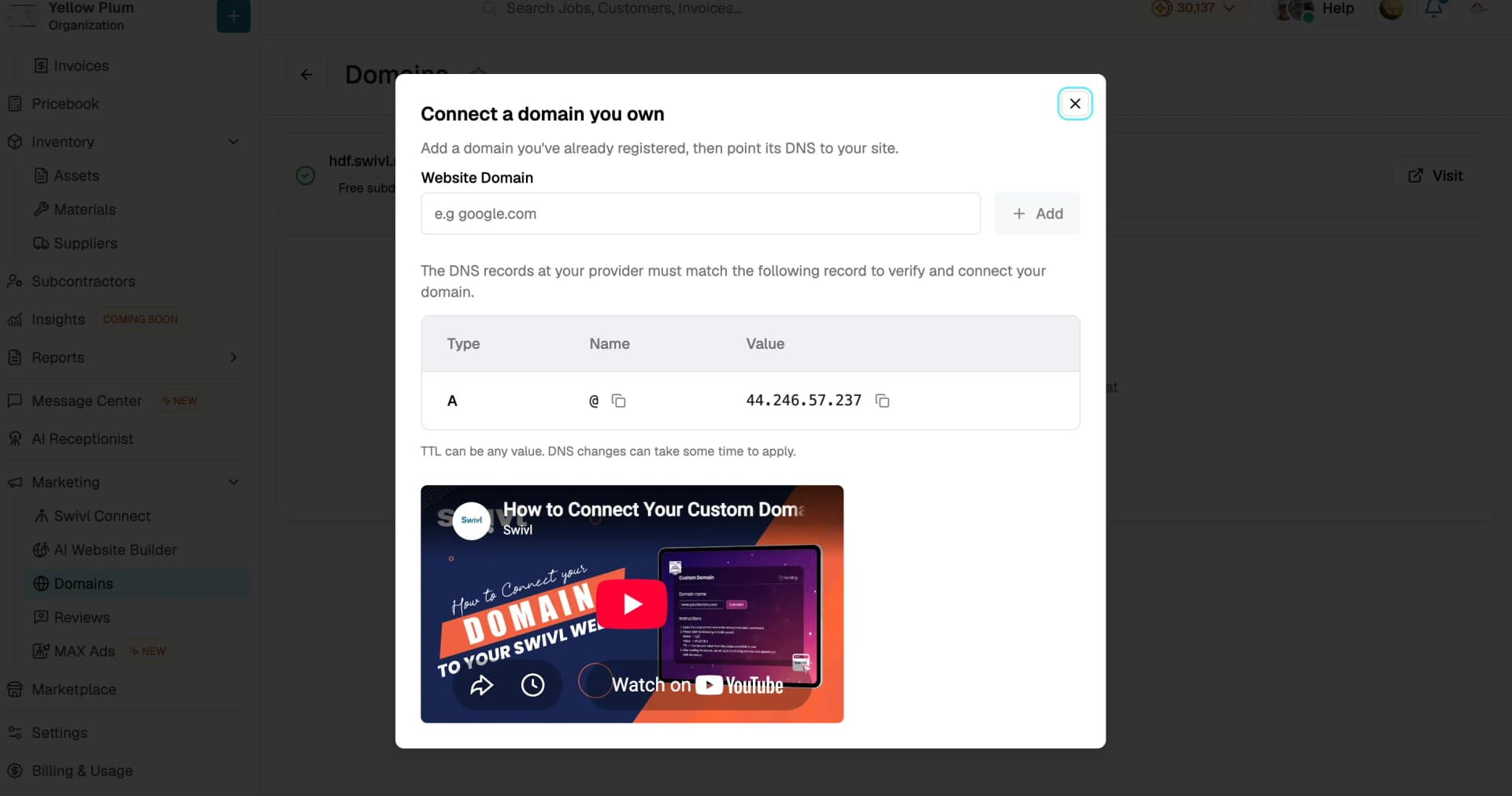
- In the Connect a domain you own dialog, enter your domain in the Website Domain field (for example, yourbusiness.com).
- Click + Add.
- Copy the DNS record shown in the dialog:
Type | Name | Value |
|---|---|---|
A | @ | 44.246.57.237 |
- Log in to your registrar, go to its DNS or domain management section, and add the A record with those values. TTL can be any value.
- Save the record and return to Swivl.
Note: DNS changes can take anywhere from a few minutes to 48 hours to apply. A video walkthrough is embedded in the dialog if you'd like to follow along.
Buying a new domain
If you don't own a domain yet:
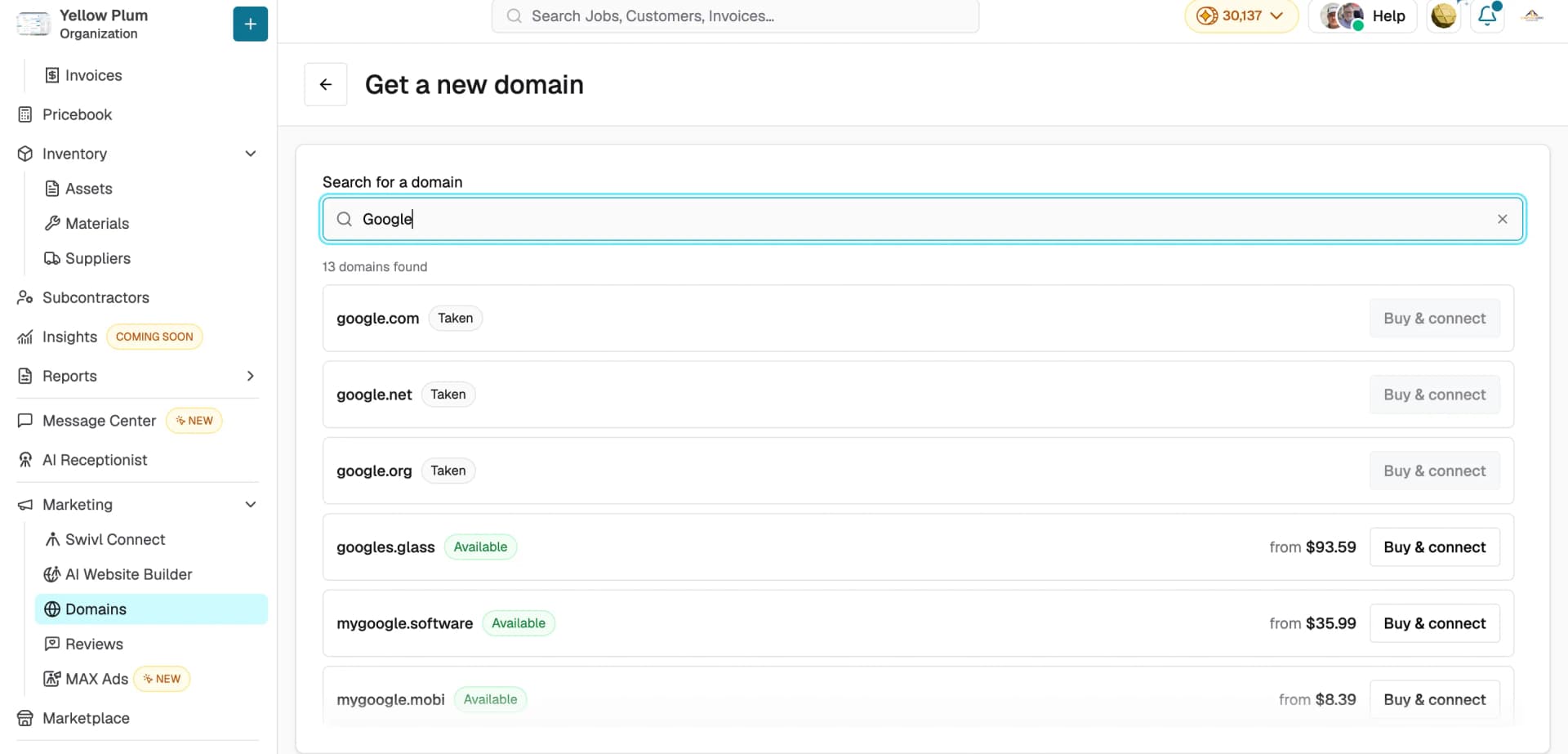
- On the Domains page, click Buy a new domain.
- Complete the purchase with the domain provider.
- Return to Swivl and connect the domain using the steps above.
Domain statuses
Status | Meaning |
|---|---|
Pending | DNS records have been submitted but are not yet verified |
Confirmed | Your custom domain is live and pointing to your Swivl site |
Failed | DNS verification failed double-check your records and try again |
Removing a custom domain
- On the Domains page, click the delete icon next to your domain name.
- Click Delete to confirm.
Note: Removing a custom domain doesn't take your site offline. It stays available at your free .swivl.site address.
Tips
- Use the copy icons in the DNS table to copy the record name and value exactly a stray space is the most common cause of failed verification.
- If your status shows Failed, confirm the A record values are correct and that no conflicting A or CNAME records exist for the same host at your registrar.
- You can remove a custom domain and connect a different one at any time.