
GPS Reports Overview: Track Technician Activity and Hours
Swivl GPS Reports track your field technician's movements, hours, and routes from clock-in to clock-out, giving you full visibility into what your team is doing in the field.
Overview
Swivl GPS Reports give you full visibility into your field technicians' workday. From clock-in to clock-out, every drive, job site visit, supplier stop, break, and idle period is logged automatically. So you can verify hours, optimize routes, and stay on top of your team's activity.
Who can access this
- Super Admin: full access to all GPS data, including the ability to mark activities as paid or unpaid.
- Other roles: access depends on GPS permission settings configured by a Super Admin in Settings > Users & Roles > Roles.
- By default, GPS is set to "No Access" for non-Super Admin roles.
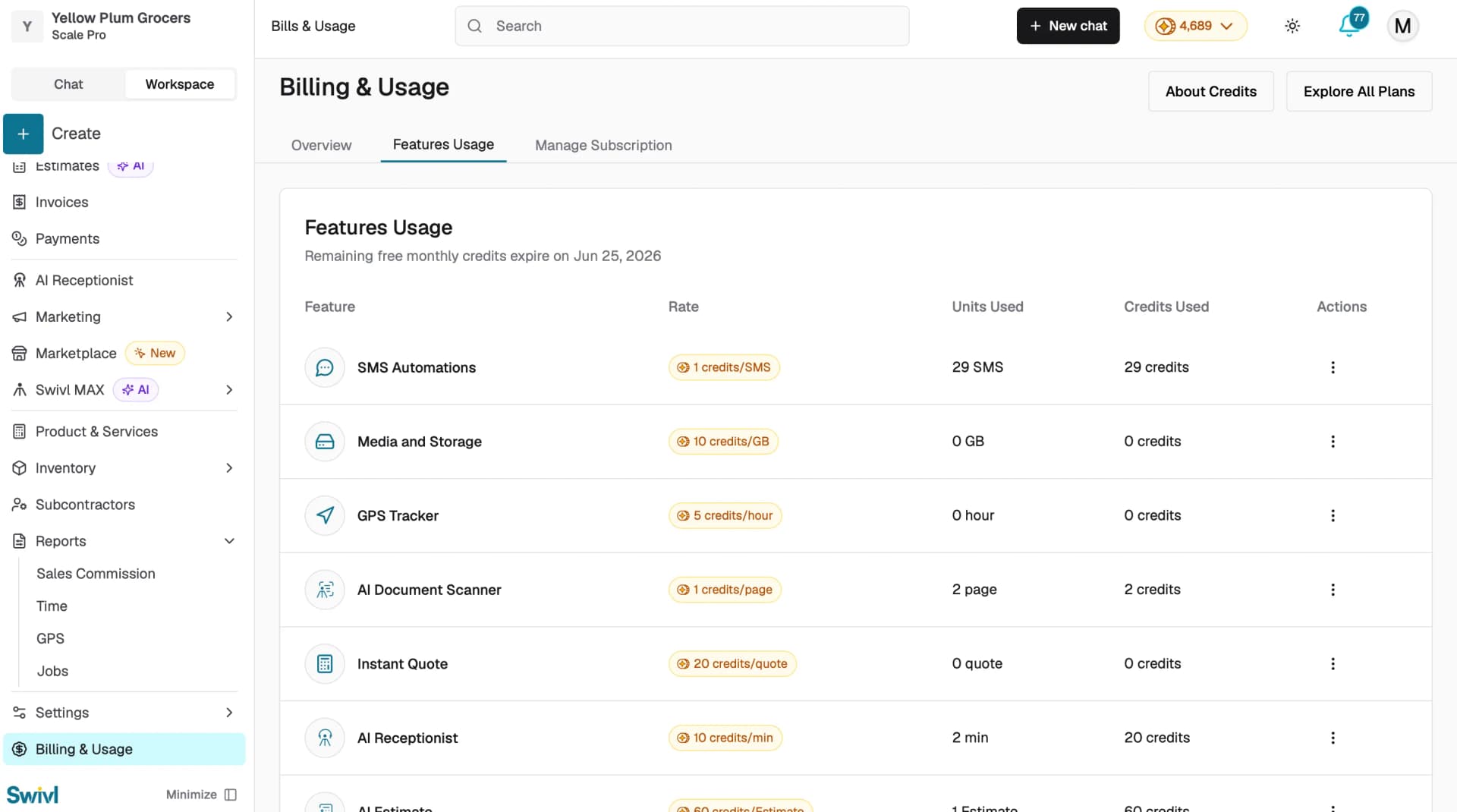
Note: GPS tracking must be enabled for your account. If the GPS tab shows a "Feature Disabled" message, go to Billing and Usage > Features Usage and enable GPS Tracking.
Navigating GPS reports
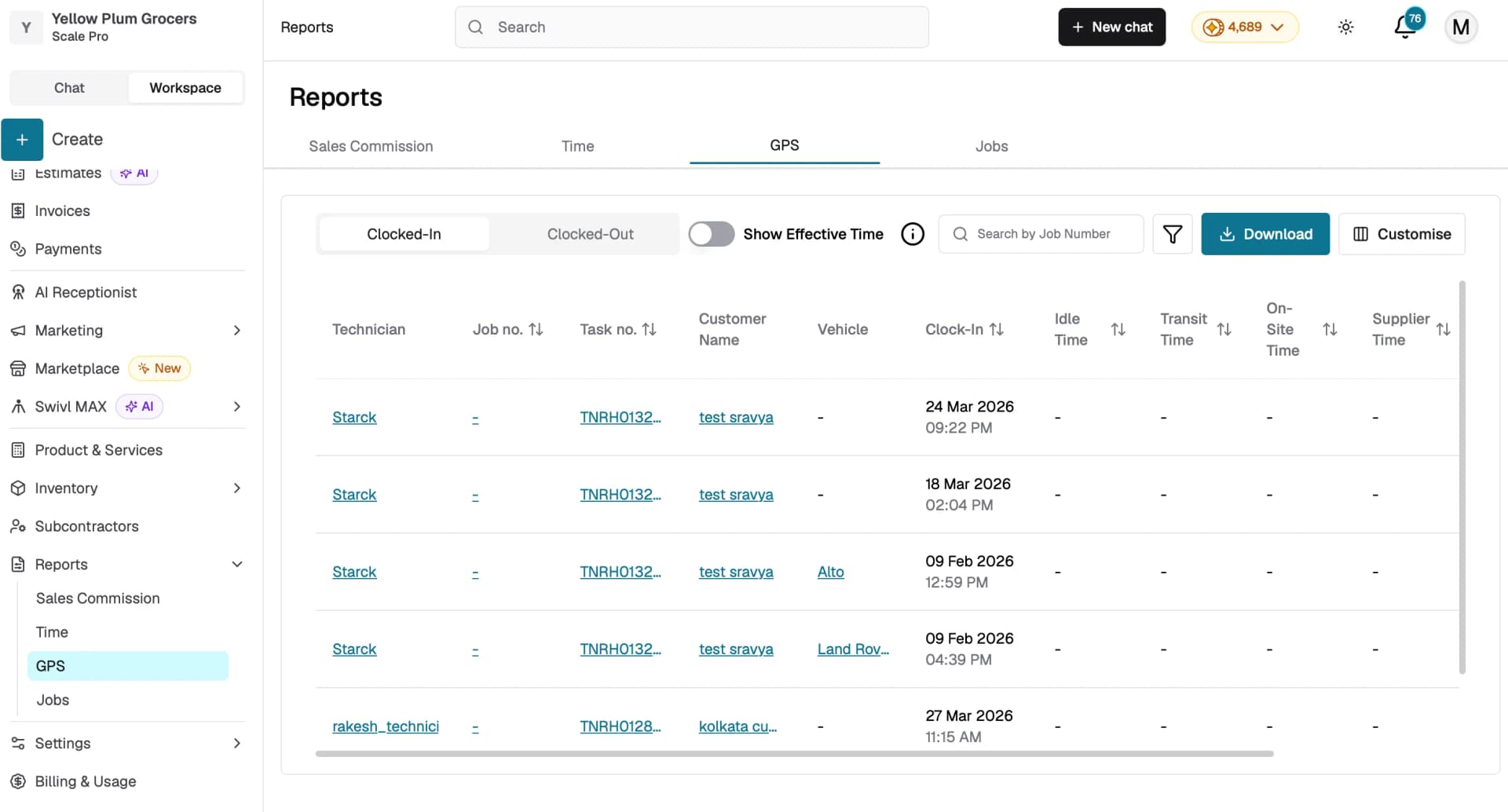
- Go to Reports in the main navigation.
- Select the GPS tab.
- Choose either the Clocked-In or Clocked-Out sub-tab.
Clocked-In tab
Shows technicians who are currently on the clock. Use this view to monitor active jobs in real time.
Columns include:
Field | Description |
|---|---|
Technician | The assigned team member |
Job No. / Task No. | Links to the associated job and task details |
Customer Name | Links to the customer profile |
Vehicle | The vehicle assigned to the technician |
Clock-In | Date and time the technician clocked in |
Idle Time | Time spent idle |
Transit Time | Time spent driving between locations |
On-Site Time | Time spent at the job site |
Supplier Time | Time spent at a supplier location |
Break Time | Time spent on breaks |
Clocked-Out tab
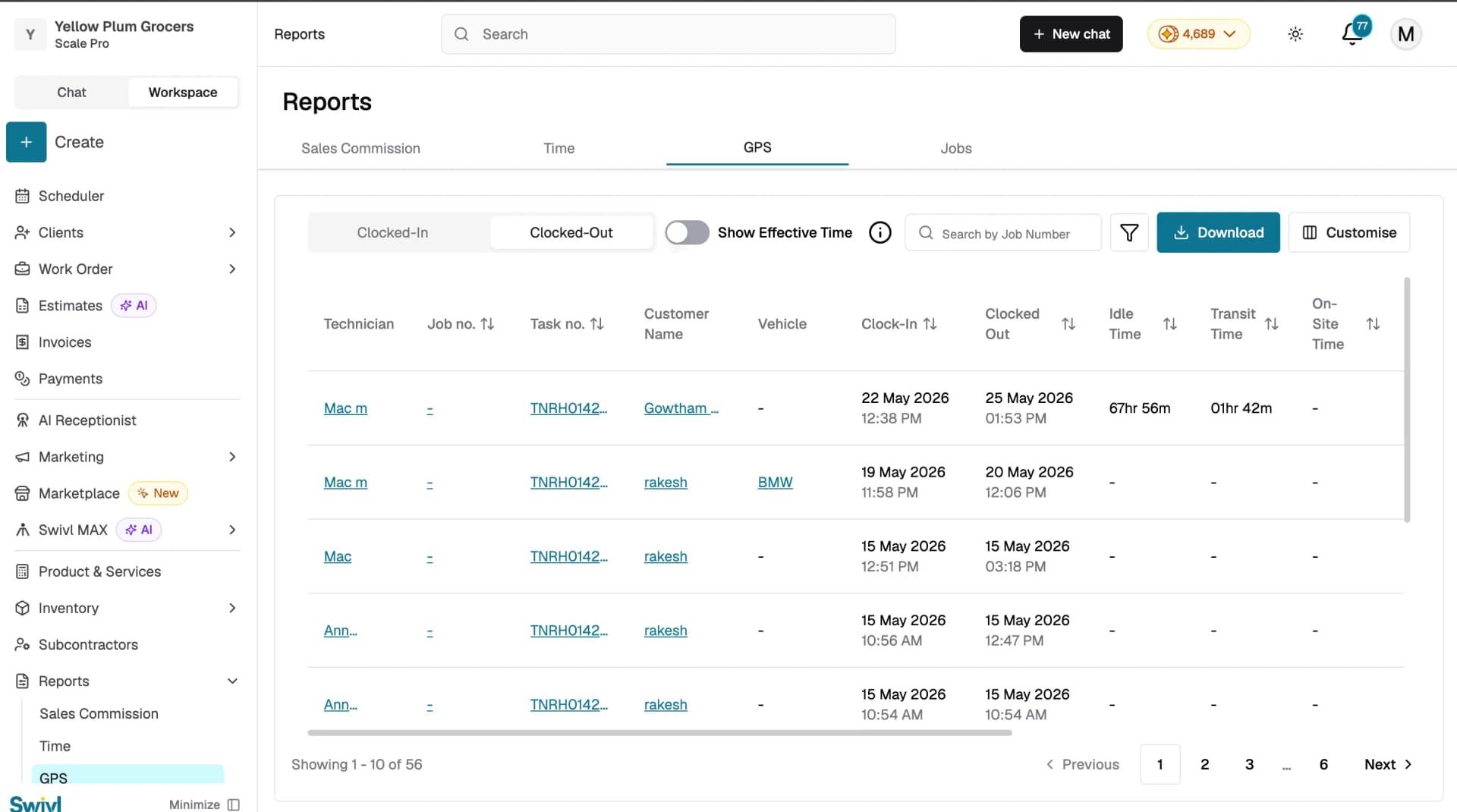
Shows completed GPS records. In addition to the columns above, this tab includes:
Column | Description |
|---|---|
Clocked Out | Date and time the technician clocked out |
Total Hours | Sum of all activity segments for the shift |
Total Distance | Total miles driven during the task |
Searching, filtering, and sorting
- Search by Job Number using the search bar.
- Filter by technician, task, or date range using the filter icon.
- Sort any column by clicking its sort icon.
- Toggle Show Effective Time to display paid hours alongside total hours for each time category.

GPS Tracking Rules
GPS Tracking Rules let you define which activity types count as paid time such as Idle, Drive, Supplier, or On-Site segments and set conditions for when they apply.
To set up rules:
- Go to Swivl MAX → AI Rules → GPS Tracking Rules.
- Click + Add Rule to create a new rule.
- Select the activity type, add a description, and set the conditions.
- Toggle the rule on to activate it.
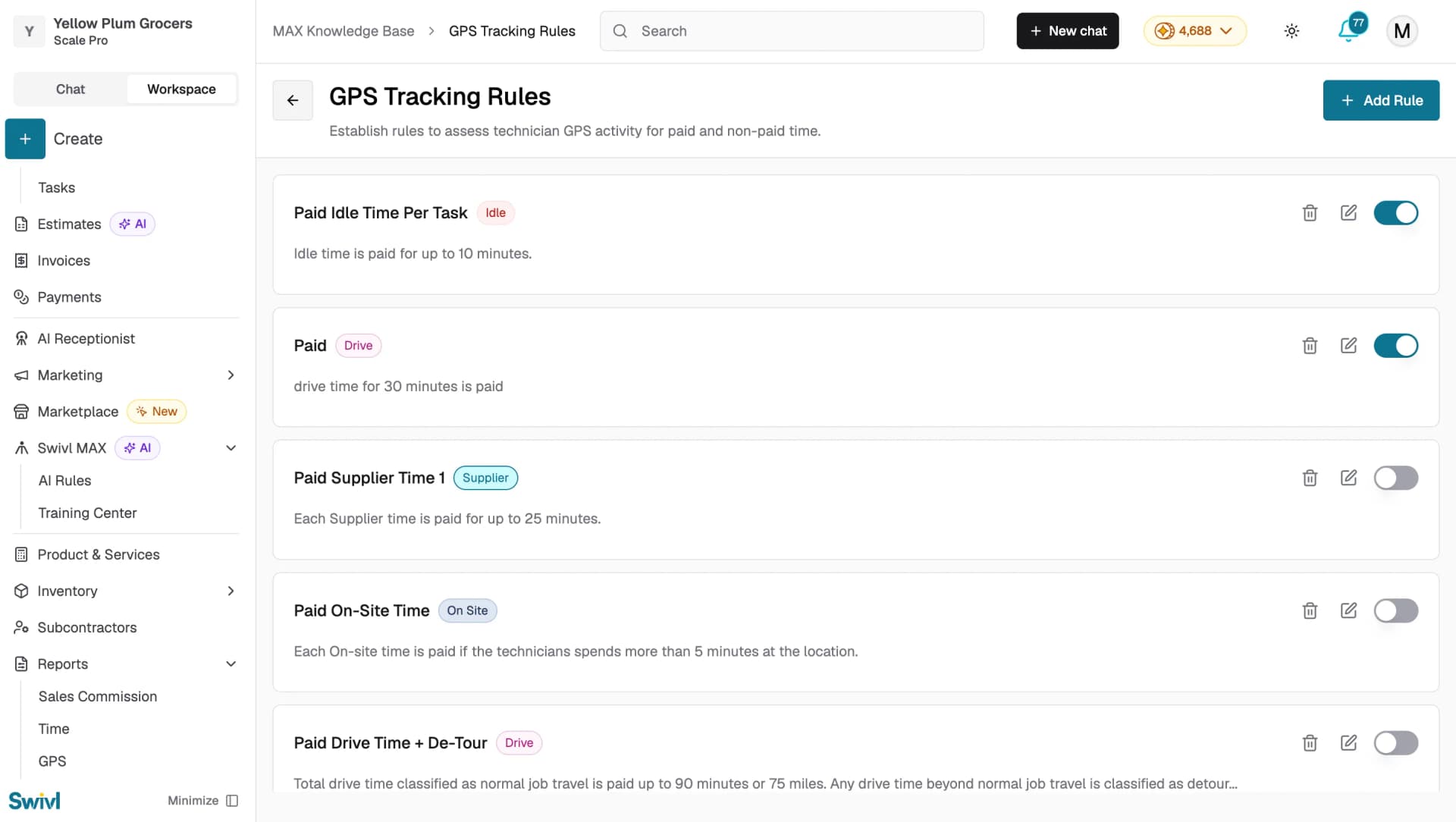
Rules are automatically applied to matching GPS activity records.
Viewing a GPS activity record
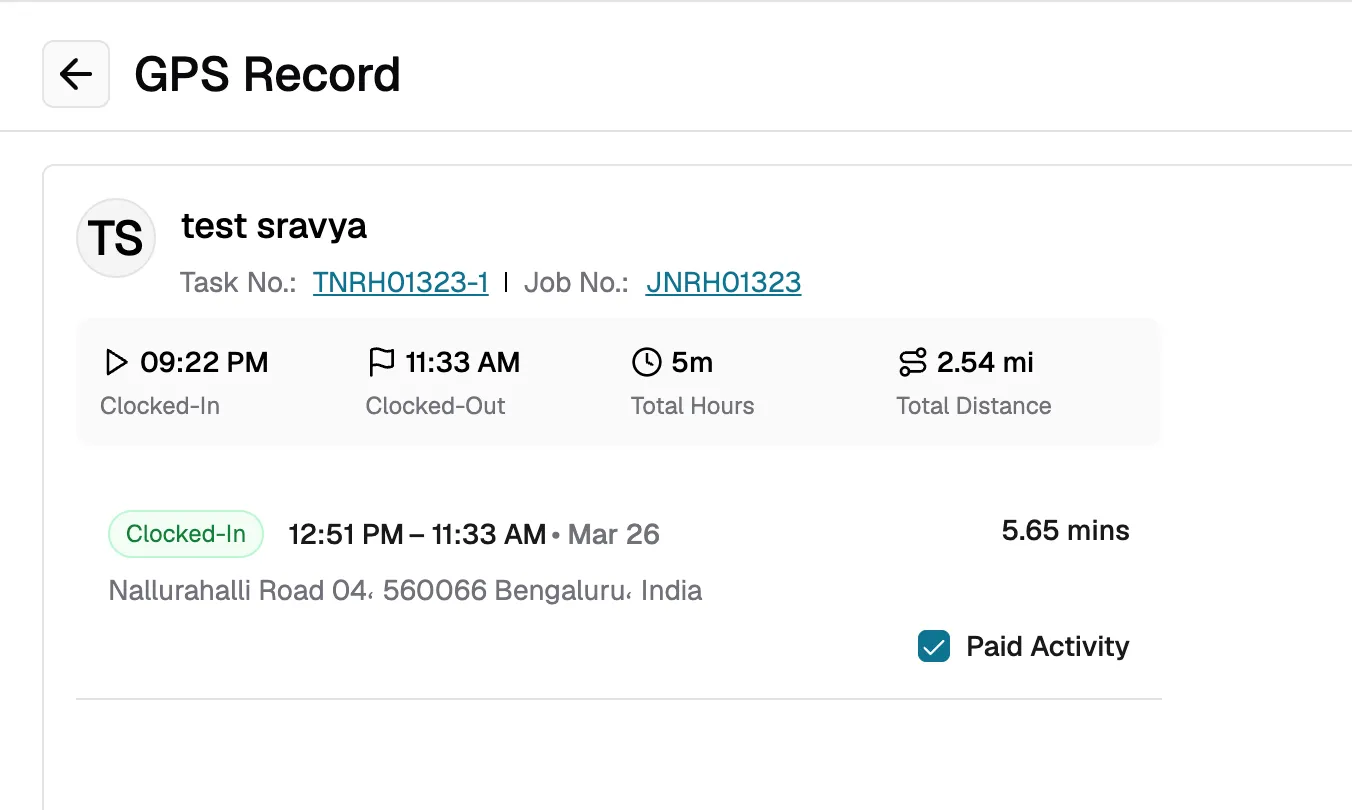
Click any row to open the full GPS activity detail view.
This shows:
- A summary bar with clock-in time, clock-out time, total hours, and total distance.
- A timeline of every activity segment: Idle, Drive, Break, On-Site, and Supplier, with start and end times, address, and duration.
- A Paid Activity checkbox for each segment to mark it as paid or unpaid (Clocked-Out records only).
- A map showing the technician's route between locations.
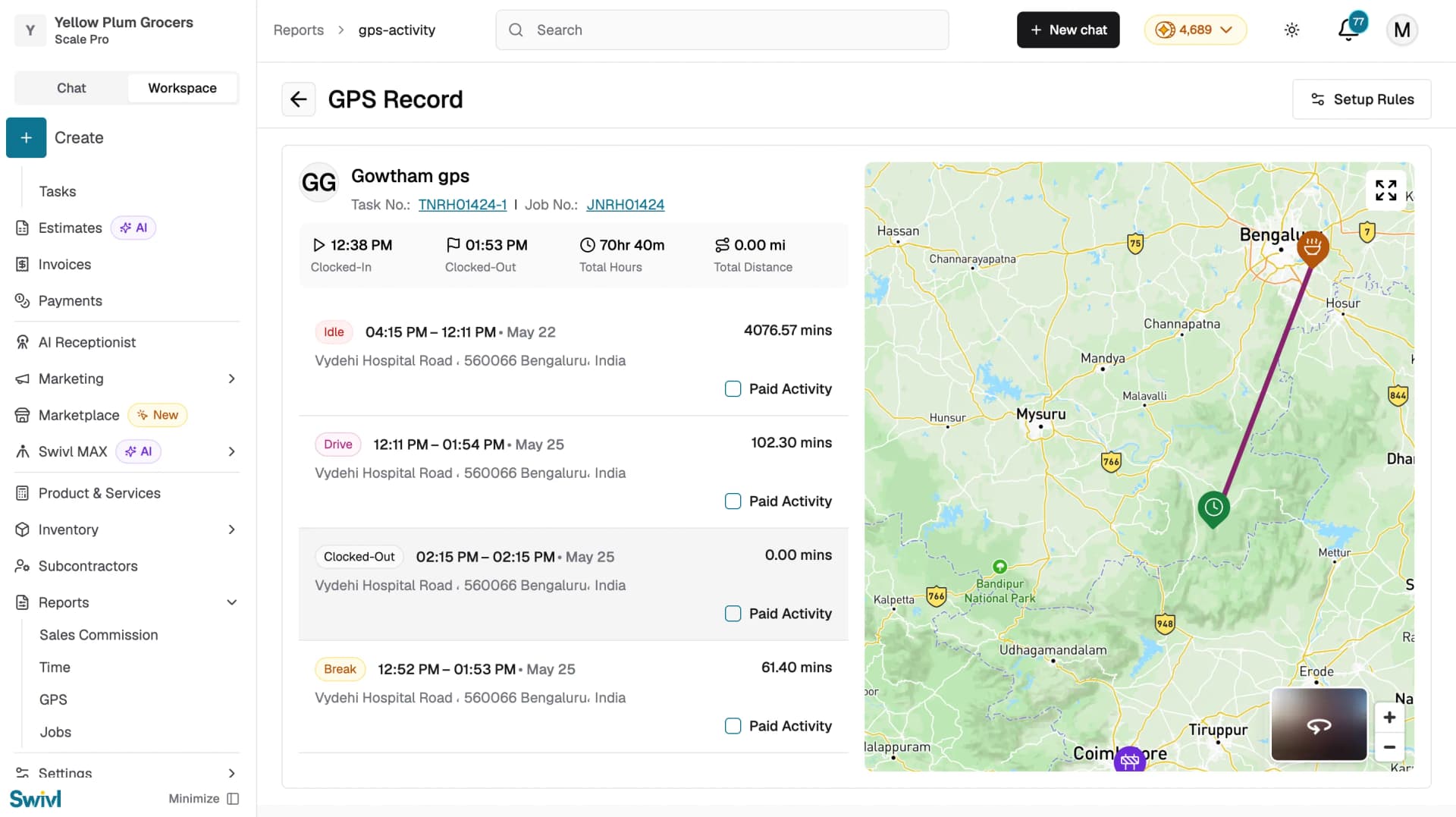
You can also click Setup Rules in the top right to configure automated GPS rules for your account.
Customizing columns
Click the Customize button to show or hide columns in the GPS table. Your preferences are saved per tab (Clocked-In vs. Clocked-Out).
Downloading GPS data
Click Download to export the current GPS report as an Excel file.
Tips
- Use the Clocked-In tab throughout the day to monitor which technicians are active and what they are doing right now.
- After a task is completed, review the Clocked-Out record to verify hours and mark activities as paid before running payroll.
- If a record shows applied rules, click the rule badge to understand what automated adjustments were made to the activity segments.
- Enable Show Effective Time to quickly compare total time against paid time across all records.