
Tags & Service Areas Overview
Tags & Service Areas lets you organise your business by labelling jobs and customers with tags, and defining the geographic zones where your team operates.
Overview
Go to Settings → Tags & Service Areas to manage your tags and service areas. Tags let you label and categorise jobs and customer accounts for easy filtering and reporting. Service Areas let you define the geographic zones where your team operates, displayed on an interactive map. Together, they help you stay organised, route work efficiently, and keep your operations running smoothly.
Who can access this
Role | Access |
|---|---|
Super Admin | Full access to create, edit, and manage tags and service areas |
Admin | Can apply existing tags to jobs and customers cannot create or manage tags or service areas |
Lead Technician | No access |
Technician | No access |
Getting there
Go to Settings → Tags & Service Areas.
The page opens with two tabs:
- Tags: displays a table of all tags with a count badge showing the total number
- Service Areas: displays a list and map of all defined service areas with its own count badge
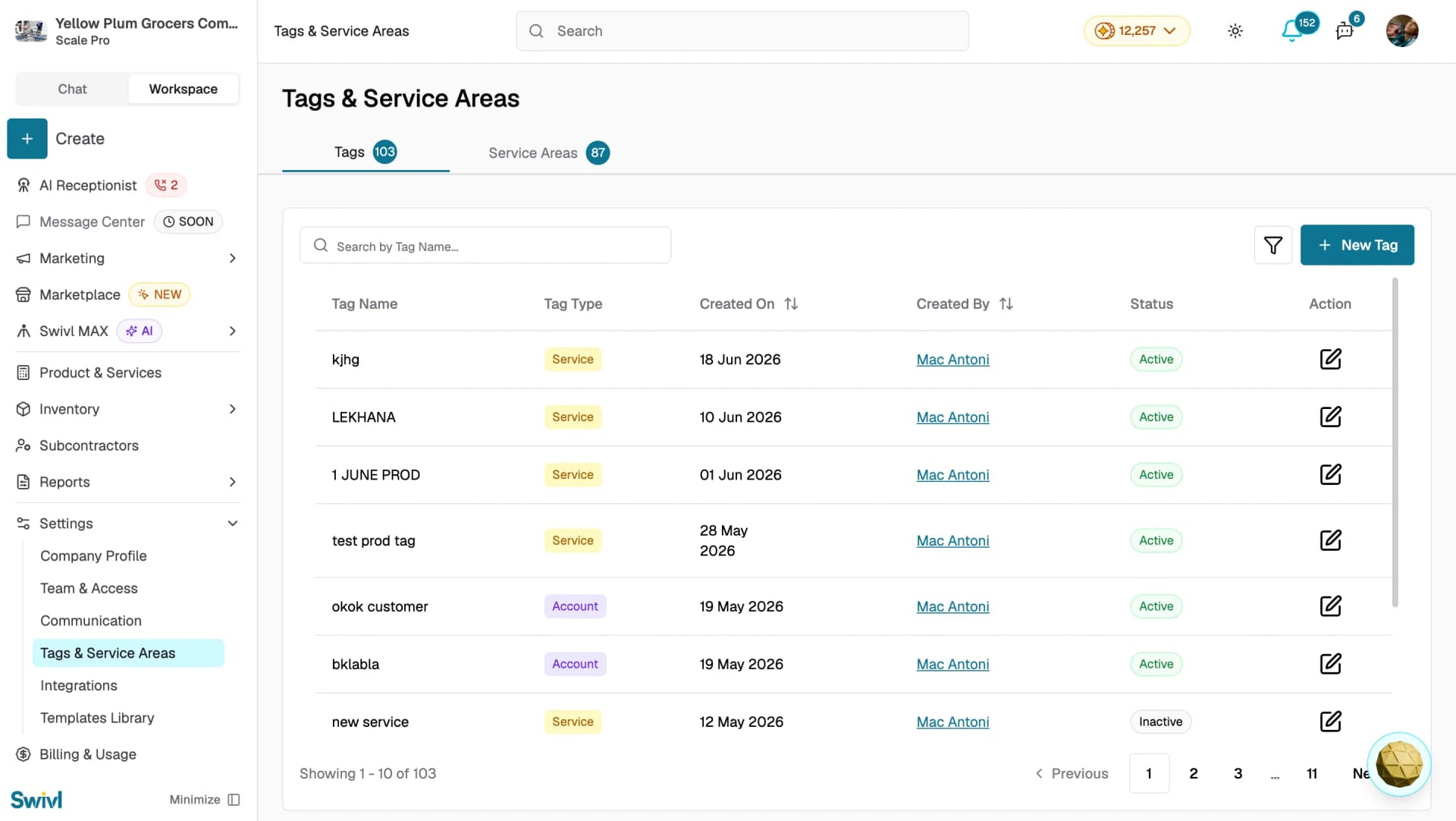
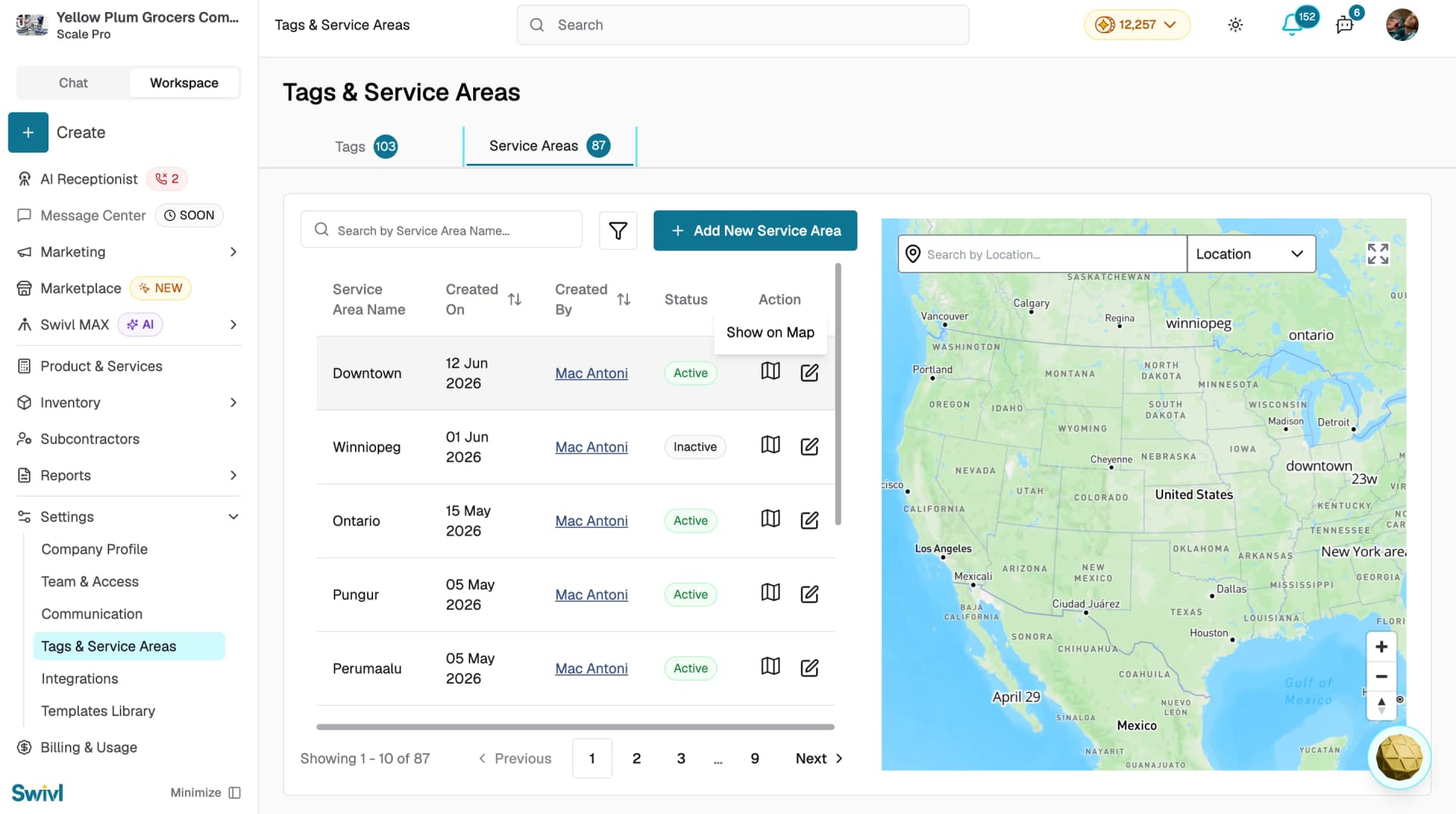
Click either tab to switch between the two views.
Tags at a glance
Tags are labels you attach to jobs or customer accounts. There are two types:
- Service: Applied to individual jobs to categorise the type of work
- Account: Applied to customer accounts to classify the type of customer or relationship
Each tag has a name, type, and status (Active or Inactive). You can search, filter, and sort your tags from the Tags tab.
Service Areas at a glance
Service Areas are geographic zones drawn on an interactive map. Each zone can be one of two shapes:
- Circle: A round area defined by a centre point and a radius
- Free Shape: A custom polygon drawn point by point on the map
The Service Areas tab shows a split view a searchable list on the left and a map on the right. Click the map icon next to any zone to locate it on the map.
Editing a tag
Click the edit icon next to any tag to open the Edit Tag panel. You can update the Name, Type (Service or Account), and toggle the Active status. Click Save Tag to apply your changes.

Editing a service area
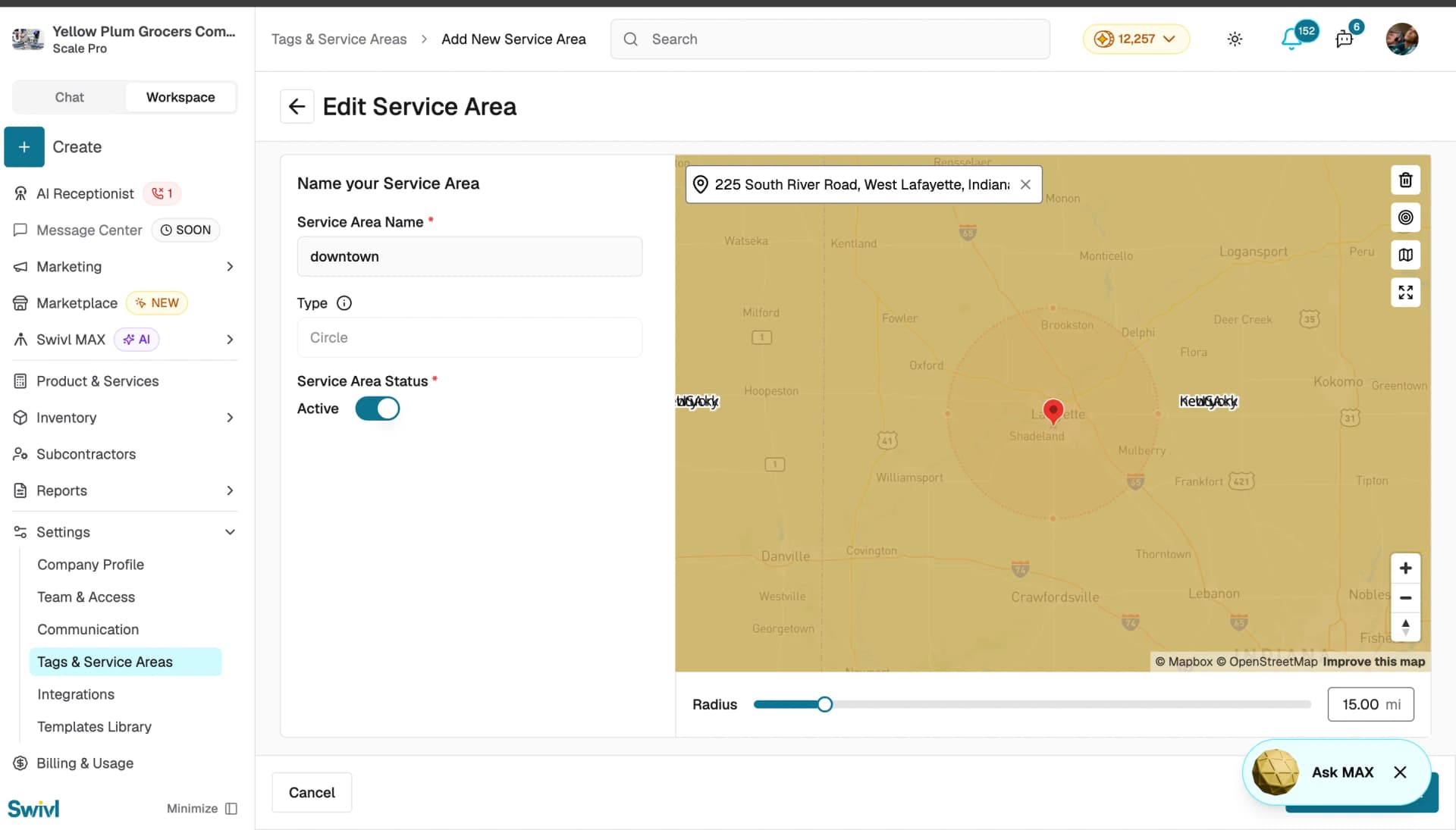
Click the edit icon next to any service area to open the Edit Service Area page. You can update the Service Area Name, adjust the Radius using the slider, and toggle the Service Area Status. Use the location search on the map to reposition the area. Click Save to apply your changes.
Tips
- Use a consistent naming convention for tags so your team can find and apply them quickly for example, "Plumbing Repair" or "HVAC Install".
- Start with a few broad service areas and add more specific ones as your business grows.
- Inactive tags and service areas remain in the system for historical records but will not appear in selection dropdowns.