
Creating an Estimate with AI Estimator
Generate accurate, itemized cost estimates in seconds by describing your project to Max, Swivl's AI assistant. Max asks clarifying questions and produces a detailed breakdown you can review, adjust, and convert into a formal estimate.
Overview
Generating an estimate with AI Estimator, powered by Swivl MAX, is as simple as describing a project in a chat conversation with Max, Swivl's AI assistant. Max asks clarifying questions, then produces an itemized cost breakdown you can review, adjust, and convert into a formal estimate.
Who can access this
- Super Admin: full access.
- Admin: full access.
- Lead Technician / Technician: no access.
How to Access AI Estimator
You can access the AI Estimator in two ways:
Navigate to the left navigation bar.
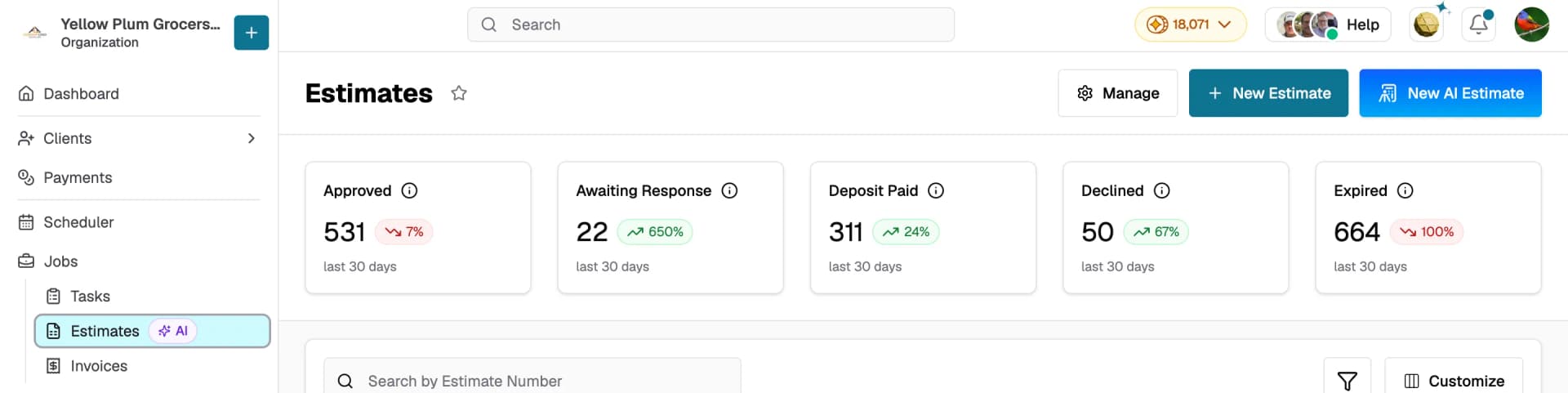
Click Estimates (listed under Jobs) to open the Estimates dashboard.
- Click New AI Estimate in the top right.
- Click + New Estimate and select Create Estimate Using AI Max.
Both options open a chat with Max, Swivl's AI assistant, to draft the estimate in seconds.
Note: To build an estimate manually step by step, click + New Estimate and select Create Manually. For more information, see Create and Manage Estimates
Step-by-Step: Generating an Estimate
1. Describe the project
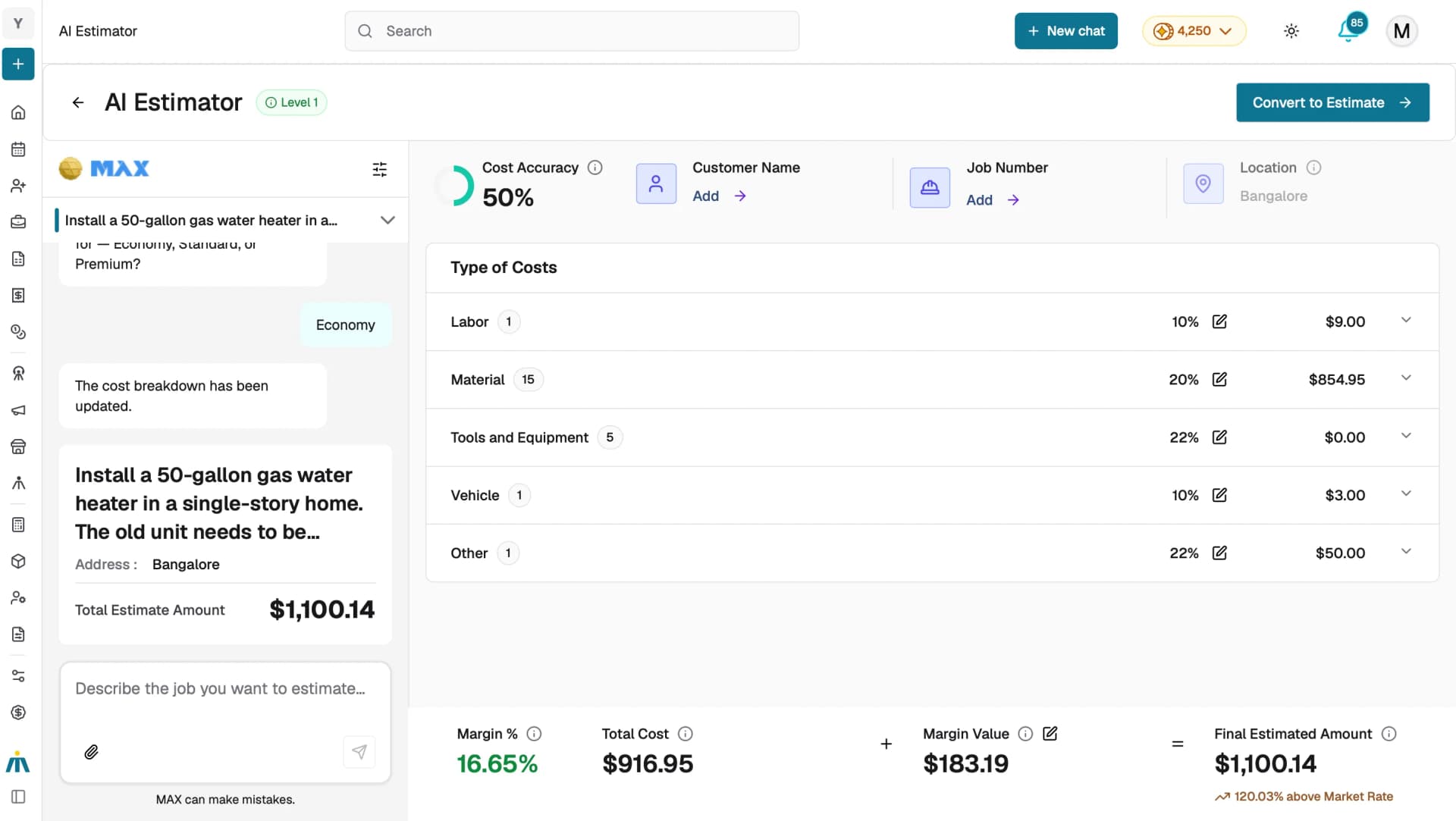
In the chat panel, type a description of the job in the "Describe the job you want to estimate" field. Be as specific as possible , include the type of work, scope, materials needed, and any special requirements.
For example: "Install a 50-gallon gas water heater in a single-story home. The old unit needs to be removed and hauled away. The water heater is in the garage."
You can also attach supporting photos using the paperclip icon:
- Photos help Max identify the scope of work, existing conditions, and required materials.
- Supported formats: JPEG, PNG, WebP, HEIC, and PDF (up to 10 MB per file).
2. Answer Max's Questions
Max will ask follow-up questions to refine the estimate such as your preferred quality level (Economy, Standard, or Premium).
Your answer adjusts material grades and labor estimates accordingly for example, choosing Premium will favor higher-grade materials and longer warranty coverage, while choosing Economy will keep costs lower.
Each answer updates the cost breakdown in real time.
3. Add Customer and Job Details (Recommended)
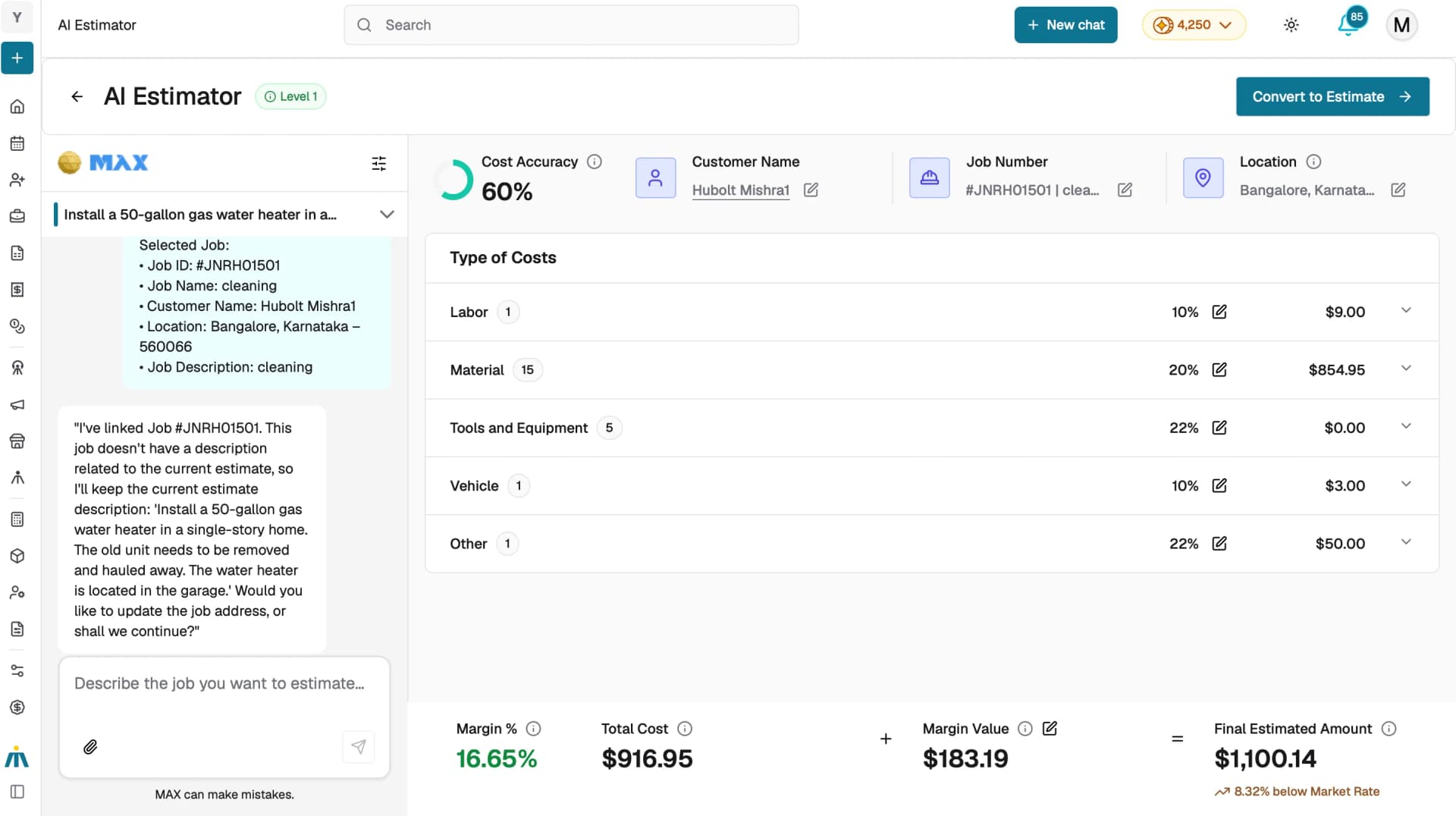
Use the Customer Name and Job Number fields at the top of the cost panel to link the estimate to a customer and job. The Location is auto-filled based on the selected customer or job.
4. Review the generated breakdown
Once Max has enough information, the right panel shows an itemized breakdown across five categories:
- Labor
- Material
- Tools and Equipment
- Vehicle
- Other
At the bottom you can see the Margin %, Total Cost, Margin Value, and Final Estimated Amount. A Market Rate indicator shows how your estimate compares to similar jobs.
5. Set budget and quality preferences
When you are satisfied with the breakdown and the Cost Accuracy score, click Convert to Estimate in the top right to turn it into a formal estimate.
Tips
- The more detail you provide up front, the fewer follow-up questions Max needs to ask and the faster you get a breakdown.
- Upload photos before typing your description, Max can analyze the images and factor them into its questions.
- Watch the Cost Accuracy percentage at the top, aim for at least 70% before converting to a formal estimate.
- Use the Market Rate indicator to see how your estimate compares to similar jobs in your area.