
Linking materials to suppliers
Linking a material to a supplier records where you purchase that item. Once linked, the material appears on the supplier's profile and cost data is associated with that vendor for reporting.
Overview
Every material in Swivl can be linked to a supplier so you always know where to reorder it. This article shows you how to set or update a supplier directly from a material record.
Who can access this
- Super Admin: can link materials to suppliers.
- Admin: can link materials to suppliers.
How to link a material to a supplier
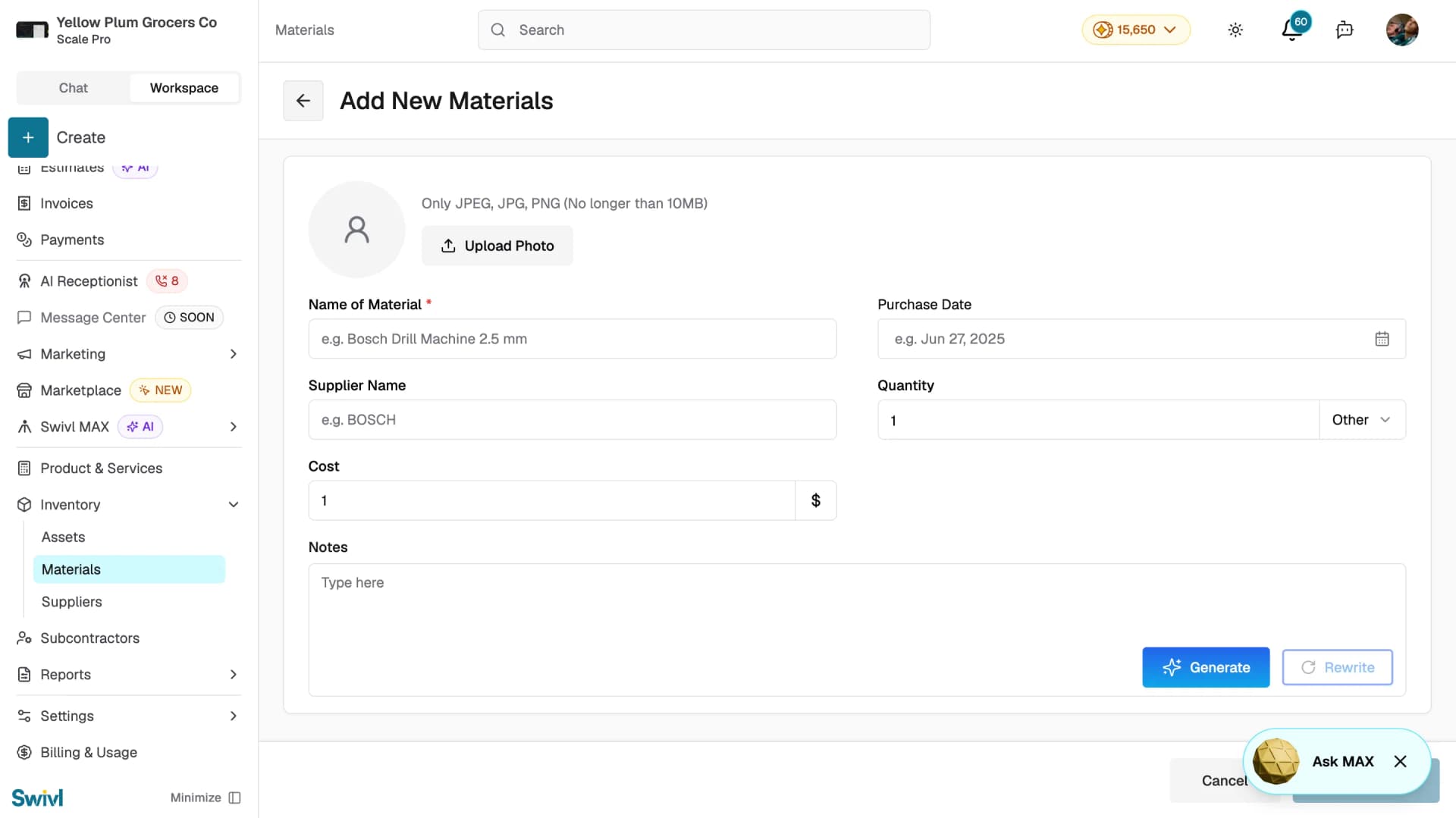
When creating a new material
- Navigate to Inventory > Materials.
- Click + Add New Materials.
- In the Supplier Name field, type the name of the supplier.
- If a matching supplier account exists, Swivl will associate the material with that account.
- Complete the rest of the form and click Save Details.
When editing an existing material
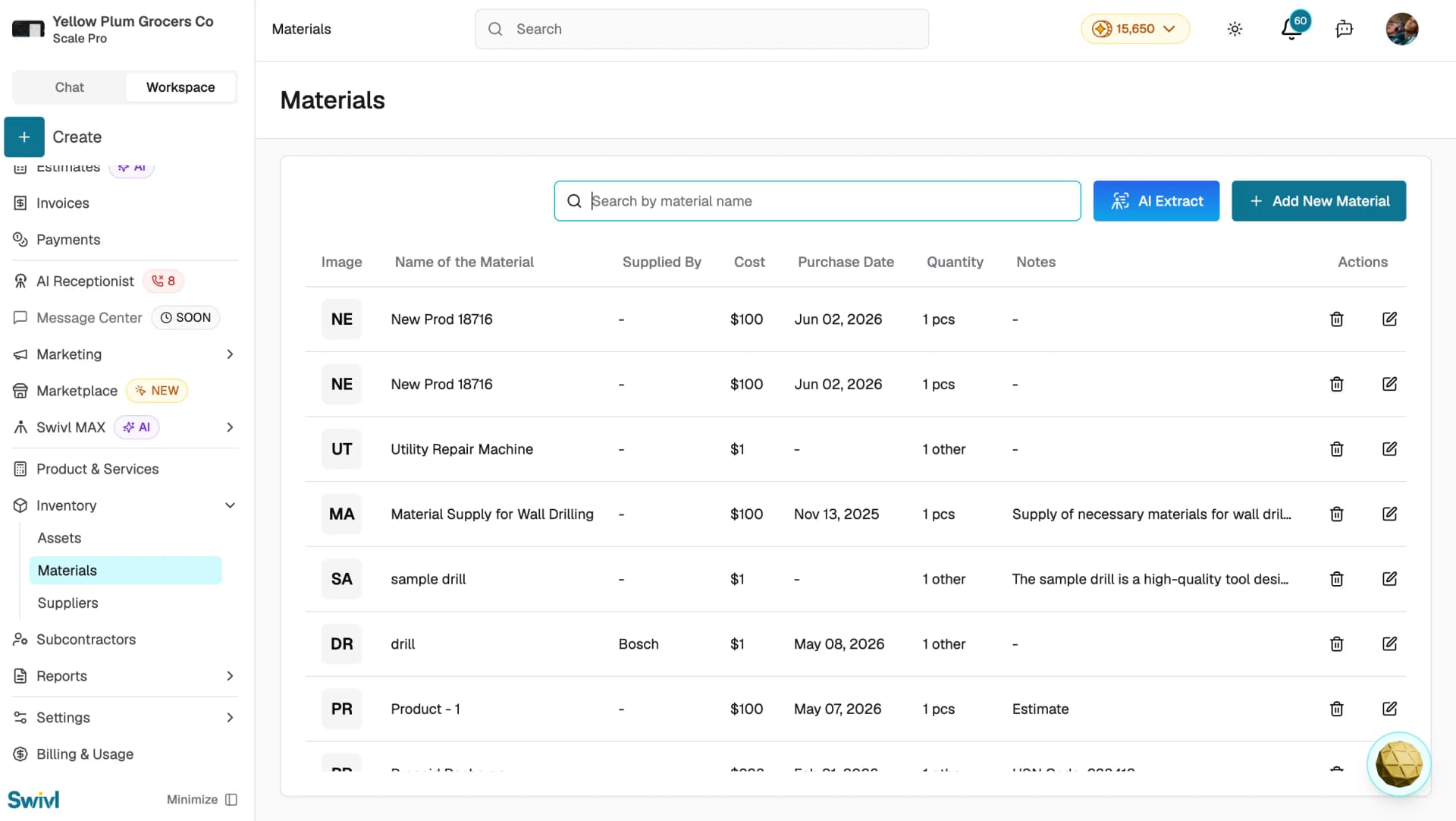
- Navigate to Inventory > Materials.
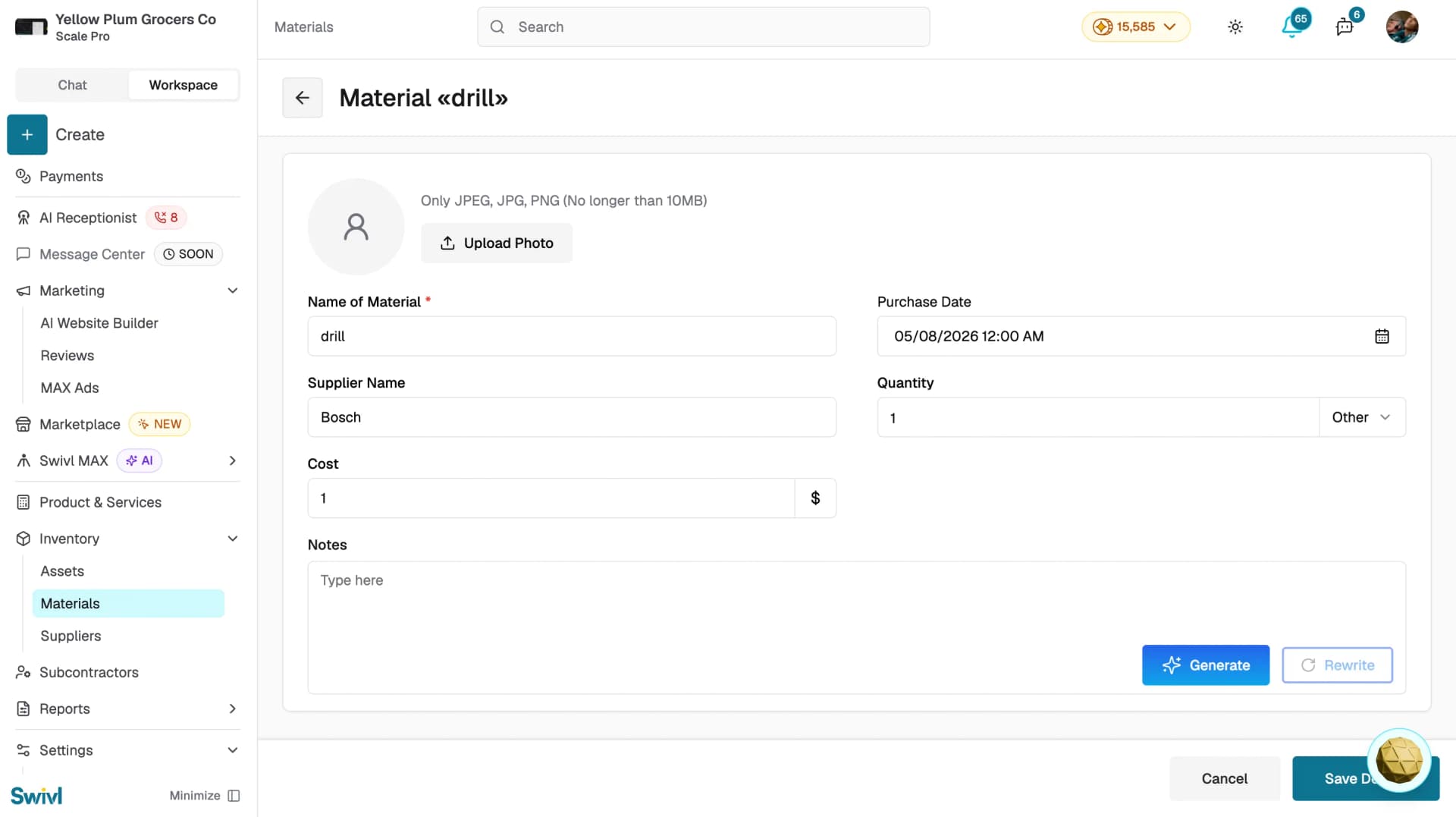
- Click the edit icon on the material row you want to update.
- In the Supplier Name field, update or add the supplier name.
- Click Save Details.
How the link works
The supplier-material connection is based on the Supplier Name field on the material record. When this field matches an existing supplier account name, Swivl treats them as linked. This means:
- The material appears in the supplier's profile.
- You can identify all materials from a given vendor by viewing the supplier profile.
- Cost data on the material is associated with the vendor for reporting purposes.
Changing a material's supplier
Edit the material and update the Supplier Name field to the new vendor's name. The old link is replaced automatically.
This article vs Linking suppliers to materials
This article | Linking suppliers to materials | |
|---|---|---|
Starting Point | A material record | A supplier profile |
What you do | Edit the Supplier Name field on the material | Review materials already linked to the supplier |
Best for | Updating one material at a time | Seeing everything you buy from one vendor |
Tips
- Make sure the Supplier Name on the material exactly matches the supplier account name in Inventory → Suppliers even small differences like extra spaces will prevent the link from being recognised.
- If you do not yet have a supplier account for a vendor, create one from Inventory → Suppliers and then return to update the material.
- Once materials are linked to a supplier, you can view the supplier's profile to see all associated materials and place a consolidated order.