
Leads overview
Track every potential customer enquiry in one place whether it arrives through your website, AI Receptionist, MAX Ads, or is entered manually by your team.
Overview
Leads is your central hub for tracking every potential customer enquiry that comes into your business. Whether a lead arrives through your website, AI Receptionist, MAX Ads, or is entered manually by your team, you can manage it all from one place.
Who can access this
- Super Admin: full access to view, create, edit, and delete leads.
- Admin: full access to view, create, edit, and delete leads.
- Lead Technician: no access to the Leads module.
- Technician: no access to the Leads module.
Getting to the Leads page
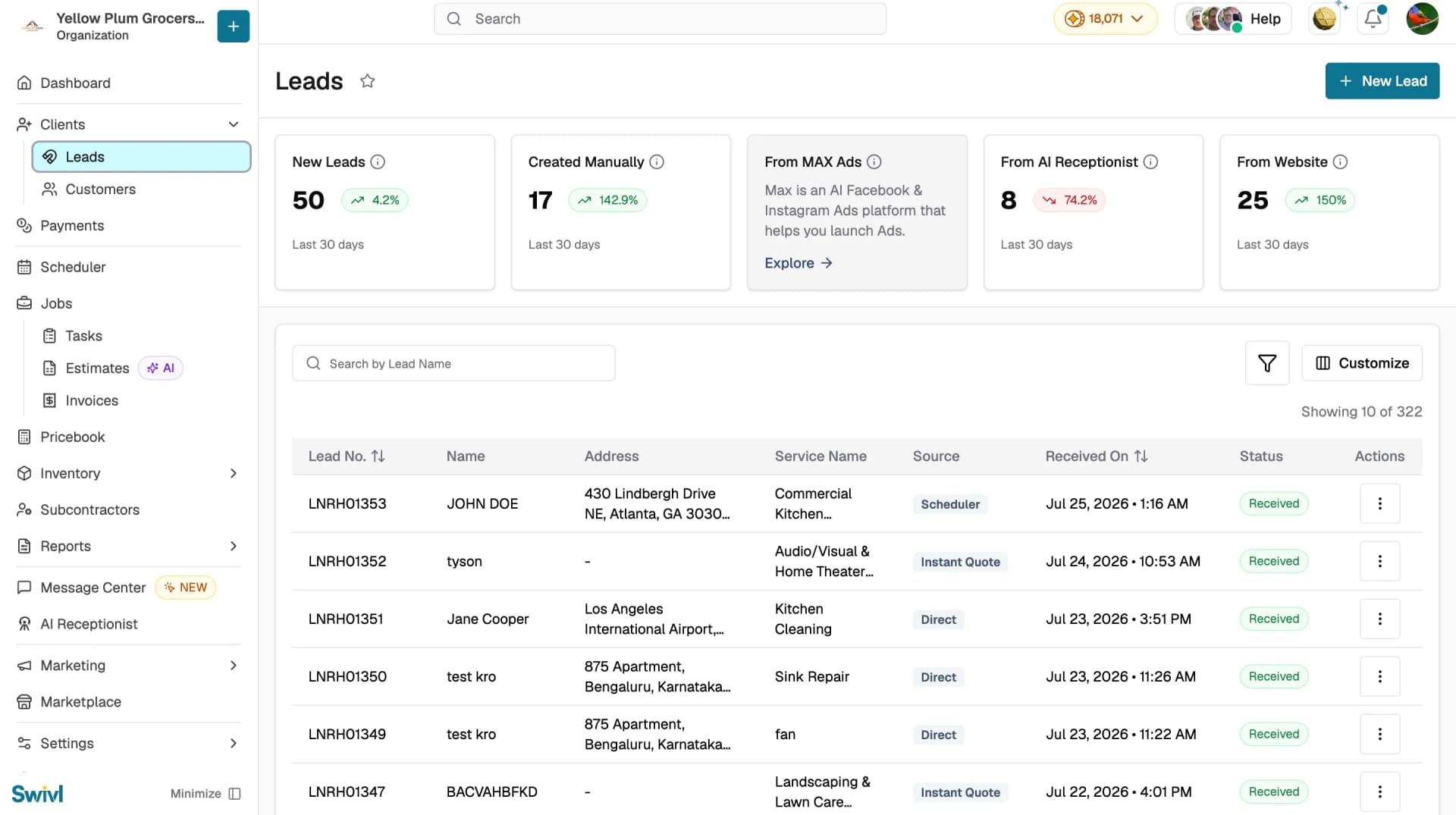
Navigate to Clients → Leads from the left sidebar. You will land on the leads list view, which shows all of your leads in a table.What you'll see
Header and New Lead button
At the top of the page you will find the Leads heading and a New Lead button. Click this button to capture a new lead at any time.
Summary stat cards
Below the header, a row of stat cards gives you a quick snapshot of your lead pipeline over the last 30 days:
- New Leads: total number of leads added, with a percentage trend indicator
- Created Manually: leads your team entered by hand
- From MAX Ads: leads generated through MAX Ads campaigns. If you have not set up MAX Ads yet, an Explore prompt will appear instead
- From AI Receptionist: leads captured automatically when the AI Receptionist handles a call. If you have not enabled AI Receptionist, an Explore prompt will appear instead
- From Website: leads that came in through your website
Each card shows a trend indicator with a percentage so you can quickly spot whether lead volume is growing or declining.
Leads table
The main table displays your leads with these default columns:
Column | Description |
|---|---|
Lead No. | Auto-generated lead number (sortable) |
Name | The lead's name |
Address | Service address provided by the lead |
Service Name | The type of service requested |
Source | Where the lead came from (Direct, Website, AI Receptionist) |
Received On | Date and time the lead was received (sortable) |
Status | Current status: Received, Addressed, Closed, or Inactive |
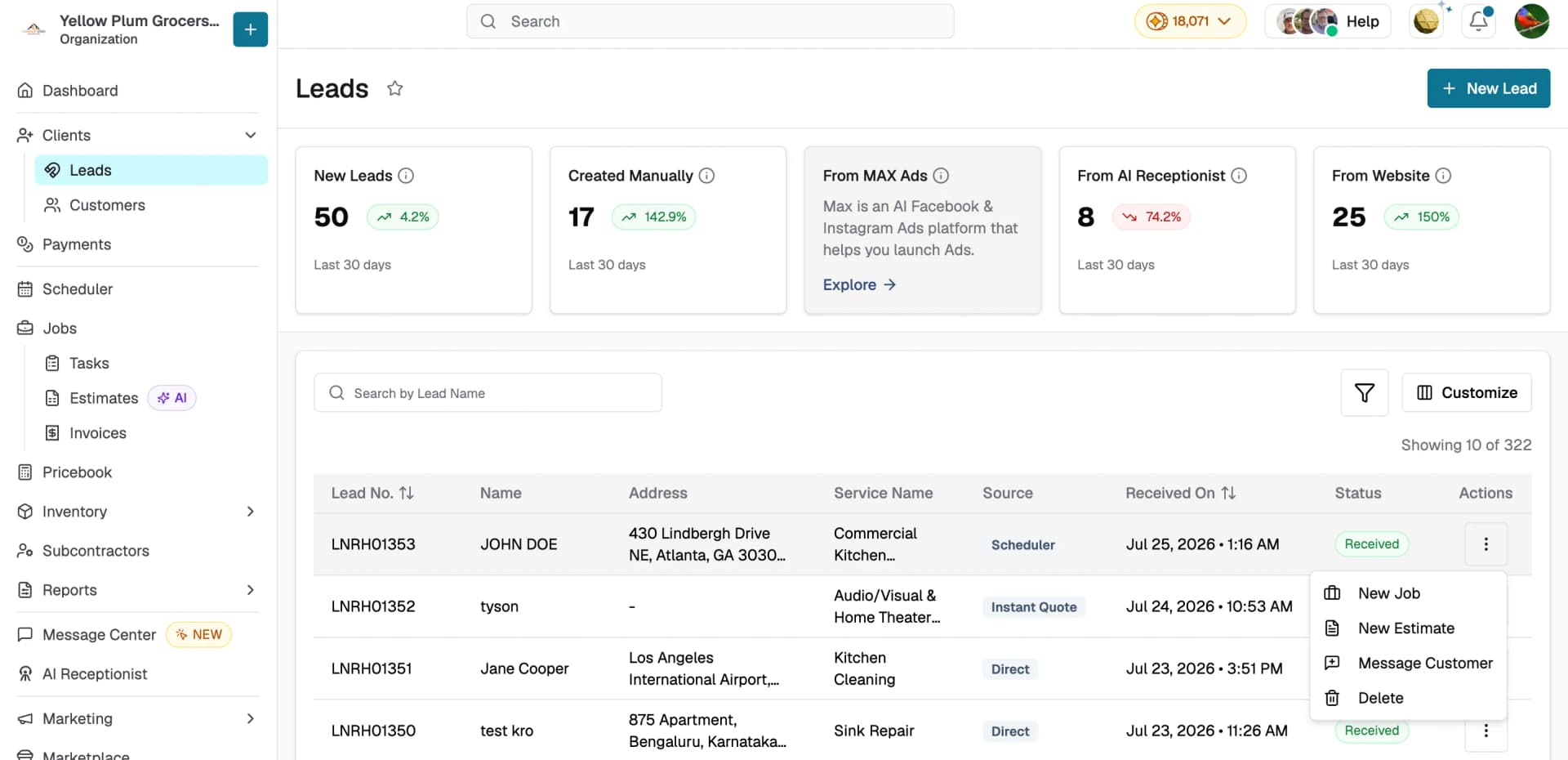
Actions | Three-dot menu with options such as New Job, New Estimate, and Delete |
You can click any row to open the full lead details.
Search, filter, and sort
Use the search bar to find leads by name. Use the Filter panel to narrow results by name, address, service name, source, status, or date range. You can also sort the table by Lead No. or Received On.
Customize columns
Click the Customize button to show or hide optional columns and tailor the table to your workflow.
Actions menu
Each lead row has a three-dot Actions menu with following actions:
- New Job: available unless the lead status is Closed.
- New Estimate: available only when the lead status is Received (hidden for Addressed or Closed leads).
- Message Customer: Send a message to the lead's contact.
- Delete: always shown but disabled for inactive leads.
Tips
- Check the stat cards each morning to see how many new leads arrived overnight and which channels are performing best
- Filter by Status → Received to focus on leads that still need attention
- Sort by Received On (newest first) to prioritise the most recent enquiries
- Convert leads directly into jobs or estimates from the Actions menu without re-entering any details